Here’s a recording of a session I did for the Manchester (UK) Power BI user group recently on best practices for DirectQuery mode in Power BI:
I’ve done it for a few other groups over the last six months but this is the latest and best version, I think.
I’ve worked with several customers using DirectQuery mode since I joined the CAT team and learned a lot along the way. Some of this knowledge has been written up by me (eg this post on Snowflake DirectQuery mode best practices), some of it by the people who work with the data sources Power BI runs on top of (see posts by Dany Hoter on the Azure Data Explorer blog, for example; there’s also going to be a lot of new material on DirectQuery for Databricks coming soon, with this post as a start). There’s a lot of detailed information in the docs too, for example here, here and here.
But remember folks: the most important piece of advice around DirectQuery is to not use it unless you’re really, really, really sure you have no other option. It’s possible to make it work well but it takes a lot more tuning and specialist skill than Import mode!
When you add a field to the filter pane in a Power BI report and select the “Basic filtering” filter type, in most cases you’ll see some numbers next to the field values:
These numbers are counts of the number of rows for each value in the table that the field is from. The query to get these counts is usually quite fast and inexpensive, but if you’re filtering on a field from a very large table (for example a fact table) and/or using DirectQuery mode that might not be true. For example, the screenshot above is taken from a DirectQuery dataset and here’s the SQL query that generates the counts shown:
Luckily there’s a way to disable these queries and stop the counts being displayed: set the Discourage Implicit Measures property to true on your dataset. The main purpose of this property is to stop the automatic creation of implicit measures when building Power BI reports; this makes sense when you’re using calculation groups, for example, and when you add a calculation group to your dataset then this property is set to true for you. You can also set Discourage Implicit Measures to true manually by connecting to the dataset using Tabular Editor:
Here’s what the filter pane looks like with Discourage Implicit Measures set to true:
Just to be safe, I think it makes sense to set Discourage Implicit Measures to true for all DirectQuery datasets to reduce the overall number of queries run against your data source and reduce the risk of a really expensive query being run. I don’t think seeing the counts adds much value for end users anyway.
[Thanks to Ed Hansberry for pointing out this behaviour and John Vulner for explaining it]
Recently we announced an important new optimisation for DirectQuery datasets: the ability to run (some) of the queries generated by a single DAX query in parallel. You can read the blog post here:
A few of us on the Power BI CAT team have tested this out with customers and seen some great results, so I thought I’d write a post illustrating the effect this optimisation can have and explaining when it can and can’t help.
For the purposes of this blog post I built a DirectQuery dataset (the source and the design of the dataset are irrelevant) using the New York Taxi data. I then created a table with five measures on columns; the precise definitions of the measures don’t matter much either, except for the fact that they each generate a single Storage Engine request and horizontal fusion cannot combine these requests in any way.
Next, I published the dataset to the Power BI Service, connected to it from Tabular Editor, set the compatibility level property to 1569 and saved the change:
Having done this the Max Parallelism Per Query property became visible, and I set it to 1:
1 is not the default value for this property but it does give the same behaviour as the default at the time of writing – it ensures that the Storage Engine requests for a single DAX query are always executed one at a time.
Next I connected DAX Studio up to the XMLA Endpoint for the workspace and ran the DAX query generated by the table visual above with Server Timings enabled. The new timeline view in DAX Studio 3.0.6 (see Marco’s video for more details) does a great job of showing when the Storage Engine queries – in this case the SQL queries sent to the data source – are made:
As you can see, in this case it’s clear that the six Storage Engine queries/SQL queries generated by this one DAX query are all executed in sequence. Also notice that the duration of the DAX query was 3 seconds.
I then changed the Max Parallelism Per Query property to 6 and reran the same query from DAX Studio. Here’s what the timeline looked like:
The Storage Engine queries/SQL queries now all run in parallel and the overall duration of the DAX query is just 0.9 seconds!
This is great, but as always there are a few things that need to be highlighted. First, Power BI may not be able to run all the Storage Engine queries in parallel if there are certain types of dependency in your DAX. In the example above there were no dependencies between the measures – none of them referenced any other measures, and they all used fairly simple expressions – but in the real world that might not be the case. To illustrate this I created a new measure with the following definition:
I then used it in a new table visual and captured the DAX query generated:
Here’s what the DAX Studio Server Timings showed for this query with Max Parallelism Per Query set to 6:
This time there is some parallelism but the first Storage Engine query/SQL query has to complete before the last two can be executed. I wrote this measure specifically to get this behaviour so you may be able to rewrite your DAX to get better parallelism, but it’s something to be aware of.
One last thing to mention: increasing parallelism here may lead to worse query performance overall if you end up running into bottlenecks elsewhere in your architecture (see here for an example). You may need to increase the “maximum number of connections per data source” property on your dataset to allow more queries to run in parallel, and if that results in additional load on the data source then you may need to scale up or scale out there too. Remember also that the DAX queries for a report page are, and always have been run in parallel so the Storage Engine queries for different DAX queries will also be run in parallel; you’ll need to watch out for report pages with a large number of visuals on them.
Some good news for those of you using DirectQuery mode in Power BI: the ApproximateDistinctCount DAX function, which returns an estimate of the number of the distinct values in a column and which can be a lot faster than a true distinct count as returned by the DistinctCount function, is now available to use with BigQuery, Databricks and Snowflake sources. It only worked with Azure SQL DB and Synapse before; RedShift is coming soon. You can use it in exactly the same way that you would with the DistinctCount function except that it only works in DirectQuery mode.
For example, I have a Power BI DirectQuery dataset that uses the New York Taxi data in Snowflake as its source. With the following two DAX measures defined on the Trip table:
…I can build a table visual that compares the output of the two measures (as you can see, the difference isn’t that big):
…and see that the ApproximateDistinctCount DAX function is translated to the APPROX_COUNT_DISTINCT function in Snowflake SQL:
select { fn convert(count(distinct("MEDALLIONID")), SQL_DOUBLE) } + { fn convert(max("C1"), SQL_DOUBLE) } as "C1",
    approx_count_distinct("MEDALLIONID") as "C2"
from
(
    select "DATEID",
        "MEDALLIONID",
        "HACKNEYLICENSEID",
        "PICKUPTIMEID",
        "DROPOFFTIMEID",
        "PICKUPGEOGRAPHYID",
        "DROPOFFGEOGRAPHYID",
        "PICKUPLATITUDE",
        "PICKUPLONGITUDE",
        "PICKUPLATLONG",
        "DROPOFFLATITUDE",
        "DROPOFFLONGITUDE",
        "DROPOFFLATLONG",
        "PASSENGERCOUNT",
        "TRIPDURATIONSECONDS",
        "TRIPDISTANCEMILES",
        "PAYMENTTYPE",
        "FAREAMOUNT",
        "SURCHARGEAMOUNT",
        "TAXAMOUNT",
        "TIPAMOUNT",
        "TOLLSAMOUNT",
        "TOTALAMOUNT",
        case
            when "MEDALLIONID" is null
            then CAST(1 as INTEGER)
            else CAST(0 as INTEGER)
        end as "C1"
    from "NYCDATA_DB"."NYCTAXIDATA"."TRIP"
) as "ITBL"
Distinct counts are often the slowest type of measure but in my experience report consumers are very unwilling to accept seeing “near enough” numbers in their reports rather than numbers that are 100% accurate, even if the approximate distinct counts are much faster. I heard someone suggest using field parameters to allow report consumers to switch between showing fast approximate distinct counts for exploration and accurate distinct counts when they really need them, and I think this is a great compromise.
Bonus links: if you need to do an approximate distinct count in Import mode, Phil Seamark shows how to do this here; Phil also wrote a great post on building aggregations for distinct counts (read it carefully – this is a really powerful technique!) here.
My recent post on passing any value to a Power BI dynamic M parameter from a report generated quite a lot of interest but only among people who use DirectQuery mode and who want more flexibility when filtering. In this post, however, I’ll show you an application for this technique that is useful for anyone, regardless of whether they are using DirectQuery mode or Import mode, and which is nothing to do with filtering.
You’re probably familiar with Power BI’s what-if parameter feature which allows end users to pass values into calculations. It’s great but it has one big limitation: all the values that can be used need to be hard-coded in a calculated table at design time. What if (haha) you could let your users enter the values they wanted to use in the report instead? Let’s see a simple example of how to do this.
Here’s an Import mode fact table containing sales values for various products:
The aim is to allow end users to enter one or more percentage values in a report and have these used to calculate growth forecasts on the Sales Amount value.
To do this you need to use the technique from the blog post referenced above to let the users enter the percentage values. First, create an M parameter of type Decimal Number (called EnteredValueParam) in the Power Query Editor:
Then create a dummy query (in this case called EnteredValues) with no rows and a single numeric column to bind the parameter to. Here’s the M code for this:
#table(
  type table [EnteredValues = number],
  {}
)
Now comes the fun part. Rather than use these entered values to filter a SQL query, they will be used to generate a SQL statement that returns the same values in the form of a disconnected, DirectQuery table connected to a relational database (SQL Server in this case). Here’s the M code for a query, in this example called ReturnedValues, that does this:
let
  //Check if the M parameter returns a list
  //If it doesn't, turn it into a list
  FilterList =
    if Type.Is(
      Value.Type(EnteredValueParam),
      List.Type
    )
    then
      EnteredValueParam
    else
      {EnteredValueParam},
  //Generate all the individual SELECT statements
  GenerateSQLQueries = List.Transform(
    FilterList,
    each "SELECT '"
      & Text.From(_)
      & "%' AS Forecast, "
      & Text.From(_)
      & " AS Pct"
  ),
  //Concatenate all the SELECT statements with UNION ALL into a single statement
  UnionAll = Text.Combine(
    GenerateSQLQueries,
    " UNION ALL "
  ),
  //Connect to the SQL Server database and run the query
  Source = Sql.Database(
    "localhost",
    "AdventureWorksDW2017"
  ),
  RunQuery = Value.NativeQuery(
    Source,
    UnionAll
  )
in
  RunQuery
If the parameter EnteredValueParam is passed the single value 1, the ReturnedValue query generates the following SQL query and runs it:
SELECT '1%' AS Forecast, 1 AS Pct
Here’s what the ReturnedValue query returns:
If the parameter EnteredValueParam returns the list {1,25,50,75}, the ReturnedValue query generates the following SQL query and runs it:
SELECT '1%' AS Forecast, 1 AS Pct
UNION ALL
SELECT '25%' AS Forecast, 25 AS Pct
UNION ALL
SELECT '50%' AS Forecast, 50 AS Pct
UNION ALL
SELECT '75%' AS Forecast, 75 AS Pct
Here’s what the ReturnedValue query returns in this case:
At this point, with all the queries loaded, the dataset looks like this:
The ReturnedValues table is in DirectQuery mode; the Sales table is in Import mode; the Entered Values table is in Import mode and the EnteredValues column on that table is bound to the EnteredValueParam M parameter, which has the Multi-select property turned on.
With all this in place you can create a measure on the Sales table which takes the sum of Sales Amount and applies a percentage growth based on the selected value in the Pct column of the ReturnedValues table:
Finally, here’s a report page that uses the Filter By List custom visual to allow end users to enter the percentage forecast values and has a matrix to display the measure above with the Product field from the Sales table on rows and the Forecast field from the ReturnedValues table on columns:
Here it is in action:
It’s a bit of a pain that you need a DirectQuery data source in order to be able to do this but it’s not too difficult to set one up and it won’t need much in the way of resources. I think this technique (which I hereby name “Dynamic DirectQuery Disconnected Dimension Tables”) could be useful in other scenarios too, such as ABC analysis. If you can think of other ways to use this let me know by leaving a comment below!
Back in December I wrote a post explaining why you may encounter the “The resultset of a query to external data source has exceeded the maximum allowed size” error when working with degenerate dimensions in DirectQuery mode in Power BI. In that post I showed an example of how a moderately complex DAX expression in a measure can trigger the error even when you’re applying a filter in a visual; in this post I’ll show how you can use aggregations to avoid that error.
A quick recap: say you have a dataset built from the ContosoRetailDW sample database with a Date dimension table and a fact table called FactOnlineSales with more than 12 million rows in it.
There are two measures:
Sales Amount = SUM(FactOnlineSales[SalesAmount] )

Error Demo =
var s = [Sales Amount]
return if(s>0, s)
If you build a table visual with the SalesOrderNumber column (a degenerate dimension from the fact table with the same granularity as the fact table) on rows and just the [Sales Amount] measure in, and you filter to a single date, then everything works ok:
…but if you add the [Error Demo] measure too a SQL query is generated to get all the values from the SalesOrderNumber column which returns more than a million rows and triggers the error:
Since the error is caused by a DirectQuery query to get all the values from the SalesOrderNumber column, one workaround is to build an Import mode aggregation table that contains all the distinct values from that column.
It was easy to do this in my case just using Power Query – I just duplicated the FactOnlineSales query, removed all columns apart from SalesOrderNumber, and did a “Remove Duplicates” transform. This left me with a new table containing just one column, SalesOrderNumber, that I could load into my dataset using Import mode:
I then configured this new table as an aggregation table for the FactOnlineSales table, with the SalesOrderNumber column from the new table set as a GroupBy on the SalesOrderNumber column from FactOnlineSales:
With this aggregation table configured, the table with both measures in no longer gives an error:
A Profiler trace shows that the query to get the data needed for the table is still in DirectQuery mode, but the “dimension query” to get all the distinct values from SalesOrderNumber now hits the Import mode aggregation:
I know what you’re going to say though: “If I’m using DirectQuery for my fact table I don’t want to build Import mode aggregations!”. Well yes, there are some limitations to point out with this approach. In my opinion it will work well if you are using DirectQuery mode because you have very large fact tables – even a few billion rows – but your data doesn’t change very frequently (say only once a day). In that scenario refreshing an aggregation table containing just a single column could be very fast and take up a relatively small amount of memory in Power BI, at least in comparison with an Import mode table containing all the columns from the fact table. Using incremental refresh on the aggregation table will also help but unfortunately you can’t use a hybrid table as an aggregation table at the time of writing this post, so you can’t mix Import mode and DirectQuery for the aggregation table. On the other hand if you’re using DirectQuery because your data changes frequently during the day then I don’t think this approach will work because it will be impossible to keep the contents of your Import mode aggregation table in sync with the contents of your DirectQuery fact table.
Dynamic M parameters are incredibly useful in Power BI when using DirectQuery mode because they allow you to pass values from your report direct to your data source query, bypassing Power BI’s own SQL (or whatever query language your source uses) generation layer. However it isn’t obvious how to pass any value you want: dynamic M parameters must be bound to slicers or filters, and they must be bound to tables in your dataset, which means that at first glance it seems like you can only pass values that are already present somewhere in your dataset (for example in a dimension table) to a dynamic M parameter. This isn’t true though: there is a way to allow passing of any value your users enter to a dynamic M parameter and in this post I’ll show you how.
First of all, why is this useful? There are two reasons why you might want to allow passing of any value to a dynamic M parameter rather than binding to a slicer or filter in the normal way:
Displaying the list of possible values in a slicer or filter can be expensive, especially if the column you’re slicing on contains thousands or millions of values. It can slow down your report and lead to extra queries being run on your DirectQuery source, which can lead to performance problems.
Sometimes the values you want to pass in don’t exist in your DirectQuery source. The scenarios where this is useful are very similar to the scenarios where you’d want to use what-if parameters, but the big limitation of what-if parameters is that you have to pre-calculate all the values that a user might ever want to select and store them in a table. What happens if you don’t want to, or can’t, pre-calculate all the input values?
Let’s see an example of how you can pass any value you want to a dynamic M parameter.
The AdventureWorksDW2017 sample SQL Server database has a table called FactInternetSales with a column called SalesOrderNumber, and let’s say you want to build a Power BI report where an end user can enter whatever SalesOrderNumbers they want and filter the table by them. Let’s also assume that we have to use dynamic M parameters to do this efficiently (which isn’t the case with AdventureWorksDW2017 but could well be in the real world). Here’s what the data looks like:
To set things up in the Power Query Editor you need an M parameter to hold the values entered by the end user. In this example the parameter is called SalesOrderNumber:
Note that the Current Value property is set to a value that is not a valid sales order number, so when no input has been received from the users then no rows will be returned by the report.
Next you need a query that filters the FactInternetSales table by this parameter. Here’s the M code:
let
  Source = Sql.Database(
    "localhost",
    "AdventureWorksDW2017"
  ),
  dbo_FactInternetSales = Source
    {
      [
        Schema = "dbo",
        Item   = "FactInternetSales"
      ]
    }
    [Data],
  #"Removed Other Columns"
    = Table.SelectColumns(
    dbo_FactInternetSales,
    {
      "OrderDateKey",
      "SalesOrderNumber",
      "SalesOrderLineNumber",
      "SalesAmount"
    }
  ),
  FilterList =
    if Type.Is(
      Value.Type(SalesOrderNumber),
      List.Type
    )
    then
      SalesOrderNumber
    else
      {SalesOrderNumber},
  #"Filtered Rows" = Table.SelectRows(
    #"Removed Other Columns",
    each List.Contains(
      FilterList,
      [SalesOrderNumber]
    )
  )
in
  #"Filtered Rows"
There are two interesting things to notice here:
This code handles the cases where a user enters a single value, in which case the SalesOrderNumber M parameter will be of type text, or when the user enters multiple values in which case the SalesOrderNumber M parameter will be of type list. For more details on handling multi-select in dynamic M parameters see this post.
The actual filtering is done using the List.Contains M function, which does fold on SQL Server-related data sources. If you’re using other sources you should check if query folding happens for List.Contains for your source.
Thirdly, you need a dummy dimension table with a single column for the dynamic M parameter to be bound to in the report. The dimension table shouldn’t contain any data; here’s the M code to use (the query is called DimSalesOrderNumber):
let
  Source = #table(
    type table [SalesOrderNumber = text],
    {}
  )
in
  Source
This query returns a table with a single text column called SalesOrderNumber and no rows:
Once you’ve left the Power Query Editor the next thing to do is to bind the SalesOrderNumber M parameter to the SalesOrderNumber column of the DimSalesOrderNumber table:
Note that the Multi-select property has been enabled. Binding the dynamic M parameter to a table with no rows in means there’s no way a regular slicer could be used with it, because there are no values in the table for the slicer to display.
The last problem to solve is the important one: how do you allow end users to enter any value they want? There are two ways I know of. One is to use the filter pane and the “is” filter type under “Advanced filter”:
The filter pane is great because it’s built-in but it only allows the user to enter one or two (if they use the “Or” option) values to filter on. Remember also that not all filter types are available when you’re using dynamic M parameters.
A better approach, if you’re ok with using custom visuals, is to use the Filter By List custom visual which allows the end user to enter – or even copy/paste in – a list of values:
The new DAX window functions (announced here, more details on Jeffrey Wang’s blog here and here) have generated a lot of excitement already – they are extremely powerful. However one important benefit of using them has not been mentioned so far: they can give you much better performance in DirectQuery mode because they make it more likely that aggregations are used. After all, the fastest DirectQuery datasets are the ones that can use aggregations (ideally Import mode aggregations) as much as possible.
To illustrate this, here’s a very simple dataset with a fact table in DirectQuery mode and a Date dimension table in Dual mode built on the SQL Server AdventureWorksDW2017 sample database:
Let’s start off with a simple measure that sums up the values in the SalesAmount column:
Sales Amount = SUM('Internet Sales'[SalesAmount])
When you use it in a table visual with the CalendarYear column from the Date table like so:
…Power BI can get the data it needs with a single SQL query. I won’t show the whole query here, but it’s a simple Group By and returns exactly what you’d expect if you run it in SQL Server Management Studio:
Now let’s say you want to do a year-on-year growth calculation. To do this, you’ll need to be able to find the Sales Amount for the previous year. One way to do this in DAX would be to use the SamePeriodsLastYear function like so:
However the SQL query generated for this visual is now a lot more, ahem, verbose and because the DAX time intelligence functions are all resolved at the date granularity it now returns Sales Amount summed up by date rather than by year:
If you write the same previous year sales measure using the new Offset function like so:
…but now the SQL query is much simpler and returns data at the year granularity, as you’d want:
I’m not a SQL expert so I won’t comment on the SQL generated – besides, it may change in the future – but the most important implication of this is that the version of the measure that uses Offset is more likely to be able to use aggregations.
For example, if you add an extra import-mode table to the dataset with the data from the fact table aggregated to year granularity:
…and set it up as an aggregation table:
…then any queries at the year granularity should use it. As you would expect, the query for visual shown above with the measure using SamePeriodLastYear misses the aggregation and goes to the DirectQuery fact table:
The query for the measure using Offset, though, can use the aggregation and there is no DirectQuery activity at all:
This is just one example. I’m almost certain there are other ways to write this calculation without using Offset which will also hit the aggregation but they won’t be as elegant as the Offset version. What’s more, as your measures get more and more complex it gets harder and harder to write DAX that results in simple, efficient SQL in DirectQuery mode and the new window functions are a massive help here.
A few weeks ago my colleague Dany Hoter wrote a post on the Azure Data Explorer blog about how using columns on fact tables as dimensions in DirectQuery mode can lead to errors in Power BI. You can read it here:
In the post he mentioned that he could reproduce the same behaviour in SQL Server, so I thought it would be good to show an example of this to raise awareness of the issue because I think it’s one that anyone using DirectQuery mode on any data source is likely to run into.
Consider a simple DirectQuery dataset built from the ContosoRetailDW SQL Server sample database:
There are two important things to point out here:
The FactOnlineSales table has over 12 million rows
The SalesOrderNumber column on the FactOnlineSales table is an example of a degenerate dimension, a dimension key in the fact table that does not have a related dimension table. This typically happens when it would make no sense to create a separate dimension table because it would be the same, or almost the same, granularity as the fact table.
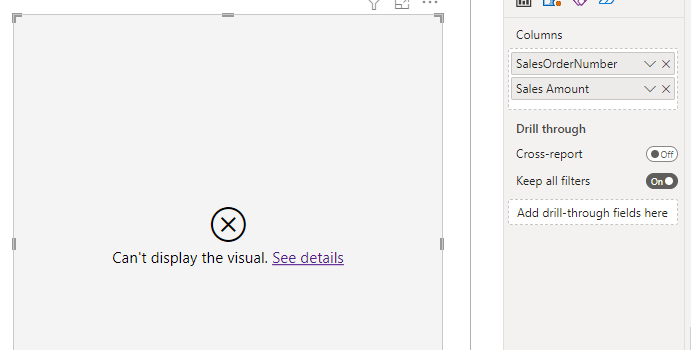
Now if you try to build a simple table visual in a report connected to this dataset that has the SalesOrderNumber column and a measure that sums up the value of the SalesAmount column (ie with a definition of SUM(FactOnlineSales[SalesAmount] ) ) you’ll get the following error:
The resultset of a query to external data source has exceeded the maximum allowed size of ‘1000000’ rows.
This isn’t really surprising: you’ll get this error in DirectQuery mode any time Power BI generates a query against a data source that returns more than one million rows. You can increase this threshold using the Max Intermediate Row Set Count property on a Premium capacity but to be honest, if Power BI is trying to get this much data, you could still run into other performance or memory problems so the best thing to do is to redesign your report to avoid this problem. In this particular example you should question why you need a report with a table that has more than one million rows in it (I suspect the answer from the business will be “to export it to Excel”, which is another argument…).
In many cases you can avoid the error by applying a filter to the visual. In my example filtering the visual to display just the data for January 1st 2007, by applying the filter on the Datekey column of the DimDate table, means you don’t get an error because no SQL query will be generated that returns more than one million rows:
However, the bad news is that if you use slightly more complex DAX in your measure you are still likely run into the same error. For example, if you create a new measure with the following definition:
Error Demo =
var s = [Sales Amount]
return if(s>0, s)
[Yes, I know the measure definition doesn’t make much sense but it’s just a way of reproducing the problem]
….you’ll get the error even with the filter applied:
Why is this? Looking at the various SQL queries generated by Power BI for this visual it’s easy to find the cause of the error:
SELECT
TOP (1000001) [t1].[SalesOrderNumber]
FROM
(
(
select [$Table].[OnlineSalesKey] as [OnlineSalesKey],
    [$Table].[DateKey] as [DateKey],
    [$Table].[StoreKey] as [StoreKey],
    [$Table].[ProductKey] as [ProductKey],
    [$Table].[PromotionKey] as [PromotionKey],
    [$Table].[CurrencyKey] as [CurrencyKey],
    [$Table].[CustomerKey] as [CustomerKey],
    [$Table].[SalesOrderNumber] as [SalesOrderNumber],
    [$Table].[SalesOrderLineNumber] as [SalesOrderLineNumber],
    [$Table].[SalesQuantity] as [SalesQuantity],
    [$Table].[SalesAmount] as [SalesAmount],
    [$Table].[ReturnQuantity] as [ReturnQuantity],
    [$Table].[ReturnAmount] as [ReturnAmount],
    [$Table].[DiscountQuantity] as [DiscountQuantity],
    [$Table].[DiscountAmount] as [DiscountAmount],
    [$Table].[TotalCost] as [TotalCost],
    [$Table].[UnitCost] as [UnitCost],
    [$Table].[UnitPrice] as [UnitPrice],
    [$Table].[ETLLoadID] as [ETLLoadID],
    [$Table].[LoadDate] as [LoadDate],
    [$Table].[UpdateDate] as [UpdateDate]
from [dbo].[FactOnlineSales] as [$Table]
)
)
 AS [t1]
GROUP BY [t1].[SalesOrderNumber]
Why is this query generated? Why is there no WHERE clause applying the date filter? When a DAX query is run Power BI does the following:
Send dimension queries per unique dimension table. Only filters directly placed on the dimension table apply in this case.
Send measure queries for each measure. All filters may apply in this case.
Join the results from 1 and 2.
Sometimes, as in the example where just the SUM measure is used, it can optimise the dimension queries and apply the filter from the dimension table too. Sometimes, as in the last example above, it can’t and it runs a dimension query asking for all the distinct values from SalesOrderNumber in the fact table. You can try to work around it by rewriting your DAX, by filtering on the fact table and not the dimension table – applying a filter on the Datekey column of FactOnlineSales for 1/1/2007, rather than on the Datekey column of DimDate, results in no error – or using a dynamic M parameter to get more control over the queries generated. However the best course of action is to avoid using any column from a large fact table as a dimension, whether it’s a legitimate degenerate dimension or a column that should really be modelled in a separate dimension table.
[Thanks to Dany Hoter and Jeffrey Wang for the information in this post]
It’s very easy to get confused between a Live connections and DirectQuery mode in Power BI: the customers I work with frequently get them mixed up, partly because they are similar concepts, partly because other BI tools use the term “live connection” to refer to what Power BI calls DirectQuery mode. In this post I will explain the differences between these two terms.
Power BI Datasets, Azure Analysis Services and SQL Server Analysis Services
The first thing to understand is that when a Power BI report runs it can only get data from one of three places: a Power BI dataset; an Azure Analysis Services (AAS) database; or an on-premises instance of SQL Server Analysis Services(SSAS). There are some exceptions to this rule but we can ignore them for the purposes of this post. Each of these three sources run variations of the same engine, ie the Analysis Services engine, and can be queried in DAX. These sources may in turn get data from other sources when they are queried but as far as the Power BI report is concerned the only sources it can talk to directly are Power BI datasets, AAS databases and SSAS databases.
Live connections
Normally, when you open up Power BI Desktop and start developing, your .pbix file contains the definition of a Power BI dataset and a report that connects to it. When you publish this .pbix file they are split up and you see separate dataset and report objects in your Power BI workspace.
However, in Power BI Desktop you may instead choose to connect to a Power BI dataset that has already been published to the Power BI Service, or an instance of AAS or SSAS, and use that as the source for the report. The main advantage of doing this is that different developers can work on the dataset/AAS database/SSAS database definition and the report at the same time. When you connect to an already-published dataset or an AAS or SSAS database from Power BI Desktop you are creating a Live connection.
To connect to a published Power BI dataset and create a Live connection choose the “Power BI datasets” option under the Get Data menu:
If you want to create a Live connection to AAS or SSAS choose the Analysis Services source and then make sure the “Connect live” option is selected:
After you’ve created the Live connection you’ll see a message telling you this in the bottom right-hand corner of the screen in Power BI Desktop:
The key thing to understand is that when you create a Live connection your .pbix file no longer contains a dataset definition – it only contains a report, and that report connects to a dataset, AAS database or SSAS database that already exists elsewhere.
The concept of a Live connection only really makes sense in Power BI Desktop: as I said, in the Power BI Service reports and datasets are separate objects anyway. A report can only have one Live connection because a report can only ever connect to a single dataset, AAS database or SSAS database.
If you publish a report with a Live connection to an already-published Power BI dataset, then the only new thing that will appear in the Power BI Service is the report . If you publish a report with a Live connection to AAS or SSAS then you will see a new dataset appear in the Power BI Service but this isn’t really a dataset, it’s really just a pointer to the AAS or SSAS database where the data is really being held.
DirectQuery mode
There are two fundamental ways a Power BI dataset, AAS database or SSAS Tabular database can work with data: Import mode and DirectQuery mode. In Import mode the data needed for your dataset is copied into the dataset and stored inside it. In DirectQuery mode, when a Power BI report requests data from the dataset by running a DAX query against it, the dataset in turn generates queries that are run on your data source to get the data it needs on demand. If your data source is a SQL Server database then Power BI will generate SQL queries to get the data it needs; for other sources it may generate queries in other query languages. A Power BI dataset is always a semantic layer, an easily consumable interface for your BI data: in Import mode it is a semantic layer and it also stores the data it needs; in DirectQuery mode it is just a semantic layer.
The only data sources that Power BI can use in DirectQuery mode are those that have some kind of query language that Power BI can generate. You can’t connect to a CSV file in DirectQuery mode, for example, because there’s no way of running queries against it unless you load the data in it into some other form of database. Other data sources may have rich query languages but Power BI will only be able to connect to them in DirectQuery mode if a suitable connector exists for that source. Most commonly-used relational databases can be used in DirectQuery mode. If your data source supports DirectQuery mode you’ll see that as an option on the dialog when you first connect:
The key thing to understand here is that the term “DirectQuery mode” describes where the data for a dataset is kept, ie outside the dataset as opposed to inside it in Import mode.
Composite models
Different tables in a single Power BI dataset can have different storage modes: some can be in Import mode and some can be in DirectQuery mode. Furthermore, different DirectQuery tables in the same Power BI dataset can connect to different data sources. When you have different tables using different storage modes or different tables using different DirectQuery datasets then you have what is called a “composite model“.
DirectQuery on Power BI datasets and Analysis Services
One final twist is that you can create Power BI datasets in DirectQuery mode and use other Power BI datasets, AAS databases or SSAS databases, as a data source. This means you can have DirectQuery datasets that connect to other datasets that can potentially connect to other datasets. It’s useful because, for example, you can have a single, centrally-developed dataset containing all of your company’s sales data and then other Power BI developers can create their own datasets that connect to this central dataset and extend it by adding extra tables of data and new measures without ever duplicating the data in the central dataset.
Although the way things behave behind the scenes is somewhat different, a Power BI dataset in DirectQuery mode that connects to another Power BI dataset as its source is conceptually very similar to a Power BI dataset in DirectQuery mode that connects to a relational database like SQL Server: it just generates DAX queries to get the data it needs when it is queried rather than SQL queries.
Conclusion
Live connections and DirectQuery mode are two distinct concepts. Live connections occur when you create reports in Power BI Desktop that connect to already-published Power BI datasets, AAS databases or SSAS databases. DirectQuery mode is one of the two fundamental ways that a Power BI dataset can work with data (the other being Import mode) and is the mode where a dataset does not contain any data but instead queries other data sources to get the data it needs when it is itself queried.
[Thanks are due to my friend Peter Myers – this blog post expands on some explanations we developed last year in a session we co-presented at various Power BI user groups called “Demystifying Power BI Datasets”. Several recordings of this session exist on YouTube, for example here.]