Webinar Recording: Is OLAP Dead?

Yesterday I presented a webinar for the nice people at Pyramid Analytics, the first of two. I was paid for it of course (I have to earn a living somehow, you know), but the main reason I agreed to do it was because they wanted me to discuss interesting Microsoft BI questions rather than just demo their product – which is, as I’ve said here before, the most effective way of doing tech marketing in my opinion. In any case Pyramid Analytics is one of a small number of third-party tools I’m happy to recommend to my customers even without being paid.

Today’s discussion was on the topic of whether OLAP is dead and you can watch the recording here: https://www.brighttalk.com/webcast/13401/178899 [free sign-up required]

You won’t be surprised to find out that I don’t think OLAP is dead. By “OLAP” I mean the idea of a centralised model containing not just all your data but also things like how your tables should be joined, how measures aggregate up, advanced calculations and KPIs and so on. Using this definition both SSAS Multidimensional and SSAS Tabular are OLAP; I would say both pass the FASMI test for sure. The opposite of OLAP is of course the recently-fashionable self-service BI approach of tools like Power Pivot where every end user can create their own model, which is certainly more flexible but also less easily maintainable, leads to duplication of effort and data, and can be a problem for less technically-able end users. Both a single centralised OLAP model and a distributed self-service approach are useful in different circumstances and the latter certainly doesn’t replace the former. One of the reasons why I’m such a fan of Microsoft’s new direction with Power BI is that it recognises this fact.

The other big question that came up was what the relative strengths and weaknesses of SSAS Multidimensional and Tabular are. Before the webinar I ran a Twitter poll asking people whether they had used Multidimensional or Tabular on the last SSAS project that had worked on; from 151 responses, 48% said Tabular and 52% said Multidimensional. This even split doesn’t surprise me to be honest, based on my own experiences: both flavours of SSAS have different strengths and weaknesses and choosing between them can be very difficult. I’m sure new features like bi-directional cross-filtering and the improved development experience in SSAS Tabular 2016 will increase Tabular’s popularity in the future. Personally, I think if Microsoft were able to offer equivalent functionality to:

  • Calculated members on non-measures dimensions
  • MDX SCOPE statements
  • Parent/child hierarchies (without the performance penalties)
  • Writeback

…in SSAS Tabular then there would be very few good reasons to choose SSAS Multidimensional for new projects.

First Look At SSAS 2016 MDX On DirectQuery

Following on from my last post covering DirectQuery in Power BI, I thought it might be interesting to take a look at the way MDX queries are supported in SSAS Tabular 2016 CTP3 DirectQuery mode.

There were a lot of limitations when using DirectQuery in SSAS Tabular 2012/4, but for me the showstopper was the fact that it only worked if you were running DAX queries against your model. Historically the only major client tool that generated DAX queries to get data was Power View, and Power View was/is too limited for serious use, so that alone meant that none of my customers were interested in using DirectQuery. Although we now have Power BI Desktop and PowerBI.com, which also generate DAX queries, the fact remains that the vast majority of business users will still prefer to use Excel PivotTables as their primary client tool – and Excel PivotTables generate MDX queries. So, support for MDX queries in DirectQuery mode in SSAS 2016 means that Excel users will now be able to query a Tabular model in DirectQuery mode. This, plus the performance improvements made to the SQL generated in DirectQuery mode, means that it’s now a feature worth considering in scenarios where you have too much data for SSAS Tabular’s native in-memory engine to handle or where you need to see real-time results.

At the time of writing the most recent release of SQL Server 2016 is CTP3. If you want to test out the BI features in SQL Server 2016 CTP3 in an Azure VM, I highly recommend Dan English’s blog post here showing how to set one up. To test DirectQuery mode you need to use the older 1103 compatibility mode for your project and not the latest 1200 compatibility mode. This is documented in the release notes:
https://msdn.microsoft.com/en-us/library/dn876712.aspx#bkmk_2016_ctp3_0

image

Once you’ve created your project, you can enable DirectQuery mode in the same way as in previous versions by following the instructions here. The DirectQueryMode property on Model.bim needs to be set to On, and the QueryMode property on the project should be set to DirectQuery.

For testing purposes I downloaded the 2016 version of the Adventure Works DW database and restored it to SQL Server, then created a SSAS Tabular model containing only the DimDate table to keep things simple. I created one measure in the model with the following definition:
TestMeasure:=COUNTROWS(‘DimDate’)

First of all, I ran the following MDX query:

[sourcecode language='text'  padlinenumbers='true']
SELECT
{[Measures].[TestMeasure]} 
ON 0,
[DimDate].[CalendarYear].[CalendarYear].MEMBERS 
ON 1
FROM
[Model]
[/sourcecode]

image

Using a Profiler trace (yes, I know I should be using XEvents but Profiler is so much more convenient for SSAS) I could see the SQL generated by SSAS in the Direct Query Begin and Direct Query End events. For the MDX query above there were three SQL queries generated. The first looks like it is getting the list of years displayed on the Rows axis:

[sourcecode language='text' ]
SELECT 
TOP (1000001) [t0].[CalendarYear] AS [c15]
FROM 
(
  (SELECT [dbo].[DimDate].* FROM [dbo].[DimDate])
)
AS [t0]
GROUP BY [t0].[CalendarYear] 
[/sourcecode]

The second SQL query gets the measure value requested:

[sourcecode language='text' ]
SELECT 
TOP (1000001) [t0].[CalendarYear] AS [c15],
COUNT_BIG(*)
AS [a0]
FROM 
(
  (SELECT [dbo].[DimDate].* FROM [dbo].[DimDate])
)
AS [t0]
GROUP BY [t0].[CalendarYear] 
[/sourcecode]

The third is simply a repeat of the first query.

However, there’s one important thing to say here: there are going to be significant changes and improvements to the SQL generated before RTM, so don’t read too much into the queries shown here.

There are several limitations in CTP3 that may or may not remain at RTM. One that you may run into is the that you can only use fully qualified MDX unique names in your queries, so

[DimDate].[CalendarYear].&[2010]

…will work but

[2010]

…will not. To be honest, I consider it a best practice to use fully qualified unique names anyway so I’m not too bothered about this. Drillthrough doesn’t work at the moment either.

MDX calculations defined in the WITH clause of a query are supported, which is really useful if you’re writing custom MDX queries for SSRS. For example the following query works and generates the same SQL (though with a few more executions) as the previous query:

[sourcecode language='text' ]
WITH
MEMBER [Measures].[TestMDXCalcMeasure] AS 
SUM(NULL:[DimDate].[CalendarYear].CURRENTMEMBER,
[Measures].[TestMeasure])

SELECT
{[Measures].[TestMeasure],
[Measures].[TestMDXCalcMeasure]} 
ON 0,
[DimDate].[CalendarYear].[CalendarYear].MEMBERS 
ON 1
FROM
[Model]
[/sourcecode]

image

All in all, this looks like a solid piece of work by the SSAS dev team. Go and test it! I would love to hear from anyone with genuinely large amounts of data (maybe APS/PDW users?) regarding their experiences with 2016 DirectQuery. Recently I’ve been working with a customer using SSAS Multidimensional in ROLAP mode on top of Exasol and I’ve been surprised at how well it works; I would imagine that 2016 DirectQuery and APS would be an even better combination.

One last thought. If we get the ability to query a cloud-based Power BI mode with MDX and MDX on DirectQuery is supported in Power BI too, why would you bother paying for an expensive SQL Server Enterprise/BI Edition licence plus hardware to use DirectQuery when you can get almost the same functionality in the cloud for a fraction of the price?

Power BI And SQL Server 2016 BI Announcements At PASS Summit 2015

image1

This year’s PASS Summit is drawing to a close as I write this, and I have to say that the number of Microsoft BI-related announcements made over the last few days has been overwhelming. There have been announcements made via blog posts, such as (shock!) the roadmap blog post:
http://blogs.technet.com/b/dataplatforminsider/archive/2015/10/29/microsoft-business-intelligence-our-reporting-roadmap.aspx

…which you should probably read before anything else, as well as the following posts which have more details on specific areas:
http://blogs.technet.com/b/dataplatforminsider/archive/2015/10/28/sql-server-2016-community-technology-preview-3-0-is-available.aspx

http://blogs.msdn.com/b/analysisservices/archive/2015/10/28/what-s-new-for-sql-server-2016-analysis-services-in-ctp3.aspx

http://blogs.msdn.com/b/sqlrsteamblog/archive/2015/10/28/pin-reporting-services-charts-to-power-bi-dashboards-with-sql-server-2016-ctp-3-0.aspx

There have also been a lot of other announcements made in sessions about functionality that will be available at some point in the next few months, including (and in no particular order):

  • The performance problem with Excel subtotals that I described in this blog post: http://blog.crossjoin.co.uk/2011/10/07/excel-subtotals-when-querying-multidimensional-and-tabular-models/ is finally going to be addressed in Excel 2016 in an update that will be available before the end of the year. This is going to solve a lot of people’s performance problems – problems that people may not even realise they had.
  • SSDT for SSAS 2016 will have a script view where you can see all of your DAX calculations in one place
  • SSDT will be getting monthly updates so new functionality can be delivered much more quickly
  • On top of the improvements in SSAS Tabular DirectQuery mentioned in the blog posts above, we’ll also get support for row-level security and calculated columns (but only ones that reference values in the same row of the table that the calculated column is on)
  • SSAS Tabular will also get Translations, but only for metadata and not for data
  • There will be a Power BI Enterprise Gateway, the corporate big brother of the Personal Gateway
  • Datazen will be rolled into SSRS and Datazen reports will be a new ‘mobile’ report type
  • The Power BI mobile app will be able to display these new SSRS mobile reports as well as Power BI reports
  • The Power BI team will be releasing a new custom datavisualisation component every week. We had the new Chiclet slicer this week, which I am already using lots, and in one demo I spotted a Proclarity-style decomposition tree
  • Power BI desktop will work with SSAS Multidimensional as a live data source (ie not through importing data, but running DAX queries in the background) by the end of this year
  • PowerBI.com dashboard tiles will become properly interactive, and you will be able to pin entire reports as well as just individual components to them
  • You’ll be able to embed ranges and charts from Excel workbooks into PowerBI.com reports; integration looks much nicer than the rather basic functionality that’s already there
  • Power Map/3D maps will be embedded in Power BI Desktop and PowerBI.com
  • You’ll be able to run R scripts in Power BI Desktop and display R visualisations in there too
  • There was a demo of an Android(?) phone version of the Power BI mobile app, where when the phone camera saw a QR code it displayed a report for the product that the QR code represented over the camera feed. Virtual reality BI!
  • Power BI Desktop will get a “Get Insights” button that, when pushed, will display a report that does some basic statistical analysis of your data, looking for minimums, maximums, outliers etc
  • The Power BI API will be able to give you a list of reports and their URLs
  • Power BI will soon have its own registration page for applications that use the API; no need to go to the Azure Portal.
  • Synonyms and phrasings for Q&A will be coming to Power BI by the end of the year

I *think* that’s everything, but I may well have missed a few things. Many of the features that were mentioned in passing would have deserved a five-minute slot in a keynote in previous years.

Power BI is finally a commercially viable product and it’s getting even better every week – the competition should be very worried. I’m also really pleased that MS are taking corporate, on-premises BI seriously at last and that SSRS is back in favour (I would have loved more new features in SSAS Multidimensional, but hey, you can’t have everything) – if you’re wondering what the picture at the top of this post is, it’s the cloud and boxed SQL Server “happy together” at last, and it appeared in several MS presentations this week. The box is back! Most importantly, for the first time in a long time, Microsoft has a coherent vision for how all of its BI products should work together, it’s working on new features to make that vision a reality, and it is willing to share it with us as a roadmap.

In summary I can’t remember the last time I felt this positive about the future of Microsoft BI. What MS have achieved over the last year has been remarkable, and it seems like it’s the leadership of James Phillips that has made all the difference – every MS employee I’ve talked to has had good things to say about him and I guess this explains why he got a promotion in the reorg last week. I hope all this continues.

What the MDX Axis() Function Actually Returns

A month or so ago, before I went on holiday, I was working on a really cool MDX idea that involved the Axis() function. Unfortunately I’ve forgotten what that idea was but while I was working on it I did find out something interesting about the Axis() function – namely that it doesn’t do exactly what the documentation says it does.

The documentation says that the Axis() function returns the set of tuples on a given axis in an MDX query. Here’s a simple example query on the Adventure Works cube showing it in action:

[sourcecode language='text'  padlinenumbers='true']
WITH
MEMBER MEASURES.TEST AS SETTOSTR(AXIS(1))
SELECT {MEASURES.TEST} ON 0,
[Customer].[Gender].MEMBERS ON 1
FROM
[Adventure Works]
[/sourcecode]

image

Here, I’m using the SetToStr() function to take the set returned by the Axis() function and display it in a calculated measure. As you can see from the screenshot, I’m showing all three members from the Gender hierarchy on the Customer dimension on rows and the set returned by Axis(1) is indeed that set.

BUT, now look at this second query and what it returns:

[sourcecode language='text' ]
WITH
MEMBER MEASURES.FIRSTMEMBER AS 
MEMBERTOSTR(AXIS(1).ITEM(0).ITEM(0))

MEMBER MEASURES.TEST AS 
IIF(
[Customer].[Gender].CURRENTMEMBER.UNIQUENAME = 
MEASURES.FIRSTMEMBER, NULL, 1)

SELECT MEASURES.TEST ON 0,
NON EMPTY
[Customer].[Gender].MEMBERS ON 1
FROM
[Adventure Works]
[/sourcecode]

image

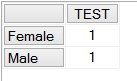
Why is this interesting? The calculated measure FIRSTMEMBER returns the unique name of the first member in the set returned by Axis(1), which should be the first member shown on the rows axis. The calculated measure TEST returns null if the currentmember on the Gender hierarchy has the same unique name as the member returned by FIRSTMEMBER. The calculated measure TEST is on columns in the query, and on rows we get all the members on the Gender hierarchy that return a non null value for TEST. Since only Female and Male are returned, the All Member on Gender must return null for TEST, which means that the All Member is the first member in the set returned by the Axis() function.

So, to summarise, the Axis() function actually returns the set of members on an axis the current query before any NON EMPTY filtering is applied.

How To Optimise The Performance Of MDX Queries That Return Thousands Of Rows

One problem I encounter on a regular basis is how to optimise the performance of MDX queries that return thousands, hundreds of thousands, or even millions of rows. The advice I give is always the same:

Reduce the number of rows that your query returns!

Yes, there are some things you can change in your queries and cube design to improve performance, but these are the same things I’d suggest for any query (build aggregations, rewrite MDX, partition etc etc). In my opinion, if you have a query that returns a ridiculously large number of rows you are doing something fundamentally wrong.

There are three reasons why SSAS developers write this kind of query:

  1. They are doing a data-dump from SSAS to another system. Mostly the developer doesn’t realise this though, since the other system is Excel-based and the end user has disguised their requirement as a report. In most cases, user education about how to use Excel with SSAS results in an approach that doesn’t require dumping thousands of rows of data to an Excel worksheet.I will admit that I have seen a few cases where developers need to dump data out of SSAS for other purposes, and have no option but to use SSAS because they have to add complex calculations that can only feasibly be implemented in MDX. These are very rare though, and most of the time using SQL queries against the underlying relational database works a lot better.
  2. The end users have specified a report that returns lots of data, because that’s just what they want, dammit! Often this is to recreate a report built in a previous system that, at some point in the 1970s, was printed out into a gigantic book every month. My argument here is that a report should return no more data than can be seen on a screen without scrolling. If you need to scroll in a report, you probably should be giving the end user more parameters to filter that report so they can find the data they want to see more easily instead.Of course it’s one thing to know what you should be doing, it’s another thing entirely to tell the CFO that their requirements are stupid. If you can’t convince your end users that you know better than them, you have my sympathy. Usually I find that having to choose between the poor performance of what they want and the better performance of a different approach helps them come to their senses.
  3. Finally, the way that SSRS handles drilling down in reports often leads report developers to bring back vast amounts of data. The advice to increase the number of parameters for filtering is equally relevant here, but you can also use MDX techniques like this one to implement drill down in a much more efficient way.

At the end of the day, SSAS just isn’t optimised for returning large resultsets – it was designed to return PivotTable-style queries, which are always relatively small. You can get good performance for large resultsets if you know what you’re doing, you have the time, and you’re lucky, but you’ll usually be better off rethinking your requirements or choosing a different tool.

MDX Scoped Assignments Outside The Granularity Of A Measure Group

If you’re an SSAS Multidimensional developer, you’ll know that not every dimension has to have a relationship with every measure group in your cube. You may also know that by setting the Granularity Attribute property of a regular relationship, you can join a dimension to a measure group using an attribute that isn’t the dimension’s key attribute. What happens when you make a scoped assignment to a non-calculated measure outside the granularity of a measure group?

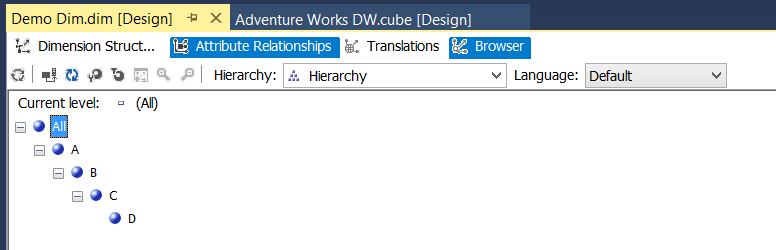
The simple answer is that, unlike what happens when you assign to a non-calculated measure inside the granularity of a measure group, your assigned value does not aggregate up. For example, consider a dimension called Demo Dim with one user hierarchy, where there is just one member on each level:

image

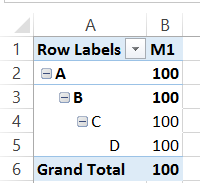
If you add this dimension to a cube but don’t define any relationships to any measure groups (and don’t change the IgnoreUnrelatedDimensions property of the measure group) you’ll see the value of the All Member on the hierarchy repeated across all of the other members of the hierarchy:

image

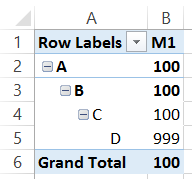
If you use a scoped assignment to change the value of the member D for a regular, non-calculated measure M1, like so:

[sourcecode language=”text” padlinenumbers=”true”]
SCOPE([Measures].[M1], [Demo Dim].[L4].&[D]);
THIS = 999;
END SCOPE;
[/sourcecode]

You’ll see that D changes value, but the value isn’t aggregated up:

image

The same thing happens if you make an assignment below the granularity attribute of a dimension. This all makes sense when you think about it, in my opinion, and it means that in this scenario at least non-calculated measures and calculated measures behave in the same way.

One last word of warning: whenever I’ve done this, I’ve found that query performance hasn’t always been as good as I would have liked.

Running Your Own MDX And DAX Queries In Power BI Desktop

Every time there’s a new release of Power Query or Power BI Desktop, I always check to see if there are any interesting new M functions that have been added (I used #shared to do this, as detailed here). For the RTM version of Power BI Desktop I spotted two new functions:

image

As well as ODBC connections, we can now use OLEDB and ADO.NET data sources – although they aren’t shown in the UI yet. And you know what this means… with an OLEDB connection we can now run our own MDX and DAX queries against SSAS data sources! I assume this will be coming in Power Query in Excel soon too.

Here’s an example query showing how to use OleDB.Query() to run an MDX query against the Adventure Works DW cube in SSAS Multidimesional:

[sourcecode language=”text”]
let
Source = OleDb.Query(
"Provider=MSOLAP.5;Data Source=localhost;
Initial Catalog=Adventure Works DW 2008",
"select {measures.[internet sales amount]} on 0,
[date].[calendar].[calendar year].members on 1
from [adventure works]"
)
in
Source
[/sourcecode]

As you can see, it’s pretty straightforward: you just need to supply a connection string and a query. You will need to tell Power BI Desktop which credentials to use when running the query the first time you connect to SSAS, and that’s probably going to be Windows:

image

You will also see a prompt the first time you run the query, asking for permission to run a Native Database Query:

image

This prompt will appear each time a different MDX query is run; you can turn off this prompt in the Options dialog on the Security tab by unchecking the Require user approval for new native database queries box:

image

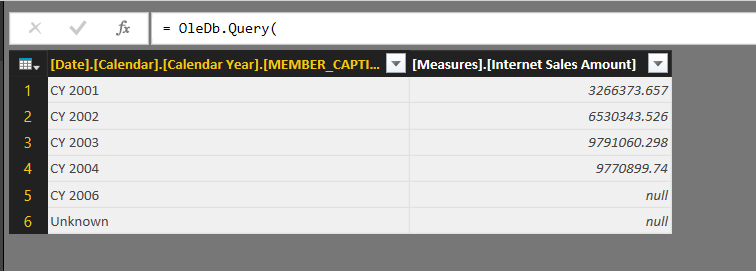
Here’s the output of the MDX query from the example code:

image

Power BI Desktop As A Client Tool For SSAS Tabular

There has been another flurry of Power BI announcements in the last few days in preparation for RTM on July 24th; you can read about them here if you haven’t already. There’s no point me repeating them all, but in amongst the major features announced there was one thing that I thought was worth highlighting and which could easily get overlooked. It is that by RTM the Power BI Desktop app will be able to connect direct to SSAS Tabular – that’s to say, you will be able to use it as a client tool for SSAS Tabular in the same way you can use Excel and any number of third party products.

The Power BI Desktop app was previously known as the Power BI Designer – the name change was a wise move, because it is in fact a full featured desktop BI tool in itself, and not just a ‘designer’ for the cloud based Power BI service. It is a free download and you can use it without any kind of Power BI subscription at all. Therefore even if you are a traditional corporate BI shop that uses SSAS Tabular and you aren’t interested in any kind of self-service BI at all, you could use it just as a client for SSAS and forget about its other capabilities.

Why would you want to do this though? More specifically, why use Power BI Desktop rather than Excel, which is of course the default client tool for SSAS? I’m a big fan of using Excel in combinations with SSAS (pretty much everything Rob Collie says here about Excel and Power Pivot also applies to Excel and SSAS – for the vast majority of users, for real work, Excel will always be the tool of choice for anything data related), but its data visualisation capabilities fall well short of the competition. While you can do some impressive things in Excel, it generally requires a lot of effort on the part of the user to build a dashboard or report that looks good. On the other hand, with Power BI Desktop it’s much easier to create something visually arresting quickly, and with the new open-source data visualisation strategy it seems like we’ll be able to use lots of really cool charts and visualisations in the future. Therefore:

  • Showing off the capabilities of Power BI Desktop will make selling a SSAS Tabular-based solution much easier, because those visualisations will make a much better first impression on users, even if they do end up using Excel for most of their work.
  • Less capable users, or those without existing Excel skills, will appreciate the simplicity of Power BI Desktop compared to Excel as a client tool.
  • Some users will need those advanced data visualisation capabilities if they are building reports and dashboards for other people – especially if those people expect to see something flashy and beautiful rather than a typically unexciting, practical Excel report.
  • If your users are stuck on Excel 2007 (or an earlier version) and aren’t likely to upgrade soon, giving them the Power BI Desktop app instead will give them access to a modern BI tool. Excel 2007 is an OK client for SSAS but is missing some features, notably slicers, that Excel 2010 and 2013 have and that are also present in Power BI Desktop.
  • Similarly, if your users are expecting to do a mixture of corporate BI using SSAS Tabular as a data source, and self-service BI, but face the usual problems with Excel versions, editions and bitness that prevent them from using the power-add-ins in Excel, then standardising on Power BI Desktop instead could make sense.
  • If you do have a Power BI subscription and can work with the requirements for setting up direct connection from PowerBI.com to an on-prem SSAS Tabular instance, then publishing from Power BI Desktop to PowerBI.com will be very easy. If you need to see reports and dashboards in a browser or on a mobile device, it could be a more attractive option than going down the Excel->SharePoint/Excel Services or Excel->OneDrive->PowerBI.com route.

In short, I don’t see Power BI Desktop as a replacement for Excel as a SSAS Tabular client tool but as a useful companion to it.

The last question that needs to be asked here is: what does this mean for third party SSAS client tool vendors like Pyramid Analytics and XLCubed? I don’t think these companies have too much to worry about, to be honest. These vendors have been competing with a less feature-rich, but effectively free, Microsoft option for a long time now. While Power BI Desktop erodes their advantage to a certain extent, they have a lot of other features besides visualisations that Microsoft will never probably provide and which justify their price. Besides that, the fact that Power BI doesn’t support direct connections to SSAS Multidimensional (yet…? ever…?) excludes at least 80% of the SSAS installations out there.

Advanced SSAS Multidimensional Security Tips & Tricks Webinar This Thursday

In association with the nice people at SQLRelay I’ll be presenting an hour-long webinar on advanced SSAS Multidimensional tips and tricks this Thursday July 9th 2015 at 1pm UK time (that’s 8am EDT for you Americans). It’s free to attend and open to anyone, anywhere in the world. You can join the meeting by going to

http://t.co/apht1IhJlg

In the webinar I’ll be covering topics such as:

  • The difference between Allowed Sets and Denied Sets in dimension security
  • Handling security-related errors in your MDX calculations
  • The different ways of implementing dynamic security
  • Why you should avoid cell security, and how (in some cases) you can replace it with dimension security

…and lots more.

If you’re in the UK, you should definitely check out SQLRelay, an annual series of one-day SQL Server events that happens at a number of different places around the country each autumn. For more details, see http://www.sqlrelay.co.uk/2015.html

I’m presenting this webinar in my capacity as a sponsor of SQLRelay, so expect me to spend a small amount of time promoting Technitrain’s autum course schedule. There are some cool courses on SSIS, MDX, SQL Server high availability and data science/machine learning coming up, you know…

UPDATE: you can download the slides and demos from the webinar at http://1drv.ms/1LYk1k8 and watch the recording at https://www.youtube.com/watch?v=cB9F6IVo7MA

For whoever was asking about using a measure group to store permissions for dynamic security, this blog post has all the details: http://bifuture.blogspot.co.uk/2011/09/ssas-setup-dynamic-security-in-analysis.html

The Use And Abuse Of The MDX Freeze Statement

The other day, while helping a customer with some particularly nasty MDX scoped assignments, I realised that there weren’t many good resources on the internet that explained how to use the MDX Freeze statement. It’s something I see used quite often, but usually because some MDX calculations aren’t giving the correct results and a developer has found that putting a Freeze statement in has fixed the problem – even if they don’t understand why it has fixed the problem. So, in this post I’ll explain what Freeze does, when you might want to use it, and when there are other other, better alternatives.

First of all, the basics. Imagine you have a super-simple cube and that, apart from the Calculate statement, the only MDX you have on the Calculations tab in the cube editor is the following:

[sourcecode language=”text” padlinenumbers=”true”]
CREATE MEMBER CURRENTCUBE.MEASURES.M1 AS 1;

CREATE MEMBER CURRENTCUBE.MEASURES.M2 AS NULL;

SCOPE(MEASURES.M2);
THIS = MEASURES.M1;
END SCOPE;
[/sourcecode]

If you query the cube in Excel, you’ll see the following:

image

No surprises here: we have created two calculated measures, M1 and M2, and then used a scoped assignment to set M2 to show the value of M1. It’s important to understand that the scope statement has not copied the value of M1 into M2, but acts more like a pointer so that M1 will always display the same value as M2 even if M1 subsequently changes. This means that when we add a second scope statement to the code that alters the value of M1, as follows:

[sourcecode language=”text”]
CREATE MEMBER CURRENTCUBE.MEASURES.M1 AS 1;

CREATE MEMBER CURRENTCUBE.MEASURES.M2 AS NULL;

SCOPE(MEASURES.M2);
THIS = MEASURES.M1;
END SCOPE;

SCOPE(MEASURES.M1);
THIS = 2;
END SCOPE;
[/sourcecode]

You see the following in your PivotTable:

image

This behaviour is the source of a lot of confusion! An assignment to one measure has indirectly changed the value of another measure, and of course in a real-world cube it can be very difficult to spot situations where this has happened and if you do, what other MDX has caused this to happen.

Each statement in the MDX Script of a cube adds an extra layer of calculations to it, called a calculation pass; this is true for all the calculations in the examples above. As new calculations are added, and new passes are created, the previous passes still exist and are still accessible. In the second example above, in the outermost calculation pass, the measure M2 returns the value 2 but at the previous calculation pass (as seen in the first example) it returned the value 1. The Freeze statement allows you to freeze the values returned by a subcube of cells at a given calculation pass, so that no future calculations will change those values.

Therefore, by taking our code and adding a Freeze statement to the first scoped assignment we can prevent the second scoped assignment changing the value of M2:

[sourcecode language=”text” firstline=”7″]
CREATE MEMBER CURRENTCUBE.MEASURES.M1 AS 1;

CREATE MEMBER CURRENTCUBE.MEASURES.M2 AS NULL;

SCOPE(MEASURES.M2);
THIS = MEASURES.M1;
FREEZE(THIS);
END SCOPE;

SCOPE(MEASURES.M1);
THIS = 2;
END SCOPE;
[/sourcecode]

Here’s the output now:

image

Another very common way that scoped assignments can affect the value of a cell is through the aggregation of the results of a calculation. This blog post (one of the most popular I’ve ever written) explains how this behaviour can be used to implement calculations like currency conversions and weighted averages. However, in other cases, this aggregation of a calculation is an unwanted and unexpected side effect of a scope statement and calculated values that you did want to be displayed instead get replaced with weird, meaningless values. The Freeze statement can be used to stop this happening but in actual fact it’s a much better idea to understand the cause of these problems and rewrite your calculations so that Freeze isn’t necessary.

Now, imagine that in your cube you have a regular (ie not calculated) measure called Sales Amount that has its AggregateFunction property set to Sum, and that you have a fairly standard Date dimension with a Year attribute hierarchy. A PivotTable with Sales Amount on columns and Year on rows looks like this in Excel:

image

If you add the following assignment to the cube, to change the value of the All Member on Year, the value of the Grand Total in the PivotTable (which is the All Member, even if that name isn’t shown) will be changed:

[sourcecode language=”text”]
SCOPE([Date].[Year].[All], [Measures].[Sales Amount]);
THIS = 123;
END SCOPE;
[/sourcecode]

image

If, on the other hand, you remove that previous assignment and replace it with an assignment on the year 2001:

[sourcecode language=”text”]
SCOPE([Date].[Year].&[2001], [Measures].[Sales Amount]);
THIS = 456;
END SCOPE;
[/sourcecode]

You’ll see that not only has the value for Sales Amount for the year 2001 changed, but that the value of the All Member has been changed too: the All Member represents the aggregated total of all the years, so therefore if a year value has changed, the All Member value must change the reflect this:

image

What happens if we try to combine the two previous scope statements?

[sourcecode language=”text”]
SCOPE([Date].[Year].[All], [Measures].[Sales Amount]);
THIS = 123;
END SCOPE;

SCOPE([Date].[Year].&[2001], [Measures].[Sales Amount]);
THIS = 456;
END SCOPE;
[/sourcecode]

In this case, the output is exactly the same as with the previous example (although the measure formatting has also been lost):

image

This is because even though the first Scope statement successfully changed the value of the All Member, the aggregation of values triggered by the second Scope overwrote this value. Although you can’t see this happening in Excel, where you only see the values returned at the final calculation pass of the cube, the MDX Script Debugger can be used to see the values returned for a query at all the different passes so you can work out what’s going on.

The Freeze statement can be used to stop the second Scope from overwriting the first, like so:

[sourcecode language=”text” highlight=”3″]
SCOPE([Date].[Year].[All], [Measures].[Sales Amount]);
THIS = 123;
FREEZE(THIS);
END SCOPE;

SCOPE([Date].[Year].&[2001], [Measures].[Sales Amount]);
THIS = 456;
END SCOPE;
[/sourcecode]

image

However, in my opinion it makes a lot more sense to change the order of the Scope statements so that the assignment to 2001 doesn’t overwrite the assignment to the All Member:

[sourcecode language=”text”]
SCOPE([Date].[Year].&[2001], [Measures].[Sales Amount]);
THIS = 456;
END SCOPE;

SCOPE([Date].[Year].[All], [Measures].[Sales Amount]);
THIS = 123;
END SCOPE;
[/sourcecode]

The end result is the same:

image

Why do I prefer this approach to the use of Freeze? Two reasons:

  1. It works with natural MDX behaviour rather than trying to fight against it. In this case it’s just one line of code less, but in the real world it could result in a much greater reduction. It’s true that you have to put a lot of thought into the ordering of your calculations, but I don’t think you can get away from that. Using Freeze to make your calculations work properly without understanding why it’s needed results in much more complex code, often with duplicated calculations because Freeze still doesn’t give the desired results, and is frankly a bit of a hack.
  2. There are, or at least were, performance implications with the use of Freeze. In Analysis Services 2005 I saw a few cases where the use of Freeze contributed to poor query performance, and where reordering scope statements so that it was no longer necessary made performance better. I’m not sure whether this is still the case with SSAS 2014 but it may well be.

I see Freeze abused most often in financial cubes, when scope statements are used to define calculations on a chart of accounts hierarchy. Sometimes I have even seen the same calculation code appear in several places in the same MDX Script, just to make sure that the calculations always return the right result – all because the calculations on the chart of accounts dimension are aggregating up and overwriting each other. In this case the simple rule you have to remember is to always scope the calculations on the lowest level of the hierarchy first, then scope the calculations on the second-lowest level, and so on working your way up to the top of the hierarchy. This way you can be sure that your scope will never aggregate up and overwrite the result of another calculation.

Apart from that, I also see Freeze used when a cube contains a Date Tool dimension that uses regular members instead of calculated members, in the way described here. Now there are a lot of good reasons to use regular members on a Date Tool dimension (it will work with all versions of SSAS and Excel for instance) but I have also seen a lot of cases where the fact that you are scoping calculations on regular measures, which may then get aggregated up accidentally, has caused a lot of problems – not only resulting in incorrect values appearing, but also making query performance worse. For that reason, nowadays I prefer to use calculated members on my Date Tool dimension rather than regular members.