Reducing The Number Of Queries Generated By Excel Cube Function Reports On Power BI, Analysis Services And Power Pivot

I am a big fan of using Excel cube functions for reporting on Power BI datasets, Analysis Services and Power Pivot: they allow for a lot more layout flexibility than PivotTables when building reports in Excel. However, they do have a reputation for poor performance and part of the reason for this is their chattiness. While Excel does not generate one query for each cell containing a cube function, it is true that a report using cube functions will generate a lot more MDX queries against your Power BI dataset/Analysis Services cube/Power Pivot mode than the equivalent PivotTable. As a result, one way to improve the performance of reports that use Excel cube functions is to optimise them to reduce the number of MDX queries generated.

To understand how to do this you first need to understand how Excel generates the MDX queries needed by cube functions. First of all it looks at the cells containing CubeValue functions on a worksheet and groups them together by the granularity of the data they are requesting; then, for each granularity, it runs one or more MDX queries to get the data it needs, where each query gets data for up to 500 cells. There’s not much you can do to control this behaviour, but in situations where you have multiple fact tables with different granularities there is a trick you can play to reduce the number of queries.

Let’s take a simple example. Consider the following source data:

…loaded into a Power BI dataset with two fact tables, Sales and Targets, and two dimension tables, Product and Country:

Now consider the following report that uses two groups of cube formulas to get the Sales Amount for Apples in the UK and the Target Amount for the UK:

Here are the formulas for these cells:

This worksheet generates two MDX queries for the two different granularities (plus one other MDX query that gets some metadata). The first gets the Sales Amount for Apples in the UK and populates the CubeValue function in cell D3. This query consists of a single MDX tuple whose granularity is Country, Measure and Product:

SELECT 
{([Country].[Country].&[UK],[Measures].[Sales Amount],[Product].[Product].&[Apples])} 
ON 0 
FROM [Model] 
CELL PROPERTIES VALUE, FORMAT_STRING, LANGUAGE, BACK_COLOR, FORE_COLOR, FONT_FLAGS

The second gets the Target Amount for the UK and populates the CubeValue function in cell D6. It consists of a single MDX tuple whose granularity is Country and Measure:

SELECT 
{([Country].[Country].&[UK],[Measures].[Target Amount])} 
ON 0 
FROM [Model] 
CELL PROPERTIES VALUE, FORMAT_STRING, LANGUAGE, BACK_COLOR, FORE_COLOR, FONT_FLAGS

It is possible to get the same data in a single MDX query and the key to doing so is to make the granularity of the two requests the same. One way of doing this is to edit the contents of cell D6, which at this point contains the following formula to get the Target Amount (in D5) for the UK (in C6) using the CubeValue function:

=CUBEVALUE("CubeFunctionsOptimisationDataset", C6,D5)

If you add an extra reference to cell C3, which contains the CubeMember function returning the Product Apples, like so:

=CUBEVALUE("CubeFunctionsOptimisationDataset", C6,D5, C3)

Then this results in exactly the same data being returned to Excel and exactly the same data being displayed in the worksheet, but with a single MDX query being generated:

SELECT 
{([Country].[Country].&[UK],[Measures].[Target Amount],[Product].[Product].&[Apples]),
([Country].[Country].&[UK],[Measures].[Sales Amount],[Product].[Product].&[Apples])} 
ON 0 
FROM [Model] 
CELL PROPERTIES VALUE, FORMAT_STRING, LANGUAGE, BACK_COLOR, FORE_COLOR, FONT_FLAGS

As you can see, this query now consists of two tuples whose granularity is Country, Measure and Product. The reason this works is because adding the reference to the Product Apples makes no difference to the value returned by the Target Amount measure – which has no relationship with the Product dimension table – but it is enough to fool Excel into thinking that the CubeValue function in cell D6 is making a request at the same granularity as the CubeValue function in cell D3. It is necessary to add a reference to an individual Product, such as Apples, rather than the All Member on Product though.

Another, perhaps more complicated, way of achieving the same result is to leave the formula in cell D6 the same but change the formula in C6 from:

=CUBEMEMBER("CubeFunctionsOptimisationDataset", "[Country].[Country].[All].[UK]")

…to use the tuple form of CubeMember to get the combination of Apples and UK:

=CUBEMEMBER("CubeFunctionsOptimisationDataset", {"[Product].[Product].[All].[Apples]","[Country].[Country].[All].[UK]"})

Note that when you use this tuple form of CubeMember, putting Apples first in the tuple and Country second results in only the Country name being displayed in the cell, so again the data displayed in Excel is exactly the same.

Reducing the number of MDX queries in this way can improve performance for two reasons: it reduces the number of round trips to the dataset and it gives the Analysis Services engine (in Power BI, Analysis Services or Power Pivot) the chance to get the data needed in a more optimal way than might be possible with multiple queries. I don’t think the technique in this post will make a massive difference to performance but if you do try this, I’m curious to see how much of an improvement you see.

What’s New In Analysis Services 2022?

There was a time when a new release of SQL Server – and therefore a new release of SQL Server Analysis Services – was the most exciting thing in the world for me. New functionality! New things to blog about! Not so now that my focus, and Microsoft’s, is on Power BI and we get cool new functionality there every month. All the same there are still a lot of people running SSAS on-premises and SQL Server 2022 has just been released, so what’s new and is it worth upgrading?

There’s nothing about Analysis Services in the SQL Server 2022 GA announcement blog post, but you can find a list of what’s new here:

https://learn.microsoft.com/en-us/analysis-services/what-s-new-in-sql-server-analysis-services?view=asallproducts-allversions

Most of the items listed here are performance optimisations, most of which have been available in Power BI and Azure Analysis Services for some time now (although we haven’t got parallel execution plans for DirectQuery in Power BI just yet 😉). Probably the most important in my opinion is MDX Fusion, the main effect of which is to improve the performance of Excel PivotTables and cube-function-based reports connected to SSAS Tabular – I saw some cases where MDX queries ran a lot faster when this rolled out for Power BI. All the features are applicable to SSAS Tabular although some are applicable to SSAS Multidimensional too; there are also a few other minor optimisations that aren’t listed. The new cloud-billing model announced here is only applicable to the SQL core engine and not to SSAS, SSRS or SSIS.

There are no deprecated features but Multidimensional’s data mining features and PowerPivot for SharePoint are now officially discontinued (which means that they are now no longer supported – see the definition of “discontinued” here).

As a Microsoft employee, obviously I’m going to say you should upgrade to SQL Server 2022. As a member of the Power BI product group I would add that you should also consider migrating all your on-prem SSAS Tabular models to Power BI Premium if you can: Power BI Premium is the strategic direction for enterprise BI as well as self-service BI and that’s where all the investment is going from now on. Don’t think about migrating to Azure Analysis Services instead – we’re already encouraging people to migrate from AAS to Premium! My colleague Dan English just posted a great walkthrough of the new AAS to Premium migration experience here, which is worth checking out.

Migration from SSAS Multidimensional to Power BI is a much more difficult task. You’ll need to rebuild your existing cubes and calculations from scratch manually in Power BI (there are no tools to automate migration because it isn’t possible to build them). Simple cubes should be easy to rebuild; more complex cubes, for example those with parent/child hierarchies, custom rollups or SCOPE statements for example, will be much more difficult to migrate and you may need to accept that you can’t reproduce some functionality exactly. You can always run SSAS Multidimensional in a virtual machine in Azure if you need to move to the cloud and there are VM images to make that easy.

Filtering An Excel Cube Function Report By A List Of Manually-Entered Values

In Power BI there’s a popular custom visual called “Filter by list” that lets you filter a Power BI report by any list of values that you paste into it. It can save you a lot of time in some scenarios, for example if you need to copy a list of values from another application and select those values in a slicer. In this post I’ll show how to recreate the same functionality in an Excel report connected to Power BI, Analysis Services or the Excel Data Model/Power Pivot using cube functions and dynamic arrays.

To show how I’m going to use a super-simple model built using Power Pivot consisting of the following single table:

The only other thing to note about the model is that it contains a measure called Sales Amount that sums up the values in the Sales column:

Sales Amount:=SUM(Sales[Sales])

Here’s what a PivotTable connected to this model looks like:

The aim here is to recreate this PivotTable using cube functions and allow the user to enter the list of invoice numbers used to slice the data either manually or by copy-and-pasting them into a table.

The first step is to create an Excel table (which I’ve called InvoiceNumbers) to hold the invoice numbers the user enters:

The next thing to do is to generate the text of the MDX set expression representing the list of invoice numbers in this table, which I’ve put in cell D2:

="{" & TEXTJOIN(",",TRUE, "[Sales].[Invoice Number].[Invoice Number].&[" & InvoiceNumbers & "]" ) &"}"

This text is used to create two named sets using the CUBESET function. The first, which I’ve put in cell D3, simply returns the set of invoice numbers that you get from evaluating the above MDX expression:

=CUBESET("ThisWorkbookDataModel", $D$2, "Invoice Numbers")

The second named set, in D4, is more complicated: it returns the set of customers that have sales for these invoice numbers.

=CUBESET(
"ThisWorkbookDataModel", 
"NONEMPTY( [Sales].[Customer].[Customer].MEMBERS, {[Measures].[Sales Amount]} * " & $D$2 & ")",
"Customers")

Last of all are the cube functions that display the report itself. In cell E6 is the CUBEVALUE function returning the measure Sales Amount:

=CUBEMEMBER("ThisWorkbookDataModel", "[Measures].[Sales Amount]")

In D7 is the formula (using the technique I blogged about here) to get the list of Customers returned by the second named set above:

=MAKEARRAY(
CUBESETCOUNT($D$4), 
1, 
LAMBDA(r,c, CUBERANKEDMEMBER("ThisWorkbookDataModel", $D$4, r))
)

Finally, in D8, is the expression that gets the Sales Amount values for each customer, sliced also by the set of selected invoice numbers:

=MAKEARRAY(
CUBESETCOUNT($D$4),
1,
LAMBDA(r,c,
CUBEVALUE("ThisWorkbookDataModel", INDEX($D$7#,r), $D$3, $E$6))
)

Here are the formulas all together:

And here it all is working:

One last point: to keep things simple I’ve not included any error handling, which means that if a user enters a blank value or a value that isn’t an invoice number in the table the whole thing will break. To handle errors using the technique I blogged about here, alter the formula in D2 to:

="{"&
TEXTJOIN(
",",
TRUE,
LET(
MemberExpression,
"[Sales].[Invoice Number].[Invoice Number].&["&InvoiceNumbers&"]",
"IIF(ISERROR(STRTOMEMBER("""&MemberExpression&""")), {}, STRTOMEMBER("""&MemberExpression&"""))")
) &"}"

You can download the example workbook here (although it may not work unless you’ve got a version of Excel with dynamic arrays enabled).

How Defining Too Many Measures In A Live Connection Report Can Affect Power BI Query Performance

You probably know that it’s a best practice to build your Power BI datasets in a separate .pbix file from your reports – among other things it means that different people can develop the dataset and reports. You may also know that if you are building a report in Power BI Desktop with a Live connection to a published dataset or Azure Analysis Services you can define your own measures inside the report. While this is very convenient, if you create too many measures there’s a price to pay in terms of query performance.

To illustrate this, let’s say you have a super-simple dataset published to the Power BI Service (or a database in Analysis Services Tabular or Azure Analysis Services) that contains one table with three rows in it, two columns and a simple measure:

If you open Power BI Desktop and create a Live connection to this dataset, you can create a new measure in the normal way and then use it in a table like so:

If you take a look at the DAX query that is generated by this table visual you’ll notice that the MyReportMeasure measure, defined in the report, is defined at the top of the query while the Sales Amount measure, defined in the dataset, is not:

DEFINE
    MEASURE 'Sales'[MyReportMeasure] = ( 
    [Sales Amount] + 1 
    )
    VAR __DS0Core =
        SUMMARIZECOLUMNS (
            ROLLUPADDISSUBTOTAL (
                'Sales'[Product],
                "IsGrandTotalRowTotal"
            ),
            "Sales_Amount", 'Sales'[Sales Amount],
            "MyReportMeasure", 'Sales'[MyReportMeasure]
        )
    VAR __DS0PrimaryWindowed =
        TOPN (
            502,
            __DS0Core,
            [IsGrandTotalRowTotal], 0,
            'Sales'[Product], 1
        )
EVALUATE
__DS0PrimaryWindowed
ORDER BY
    [IsGrandTotalRowTotal] DESC,
    'Sales'[Product]

Here’s what DAX Studio’s Server Timings shows about this query when it runs on a cold cache:

As you would expect it’s pretty quick, taking just 16ms.

In this example MyReportMeasure is something known as a query-scoped measure: it is created when the query runs and ceases to exist when the query finishes. The problem with this is that creating a query has some costs associated with it: for example, Power BI/Analysis Services needs to do some dependency analysis to find out what other measures it refers to, and the more other measures there are, the longer this takes.

To show the impact I generated the DAX definition of 3000 measures in Excel and pasted them into the DEFINE clause of the query above:

[NB this is not exactly what happens in the real world: only the measures you need for a query, and the measures that these measures depend on, are defined in the query but the dependendency analysis happens all the same]

Here’s what Server Timings showed for the same query – which, remember, does not actually used any of the 3000 measures that I added:

Now 3000 measures might seem excessive but I have seen people with that many: you could have 100 base measures and then 30 combinations of different KPIs (time intelligence calculations, financial calculations like actual vs forecast and so on). My advice would be to use calculation groups instead of creating so many measures, if you can – they will be a lot easier to develop and maintain, and for anyone developing a report to use. It’s also worth making clear that this problem only happens with query-scoped measures: no dependency analysis takes place at query time with measures defined on the dataset.

Also 1.5 seconds might not seem a big overhead but if you’re trying to squeeze all the performance you get out of a query, or trying to understand what’s contributing to the overall performance of your query, this is good to know about.

[Thanks to Jeffrey Wang for providing the information in this post]

Excel Cube Functions, Dynamic Arrays And Lambdas, Part 3: Grouping And Histograms

In the last post in this series I showed how you can use Excel’s new Lambda helper functions to return tables. In this post I’ll show you how you can use them to return a dynamic array of CubeSet functions which can be used to build a histogram and do the kind of ABC-type analysis that can be difficult to do in a regular Power BI report.

For the examples in this post I added some rows to the Excel Data Model table that I’m using to hold my source data:

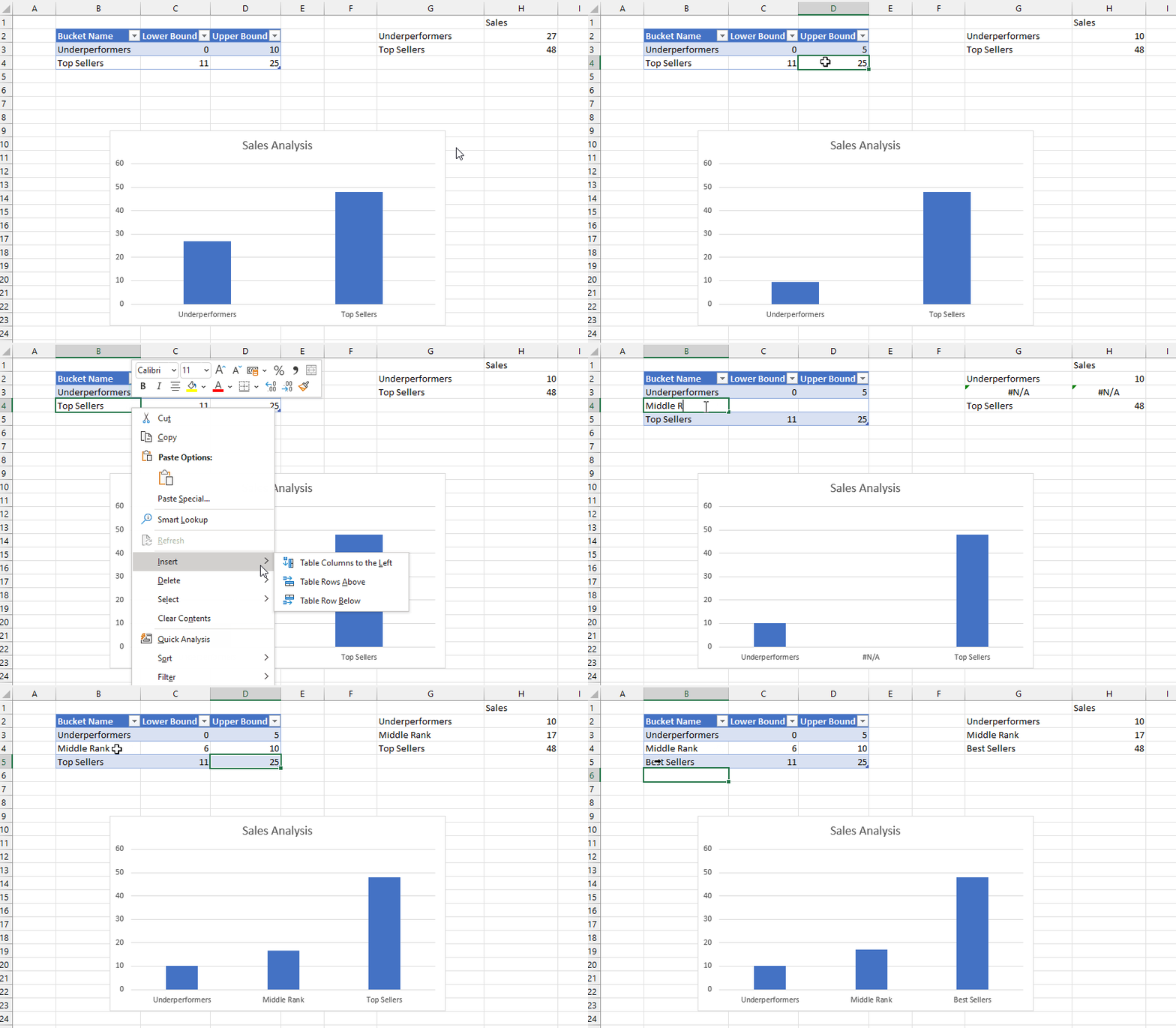
The aim here is to put these products into an arbitrary number of groups, or buckets, based on their sales. To define these buckets I created another Excel table called Buckets that has three columns: the name of the bucket, and the lower bound and the upper bound of the sales amount that determines whether a product should fall into the bucket:

I then created two dyanmic array formulas using the new Map function. In cell G2 I added this formula:

=
MAP(
 Buckets[Bucket Name], 
 Buckets[Lower Bound], 
 Buckets[Upper Bound], 
 LAMBDA(
  n,
  l,
  u, 
  CUBESET(
   "ThisWorkbookDataModel", 
   "FILTER([Sales].[Product].[Product].MEMBERS, [Measures].[Sales Amount]>=" & l & 
   " AND [Measures].[Sales Amount]<=" & u & ")", 
   n)
  )
)

And in cell H2 I added this formula:

MAP(
 G2#, 
 LAMBDA(
  s, 
  IF(
   CUBESETCOUNT(s)>0, 
   CUBEVALUE(
    "ThisWorkbookDataModel", 
    s, 
    "[Measures].[Sales Amount]"),
   0)
  )
)

Here’s what these two formulas return:

The formula in G2 takes three arrays – the values from the three columns in the Buckets table – and then loops over the values in those columns and uses the CubeSet function to return a set of the Products whose sales are between the lower and upper bounds. Since there are two rows in the Buckets table, this formula returns two sets. The formula in H2 uses the CubeValue function to return the aggregated sales amount for each set.

Last of all I created a column chart bound to the values in G2 and H2. This was a bit tricky to do, but I found the answer in this video from Leila Gharani – you need to create names that return the contents of the ranges G2# and H2# and then use the names in the chart definitions.

The beauty of all this is what when you edit the ranges in the Buckets table in the top left of the worksheet, edit the names of the buckets or add new buckets, the table and chart update automatically.

After doing all this I realised there was another, probably easier way to achieve the same result without using the Map function. All I needed to do was to add new calculated columns to the bucket table to return the sets and values:

Here’s the formula for the Set column in the table above:

=CUBESET(
"ThisWorkbookDataModel", 
"FILTER([Sales].[Product].[Product].MEMBERS, [Measures].[Sales Amount]>=" & 
[@[Lower Bound]] & 
"AND  [Measures].[Sales Amount]<=" & 
[@[Upper Bound]] & 
")", 
[@[Bucket Name]] & 
" set"
)

…and here’s the formula for the Sales column in that table:

= IF(
CUBESETCOUNT(
[@Set])>0, 
CUBEVALUE(
"ThisWorkbookDataModel", 
[@Set], 
"[Measures].[Sales Amount]"
),
0
)

I think this second approach should work with any version of Excel since the introduction of tables and cube formulas.

Excel Cube Functions, Dynamic Arrays And Lambdas, Part 2: Returning Tables

In the first post in this series I showed how to use the new Excel Lambda helper functions to return an array containing all the items in a set. That isn’t very useful on its own, so in this post I’ll show you how to generate an entire dynamic table using Excel cube functions and Lambda helper functions.

In this post I’ll be using the same source data as in my previous post: a table containing sales data with just two columns.

With this table added to the Excel Data Model/Power Pivot, I created two measures:

I then created created two sets using CubeSet containing the sets of Products (in cell B2 of my worksheet) and Measures (in cell B4) to use in my table:

=CUBESET("ThisWorkbookDataModel", "[Sales].[Product].[Product].MEMBERS", "Product Set")

=CUBESET("ThisWorkbookDataModel", "{[Measures].[Sales Amount], [Measures].[Forecast Sales]}", "Measure Set")

Here are the formulas shown in the worksheet:

And here’s the output – remember you only see the text in the third parameter displayed in the cell:

Now, here’s the fun part – a single formula that takes these sets and builds a table with the Measures on columns and the Products on rows:

=MAKEARRAY(
  CUBESETCOUNT(B2)+1,
  CUBESETCOUNT(B4)+1,
  LAMBDA(r,c,
   SWITCH(
    TRUE(),
    AND(r=1,c=1),
    "",
    c=1,
    CUBERANKEDMEMBER("ThisWorkbookDataModel",$B$2,r-1),
    r=1,
    CUBERANKEDMEMBER("ThisWorkbookDataModel",$B$4,c-1),
    CUBEVALUE("ThisWorkbookDataModel",
     CUBERANKEDMEMBER("ThisWorkbookDataModel",$B$2,r-1),
     CUBERANKEDMEMBER("ThisWorkbookDataModel",$B$4,c-1)
    )
   )
  )
)

Here’s what this formula returns:

How does this work? Going through the MakeArray function step-by-step:

  • The first two parameters specify that the output will be an array with one more row than there are items in the Product set and one more column than there are items in the Measures set.
  • The third parameter returns a Lambda that is called for every cell in this array. This Lambda contains a Switch with the following conditions:
    • For the top-left cell in the array, return a blank value
    • In the first column, use the CubeRankedMember function to return the Products on the rows of the table
    • In the first row, use the CubeRankedMember function to return the Measures on the columns of the table
    • In the body of the table, use the CubeValue function to return the values

Here’s a slightly more ambitious version that returns the same table but adds a total row to the bottom:

=
LET(
 NumberOfRows,
 CUBESETCOUNT(B2)+2,
 NumberOfColumns,
 CUBESETCOUNT(B4)+1,
 MAKEARRAY(
  NumberOfRows,
  NumberOfColumns,
  LAMBDA(r,c,
   SWITCH(
    TRUE(),
    AND(r=1,c=1),
    "",
    AND(r=NumberOfRows,c=1),
    "Total",
    r=NumberOfRows,
    CUBEVALUE("ThisWorkbookDataModel",
     $B$2,
     CUBERANKEDMEMBER("ThisWorkbookDataModel",$B$4,c-1)),
    c=1,
    CUBERANKEDMEMBER("ThisWorkbookDataModel",$B$2,r-1),
    r=1,
    CUBERANKEDMEMBER("ThisWorkbookDataModel",$B$4,c-1),
    CUBEVALUE("ThisWorkbookDataModel",
     CUBERANKEDMEMBER("ThisWorkbookDataModel",$B$2,r-1),
     CUBERANKEDMEMBER("ThisWorkbookDataModel",$B$4,c-1))
    )
   )
  )
)

Two extra things to note here:

  • This is a great example of a complex formula where the new Excel Let function can be used to improve readability and prevent the same value being evaluated twice.
  • The values in the Total row are calculated in the Excel Data Model, not on the worksheet, by using the CubeSet function inside the CubeValue function. This means that the totals will be consistent with what you see in a PivotTable and therefore correct

This is still very much a proof-of-concept. I need to look at the performance of this approach (it may not be optimal and may need tuning), and I’m not sure how a table like this could be formatted dynamically (especially the Total row). It is exciting though!

Excel Cube Functions, Dynamic Arrays And Lambdas, Part 1: Getting All The Items From A Set

After my recent post on using Office Scripts and cube functions to generate Excel reports from Power BI data, Meagan Longoria asked me this question on Twitter:

To which I can only reply: guilty as charged. I have always loved the Excel cube functions even though they are maybe the least appreciated, least known and least used feature in the whole Microsoft BI stack. They have their issues (including sometimes performance) but they are great for building certain types of report in Excel that can’t be built any other way.

Anyway, the recent addition of new Lambda helper functions to Excel has made me particularly happy because they can be used with cube functions to overcome some limitations that have existed since cube functions were first released in Excel 2007, and to do some other cool things too. In this series of posts I’m going to explore some of the things they make possible.

Let’s start with something simple. In Excel, the CubeSet function can be used to return an (MDX) set of items. This set is stored in a single cell, though, and to extract each item into a cell on your worksheet you need to use the CubeRankedMember function. For example, let’s say I have a table called Sales on my worksheet:

…that is then loaded into the Excel Data Model (aka Power Pivot – although this works exactly the same if I use a Power BI dataset, Azure Analysis Services or SQL Server Analysis Services as my source):

What you can then do is use the CubeSet function to create a set of all the products like so:

=CUBESET("ThisWorkbookDataModel", "[Sales].[Product].[Product].MEMBERS", "Product Set")

…and then use the CubeRankedMember function to put each individual item of the set into a cell. Here’s a simple example worksheet, first with the formulas showing and then the results:

This example shows the fundamental problem that has always existed with CubeRankedMember though: in order to show all the items in a set you need to know how many items there are in advance, and populate as many cells with CubeRankedMember formulas as there are items. In this case see how the range B4:B6 contains the numbers 1, 2 and 3; these numbers are used in the formulas in the range C4:C6 to get the first, second and third items in the set.

If a fourth product was added to the table, however, it would not appear automatically – you would have to add another cell with another CubeRankedMember formula in it manually. I’ve seen some workarounds but they’re a bit hacky and require you to know what the maximum possible number of items in a set could ever be. Indeed that’s always been one of the key differences between cube functions and PivotTables: cube functions are static whereas PivotTables can grow and shrink dynamically when the data changes.

The new MakeArray function in Excel provides a really elegant solution to this problem: you can now write a single formula that returns a dynamic array with all the items in the set in. Assuming that the same CubeSet exists in B2 as shown above, you can do the following:

=MAKEARRAY(CUBESETCOUNT($B$2), 1, LAMBDA(r,c,CUBERANKEDMEMBER("ThisWorkbookDataModel",Sheet3!$B$2,r)))

Here’s the output:

Notice how the formulas in cell B4 returns an array that contains all three items in the set into the range B4:B6.

How does this work?

  1. The CubeSetCount function is used to get the number of items in the CubeSet in B2.
  2. The MakeArray function is then used to create an array with the number of rows returned by CubeSetCount and one column
  3. In the third parameter of MakeArray the Lambda function is used to return a function that wraps CubeRankedMember, which is then called with the current row number of the array

The nice thing about this is that when more products are added to the Sales table they automatically appear in the output of the MakeArray formula in B4. So, for example, with two more products added to the Sales table like so:

Here’s the new output of the formula, showing the two new products returned in the array automatically:

This is not very useful on its own though. In my next post I’ll show you how this can be used to build a simple report.

Power BI Dataset Refresh, Column Encoding And The First Partition

If you’ve been following some of my recent posts about improving Power BI refresh performance by partitioning tables you will have seen a lot of screenshots that look like the one below:

It’s a visualisation from a report created by my colleague Phil Seamark (as detailed in this blog post) showing how long all the partitions in a dataset take to refresh. If you look at these visualisations you’ll probably ask the same question I did: why does the first partition always start before the others?

It turns out this is because when a table is refreshed, the first thing that has to happen is that a certain amount of data is read so the type of encoding (Value or Hash) used for each column is determined. In most cases tables only contain one partition so it’s not obvious that this is happening, but when a table has more than one partition this happens only for the first partition – which explains why the first partition seems to start before the others. You can’t avoid it happening but you can reduce the impact a little by using encoding hints (see here and here for more details): this process can be skipped for columns that have a Hash encoding hint, or which the engine knows in advance have to use Hash encoding, although it cannot be skipped for columns that have a Value encoding hint. What’s more the Execute SQL event for the first partition will have to complete before the Execute SQL events for all the other partitions can start.

[Thanks to Akshai Mirchandani for the information in this post]

View Native Query Now Works For Analysis Services Data Sources

If you’re familiar with the topic of query folding in Power Query, you’ll know that the View Native Query right-click option in the Applied Steps pane of the Power Query Editor can be used to show the native query that is run against the data source. You may also know that there are some data sources where query folding does take place but where View Native Query remains greyed out. One of those used to be Analysis Services, but the good news is that that is no longer the case: you can use View Native Query when importing data from Analysis Services! Look:

I’m told it also now works for SAP BW, but I haven’t tested it.

Migration From Analysis Services Multidimensional – Your Feedback Needed!

Do you have Analysis Services Multidimensional cubes in production? Although I know it’s a long time since I last posted any Multidimensional/MDX content here I hope I still have some readers who do. If so, then you may be able to help me.

The reason I ask is that in my current job at Microsoft I’m working with some colleagues to investigate what it is that prevents people from migrating away from Analysis Services Multidimensional to Analysis Services Tabular, Azure Analysis Services, Power BI or indeed any other BI platform. Is it missing features? Is it organisational intertia? Cost? Is it the fact that your Multidimensional cubes still work well and there’s no point in migrating when you wouldn’t see much benefit? Something else? Has the idea of migration ever even crossed your mind?

In particular, what I need is:

  • Examples of Analysis Services Multidimensional cubes you have in production. All I want is the Visual Studio project or an XMLA script of the database, I do not need or want your data. Please leave a message for me here if you’re willing to do this and I’ll let you know where to send your cubes to.
  • Your thoughts on this subject – please leave a comment below. You know how I love a good argument discussion!

I already have plenty of ideas and theories regarding this topic, but what I need is hard evidence (hence the request for the cube definitions) and quotes from actual customers.

Last of all, don’t read too much into this: it’s a research project, nothing more. I can’t comment on, or make any promises about, the future of Multidimensional or new features that might be added to Analysis Services Tabular or Power BI.

[UPDATE November 2020: I’ve now finished my research, so there’s no need to send me your cubes now. Thanks to everyone who did send one so far!]