MDX Scoped Assignments Outside The Granularity Of A Measure Group

If you’re an SSAS Multidimensional developer, you’ll know that not every dimension has to have a relationship with every measure group in your cube. You may also know that by setting the Granularity Attribute property of a regular relationship, you can join a dimension to a measure group using an attribute that isn’t the dimension’s key attribute. What happens when you make a scoped assignment to a non-calculated measure outside the granularity of a measure group?

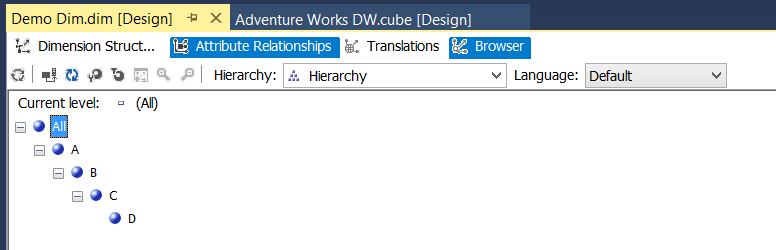
The simple answer is that, unlike what happens when you assign to a non-calculated measure inside the granularity of a measure group, your assigned value does not aggregate up. For example, consider a dimension called Demo Dim with one user hierarchy, where there is just one member on each level:

image

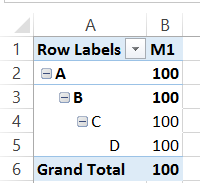
If you add this dimension to a cube but don’t define any relationships to any measure groups (and don’t change the IgnoreUnrelatedDimensions property of the measure group) you’ll see the value of the All Member on the hierarchy repeated across all of the other members of the hierarchy:

image

If you use a scoped assignment to change the value of the member D for a regular, non-calculated measure M1, like so:

[sourcecode language=”text” padlinenumbers=”true”]
SCOPE([Measures].[M1], [Demo Dim].[L4].&[D]);
THIS = 999;
END SCOPE;
[/sourcecode]

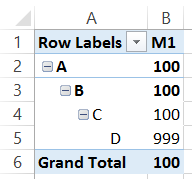
You’ll see that D changes value, but the value isn’t aggregated up:

image

The same thing happens if you make an assignment below the granularity attribute of a dimension. This all makes sense when you think about it, in my opinion, and it means that in this scenario at least non-calculated measures and calculated measures behave in the same way.

One last word of warning: whenever I’ve done this, I’ve found that query performance hasn’t always been as good as I would have liked.

Loading Twitter Archive Data In Power Query

If you’re a Twitter user (I’m @Technitrain if you aren’t following me already) you may be aware that you can download your entire Twitter history – all of the data from all of your tweets – as a series of .js files. All the details on how to do this are here:

https://support.twitter.com/articles/20170160-downloading-your-twitter-archive

Since Power Query can work with JSON data I thought it would be easy to use it to analyse my Twitter archive… but while it’s possible, it’s not entirely straightforward. The problem seems to be that Power Query doesn’t like the first line in each .js file that Twitter gives you. Removing that first line isn’t too difficult but it requires some M code, so here’s a function (I’ve called it GetTwitterArchiveFile) that handles that problem. You give it the binary data from the file and it returns a table containing all the data from that file:

[sourcecode language=”text”]
(TwitterFile as binary)=>
let
//Read data from file and interpret as Lines
Source = Lines.FromBinary(TwitterFile),
//Remove the first line
RemoveFirstRow = List.Skip(Source,1),
//Convert back to Binary
ConvertBackToBinary = Lines.ToBinary(RemoveFirstRow),
//Now convert to JSON
ConvertToJSON = Json.Document(ConvertBackToBinary),
//Flatten to a table
ConvertToTable = Table.FromList(ConvertToJSON, Splitter.SplitByNothing(), null, null, ExtraValues.Error),
//Expand the first set of columns
ExpandColumns = Table.ExpandRecordColumn(ConvertToTable, "Column1", {"source", "entities", "geo", "id_str", "text", "id", "created_at", "user", "retweeted_status", "in_reply_to_status_id_str", "in_reply_to_user_id", "in_reply_to_status_id", "in_reply_to_screen_name", "in_reply_to_user_id_str"}, {"source", "entities", "geo", "id_str", "text", "id", "created_at", "user", "retweeted_status", "in_reply_to_status_id_str", "in_reply_to_user_id", "in_reply_to_status_id", "in_reply_to_screen_name", "in_reply_to_user_id_str"})
in
ExpandColumns
[/sourcecode]

Here’s an example of how to use the above function: it’s another function (called GetTwitterFullArchive) which, when you pass it the path of your tweets folder (this will be wherever you unzipped the download that you get from Twitter) returns the combined contents of all of the .js files in that format by calling GetTwitterArchiveFile() for each one:

[sourcecode language=”text”]
(TweetsFolderPath as text) =>
let
//Connect to Tweets folder
Source = Folder.Files(TweetsFolderPath),
//Remove everything but Content column
#"Removed Other Columns" = Table.SelectColumns(Source,{"Content"}),
//Use Custom Column to call GetTwitterArchiveFile for each .js file in the folder
#"Added Custom" = Table.AddColumn(#"Removed Other Columns", "Custom", each GetTwitterArchiveFile([Content])),
//Remove the Content columns
#"Removed Columns" = Table.RemoveColumns(#"Added Custom",{"Content"}),
//Expand all columns in the Custom column
#"Expanded Custom" = Table.ExpandTableColumn(#"Removed Columns", "Custom", {"source", "entities", "geo", "id_str", "text", "id", "created_at", "user", "retweeted_status", "in_reply_to_status_id_str", "in_reply_to_user_id", "in_reply_to_status_id", "in_reply_to_screen_name", "in_reply_to_user_id_str"}, {"source", "entities", "geo", "id_str", "text", "id", "created_at", "user", "retweeted_status", "in_reply_to_status_id_str", "in_reply_to_user_id", "in_reply_to_status_id", "in_reply_to_screen_name", "in_reply_to_user_id_str"})
in
#"Expanded Custom"
[/sourcecode]

Invoking this function in a query, for example like this:

[sourcecode language=”text”]
let
Source = GetFullTwitterArchive("C:\Users\Chris\Downloads\TwitterArchive\data\js\tweets")
in
Source
[/sourcecode]

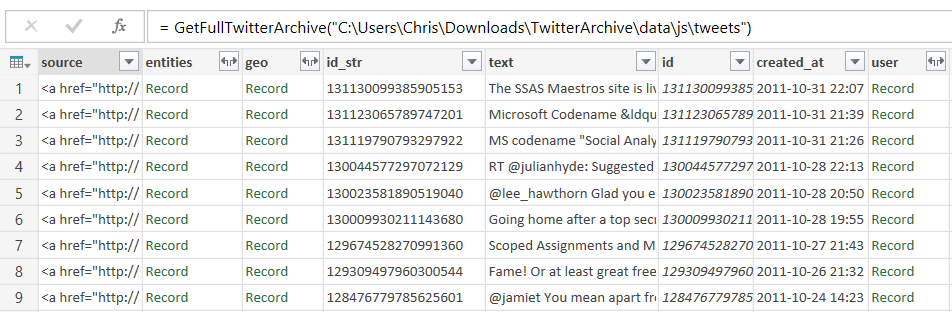
Gives you the following output:

image

As you can see, there are plenty of other columns that can themselves be expanded, but this is a good starting point for any analysis.

There’s nothing really ground-breaking in what I’ve done here – it’s a fairly standard example of how you can use Power Query functions to combine data from multiple files, very similar to this example of combining data from multiple Excel files.

There’s absolutely loads of interesting data that you can play with here, but to start with here’s a query that finds the top 10 people I have replied to on Twitter:

[sourcecode language=”text”]
let
Source = GetFullTwitterArchive("C:\Users\Chris\Downloads\TwitterArchive\data\js\tweets"),
#"Removed Other Columns" = Table.SelectColumns(Source,{"in_reply_to_screen_name"}),
#"Grouped Rows" = Table.Group(#"Removed Other Columns", {"in_reply_to_screen_name"}, {{"Count", each Table.RowCount(_), type number}}),
#"Filtered Rows" = Table.SelectRows(#"Grouped Rows", each ([in_reply_to_screen_name] <> null)),
#"Sorted Rows" = Table.Sort(#"Filtered Rows",{{"Count", Order.Descending}}),
#"Kept First Rows" = Table.FirstN(#"Sorted Rows",10)
in
#"Kept First Rows"
[/sourcecode]

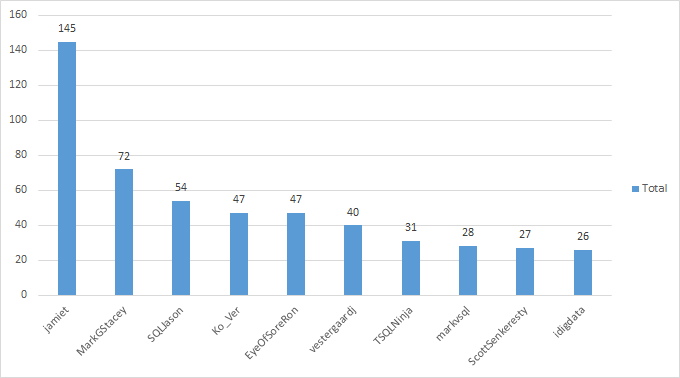
Here’s the output as a table and chart:

image

image

Looks like Jamie Thomson is the winner by a wide margin!

Here’s an example of a  NodeXL graph I built from this data, showing the relationships between users who I have mentioned together in a single tweet:

image

You can download the sample workbook for this post, containing all the functions (but not my data) here.

Exporting All M Code From Power Query In Excel 2013

UPDATE – there’s now a better way to do this using copy/paste. See

Exporting Your Queries’ M Code From Power Query And Power BI Using Copy/Paste

Here’s a tip that I found out about on the Power Query Technet forum that I thought was worth repeating. If you ever need a quick way of exporting all the M code for all of the queries in an Excel 2013 workbook, just open the Power Query window and click the Send a Frown button shown here:

image

Then, when the Send Feedback dialog appears, make sure Include Formulas is ticked then click OK:

image

When you do that, you’ll get an email created for you that contains a whole lot of debugging information, plus all of the M code for your queries:

image

Obviously, don’t send this email to Microsoft!

It’s quite easy to see the individual queries. You then need to go to your new workbook, create a new query by selecting the Blank Query option under Other Sources, and then open the Advanced Editor window and paste the code for each query in. However, when you do that you will need to modify the code a bit. There are three pieces of code you will need to delete:

  • At the beginning of the M code, where it says
    section Section1;
  • At the beginning of each query, a piece of code that contains the original name of the query:
    shared MyOriginalQueryName =
  • At the very end, a semi-colon

Of course in Excel 2016 we’ll have much better options for copying, pasting and moving queries in VBA, but until then we’ll have to live with hacks like this.

Running Your Own MDX And DAX Queries In Power BI Desktop

Every time there’s a new release of Power Query or Power BI Desktop, I always check to see if there are any interesting new M functions that have been added (I used #shared to do this, as detailed here). For the RTM version of Power BI Desktop I spotted two new functions:

image

As well as ODBC connections, we can now use OLEDB and ADO.NET data sources – although they aren’t shown in the UI yet. And you know what this means… with an OLEDB connection we can now run our own MDX and DAX queries against SSAS data sources! I assume this will be coming in Power Query in Excel soon too.

Here’s an example query showing how to use OleDB.Query() to run an MDX query against the Adventure Works DW cube in SSAS Multidimesional:

[sourcecode language=”text”]
let
Source = OleDb.Query(
"Provider=MSOLAP.5;Data Source=localhost;
Initial Catalog=Adventure Works DW 2008",
"select {measures.[internet sales amount]} on 0,
[date].[calendar].[calendar year].members on 1
from [adventure works]"
)
in
Source
[/sourcecode]

As you can see, it’s pretty straightforward: you just need to supply a connection string and a query. You will need to tell Power BI Desktop which credentials to use when running the query the first time you connect to SSAS, and that’s probably going to be Windows:

image

You will also see a prompt the first time you run the query, asking for permission to run a Native Database Query:

image

This prompt will appear each time a different MDX query is run; you can turn off this prompt in the Options dialog on the Security tab by unchecking the Require user approval for new native database queries box:

image

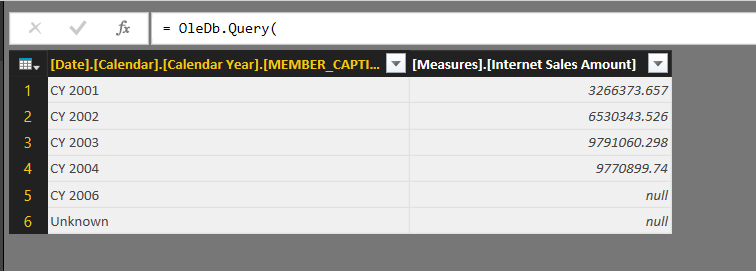
Here’s the output of the MDX query from the example code:

image

Thoughts On the Microsoft/Pyramid Power BI Deal

Ever since Power BI first appeared, the number one request from customers has been the ability to publish reports and dashboards to an on-premises server rather than the cloud. There were two standard responses from Microsoft to this request:

  • la-la-la-I’m-not-listening-la-la-la-cloud-la-la-la-future-la-la-la
  • Maybe we’ll have something in SharePoint v.next

…neither of which were particularly satisfying. A lot of businesses just don’t feel comfortable with the cloud yet, and more importantly a lot of businesses can’t put their most valuable data in the cloud for a variety of legal and regulatory reasons.

Today’s announcement of a deal between Microsoft and Pyramid Analytics is big news because it means Microsoft have got a credible answer to the Power-BI-on-premises question at last. For details, read the blog posts here and here, if you haven’t already, plus the Pyramid press release and this page on the Pyramid site. It’s not a perfect solution – I had been hoping that Microsoft would unveil an on-prem Power BI server that they had been working on in secret – but it’s a lot better than what we had before. It also ties up nicely with existing on-premises SQL BI investments that customers may have, and does so without a cumbersome SharePoint dependency.

What has been announced, exactly? From the Pyramid press release:

Pyramid Analytics … today announced a strategic collaboration with Microsoft consisting of development collaboration and technology integration.

The output of this new collaboration is a range of new features in the Power BI Desktop at expected General Availability on July 24. Among those features will be an option to publish a Power BI Desktop file to Pyramid Analytics Server. This feature will enable an ease of integration between the Power BI Desktop and the Pyramid Analytics Server.

From the Pyramid blog post:

This was the result of a strategic collaboration agreement that included:

  • Pyramid Analytics help in the Power BI Desktop development
  • Technology integration to publish Power BI content to Pyramid Analytics Server
  • Go-to-market coordination so mutual customers and partners get the best of our technologies

Here are some screenshots that Pyramid gave me showing what the ‘Publish to Pyramid’ feature will look like in Power BI Desktop:

2015-07-21_18-43-53

2015-07-21_18-44-51

Obviously this is great news for Pyramid and I’m sure it will be a big boost for their business. They are certainly one of the leading third party client tools for SSAS and, I guess, the one with the biggest presence worldwide. Many of my customers are also customers of theirs, and I’ve always been impressed with their products. It’s interesting that this is a partnership rather than an acquisition… maybe, given the large number of ex-Proclarity guys at Pyramid, they had no desire to see history repeat itself?

For Microsoft, I think it’s the best possible solution in the circumstances. Ever since the Power BI reboot last year, Microsoft’s BI strategy has become a lot more pragmatic – something that I, and pretty much the whole of the Microsoft BI community, have welcomed. Rather than pursue a grandiose strategy that fails on the details, the new focus is now on [shock!] building a product that people not only want to buy, but can buy easily. Some compromises have had to be made based on the position that Microsoft has found itself in, though. I guess with all the resources that are being thrown at Power BI V2, plus the development effort that is going into on-premises BI features in SQL Server 2016, it proved easier to partner with a third party vendor that already has a mature product and spare development resources, than build something from scratch.

There are some downsides to all this, though. First of all, I feel sorry for the third-party client tool vendors that aren’t Pyramid, who must be feeling hard done by right now. That’s business, I suppose. Second, Pyramid’s on-premises solution is yet another dashboarding/reporting component that must be understood and fitted in to the Microsoft BI story along with Power BI Desktop, Excel, Reporting Services, Datazen, PerformancePoint (RIP), Excel Services and so on, making the Microsoft BI pro’s life even harder still. Similarly, the Pyramid brand is likely to confuse customers who really just want to buy a single, Microsoft-branded solution (and don’t get me started on the whole Power BI/Cortana Analytics Suite branding overlap thing either).

Overall, I’m very happy as a result of this news. What with this, and the RTM of Power BI v2 tomorrow, Microsoft is back as a serious contender in BI both on-premises and in the cloud, and is catching up with the competition incredibly quickly.

One-To-One Relationships In Power BI

My blog post from earlier this year about bidirectional relationships and many-to-many in Power BI sparked a lot of interest. What I didn’t realise at the time is that there’s another new feature (albeit rather less exciting) concerning relationships: you can now create one-to-one relationships between tables.

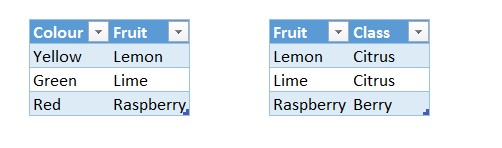
For example, consider the following two tables:

image

Both contain a column called Fruit containing the same, distinct set of values. If you load both these tables into Power BI Desktop, create a relationship between them and make sure the Cardinality is set to 1:1 and Cross Filter Direction to Both, like so:

onetoone

…then not only do you get bi-directional cross-filtering (ie if I select something from Fruit1 it will filter the Fruit2 table, and if I select something from Fruit2 it will filter Fruit1) but the Related() and RelatedTable() functions can be used in a DAX calculated column on either table to look up values in the other. With one-to-many relationships, you can only use Related() in a calculated column on the ‘many’ side of the relationship and RelatedTable() on the ‘one’ side of the relationship.

Thanks to Marius Dumitru for pointing this out to me!

Power BI Desktop As A Client Tool For SSAS Tabular

There has been another flurry of Power BI announcements in the last few days in preparation for RTM on July 24th; you can read about them here if you haven’t already. There’s no point me repeating them all, but in amongst the major features announced there was one thing that I thought was worth highlighting and which could easily get overlooked. It is that by RTM the Power BI Desktop app will be able to connect direct to SSAS Tabular – that’s to say, you will be able to use it as a client tool for SSAS Tabular in the same way you can use Excel and any number of third party products.

The Power BI Desktop app was previously known as the Power BI Designer – the name change was a wise move, because it is in fact a full featured desktop BI tool in itself, and not just a ‘designer’ for the cloud based Power BI service. It is a free download and you can use it without any kind of Power BI subscription at all. Therefore even if you are a traditional corporate BI shop that uses SSAS Tabular and you aren’t interested in any kind of self-service BI at all, you could use it just as a client for SSAS and forget about its other capabilities.

Why would you want to do this though? More specifically, why use Power BI Desktop rather than Excel, which is of course the default client tool for SSAS? I’m a big fan of using Excel in combinations with SSAS (pretty much everything Rob Collie says here about Excel and Power Pivot also applies to Excel and SSAS – for the vast majority of users, for real work, Excel will always be the tool of choice for anything data related), but its data visualisation capabilities fall well short of the competition. While you can do some impressive things in Excel, it generally requires a lot of effort on the part of the user to build a dashboard or report that looks good. On the other hand, with Power BI Desktop it’s much easier to create something visually arresting quickly, and with the new open-source data visualisation strategy it seems like we’ll be able to use lots of really cool charts and visualisations in the future. Therefore:

  • Showing off the capabilities of Power BI Desktop will make selling a SSAS Tabular-based solution much easier, because those visualisations will make a much better first impression on users, even if they do end up using Excel for most of their work.
  • Less capable users, or those without existing Excel skills, will appreciate the simplicity of Power BI Desktop compared to Excel as a client tool.
  • Some users will need those advanced data visualisation capabilities if they are building reports and dashboards for other people – especially if those people expect to see something flashy and beautiful rather than a typically unexciting, practical Excel report.
  • If your users are stuck on Excel 2007 (or an earlier version) and aren’t likely to upgrade soon, giving them the Power BI Desktop app instead will give them access to a modern BI tool. Excel 2007 is an OK client for SSAS but is missing some features, notably slicers, that Excel 2010 and 2013 have and that are also present in Power BI Desktop.
  • Similarly, if your users are expecting to do a mixture of corporate BI using SSAS Tabular as a data source, and self-service BI, but face the usual problems with Excel versions, editions and bitness that prevent them from using the power-add-ins in Excel, then standardising on Power BI Desktop instead could make sense.
  • If you do have a Power BI subscription and can work with the requirements for setting up direct connection from PowerBI.com to an on-prem SSAS Tabular instance, then publishing from Power BI Desktop to PowerBI.com will be very easy. If you need to see reports and dashboards in a browser or on a mobile device, it could be a more attractive option than going down the Excel->SharePoint/Excel Services or Excel->OneDrive->PowerBI.com route.

In short, I don’t see Power BI Desktop as a replacement for Excel as a SSAS Tabular client tool but as a useful companion to it.

The last question that needs to be asked here is: what does this mean for third party SSAS client tool vendors like Pyramid Analytics and XLCubed? I don’t think these companies have too much to worry about, to be honest. These vendors have been competing with a less feature-rich, but effectively free, Microsoft option for a long time now. While Power BI Desktop erodes their advantage to a certain extent, they have a lot of other features besides visualisations that Microsoft will never probably provide and which justify their price. Besides that, the fact that Power BI doesn’t support direct connections to SSAS Multidimensional (yet…? ever…?) excludes at least 80% of the SSAS installations out there.

Checking Columns Are Present In Power Query

Something I was meaning to mention in my previous post (but forgot about…) was that in a lot of cases you don’t really care if your output contains all the required columns – it’s enough just to check that your input contains all the required columns. Luckily M has a function called Table.HasColumns() to help you do this. For example, using the csv source file from my previous post, which should have three columns called Product, Month and Sales, the following query will return true if the source file has these columns and false if it doesn’t:

[sourcecode language=”text” padlinenumbers=”true”]
let
Source = Csv.Document(File.Contents("C:\MissingColumnDemo.csv"),[Delimiter=",",Encoding=1252]),
PromotedHeaders = Table.PromoteHeaders(Source),
CheckColumns = Table.HasColumns(PromotedHeaders, {"Product", "Month", "Sales"})
in
CheckColumns
[/sourcecode]

Advanced SSAS Multidimensional Security Tips & Tricks Webinar This Thursday

In association with the nice people at SQLRelay I’ll be presenting an hour-long webinar on advanced SSAS Multidimensional tips and tricks this Thursday July 9th 2015 at 1pm UK time (that’s 8am EDT for you Americans). It’s free to attend and open to anyone, anywhere in the world. You can join the meeting by going to

http://t.co/apht1IhJlg

In the webinar I’ll be covering topics such as:

  • The difference between Allowed Sets and Denied Sets in dimension security
  • Handling security-related errors in your MDX calculations
  • The different ways of implementing dynamic security
  • Why you should avoid cell security, and how (in some cases) you can replace it with dimension security

…and lots more.

If you’re in the UK, you should definitely check out SQLRelay, an annual series of one-day SQL Server events that happens at a number of different places around the country each autumn. For more details, see http://www.sqlrelay.co.uk/2015.html

I’m presenting this webinar in my capacity as a sponsor of SQLRelay, so expect me to spend a small amount of time promoting Technitrain’s autum course schedule. There are some cool courses on SSIS, MDX, SQL Server high availability and data science/machine learning coming up, you know…

UPDATE: you can download the slides and demos from the webinar at http://1drv.ms/1LYk1k8 and watch the recording at https://www.youtube.com/watch?v=cB9F6IVo7MA

For whoever was asking about using a measure group to store permissions for dynamic security, this blog post has all the details: http://bifuture.blogspot.co.uk/2011/09/ssas-setup-dynamic-security-in-analysis.html

Ensuring Columns Are Always Present In A Table Returned By Power Query

Disappearing or renamed columns in your data source can cause all kinds of problems when you’re importing data using Power Query: errors when you try to refresh the query, broken calculations in Power Pivot, PivotTables that reformat themselves and then need to be manually recreated. As a result, it can be a very good idea to build some logic into your Power Query queries that ensures that a table always contains the columns you’re expecting.

Consider the following csv file:

image

In Power Query, if you connect to it and create a query you’ll end up with something like this:

[sourcecode language=”text” padlinenumbers=”true”]
let
Source = Csv.Document(File.Contents("C:\Demo.csv"),null,",",null,1252),
#"First Row as Header" = Table.PromoteHeaders(Source),
#"Changed Type" = Table.TransformColumnTypes(#"First Row as Header",{{"Sales", Int64.Type}})
in
#"Changed Type"
[/sourcecode]

Let’s assume that this query is called GetSourceData. Let’s also assume that your output from Power Query should always be a table that has the three columns Product, Month and Sales, and that Product and Month should be text columns and Sales should be numeric. The basic steps to take to ensure that this always happens, even if the columns in the csv file change, are as follows:

  1. Create a query that connects to your data source, for example like GetSourceData above
  2. Create a query that will always return a table with the columns you want, but which contains no rows
  3. Append the second table onto the end of the first table. This will result in a table that contains all of the columns from both tables.
  4. Remove any unwanted columns.

There are a number of ways to create the empty table needed in step 2. You could use the #table() function if you’re confident writing M code, and the following single line query (no Let needed) does the job:

[sourcecode language=”text”]
#table(
type table [Product=text, Month=text, Sales=number],
{})
[/sourcecode]

image

Alternatively, if you wanted something that an end user could configure themselves, you could start with a table in Excel like this:

image

then transpose it, use the first row of the resulting table as the header row, then set the data types on each table to get the same output:

[sourcecode language=”text”]
let
Source = Excel.CurrentWorkbook(){[Name="Columns"]}[Content],
#"Transposed Table" = Table.Transpose(Source),
#"First Row as Header" = Table.PromoteHeaders(#"Transposed Table"),
#"Changed Type" = Table.TransformColumnTypes(#"First Row as Header",
{{"Product", type text}, {"Month", type text}, {"Sales", Int64.Type}})
in
#"Changed Type"
[/sourcecode]

Assuming that this query is called ExpectedColumns, it’s then a trivial task to create a third query that appends the ExpectedColumns query onto the end of the GetSourceData query. If GetSourceData includes all the columns it should then this append will have no effect at all; if some of the columns have changed names or disappeared, you’ll see all of the columns present from both GetSourceData and ExpectedColumns in the output of the append. For example if the Month column in GetSourceData is renamed Months then the output of the append will look like this:

image

Finally, in this third query you need to select all the columns you want (ie all those in the ExpectedColumns query) and right click/Remove Other Columns, so you remove all the columns you don’t want. In the previous example that gives you:

image

The point here is that even though the Month column only contains nulls, and the actual month names have been lost, the fact that the columns are all correct means that you won’t get any errors downstream and your PivotTables won’t be reformatted etc. Once you’ve fixed the problem in the source data and refreshed your queries, everything will go back to normal.

Here’s the code for this third query:

[sourcecode language=”text” padlinenumbers=”true”]
let
Source = GetSourceData,
Append = Table.Combine({Source,ExpectedColumns}),
#"Removed Other Columns" = Table.SelectColumns(Append,{"Product", "Month", "Sales"})
in
#"Removed Other Columns"
[/sourcecode]

For bonus points, here’s another query that compares the columns in GetSourceData and ExpectedColumns and lists any columns that have been added to or are missing from GetSourceData:

[sourcecode language=”text”]
let
//Connect to Excel table containing expected column names
ExcelSource = Excel.CurrentWorkbook(){[Name="Columns"]}[Content],
//Get list of expected columns
ExpectedColumns = Table.Column(ExcelSource, "ColumnName"),
//Get a list of column names in csv
CSVColumns = Table.ColumnNames(GetSourceData),
//Find missing columns
MissingColumns = List.Difference(ExpectedColumns, CSVColumns),
//Find added columns
AddedColumns = List.Difference(CSVColumns, ExpectedColumns),
//Report what has changed
OutputMissing = if List.Count(MissingColumns)=0 then
"No columns missing" else
"Missing columns: " & Text.Combine(MissingColumns, ","),
OutputAdded = if List.Count(AddedColumns)=0 then
"No columns added" else
"Added columns: " & Text.Combine(AddedColumns, ","),
Output = OutputMissing & " " & OutputAdded
in
Output
[/sourcecode]

image

You can download the sample workbook for this post here.