An interesting – if obscure – fact I learned recently is that a small number of DAX functions such as Median() do not work on tables with more than 2 billion rows in Analysis Services Tabular, Azure AS and Power BI.
It’s quite easy to reproduce in Power BI. The following M expression returns a table with two billion and four rows:
let

Source =

List.Repeat(

{1,2,3,4},

500000001

),

#"Converted to Table" =

Table.FromList(

Source,

Splitter.SplitByNothing(),

null,

null,

ExtraValues.Error

),

#"Changed Type" =

Table.TransformColumnTypes(

#"Converted to Table",

{{"Column1", Int64.Type}}

)

in

#"Changed Type"
It takes some time to load this table – around twenty minutes – but because there are only four distinct values in the table the resulting .pbix file is only 31KB thanks to the way Power BI compresses data.
If you load this table into your dataset, call it VeryBigTable and create the following measure:
Median Test = MEDIAN(VeryBigTable[Column1])
…and use the measure in a visual, you’ll see the following error:
The current query cannot be evaluated for the ‘VeryBigTable (42)’ table, because the table contains more than two billion rows.
What’s more, the error will always occur even if you apply a filter to the table that returns less than two billion rows. The same problem occurs with some other functions, such as Percentile(), but it’s worth pointing out that the vast majority of DAX functions work as normal with tables with more than two billion rows – for example, in the pbix file used here the Sum() and CountRows() functions not only work fine but return instantly.
Luckily, in the case of the Median() function, there is an easy workaround because you can calculate a median in other ways such as the one described on the DAX Patterns site here. The code is a lot more verbose but it works on a 2 billion+ row table.
While writing my Microsoft Business Applications Summit session on Power Query-related reasons for Power BI dataset refresh failures (which you can watch online here for free, along with all the other sessions), I remembered something important that I have been meaning to blog about for a while. It’s an excellent article by Ehren von Lehe of the Power Query dev team that contains the first fully detailed explanation of how the Power Query Formula Firewall and data privacy settings actually work. Called “Behind the scenes of the Data Privacy Firewall” you can read it on the Power Query MSDN forum here:
It’s a must-read for any Power Query fan, and it answers a number of the questions I raised in my series of blog posts on the data privacy settings here.
“Who, or what, is Paginated Report Bear?” I hear you ask. Well, he’s the breakout social media star of 2019, a furry YouTube sensation whose incisive interviews of members of the Power BI development team have become renowned for their deep technical content and insights into the Power BI roadmap. If you’re not watching his videos on YouTube, you’re missing out. Guy In A Cube is so 2018.
[That’s me on the left and Paginated Report Bear on the right]
Anyway, one question I am asked all the time is what the future holds for Analysis Services Multidimensional. While there is no firm news on what’s happening here, two of Paginated Report Bear’s recent interviews have discussed this topic and are particularly revealing. If you’re an SSAS MD and MDX fan I strongly recommend you watch the interviews with Josh Caplan:
…and Amir Netz:
I also had the honour to be interviewed by him at the Microsoft Business Applications Summit this week and we discussed this topic too, although I would like to stress that unlike Amir and Josh I have absolutely no influence on the decisions made in this area; in any case, my opinions on this topic might surprise some of you.
Recently I found I needed to remove all the HTML tags from some text in Power Query. I searched and found a great – if complex – function from Marcel Beug here, but I realised that since that post was written the Html.Table M function has been added to the language and that it makes the task very easy. In fact it’s basically the same as the solution I blogged about here for extracting URLs from a web page.
This returns a table with one column and one row, containing the text; the GetText step in the query above just gets the contents of the only cell in that table.
I have an announcement: tomorrow (Monday June 3rd) I’m starting a new job on the Power BI CAT team at Microsoft. It won’t affect what happens here on my blog, but I wanted to write this post because so many people have asked me why I’m making this move.
First and foremost the job at Microsoft offers some exciting new challenges for me that I wouldn’t get as a self-employed person. I’ll get to work on some of the biggest, most complex Power BI implementations in the world, provide feedback to the Power BI development team, and still be able to speak at conferences and do many of the other things I love doing now. I’ll also have the pleasure of working with a truly stellar bunch of colleagues who I know I’ll learn a lot from. And of course, what better product to work on than Power BI and what better tech company to work for nowadays than Microsoft? Power BI is going from strength to strength and I want to make a direct contribution to its future success.
What’s more the offer from Microsoft came at a time when I was getting a bit bored with the work I’ve been doing. If you do any job for long enough it gets repetitive and in my case after thirteen years (over a quarter of my life!) of running my own company I felt like I needed a change. Also, as I have made the shift from being a SSAS/MDX guy to being a Power BI guy I’ve been doing less and less technical consultancy and more and more training, mostly in the form of introductory Power BI courses. I enjoy training, I’d like to think I’m fairly good at it and it has proved very lucrative indeed – I just don’t want to be a full-time trainer, teaching the same material week after week.
Training and consultancy also involve a lot of travel. Over the last few years I’ve averaged more than ten nights per month in hotels and on top of that there were many nights when I got home late after a long journey back from a customer site. My wife has been very supportive and it’s all my kids have ever known, but it’s tiring and I want to spend more time with my family before my kids grow up and leave home. I’ve been to some interesting places on business I would never have been to otherwise and worked with some great companies, so yes, I have enjoyed myself. Business travel is nowhere near as glamorous or thrilling as it may seem, though, and I’m happy that I’ll be doing less of it. There’s also the risk that Brexit (if and when and how it ever happens) will stop me from working in Europe as easily as I have done in the past, so travelling as much might not even have been an option going forward.
Being self-employed has been a great experience and it’s something I would recommend to anyone who is thinking of doing it. I’m immensely grateful to all my customers, business partners and fellow members of the SQL and Power BI communities for making Crossjoin Consulting so successful. However it’s time for me to move on and try something new. Wish me luck! I’ll be back to blogging about Power BI, Power Query, SSAS, DAX and M next week.
As a footnote to my previous post on storing large images in Power BI, I thought all you M nerds out there would be interested to read about a strange performance quirk I noticed while writing the code for that post.
My original attempt to write an M query to convert a folder full of images to text looked something like this:
let
Source =
Folder.Files("C:\Users\Chris\Documents\PQ Pics"),
SplitText =
(ImageBinaryText as text) =>
let
SplitTextFunction =
Splitter.SplitTextByRepeatedLengths(30000),
SplitUpText =
SplitTextFunction(ImageBinaryText)
in
SplitUpText,
#"Added Custom" =
Table.AddColumn(
Source,
"Pic1",
each SplitText(
Binary.ToText(
[Content],
BinaryEncoding.Base64
)
)
),
#"Expanded Pic" =
Table.ExpandListColumn(
#"Added Custom",
"Pic1"
)
in
#"Expanded Pic"
The approach I took was the one that seemed natural to me at the time:
Use the Folder data source to connect to the folder containing the image files
Define a function called SplitText that takes a long piece of text and splits it up into a list of text values no longer than 30000 characters
Call the function once per row on the table returned by step (1)
Use the Expand/Aggregate button to expand the new column created by step (3) and get a table with one row for each of the split-up text values
When I ran this query, though, I caught sight of something that is every Power Query developer’s worst nightmare:
Power Query had read 118MB of data from a file that is only 1.6MB: the old problem of multiple file reads. Using Process Monitor (as I describe here) confirmed it. I suspect the query was reading the whole file once for each of the split sections of text the function returned although I admit I didn’t confirm this.
I can’t say I knew what I was doing but I rewrote the query from scratch and came up with the code that I gave in the blog post which only reads from each file once (without using buffering too, I should point out). What’s the difference? I guess it must be the pattern of calling the function once per row in a table and then expanding using Table.ExpandListColumn that was to blame; I tried returning a table from the function instead of a list and the same thing happened. Maybe this is something we should avoid doing? More research is necessary, and, as always, I would be interested to hear about your experiences – it is after all a fairly common pattern.
Since they wrote those posts, however, Power BI has added the ability to set the Data Category property on measures as well as columns in tables. This means it is now possible to have the output of a DAX measure displayed as an image in a Power BI report and this in turn opens up a lot of new possibilities – including the ability to work around the maximum size of a text value that can be loaded into Power BI (see my previous blog post for more details) and therefore work with larger images.
Here’s a rather lovely picture of a rose:
The original is about 2.1MB; I have a folder on my PC where different versions of this picture, saved at different percentages of the original size, are stored:
Using the technique that Gerhard wrote about, where the pictures can be stored as text in a single cell in a Power BI dataset and then displayed (in this case I’m using the Image by CloudScope custom visual) some truncation of the image occurs even with the smallest files because of the 32766 character limit on the length of a text value that can be loaded into Power BI. Here’s what you see when you display the version of the picture that is 20% of the original size, a file of only 113KB:
To work around this, what you need to do is to split the text representation of the image up into multiple smaller text values stored across multiple rows, each of which is less than the 32766 character limit, and then reassemble them in a DAX measure after the data has been loaded.
Splitting the text up in M is actually not that hard, but it is hard to do efficiently. Here’s an example of an M query that reads all the data from all of the files in the folder above and returns a table:
let
  //Get list of files in folder
  Source = Folder.Files("C:\Users\Chris\Documents\PQ Pics"),
  //Remove unnecessary columns
  RemoveOtherColumns = Table.SelectColumns(Source, {"Content", "Name"}),
  //Creates Splitter function
  SplitTextFunction = Splitter.SplitTextByRepeatedLengths(30000),
  //Converts table of files to list
  ListInput = Table.ToRows(RemoveOtherColumns),
  //Function to convert binary of photo to multiple
  //text values
  ConvertOneFile = (InputRow as list) =>
    let
      BinaryIn    = InputRow{0},
      FileName    = InputRow{1},
      BinaryText  = Binary.ToText(BinaryIn, BinaryEncoding.Base64),
      SplitUpText = SplitTextFunction(BinaryText),
      AddFileName = List.Transform(SplitUpText, each {FileName, _})
    in
      AddFileName,
  //Loops over all photos and calls the above function
  ConvertAllFiles = List.Transform(ListInput, each ConvertOneFile(_)),
  //Combines lists together
  CombineLists = List.Combine(ConvertAllFiles),
  //Converts results to table
  ToTable = #table(type table [Name = text, Pic = text], CombineLists),
  //Adds index column to output table
  AddIndexColumn = Table.AddIndexColumn(ToTable, "Index", 0, 1)
in
  AddIndexColumn
In my next post I’ll show you my original version of this query, explain why it was slow, and try to explain how the version above works and why it is much faster.
Here’s what the query above returns:
The Pic column contains the split text values, each of which are less than the 32766 character limit, so when this table is loaded into Power BI no truncation occurs. The index column is necessary because without it we won’t be able to recombine all the split values in the correct order.
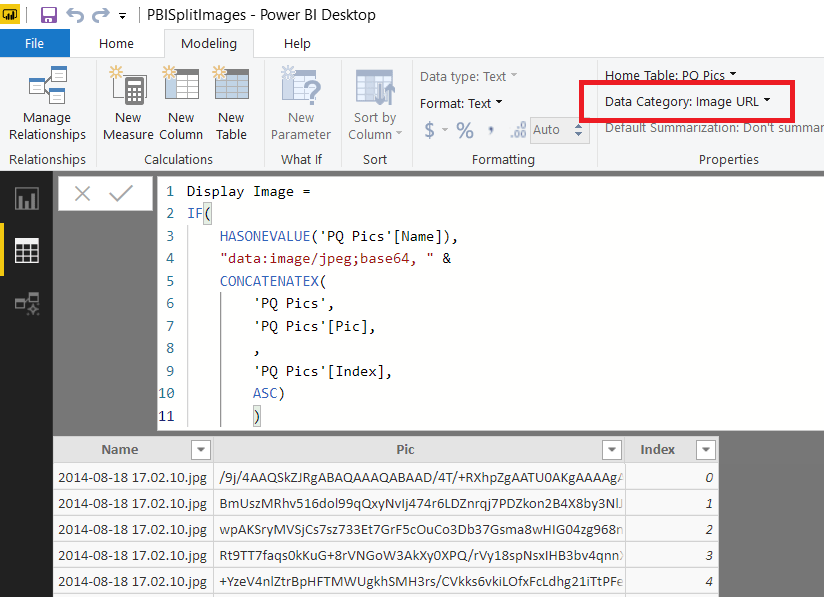
The only thing left to do is to create a measure that uses the DAX ConcatenateX() function to concatenate all of the pieces of text back into a single value, like so:
…set the data category of this measure to be “Image URL”:
…and then display the value of the image in a report:
Unfortunately, as I also mentioned in my previous post, most DAX functions (and that includes ConcatenateX()) have a limit of around 2.1 million characters so the original 2.1MB file still can’t be displayed, alas:
However, I do think this technique will be useful because it allows you to work with much larger pictures than before.
It can also be useful in other situations too. I recently came across a great new custom visual called PDF Viewer that can display PDF files stored in text form in a Power BI report:
The example file for this visual shows how a large PDF file can be split across two columns in a table; the technique I describe here is a more practical solution to this problem.
What is the maximum length of a text value in Power BI? It turns out that this is a more complex question than you might think!
The maximum length of a text value that the Power Query engine can load into a single cell in a table in a dataset is 32766 characters – any more than that and the text will be silently truncated. However, if you’re working with text inside the Power Query engine you’ll find that you can work with much longer text values. To illustrate this, consider the following M query:
let
Source =
#table(
type table[charcount = number],
{
{1},
{10000},
{30000},
{40000}
}
),
#"Added Custom" =
Table.AddColumn(
Source,
"LongText",
each Text.Repeat("1", [charcount]),
type text
),
#"Inserted Text Length" =
Table.AddColumn(
#"Added Custom",
"Length",
each Text.Length([LongText]),
Int64.Type
)
in
#"Inserted Text Length"
It creates a table with four rows and three columns. The first column contains the numbers 1, 10000, 30000 and 40000; the second column contains the character “1” repeated the number of times given in the first column; the third column returns the length of the text in the second column using the Text.Length() M function. Here’s the output in the Power Query Editor, which is pretty much as you’d expect:
I’m not sure if there is a maximum length for text values in M; I experimented with adding an extra row to the table above with a 900,000,000 character text value and Text.Length() was able to return the correct value, albeit after a bit of a wait.
Load the table above into your Power BI dataset though, and add a DAX calculated column with the following expression:
DAX Length = LEN('LengthsDemo'[LongText])
…and you can see in the Data pane of the main Power BI Desktop window that the long text value in the last row has been truncated to 32766 characters:
Once you’ve loaded your data into Power BI the documentation says that the maximum length of a text value is “268,435,456 Unicode characters (256 mega characters) or 536,870,912 bytes”. The bad news is that many DAX functions such as ConcatenateX() put a limit on the length of the text values that they can work with at around 2.1 million characters (thank you Jeffrey Wang for providing this information – it isn’t documented anywhere at the moment). If you exceed this limit you’ll get the following error:
Function ‘PLACEHOLDER’ encountered a Text that exceeds the maximum allowable length.
In summary, then, there are two different practical limits on the maximum length of a text value in Power BI: the 32766 character limit on text being loaded into Power BI, and the 2.1 million character limit in DAX functions. The first of these can be worked around with some clever M – you need to split long text values up into multiple smaller values stored in different columns or rows – but even if you do this, the second limit may stop you recreating the original value after the data has been loaded.
Why is this useful or important? How can you split text values up in M in the most efficient way? I’ll come to that in my next two posts!
One of the many big announcements at Build this week, and one that caused a lot of discussion on Twitter, was about Wrangling Data Flows in Azure Data Factory. You can read the blog post here:
…but what isn’t clear from this is that it’s basically Power Query Online integrated into ADF. You can see it in action by watching the following video – the demo of Wrangling Data Flows starts at around the 21 minute mark:
As the presenter says, the Power Query Online editor generates M in the background as you would expect and “we are going to take this M and translate it into Spark and run it over big data”. Query folding to Spark, basically. More technical detail about all this is available here:
…including a document discussing which M functions currently support query folding and which ones as yet don’t. Obviously, this feature will only work well if as much query folding as possible takes place.
This feels like a much more significant win for team Power Query than the integration with SSIS that was announced recently, if only because SSIS is a bit legacy and ADF is the cool new thing. I wonder if this opens up the possibility of integration between Power BI dataflows and ADF in the future, as another example of how self-service BI solutions can be easily transitioned into centrally-managed, enterprise-grade BI solutions? If that happens I hope someone sorts out the dataflow/data flow naming mess.
You can sign up for the preview of Wrangling Data Flows here.
DMVs (Dynamic Management Views) are, as the Analysis Services documentation states, “queries that return information about model objects, server operations, and server health”. They’re also available in Azure Analysis Service, Power BI and Power Pivot and are useful for a variety of reasons, for example for generating documentation.
Several as-yet undocumented DMVs have appeared in Power BI recently and one that caught my eye was DISCOVER_M_EXPRESSIONS. Unfortunately, when I tried to run it in DAX Studio against an open Power BI file I got an error saying it was only available in the Power BI Service:
Luckily, now that XMLA Endpoints are now in preview and SQL Server Management Studio 18 has been released (which supports connections to Power BI via XMLA Endpoints) we can test it against a published dataset stored in a Premium capacity. The following query can be run from a DAX query window in SQL Server Management Studio:
[sourcecode language=’text’ padlinenumbers=’true’]
select * from
$system.discover_m_expressions
[/sourcecode]
…returns a list of all the Power Query queries in the selected dataset and their M code:
If you don’t have Premium you can run the same query from an Excel table against any published dataset using the technique I blogged about here:
I know there are other methods for doing this (for example using copy/paste) it’s useful to be able to do this via a DMV because it means you can automate the process of extracting all your M code easily.
Some of the other new DMVs look like they are worthy of a blog post too – I can guess what most of them do from their names, but others are more mysterious and perhaps hint at features that have not been announced yet.