Exploring Power BI Import Mode Throughput With Log Analytics, Part 3: Throughput Variations During A Refresh

In the second post in this series I discussed a KQL query that can be used to analyse Power BI refresh throughput at the partition level. However, if you remember back to the first post in this series, it’s actually possible to get much more detailed information on throughput by looking at the ProgressReportCurrent event, which fires once for every 10000 rows read during partition refresh.

Here’s yet another mammoth KQL query that you can use to analyse the ProgressReportCurrent event data:

PowerBIDatasetsWorkspace
| where TimeGenerated > ago(1d)
| where OperationName == "ProgressReportCurrent" or OperationName=="ProgressReportBegin" or OperationName == "ProgressReportEnd"
| where XmlaObjectPath!=""
| where OperationDetailName=="ReadData"
| project OperationName, XmlaObjectPath, EventText, TimeGenerated, ProgressCounter, OperationDetailName, XmlaRequestId, ObjectPathRequestId = strcat(XmlaObjectPath ,XmlaRequestId)
| partition by ObjectPathRequestId
(
    sort by TimeGenerated asc
    | scan declare( PrevEventTimeGenerated:datetime, TimeSincePrevEvent:timespan=time(0s), TimeSinceRefreshBegin:timespan=time(0s), NumberOfRowsRead:int=0) with 
    (
        step RefreshStarts: OperationName=="ProgressReportBegin";
        step RefreshInProgress: OperationName == "ProgressReportCurrent" =>
            PrevEventTimeGenerated = iff(ProgressCounter==10000, RefreshStarts.TimeGenerated, RefreshInProgress.TimeGenerated),
            TimeSincePrevEvent = iff(ProgressCounter==10000, TimeGenerated - RefreshStarts.TimeGenerated, TimeGenerated-RefreshInProgress.TimeGenerated),
            TimeSinceRefreshBegin = TimeGenerated - RefreshStarts.TimeGenerated,
            NumberOfRowsRead = iff(ProgressCounter==10000, 10000, ProgressCounter-RefreshInProgress.ProgressCounter);
        step RefreshEnds: OperationName == "ProgressReportEnd" => 
            PrevEventTimeGenerated = RefreshInProgress.TimeGenerated,
            TimeSincePrevEvent = TimeGenerated - RefreshInProgress.TimeGenerated,
            TimeSinceRefreshBegin = TimeGenerated - RefreshStarts.TimeGenerated,
            NumberOfRowsRead = ProgressCounter - RefreshInProgress.ProgressCounter;
    )
    | where OperationName == "ProgressReportCurrent" or OperationName == "ProgressReportEnd"
)
| project XmlaObjectPath, Table = split(XmlaObjectPath,".", 2)[0], Partition = split(XmlaObjectPath,".", 3)[0], OperationName, 
StartTime = format_datetime(PrevEventTimeGenerated,'yyyy-MM-dd HH:mm:ss.fff' ), EndTime = format_datetime(TimeGenerated,'yyyy-MM-dd HH:mm:ss.fff' ), 
ProgressCounter, SecondsSincePreviousEvent = TimeSincePrevEvent/1s, SecondsSinceRefreshBegin=TimeSinceRefreshBegin/1s,NumberOfRowsRead, 
NumberOfRowsReadPerSecond=NumberOfRowsRead/(TimeSincePrevEvent/1s), XmlaRequestId

Here’s a brief explanation of what it does:

  • It filters the Log Analytics data down to get events from the last day and just the ProgressReportCurrent events, as well as the ProgressReportBegin/End events which are fired before and after the ProgressReportCurrent events.
  • It then splits the data into groups of rows (‘partitions’ in KQL, but of course not the partitions that are being refreshed) by a combination of XmlaRequestId (ie the refresh operation) and XmlaObjectPath (ie the partition that is being refreshed)
  • For each group of rows it will then:
    • Find the ProgressReportBegin event and from this get the time when data started to be read from the source
    • Get all subsequent ProgressReportCurrent events and calculate the amount of time elapsed since the previous event (which might be the ProgressReportBegin event or a previous ProgressReportCurrent event) and the number of rows read
    • When the ProgressReportEnd event is encountered, calculate the amount of time elapsed since the previous ProgressReportCurrent event and the number of rows (which will be less than 10000) read since then
  • Filter out the ProgressReportBegin events because we don’t need them any more
  • Finally, add columns that splits out the table name and partition name and calculates the number of rows read per second for each row by dividing the number of rows read for each event by the amount of time elapsed since the previous event

What can this query tell us about throughput?

First of all, something interesting but not necessarily useful. At least for the data source I’m using for my tests, when I plot a column chart with the number of rows read on the x axis and the amount of time elapsed since the last event on the y axis (ie the amount of time it takes to read 10000 rows for all but the last column) then I noticed that every 200000 rows something happens to slow down the read:

I have no idea what this is, whether it’s a quirk of this particular source or connector, but it’s a great example of the kind of patterns that become obvious when you visualise data rather than look at a table of numbers.

Plotting time on the x axis of a line chart and the cumulative total of rows read on the y axis gives you something more useful. Here’s the chart for one of the refreshes mentioned in my last post where four partitions of the same table are refreshed in parallel:

In this case throughput is fine up until the end of the refresh at which point something happens to the February, March and April partitions but not the January partition to slow them down for about 30 seconds, after which throughput goes back to what it was before. Here’s the same chart zoomed in a bit:

Here’s the same problem shown in the first graph above, where the number of rows read is on the x axis, showing how for example with the April partition there’s a sudden spike where it takes 14 seconds to read 10000 rows rather than around 0.3 seconds:

What is this, and why isn’t the January partition affected? Maybe it was a network issue or caused by something happening in the source database? Looking at another refresh that also refreshes the same four partitions in parallel, it doesn’t seem like the same thing happens – although if you look closely at the middle of the refresh there might be a less pronounced flattening off:

Again, the point of all this is not the mysterious blips I’ve found in my data but the fact that if you take the same query and look at your refreshes, you may find something different, something more significant and something you can explain and do something about.

Exploring Power BI Import Mode Throughput With Log Analytics, Part 2: High-Level Statistics

In the first post in this series I described the events in Log Analytics that can be used to understand throughput – the speed that Power BI can read from your dataset when importing data from it – during refresh. While the individual events are easy to understand when you look at a simple example they don’t make it easy to analyse the data in the real world, so here’s a KQL query that takes all the data from all these events and gives you one row per partition per refresh:

//Headline stats for partition refresh with one row for each partition and refresh
//Get all the data needed for this query and buffer it in memory
let RowsForStats = 
materialize(
  PowerBIDatasetsWorkspace
| where TimeGenerated > ago(1d)
| where OperationName == "ProgressReportEnd"
| where OperationDetailName == "ExecuteSql" or OperationDetailName == "ReadData" 
or (OperationDetailName == "TabularRefresh" and (EventText contains "partition"))  
);
//Get just the events for the initial SQL execution phase
let ExecuteSql = 
RowsForStats
| where OperationDetailName == "ExecuteSql"
| project XmlaRequestId, XmlaObjectPath, 
ExecuteSqlStartTime = format_datetime(TimeGenerated - (DurationMs * 1ms),'yyyy-MM-dd HH:mm:ss.fff' ), 
ExecuteSqlEndTime = format_datetime(TimeGenerated,'yyyy-MM-dd HH:mm:ss.fff' ), 
ExecuteSqlDurationMs = DurationMs, ExecuteSqlCpuTimeMs = CpuTimeMs;
//Get just the events for the data read and calculate rows read per second
let ReadData =
RowsForStats
| where OperationDetailName == "ReadData"
| project XmlaRequestId, XmlaObjectPath, 
ReadDataStartTime = format_datetime(TimeGenerated - (DurationMs * 1ms),'yyyy-MM-dd HH:mm:ss.fff' ), 
ReadDataEndTime = format_datetime(TimeGenerated,'yyyy-MM-dd HH:mm:ss.fff' ), 
ReadDataDurationMs = DurationMs, ReadDataCpuTime = CpuTimeMs, 
TotalRowsRead = ProgressCounter, RowsPerSecond = ProgressCounter /(toreal(DurationMs)/1000);
//Get the events for the overall partition refresh
let TabularRefresh =
RowsForStats
| where OperationDetailName == "TabularRefresh"
| parse EventText with * '[MashupCPUTime: ' MashupCPUTimeMs:long ' ms, MashupPeakMemory: '  MashupPeakMemoryKB:long ' KB]'
| project XmlaRequestId, XmlaObjectPath, 
TabularRefreshStartTime = format_datetime(TimeGenerated - (DurationMs * 1ms),'yyyy-MM-dd HH:mm:ss.fff' ), 
TabularRefreshEndTime = format_datetime(TimeGenerated,'yyyy-MM-dd HH:mm:ss.fff' ), 
TabularRefreshDurationMs = DurationMs, TabularRefreshCpuTime = CpuTimeMs, 
MashupCPUTimeMs, MashupPeakMemoryKB;
//Do an inner join on the three tables so there is one row per partition per refresh
ExecuteSql
| join kind=inner ReadData on XmlaRequestId, XmlaObjectPath
| join kind=inner TabularRefresh on XmlaRequestId, XmlaObjectPath
| project-away XmlaRequestId1, XmlaRequestId2, XmlaObjectPath1, XmlaObjectPath2
| extend Table = tostring(split(XmlaObjectPath,".", 2)[0]), Partition = tostring(split(XmlaObjectPath,".", 3)[0])
| project-reorder XmlaRequestId, Table, Partition
| order by XmlaRequestId, ExecuteSqlStartTime desc

It’s a bit of a monster query but what it does is quite simple:

  • First it gets all the events relating to partition refresh in the past 1 day (which of course you can change) and materialises the results.
  • Then it filters this materialised result and gets three sets of tables:
    • All the ExecuteSql events, which tell you how long the data source took to start returning data and how much CPU time was used.
    • All the ReadData events, which tell you how long Power BI took to read all the rows from the source after the data started to be returned, how much CPU time was used, and how many rows were read. Dividing duration by rows read lets you calculate the number of rows read per second during this phase.
    • All the TabularRefresh events, which give you overall data on how long the partition refresh took, how much CPU time was used, plus information on Power Query peak memory usage and CPU usage.

What can this tell us about refresh throughput though? Let’s use it to answer some questions we might have about throughput.

What is the impact of parallelism on throughput? I created a dataset on top of the NYC taxi data Trip table with a single table, and in that table created four partitions containing data for January, February, March and April 2013, each of which contained 13-15 million rows. I won’t mention the type of data source I used because I think it distracts from what I want to talk about here, which is the methodology rather than the performance characteristics of a particular source.

I then ran two refreshes of these four partitions: one which refreshed them all in parallel and one which refreshed them sequentially, using custom TSML refresh commands and the maxParallelism property as described here. I did a refresh of type dataOnly, rather than a full refresh, in the hope that it would reduce the number of things happening in the Vertipaq engine during refresh that might skew my results. Next, I used the query above as the source for a table in Power BI (for details on how to use Log Analytics as a source for Power BI see this post; I found it more convenient to import data rather than use DirectQuery mode though) to visualise the results.

Comparing the amount of time taken for the SQL query used to start to return data (the ExecuteSqlDurationMs column from the query above) for the four partitions for the two refreshes showed the following:

The times for the four partitions vary a lot for the sequential refresh but are very similar for the parallel refresh; the January partition, which was refreshed first, is slower in both cases. The behaviour I described here regarding the first partition refreshed in a batch could be relevant.

Moving on to the Read Data phase, looking at the number of rows read per second (the RowsPerSecond column from the query above) shows a similar pattern:

There’s a lot more variation in the sequential refresh. Also, as you would expect, the number of rows read per second is much higher when partitions are refreshed sequentially compared to when they are refreshed in parallel.

Looking at the third main metric, the overall amount of time taken to refresh each partition (the TabularRefreshDurationMs column from the query above) again shows no surprises:

Each individual partition refreshes a lot faster in the sequential refresh – almost twice as fast – compared to the parallel refresh. Since four partitions are being refreshed in parallel during the second refresh, though, this means that any loss of throughput for an individual partition as a result of refreshing in parallel is more than compensated for by the parallelism, making the parallel refresh faster overall. This can be shown using by plotting the TabularRefreshStartTime and TabularRefreshEndTime columns from the query above on a timeline chart (in this case the Craydec Timelines custom visual) for each refresh and each partition:

On the left of the timeline you can see the first refresh where the partitions are refreshed sequentially, and how the overall duration is just over 20 minutes; on the right you can see the second refresh where the partitions are refreshed in parallel, which takes just under 10 minutes. Remember also that this is just looking at the partition refresh times, not the overall time taken for the refresh operation for all partitions, and it’s only a refresh of type dataOnly rather than a full refresh.

So does this mean more parallelism is better? That’s not what I’ve been trying to say here: more parallelism is better for overall throughput in this test but if you keep on increasing the amount of parallelism you’re likely to reach a point where it makes throughput and performance worse. The message is that you need to test to see what the optimal level of parallelism – or any other factor you can control – is for achieving maximum throughput during refresh.

These tests only show throughput at the level of the ReadData event for a single partition, but as mentioned in my previous post there is even more detailed data available with the ProgressReportCurrent event. In my next post I’ll take a closer look at that data.

[Thanks to Akshai Mirchandani for providing some of the information in this post, and hat-tip to my colleague Phil Seamark who has already done some amazing work in this area]

Exploring Power BI Import Mode Throughput With Log Analytics, Part 1: The Events

If you’re tuning refresh for a Power BI Import mode dataset one of the areas you’ll be most interested in is throughput, that is to say how quickly Power BI can read data from the data source. It can be affected by a number of different factors: how quickly the data source can return data; network latency; the efficiency of the connector you’re using; any transformations in Power Query; the number of columns in the data and their data types; the amount of other objects in the same Power BI dataset being refreshed in parallel; and so on. How do you know if any or all of these factors is a problem for you? It’s a subject that has always interested me and now that Log Analytics for Power BI datasets is GA we have a powerful tool to analyse the data, so I thought I’d do some testing and write up my findings in a series of blog posts.

The first thing to understand is what events there are in Log Analytics that provide data on throughput. The events to look at are ProgressReportBegin, ProgressReportCurrent and ProgressReportEnd (found in the OperationName column), specifically those with OperationDetailName ExecuteSql, ReadData and Tabular Refresh. Consider the following KQL query that looks for at this data for a single refresh and for a single partition:

let RefreshId = "e5edc0de-f223-4c78-8e2d-01f24b13ccdc";
let PartitionObjectPath = "28fc7514-d202-4969-922a-ec86f98a7ea2.Model.TIME.TIME-ffca8cb8-1570-4f62-8f04-993c1d1d17cb";
PowerBIDatasetsWorkspace
| where TimeGenerated > ago(3d)
| where XmlaRequestId == RefreshId
| where XmlaObjectPath == PartitionObjectPath
| where OperationDetailName == "ExecuteSql" or OperationDetailName == "ReadData" or OperationDetailName == "TabularRefresh"
| project XmlaObjectPath, Table = split(XmlaObjectPath,".", 2)[0], Partition = split(XmlaObjectPath,".", 3)[0], 
TimeGenerated, OperationName, OperationDetailName, EventText, DurationMs, CpuTimeMs, ProgressCounter
| order by XmlaObjectPath, TimeGenerated asc;

Some notes on what this query does:

  • All the data comes from the PowerBIDatasetsWorkspace table in Log Analytics
  • I’ve put an arbitrary filter on the query to only look for data in the last three days, which I know contains the data for the specific refresh I’m interested in
  • An individual refresh operation can be identified by the value in the XmlaRequestId column and I’m filtering by that
  • An individual partition being refreshed can be identified by the value in the XmlaObjectPath column and I’m filtering by that too
  • The value in the XmlaObjectPath column can be parsed to obtain both the table name and partition name
  • The query filters the events down to those mentioned above

Here are some of the columns from the output of this query, showing data for the refresh of a single table called TIME with a single partition:

Some more notes on what we can see here:

  • The TimeGenerated column gives the time of the event. Although the time format shown here only shows seconds, it actually contains the time of the event going down to the millisecond level – unlike in a Profiler trace, where time values are rounded to the nearest second and are therefore lot less useful.
  • The first event returned by this query is a ProgressReportBegin event of type TabularRefresh which marks the beginning of the partition refresh.
  • As I blogged here, after that are a pair of ProgressReportBegin/End events of type ExecuteSql. The value in the DurationMs column tells you how long it takes for the data source (which includes time taken by the actual query generated against the data source and any Power Query transformations) to start to return data – which was, in this case, 6016 milliseconds or 6 seconds.
  • Next there is a ProgressReportBegin event which indicates the beginning of data being read from the source.
  • After that there are a series of ProgressReportCurrent events which mark the reading of chunks of 10000 rows from the source. The ProgressCounter column shows the cumulative number of rows read.
  • Next there is a ProgressReportEnd event that marks the end of the data read. The ProgressCounter shows the total number of rows read (which must be less than 10000 rows greater than the value in the ProgressCounter column for the previous ProgressReportCurrent event); the DurationMs column shows the total time taken to read the data. In this case 86430 rows of data were read in 1.4 seconds.
  • Finally there is a ProgressReportEnd event of type TabularRefresh, the pair of the first event shown returned. It not only shows the total amount of time taken and the CPU time used to refresh the partition (which includes other operations that are nothing to do with throughput such as compressing data and building dictionaries) in the DurationMs column, as I blogged here it also includes data on the CPU and peak memory used by Power Query during the refresh. In this case the total refresh time was 7.6 seconds, so not much more than the time taken to read the data.

Clearly there’s a lot of useful, interesting data here, but how can we analyse it or visualise it? Stay tuned for my next post…

Performance Testing Power BI Direct Lake Mode Datasets In Fabric

If you’re excited about Direct Lake mode in Fabric you’re probably going to want to test it with some of your own data, and in particular look at DAX query performance. Before you do so, though, there are a few things to know about performance testing with Direct Lake datasets that are slightly different from what you might be used to with Import mode or DirectQuery datasets.

Dataset “hotness”

In my last post I talked about how, in Direct Lake datasets, Power BI can page individual column segments, dictionaries and join indexes into memory on demand when a DAX query is run and how those artefacts may get paged out later on. It therefore follows that there are four possible states or levels of “hotness” that a dataset can be in when a DAX query is run and that each of these states will have different performance characteristics:

  1. The column segments, dictionaries and join indexes needed to answer a query are not held in memory and need to be paged in before the query can run.
  2. Some of the column segments, dictionaries and join indexes needed to answer a query are not held in memory and need to be paged in, while some of them are already in memory.
  3. All of the column segments, dictionaries and join indexes needed by the query are already held in memory.
  4. All of the column segments, dictionaries and join indexes needed by the query are already held in memory and, as a result of previous query activity, Vertipaq engine caches useful for the query are also already populated.

State (1) is the “coldest” state and will give the worst possible query performance while state (4) is the “hottest” state and will give the best possible query performance.

When you’re testing the performance of a DAX query on a Direct Lake dataset you should test it on a dataset that is in state (1), state (3) and state (4) so you get a good idea of how much time is taken to page data into memory and how much of a performance improvement Vertipaq engine caching brings.

Ensuring everything is paged out

To test query performance in state (1) you need a way to ensure that all column segments, dictionaries and join indexes are paged out of memory. At the time of writing this post you can ensure this simply by refreshing the dataset. This will change sometime in the next few months though, because paging everything out of memory when you refresh is not ideal behaviour in the real world, so there will be another way to ensure everything is paged out. I’ll update this post when that change happens. You can ensure that all column segments and dictionaries have been paged out by running the two DMV queries mentioned in my previous post: DISCOVER_STORAGE_TABLE_COLUMN_SEGMENTS and DISCOVER_STORAGE_TABLE_COLUMNS.

[Update August 2025: the change I was talking about has finally happened and I have written about it here: https://blog.crossjoin.co.uk/2025/08/31/performance-testing-power-bi-direct-lake-models-revisited-ensuring-worst-case-performance/ You now need to do a refresh of type clearValues before doing a full refresh to ensure all data is paged out]

Why you should use DAX Studio for performance testing

I also recommend using DAX Studio to run queries when performance testing, for a number of reasons. First of all it makes it easy to clear the Vertipaq engine cache before a query is run with the “Clear Cache” and “Clear on Run” (which automatically clears the cache before each query) buttons. This not only runs a Clear Cache command, to clear the Vertipaq cache, it also runs a (hidden) DAX query that does not query any data from the dataset but which does trigger the creation of all the measures on the dataset. In most cases this is very fast, but if you have thousands of measures it could take a few seconds (similar to what I show here for report-level measures). If you are not using DAX Studio you can achieve the same result by running a query like:

EVALUATE {1}

DAX Studio also lets you run the same query multiple times using its “Run benchmark” feature (although this only lets you test for states (3) and (4) at the time of writing) and its “Server Timings” feature is invaluable for understanding what’s going on inside the Vertipaq engine when a query runs.

Also make sure you are running the very latest version of DAX Studio (which is 3.0.8 at the time of writing) to make sure it works properly with Fabric.

Performance testing methodology

So, putting this all together, in order to run a single performance test on a Direct Lake dataset to capture performance for states (1), (3) and (4):

  1. Preparation
    • Create a custom Power BI dataset in Fabric (not everything here works with a default dataset at the time of writing)
    • Open your report in Power BI Desktop connected to your published Direct Lake dataset
    • Capture the DAX queries generated by the visuals you want to test using Performance Analyzer by clicking Copy Query (see here for how to do this)
    • Install the very latest version of DAX Studio and open it
    • Connect DAX Studio to your workspace’s XMLA Endpoint (see here for how to do this)
    • Paste your DAX query into DAX Studio
    • Turn on DAX Studio’s Server Timings option
    • Ensure the “Clear on Run” option in the ribbon is turned off
  2. To test performance for state (1):
  3. To test performance for state (3), immediately after the previous steps:
    • Click the “Clear Cache” button on the ribbon in DAX Studio
    • Run the DAX query
    • Save the output of the Server Timings pane in DAX Studio
  4. To test the performance for state (4), immediately after the previous steps:
    • Run the DAX query again without clicking the “Clear Cache” button
    • Save the output of the Server Timings pane

Fallback to DirectQuery

Even with a Direct Lake dataset there is no guarantee that your query will be answered in Direct Lake mode: in as-yet not fully documented scenarios (but basically if your data volumes are too large for the capacity you’re using) Power BI will switch to using DirectQuery mode against the Lakehouse’s SQL Endpoint. One of the objectives of your performance testing should be to make sure that this happens as infrequently as possible because DirectQuery mode will perform noticeably worse than Direct Lake mode.

You may notice some DirectQuery events even when the query itself only uses Direct Lake; these are used to get metadata or security information from the Lakehouse and can be ignored. Here’s an example of this:

Load testing

Testing for a single user is important, but don’t forget about testing performance with multiple concurrent users. As I discuss here, realistic load tests are the only way to get a good idea of how your report will actually perform in production and you can load test a Direct Lake dataset in exactly the same way as an Import mode or DirectQuery dataset.

Direct Lake is still in preview!

The last point to make is that like the rest of Fabric, Direct Lake is still in preview. This not only means that functionality is missing, it also means that performance is not yet as good as it will be yet. So, by all means test Direct Lake and tell us how fast (or not) it is, but be aware that your test results will be out of date very quickly as the engine evolves.

[Thanks to Krystian Sakowski for the information in this post]

On-Demand Loading Of Direct Lake Power BI Datasets In Fabric

For any Power BI person, Direct Lake mode is the killer feature of Fabric. Import mode report performance (or near enough) direct on data from the lake, with none of the waiting around for data to refresh! It seems too good to be true. How can it be possible?

The full answer, going into detail about how data from Delta tables is transcoded to Power BI’s in-memory format, is too long for one blog post. But in part it is possible through something that existed before Fabric but which didn’t gain much attention: on-demand loading. There’s a blog post about it in Power BI Premium from December 2021 here:

https://powerbi.microsoft.com/en-us/blog/announcing-on-demand-loading-capabilities-for-large-models-in-power-bi/

TLDR; instead of loading all the data from the tables in your Lakehouse into memory when a query is run, on-demand loading means only the data that is needed for a query is loaded which naturally makes everything a lot faster. What’s more you can see what gets loaded into memory using DMVs. Here’s a simple example…

Let’s say you have a Lakehouse with a table in it called Sales that contains three columns: Country, Product and Sales.

I populated this table using a Dataflow gen2 using the following M expression:

let
  Source = #table(
    type table [Country = text, Product = text, Sales = number], 
    {
    {"UK", "Apples", 1}, {"France", "Apples", 2}, 
    {"UK", "Oranges", 5}, {"Germany", "Pears", 10}
    }
  )
in
  Source

Let’s also say you have a custom dataset built on this Lakehouse (you can’t use the default dataset, at least not yet, for what comes next) containing this table, called Sales Custom Dataset.

At this point you can open up DAX Studio, connect to your workspace’s XMLA Endpoint, and query this dataset. The DMV mentioned in the blog post above, DISCOVER_STORAGE_TABLE_COLUMN_SEGMENTS, tells you whether a column segment in a table can be paged in/out, if it is paged or out, the “temperature” (which represents the frequency that the column segment is accessed) and when the column segment was last accessed amongst other things. A column segment is a structure that holds compressed data for a column in the Vertipaq engine inside Power BI.

Running the following query:

Select
COLUMN_ID, SEGMENT_NUMBER, ISPAGEABLE, 
ISRESIDENT, TEMPERATURE, LAST_ACCESSED
from SYSTEMRESTRICTSCHEMA 
($System.DISCOVER_STORAGE_TABLE_COLUMN_SEGMENTS, 
[DATABASE_NAME] = 'Sales Custom Dataset')

Immediately after creating the dataset or refreshing it (again, what refresh means for a Direct Lake dataset is something for another post but it has the side effect of paging everything out of memory) will give the following result:

Note that for this simple dataset there is only one row returned per column – this will not be the case for datasets with more data, or depending on how the data is loaded into the lake, where there will be more rows because there are more segments. Each row represents a column segment, not a column. Also note that apart from the RowNumber column (which is hidden and always there) every column segment is pageable, is not resident in memory, and has no value for Temperature or Last Accessed.

Now let’s say that you build a report on this custom dataset with a single table visual using just the Country and Sales column, like so:

Rerunning the DMV query above now returns the following:

You can now see that the Country and Sales columns are resident in memory, have a fairly “hot” temperature, and you can see the date and time they were last accessed.

Doing nothing else apart from waiting about five minutes and then rerunning the same DMV returns the following:

You can see that Country and Sales are still in memory but their temperature has reduced.

Adding the Product column to the table visual like so:

…and then rerunning the DMV query now gives the following results:

As you might expect, the only column segment for Product has now been paged into memory but it still has a lower temperature than the column segments for Country and Sales.

As well as looking at column segments, it’s also possible to do the same thing for column dictionaries by running the following DMV query:

Select
COLUMN_ID, DICTIONARY_SIZE, DICTIONARY_ISPAGEABLE,
DICTIONARY_ISRESIDENT, DICTIONARY_TEMPERATURE, DICTIONARY_LAST_ACCESSED
from SYSTEMRESTRICTSCHEMA 
($System.DISCOVER_STORAGE_TABLE_COLUMNS, 
[DATABASE_NAME] = 'Sales Custom Dataset')

Here’s an example of the output:

Finally, after leaving the dataset for two days and not running any other queries or opening any reports, rerunning both DMVs shows that everything has been paged out of memory again:

OK, so this is all very interesting for nerds like me who like to see how things work behind the scenes. As I said, though, it’s something that has happened for Large Datasets in Import mode for a while now; if you’re thinking that it would be cool to build a report using these DMVs and use the Temperature column to see which columns are the most frequently used, Gilbert Quevauvilliers already did that here.

There is one big difference between Import mode and Direct Lake mode to point out though. When you do a full refresh on an Import mode dataset the whole dataset has to fit in memory, and you are therefore at the mercy of the limits imposed on the amount of memory a dataset can use in either Shared capacity or the Premium capacity you are using. These same limits exist for Direct Lake datasets, but since refresh for Direct Lake datasets is not the same thing as refresh for Import datasets, at no point during a refresh does the whole of the dataset need to be in memory. This means the memory limits only apply to how much of the dataset can be paged into memory at any one time, so in some cases you’ll be able to work with much larger datasets than are possible in Import so long as your queries only need to read a small part of the data at a time. I say “in some cases” because it’s complicated: there are various other, as yet undocumented, rules about whether a Direct Lake dataset can be queried as such or whether queries fall back to Direct Query mode and some of these rules do relate to the data volumes used. The point is that as Power BI developers the way we think about dataset memory usage will have to change with Direct Lake mode.

Power BI Monitoring Video

A few months ago my colleague Rui Romano gave a really good talk on Power BI monitoring for admins and developers, and it’s now available on YouTube Vimeo here:

If you’re interested in learning about all the options available for monitoring Power BI (including Rui’s excellent solutions for reporting on Power BI admin data and the gateway logs as well as some that I’ve never looked at such as Microsoft 365 Defender) this is a must-watch!

[Bonus: if you’re looking for more top-quality video content, the videos from the SQLBits 2023 conference have started to be published on YouTube too here – there are a lot of Power BI-related sessions in there]

The “Visual Has Exceeded The Available Resources” Error In Power BI Desktop

One of my most popular blog posts of the last few years is this one on the “Visual has exceeded available resources” error in the Power BI Service:

https://blog.crossjoin.co.uk/2020/01/20/visual-has-exceeded-the-available-resources-error-power-bi/

This error only used to appear in the Power BI Service, but the good news is – and trust me, this is good news – it may now appear in Power BI Desktop too following the May 2023 release.

First, a quick recap of what causes this error. The Power BI Service has finite resources so we at Microsoft don’t allow you to run queries there that take hours to complete or consume vast amounts of memory; we impose limits on query duration and memory usage, and you’ll see this error in the Power BI Service when you hit these limits. The problem has been that, up until recently, these limits were not imposed in Power BI Desktop so it was easy to develop inefficient reports and datasets that worked ok (if a little slowly) on the developer’s PC but then caused errors after they were published. What has changed is that these limits are now imposed in Power BI and they are also configurable there.

The announcement of this change is here:

https://powerbi.microsoft.com/en-us/blog/power-bi-may-2023-feature-summary/#post-23312-_Toc134425717

How do you know if you are running into these limits? You’ll see an error in your visual in Power BI Desktop that looks like this:

The error message is:

Visual has exceeded the available resources

If you click on the “See details” link you’ll see the following dialog:

Resources Exceeded
This visual has exceeded the available resources. Try filtering to decrease the amount of data displayed.

What should you do if you encounter this error? The most important thing is to understand why it’s happening. There are two possible causes:

  1. Your query is taking too long to run. For the Power BI Service, the default query timeout is 225 seconds although it is possible for an admin to reduce this; unless you’ve set a custom limit or you’re not using a Power BI dataset as a source, it’s likely that 225 seconds is the longest that a query will run for in Power BI Desktop.
  2. Your query is using too much memory. This is probably because you are doing an inefficient DAX calculation on a very large table (filtering on entire table rather than a single column is a classic anti-pattern, for example).

As a result you need to do some tuning. “But Chris!”, you say, “my query has to run for longer than 225 seconds! It’s too difficult to tune!” To which I say – tough, you don’t have a choice. Slow, inefficient queries result in unhappy users so if you don’t fix these issues you have an even bigger problem. This video of Marco’s is a good place to start if you want to learn about performance tuning.

In order to do that tuning though (or if you just want to get stuff done before you do any tuning, or if you think the wrong limits are being imposed) you’ll need to turn off the limits so you can capture the DAX query for the offending visual using Performance Analyzer. To do this, go to File/Options and settings/Options to open the Options dialog, go to the Report settings pane and scroll to the bottom to see the Query limit simulations section:

You can either use the “Custom limits” option, as shown in the screenshot above, to set your own limits (enter 0 in one of these boxes for no limits to be imposed) or use the “No query limits” for no limits. You should only use these options temporarily, remember, otherwise you run the risk of getting this error in the Power BI Service later on!

It’s worth mentioning that the limits imposed in Power BI Desktop are only imposed on queries generated by Power BI Desktop itself, which means that they won’t affect external tools like DAX Studio that can also be used to query a dataset in Power BI Desktop. You can see how the limits are imposed by running a Profiler trace on Power BI Desktop, finding the Query Begin event for each query and looking for the Timeout and DbpropMsmdRequestMemoryLimit properties in the Property List shown under the query text:

Also, these settings are saved on a per-file basis, so if you create a new .pbix file it will have the default settings and not the settings you made in any other .pbix file.

Power Query Templates In Excel And Fabric

Earlier this year a new feature was added to Power Query in Excel and Dataflows that very few people noticed: the abilty to export all the queries in the Power Query Editor to a template file. The reason few people noticed it was that, when the feature released, the only place you could import a template file was in a Power Platform dataflow. The documentation for exporting from Excel and importing to a Power Platform dataflow is very detailed and can be found here:

https://learn.microsoft.com/en-us/power-query/new-dataflow-from-template

With the release of Fabric you can now import templates into Gen2 Dataflows. This means you can export a template from a Gen1 dataflow and import it into a Gen2 dataflow, which is documented here:

https://learn.microsoft.com/en-us/fabric/data-factory/move-dataflow-gen1-to-dataflow-gen2

Joining the dots, this also means you can now export a template from Power Query in Excel and import it to a Gen2 dataflow. This makes it easy to develop on your PC before pushing your work up to Fabric. Here’s a quick walkthrough of how to do this.

In Excel Power Query let’s say you have one or more queries in the Power Query Editor:

If you then go to the File menu in the top left corner of the screen you’ll see the option to export to a template:

If you click this menu item, you’ll see a dialog where you can enter a name and description for the template:

Click Export and you can save the template to a .pqt file.

If you then create a new Gen2 Dataflow in Fabric then, in the middle of the screen, you’ll see the option to import from a template:

[Notice also the Export Template option in the top right corner]

If you import the .pqt file created in Excel the queries in it will get created in the dataflow. You may need to re-enter credentials:

Once you’ve done that, the queries run:

Template files are the way the cool kids share their Power Query queries these days and no kid is cooler than my colleague Alex Powers who, I saw on Twitter recently, has created a template file that scrapes all the ideas from the Fabric Ideas site:

[If you do import this template close to the time of writing this post you may run into this bug from the list of known issues for Fabric Data Factory and Dataflows]

Hopefully we’ll start to see more and more useful Power Query queries and functions shared as template files!

Monitoring Power BI Dataset Refresh Memory And CPU Usage With Log Analytics

Maybe the fourth- or fifth-most exciting Power BI-related announcement last month (admittedly it was an exciting month) was that Log Analytics for Power BI datasets is now GA and you can now link multiple Power BI workspaces to a single Log Analytics workspace. This, for me, means that enabling Log Analytics has gone from being useful to essential for anyone interested in monitoring Analysis Services engine activity in an enterprise Power BI/Fabric deployment. It also works with Direct Lake datasets too!

Anyway, following on from my recent posts on measuring memory and CPU usage during dataset refresh, both for the refresh as a whole and for individual partitions, here are some KQL queries that allow you to extract that information from Log Analytics.

Here’s the KQL query to get the memory and CPU usage for a refresh (see this post for details):

PowerBIDatasetsWorkspace
| where OperationName == "CommandEnd"
| parse-where EventText with * '[PeakMemory: ' PeakMemoryKB:long ' KB, MashupCPUTime: ' MashupCPUTimeMs:long ' ms, MashupPeakMemory: '  MashupPeakMemoryKB:long ' KB]'
| extend DatasetName=ArtifactName
| project TimeGenerated, CpuTimeMs, DurationMs, MashupCPUTimeMs, MashupPeakMemoryKB, PeakMemoryKB, XmlaRequestId, DatasetName, PowerBIWorkspaceName

And here’s the KQL query to get the memory and CPU usage for individual partitions/Power Query queries (see this post for details):

PowerBIDatasetsWorkspace
| where OperationName == "ProgressReportEnd"
| parse-where EventText with * '[MashupCPUTime: ' MashupCPUTimeMs:long ' ms, MashupPeakMemory: '  MashupPeakMemoryKB:long ' KB]'
| extend Table=split(XmlaObjectPath,'.').[2], Partition=split(XmlaObjectPath,'.').[3]
| extend DatasetName=ArtifactName
| project TimeGenerated, Table, Partition, CpuTimeMs, DurationMs, MashupCPUTimeMs, MashupPeakMemoryKB, XmlaRequestId, DatasetName, PowerBIWorkspaceName

You could use these queries in a Power BI DirectQuery dataset to report on all your refreshes, similar to what I did in this series of posts last year. The XmlaRequestId columns contains the unique identifier for the refresh operation so you could build a one-to-many relationship between the table with the refresh-level data and the table with the partition-level data. Maybe I’ll get round to building that report sometime…

[Thanks to Jast Lu, who wrote the original version of these queries]

Returning Tables From A Single Excel Cube Formula Connected To Power BI

After my post on tuning Excel cube functions last week there was some (justified) moaning on Twitter about their performance. This got me thinking about other things you could do with cube functions that might improve performance and I had a crazy idea…

Late last year two new DAX functions were introduced which didn’t get much attention: ToCSV and ToJSON. They allow you to evaluate a table expression and return the result as text in either CSV or JSON format, for example from a measure. They are intended to make debugging easier. What I realised is that you can use ToCSV to return a table of data in CSV format in a single Excel cube formula in a cell in your worksheet and then use dynamic arrays to turn that back into a table in Excel.

Using the dataset from last week’s post, with the following tables:

…I created the following measure:

MyTable =
TOCSV (
    SUMMARIZE (
        'Country',
        Country[Country],
        "Sales Amount", [Sales Amount],
        "Target Amount", [Target Amount]
    )
)

You can see it return a text value in CSV format from the following Power BI report:

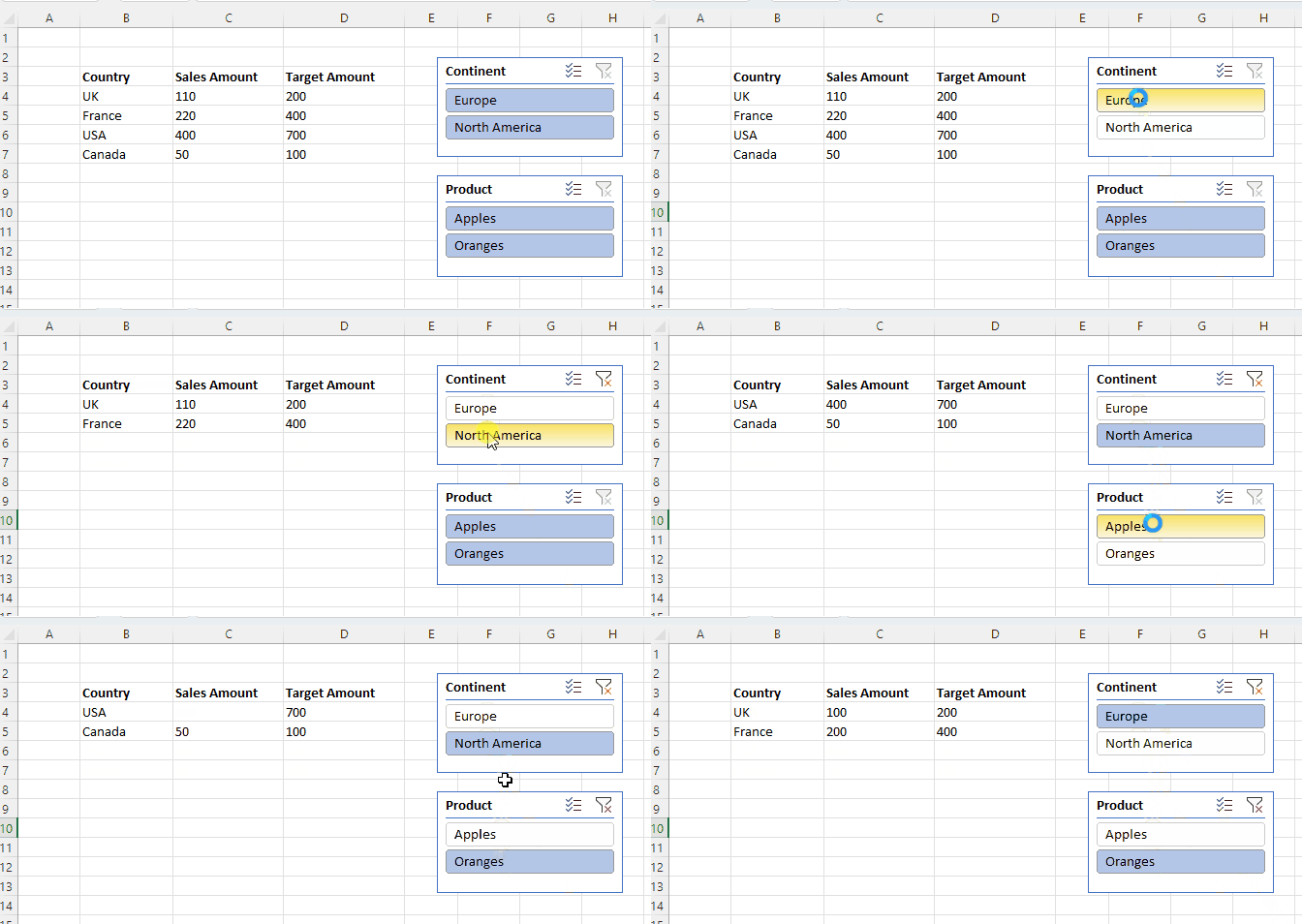
I then created a connection to the published dataset from Excel and using a single formula in cell B3 and two slicers connected to the Product and Continent fields was able to create the following report:

Here’s the formula in B3:

=
LET(
CSV,
CUBEVALUE("CubeFunctionsOptimisationDataset",
CUBEMEMBER("CubeFunctionsOptimisationDataset","[Measures].[MyTable]"),
Slicer_Product,Slicer_Continent),
SplitToCells,
TEXTSPLIT(CSV,",", CHAR(10)),
HeaderRow,
TAKE(SplitToCells,1),
DataRows,
DROP(SplitToCells,1),
RemoveSquareBracketsFromHeaders,
TEXTBEFORE(TEXTAFTER(HeaderRow, "["),"]"),
Recombine,
VSTACK(RemoveSquareBracketsFromHeaders, DataRows),
Recombine)

Note: you also need to click the Wrap Text option on the ribbon for this cell for this to work properly.

There’s a lot going on here but the Excel Let function makes it easy to break the formula up and understand it. Here’s what each step in the formula does:

  • CSV uses the CubeMember and CubeValue functions to get the result of the MyTable measure for the current selection in both slicers.
  • SplitToCells takes the single text value returned by the previous step and uses the TextSplit function to turn it back into an array
  • HeaderRow finds the first row in this array, which contains the column headers using the Take function
  • DataRows finds all other rows, which contain the data in the table using the Drop function
  • RemoveSquareBracketsFromHeaders takes the contents of HeaderRow and uses the TextBefore and TextAfter functions to find the names of each column and measure, which the ToCSV function returns between square brackets (for example it takes ‘Country'[Country] and returns Country, and takes [Sales Amount] and returns Sales Amount)
  • Recombine then takes the new header row with the cleaned names and appends the array from DataRows underneath it, using the VStack function

This formula is a great candidate for use with the Lambda function so it can be easily reused.

There are a number of reasons this technique is interesting, even if it’s slightly hacky. First of all since the table is returned from a DAX expression that you write, and it’s returned by a single query, it could result in faster performance. Second, instead of just one cell returning one table, you can combine it with CubeMember functions to return multiple tables. In this example C3 and G3 contain CubeMember functions that the tables immediately below them refer to:

I haven’t tested this with very large tables. Since there is a limit on the amount of text that a measure can return then there is a limit on the size of the array that can be displayed; I’m also not sure what the performance overhead of the Excel formula to convert the text to the array is.