The Binary.InferContentType M Function

The April 2018 release of Power BI Desktop included a new M function: Binary.InferContentType. There’s no online documentation for it yet but the built-in documentation is quite helpful:

image

I tested it out by pointing it at the following simple CSV file:

image

…and with the following M code:

[sourcecode language=”text” padlinenumbers=”true”]
let
Source = File.Contents("C:\01 JanuarySales.csv"),
Test = Binary.InferContentType(Source)
in
Test
[/sourcecode]

Got the following output:

image

It has successfully detected that it’s looking at a CSV file; the table in the lower half of the screenshot above is the table returned by the Csv.PotentialDelimiters field, and that shows that with a comma as a delimiter three columns can be found (my recent blog post on Csv.Document might also provide some useful context here).

I also pointed it at a few other file types such as JSON and XML and it successfully returned the correct MIME type, but interestingly when I changed the file extension of my JSON file to .txt it thought the file was a text/CSV file, so I guess it’s not that smart yet. I also could not get it to return the Csv.PotentialPositions field mentioned in the documentation for fixed width files so it may still be a work in progress…?

BI Survey 18

It’s that time again: the BI Survey (the world’s largest survey of BI tools and users) needs your input. Here’s the link to take part:

https://www.efs-survey.com/uc/BARC_GmbH/396b/?a=101

As a reward for participating you’ll get a summary of the results and be entered into a draw for some Amazon vouchers. As a reward for plugging the BI Survey here I get to see the full results and blog about them later on in the year, and the results are always fascinating. Last year Power BI was breathing down the necks of more established vendors like Tableau and Qlik; this year I expect Power BI to be in an even stronger position.

Using SSAS Multidimensional As A Data Source For Power BI (Video)

The nice people at PASS have made a video of my session on “Using SSAS MD as a data source for Power BI” available to view for free on YouTube:

I’m honoured that it’s listed one of their “Best of PASS Summit 2017” sessions, and there are lots of other great videos on the same page including Alberto Ferrari’s session on DAX optimisation.

Some of the tips in this video include a few things I’ve been meaning to blog about for a while, including how important it is to set the ValueColumn property on your dimension attributes in SSAS MD – it lets you use lots of functionality in Power BI that isn’t otherwise available, including date slicers.

Data Privacy Settings In Power BI/Power Query, Part 4: Disabling Data Privacy Checks

So far in this series (click here for part 1), I have shown how changing the data privacy settings for a data source can affect the performance of queries and even prevent them from executing completely. What I haven’t mentioned yet is that you also have the option of disabling data privacy checks completely in Power BI Desktop and Excel. In this post I will show you how you can disable data privacy checks and discuss the pros and cons of doing so.

In Power BI Desktop you can change whether data privacy checks are applied when a query executes by going to File/Options And Settings and selecting Options:

image_thumb[7]

The same settings can be found in Excel 2016 by going to the Data tab, clicking Get Data and then selecting Query Options.

image

In both cases this brings up the Options dialog.

There are two panes in the Options dialog with properties that are relevant to how data privacy checks are applied. First of all, in Global/Privacy, there are global properties that are relevant for every .pbix or Excel file that you open on your PC:

image_thumb[6]

The three options here need a little bit of explanation:

  1. Always combine data according to your Privacy Level settings for each source means that data privacy settings are always applied for every .pbix or Excel file you open, regardless of the properties (described below) that you have saved for individual files.
  2. Combine data according to each file’s Privacy Level settings means that the properties set on individual .pbix or Excel files control how the data privacy checks are applied.
  3. Always ignore Privacy Level settings means that data privacy settings are always ignored, in every .pbix or Excel file you open, regardless of settings saved for individual files.

Then, in the Current File/Privacy pane, there are properties that are saved in and apply to the current .pbix or Excel file that you have open:

image

The radio buttons here are greyed out if you have options #1 or #3 selected in the previous pane; it’s only if you have selected option #2, Combine data according to each file’s Privacy Level settings, that these properties are taken into account. You may need to close and reopen the Options dialog if you have changed settings in the previous pane but the radio buttons here remain greyed out.

The two options here are:

  1. Combine data according to your Privacy Level settings for each source, which means that the data privacy settings that you have set for each data source are used to control how queries that combine data from multiple data sources behave. This is the default setting.
  2. Ignore the Privacy Levels and potentially improve performance, which means that data privacy settings are completely ignored when queries combine data from multiple data sources.

To sum up, these two groups of properties allow you to choose whether data privacy settings are applied differently for different .pbix or Excel files, or whether, on your PC, they are always applied or always ignored.

For Power BI users it is important to remember that these settings only apply to Power BI Desktop. After a report has been published, if you are using the On-Premises Data Gateway, you also need to configure data privacy settings on the data sources used by your dataset in the Power BI portal. If you are using the On-Premises Data Gateway in Personal Mode (what used to be called the Personal Gateway) then you can configure it to ignore data privacy settings as described here. Unfortunately if you are not using Personal Mode (ie you are using what used to be called the Enterprise Gateway, and what is now just called the On-Premises Data Gateway) then at the time of writing there is no way to configure the gateway to ignore data privacy levels. You can vote here to get this changed. It’s also worth mentioning that right now you can’t combine data from online and on-premises data sources in a gateway either, although it sounds like this limitation will be addressed soon. To work around these limitations you have to import data into separate tables in the dataset and then use DAX calculated tables to combine the data instead – a nasty hack I know, but one that I’ve had to implement myself a few times.

It can be incredibly tempting to avoid the problems associated with data privacy checks by setting Power BI and Excel to ignore them completely. Doing this certainly avoids a lot of headaches and confusion with the Formula.Firewall error message and so on. It also ensures that your queries execute as fast as they can: this is not just because query folding happens whenever possible but because the act of applying the data privacy checks alone can hurt query performance. Recently I saw a case where the only data source used was an Excel workbook (so no query folding was possible) and turning off the data privacy checks made a massive difference to query performance.

However, I cannot recommend that you turn off data privacy checks for all your Excel workbooks and .pbix files by default. Firstly, if you are working with sensitive or highly-regulated data, leaving the data privacy checks in place at least forces you to consider the privacy implications of query folding on a case-by-case basis. On the other hand ignoring data privacy checks by default makes it more likely that you or one of your users will create a query that accidentally sends data to an external data source and breaches your organisation’s rules – or even the law – concerning how this data should be handled. Secondly, if you are a Power BI user and need to use the On-Premises Data Gateway, then you risk creating reports that work fine in Power BI Desktop when the data privacy checks are ignored but which cannot be refreshed after they have been published because the On-Premises Gateway still applies those checks.

In the next part of this series I’ll show how data privacy settings for a data source can be inherited from other data sources.

Happy First Birthday Power BI!

To mark the first anniversary of Power BI reaching RTM, Paul Turley and Adam Saxton have organised a celebration in the form of coordinated blog posts from the community and a video to say thank you to the Power BI team at Microsoft:

This has been a great year for Power BI and its success is a direct result of all of the hard work that the team have put in. Speaking personally, I am incredibly grateful for all the help and advice that I get on a daily basis from individual Microsoft employees who are often providing it in their own time. My congratulations to James Phillips and to everyone who has worked on Power BI to make it what it is today!

BI Survey 15

It’s BI Survey time again! BI Survey is the largest annual survey of BI users in the world, so if you want to share your feelings on Microsoft BI tools or whatever else you’re using then this is the opportunity to do it. As in the past, in return for promoting the survey I get access to the results when they appear later in the year, and they always make for interesting reading and a good blog post. This year I’m curious to find out what people are saying about Power BI…

Anyway, if you do want to take part (it should only take 20 minutes and you’ll also be entered in a draw for some Amazon vouchers) then here’s the link:

https://digiumenterprise.com/answer/?link=2419-3RFFUGEB

10th Blog Birthday

Earlier this year I celebrated 1000 posts on this blog; now it’s time to celebrate passing another milestone: ten years since my first ever post. Thanks to everyone who has been with me since then!

It’s my habit to post a review of the past year on this date, and as always there’s a lot to think about. This has been the first year where the majority of my posts have not been on SSAS or MDX. Most of my consultancy and training is still on these topics but given the lack of new features in SSAS recently it’s become harder and harder to find anything new to say about it (although a few other bloggers have managed to, such as Richard Lee’s great posts on using PowerShell to automate various SSAS administrative tasks). On the other hand I’ve invested a lot of time learning Power Query and as a result I’ve found a lot to write about, and this is true even after having written a book on it. I really hope that SSAS gets some attention from Microsoft soon – I’ve come to accept that I won’t see anything new in MDX, and the same is probably true of Multidimensional, but Tabular and DAX should get a major upgrade in SQL Server v.next (whenever that comes). Given the strong ties between SSAS Tabular, Power Pivot and now the Power BI Dashboard Designer I would guess that we’ll see new Tabular/DAX features appearing in the Power BI Designer in the coming months, and then later on in Excel and SSAS. When that happens I’ll be sure to write about them.

In the meantime, why the focus on Power Query? It’s not just to have something to blog about. If you’re a regular reader here you’ll know that I’m very enthusiastic about it and it’s worth me explaining why:

  • It solves a significant problem for a lot of people, that of cleaning and transforming data before loading into Excel. My feeling is that more people need Power Query for this than need Power Pivot for reporting.
  • More importantly, it’s a great product. It works well, it’s easy to use and I’m constantly being surprised at the types of problem it can solve. Indeed, where there’s an overlap between what it can do and what Power Pivot can do, I think users will prefer to work with Power Query: its step-by-step approach is much friendlier than a monolithic, impossible-to-debug DAX expression. Whenever I show off Power Query at user groups or to my customers it generates a lot of interest, and the user base is growing all the time.
  • I love the way that the Power Query dev team have released new features on a monthly basis. The amount that they have delivered over the last 18 months has put the rest of Power BI to shame, although I understand that because Power Query isn’t integrated into Excel in the way that Power View and Power Pivot are they have a lot more freedom to deliver. What’s more important though is that the Power Query dev team make an effort to talk to their users and develop the features that they actually want and need (the ability to set the prefix when expanding columns is a great example), rather than build whatever the analysts are hyping up this year. This gives me a lot of confidence in the future of the product.
  • Having seen the way that Power Query has been integrated into the Power BI dashboard designer, it could be the case that in the future the distinctions between Power Query, Power View and Power Pivot disappear and we think of them as parts of a single product.

One other big change for me this year was that I resigned from the SQLBits committee after seven years. There’s no behind-the-scenes scandal here, I just felt like it was time for a change. I work too hard as it is and I needed to free up some time to relax and be with my family; I was also aware that I wasn’t doing a great job on it any more. It was a very tough decision to make nonetheless. I had a great time with SQLBits while I was involved with it and I’ll be at SQLBits XIII in London next March as an attendee and hopefully a speaker. I know it will be another massive success.

Looking forward to next year, I hope the new direction for Power BI will be good for partners like me. There will certainly be continued interest in training for it, but the real test will be whether there’s a lot of demand for consultancy. I’ve done some Power Pivot and Power Query consultancy work this year, and demand is definitely increasing, but it’s still not a mature market by any means. Maybe the move away from Excel will change the nature of the BI projects that people attempt with Power BI, so that there are more formal, traditional implementations as well as the ad hoc self-service use that I’m seeing at the moment. The new Power BI APIs should also encourage more complex, IT department-led projects too. I don’t have a problem with the concept of self-service BI but I think it’s a mistake to believe that all BI projects can be completely self-service. I would like to think that there’s still a need for professional services from the likes of me in the world of Power BI; if there isn’t then I’m going to need to find another career.

Anyway, I’ve probably gone on for long enough now and I need to get back to enjoying what’s left of the holidays. Best wishes to all of you for 2015!

BI Survey 14 Results

Once again, the nice people at BARC have sent me a copy of the results of the latest BI Survey and allowed me to blog about some of their findings (obviously if you want to read them all, buy the survey!). Here are a couple of things that caught my eye:

  • When respondents were asked about which BI products they evaluated, Qlik came top of the list with 36% evaluating it, followed by all of the Microsoft products (Excel/Power BI at 35%, SSAS at 28% and SSRS at 26%). However when it came to picking products Excel/Power BI came top at 25%, followed by ‘other’ products, then SSAS at 21% and SSRS at 17% with Qlik at 16%. I wonder what parts of the Power BI stack the Excel/Power BI users were actually using exactly though? I suppose the point about it is that users can take whatever parts of it they want to complement what they do in Excel. These numbers are very encouraging in any case.
  • Looking at reported usage problems for MS products some familiar issues came up: 25% of Excel/Power BI users complained that the product couldn’t handle the data volumes they wanted and 16% complained of security limitations – both scores were the worst across all products. Partly this can be explained by the desktop-bound nature of the product, but I wonder whether the limitations of 32 bit Excel are behind the data volume problems? Also, 18% of SSRS users complained of missing key features, which again was the worst score for this category across all products. I hope MS plans to show SSRS some more love in the future after several years of neglect. Other products have other weaknesses of course – 26% of Tableau users had administrative problems, 53% of SAP BW users had problems with slow query performance and 21% of TM1 users had issues with poor data governance. Nothing is perfect.
  • Respondents were asked about cloud BI adoption. For those using Excel/Power BI, 15% were in the cloud now (the third best score across all products) which I assume means they are using Power BI for Office 365; a further 15% were planning to go to the cloud in the next 12 months; a further 19% were planning to go in the long term; and 51% had no plans. Presumably this last group of users would like to see more of the Power BI for Office 365 functionality implemented within SharePoint on premises.

Power Query Functions That Return Functions

You’re probably aware that, in Power Query, a query can return a function. So for example here’s a very simple query (so simple that no let statement is needed) called MultiplyTwoNumbers with the following definition:

(x as number, y as number) => x * y

It can be used on the following table in Excel:

…to multiply the numbers in the column called Number by two and show the result in a custom column like so:

let

Source = Excel.CurrentWorkbook(){[Name=”Data”]}[Content],

#”Inserted Custom” = Table.AddColumn(Source, “Custom”, each MultiplyTwoNumbers(2, [Number]))

in

#”Inserted Custom”

Here’s the output:

It’s also the case that a function can return another function. Consider the following query, called MultiplyV2:

let

EnterX = (x as number) =>

let

EnterY = (y as number) => x * y

in

EnterY

in

EnterX

It is a function that takes a single parameter, x, and it returns a function that takes a single parameter, y. The function that is returned multiplies the value of x by the value of y. Here’s an example of how it can be used on the table shown above:

let

//Return a function that multiplies by 2

MultiplyBy2 = MultiplyV2(2),

//Load data from the table

Source = Excel.CurrentWorkbook(){[Name=”Data”]}[Content],

//Use the MultiplyBy2 function in a custom column

#”Inserted Custom” = Table.AddColumn(Source, “Custom”, each MultiplyBy2([Number]))

in

#”Inserted Custom”

This gives exactly the same result as before:

In this query, the MultiplyBy2 step calls the MultiplyV2 function with the argument 2, and this returns a function that multiplies the values passed to it by 2. This function can then be called in the final step where the custom column is added to the table using the expression MultiplyBy2([Number])

Interesting, isn’t it? I hope this satisfies your curiosity Marco J

You can download the sample workbook for this post here.


Allocation in Power Query, Part 2

Last week’s post on allocation in Power Query caused quite a lot of interest, so I thought I would follow it up with a post that deals with a slightly more advanced (and more realistic) scenario: what happens if the contracts you are working with don’t all start on the same date?

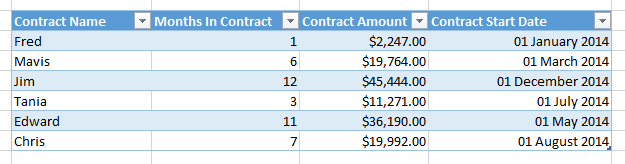
Here’s the table of data that is the starting point for my examples:

image

I’ve made two changes:

  • I’ve added a contract name to serve as a primary key so I can uniquely identify each contract in the table. Several people asked me why I added index columns to my tables after my last post and this is why: without a way of uniquely identifying contracts I might end up aggregating values for two different contracts that happen to have the same number of months, contract amount and start date.
  • I’ve added a contract start date column which contains the date that the contract starts on, which is always the first day of a month.

Now let’s imagine that you want to make each monthly payment on the last day of the month. You need to take each contact and, for each monthly payment generate a row containing the date that is the last day of the month, containing the allocated payment amount.

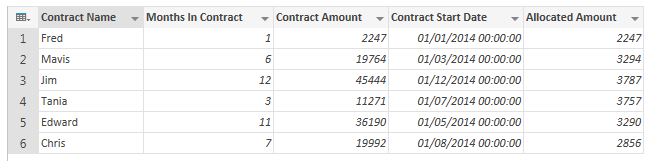
Once again, having have opened the Query Editor the first step is to calculate the amount of the monthly payment using a custom column that divides Contract Amount by Months in Contract. This is shown in the Allocated Amount column:

image

Now to generate those monthly payment rows. Since this is reasonably complex I decided to declare a function to do this called EndsOfMonths inside the query, as follows:

= (StartDate, Months) =>
List.Transform(List.Numbers(1, Months), each Date.AddDays(Date.AddMonths(StartDate, _ ), -1))

This function takes the start date for contract and the number of months, and:

  • Uses List.Numbers() to create a list containing numbers from 1 to the number of months in the contract. For example if there were three months in the contract, this would return the list {1,2,3}
  • This list is then passed to List.Transform(), and for each item in the list it does the following:
    • Adds the given number of months to the start date, then
    • Subtracts one day from that date to get the payment date, which will be the last day of the month it is in

Calling this function on each row of the table in a new custom column (called Payment Date here) gives you a list of the payment dates for each contract:

image

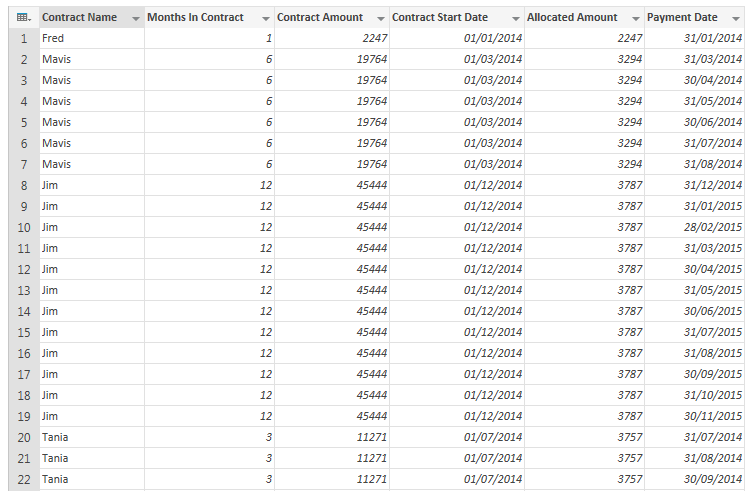
All that you need to do then is to click on the Expand icon next to the Payment Date column header and make sure each column has the correct type, and you have your output for loading into the Excel Data Model:

image

Here’s the code for the query:

let

    //Load source data from Excel table

    Source = Excel.CurrentWorkbook(){[Name="Contract"]}[Content],

    //Add custom column for Allocated Amount

    InsertedCustom1 = Table.AddColumn(Source, "Allocated Amount", 

        each [Contract Amount]/[Months In Contract]),

    //Declare function for returning a list of payment dates

    EndsOfMonths = (StartDate, Months) => 

        List.Transform(List.Numbers(1, Months), 

            each Date.AddDays(Date.AddMonths(StartDate, _ ), -1)),

    //Call this function for each contract in a new custom column

    InsertedCustom = Table.AddColumn(InsertedCustom1, "Payment Date", 

        each EndsOfMonths([Contract Start Date], [Months In Contract]) ),

    //Expand the list

    #"Expand Payment Date" = Table.ExpandListColumn(InsertedCustom, "Payment Date"),

    //Set column data types

    ChangedType = Table.TransformColumnTypes(#"Expand Payment Date",

        {{"Contract Start Date", type date}, 

        {"Payment Date", type date}, {"Allocated Amount", type number}, 

        {"Contract Amount", type number}, {"Months In Contract", type number}})

in

    ChangedType

 
There’s one more thing to do though. Since the Contract table contains real dates, it’s a very good idea to have a separate Date table in the Excel Data Model to use with it. I’ve already blogged about how to use a function to generate a Date table in Power Query (as has Matt Masson, whose version adds some extra features) and in that function (called CreateDateTable) can be reused here. Here’s a query that returns a Date table starting at the beginning of the year of the earliest start date in the contract table and ends at the end of the year of the last payment date:
 
let

    //Aggregate the table to find the min contract start date

    //and the max payment date

    GroupedRows = Table.Group(Contract, {}, 

    {{"Min Start Date", each List.Min([Contract Start Date]), type datetime}, 

    {"Max Payment Date", each List.Max([Payment Date]), type datetime}}),

    //Find the first day of the year of the min start date    

    #"Start Date" = DateTime.Date(Date.StartOfYear(GroupedRows{0}[Min Start Date])),

    //Find the last day of the year of the max payment date

    #"End Date" = DateTime.Date(Date.EndOfYear(GroupedRows{0}[Max Payment Date])),

    //Call CreateDateTable with these parameters

    DateTable = CreateDateTable(#"Start Date", #"End Date"),

    //Change data types

    ChangedType = Table.TransformColumnTypes(DateTable,{{"MonthNumberOfYear", type number}

    , {"DayOfWeekNumber", type number}})

in

    ChangedType


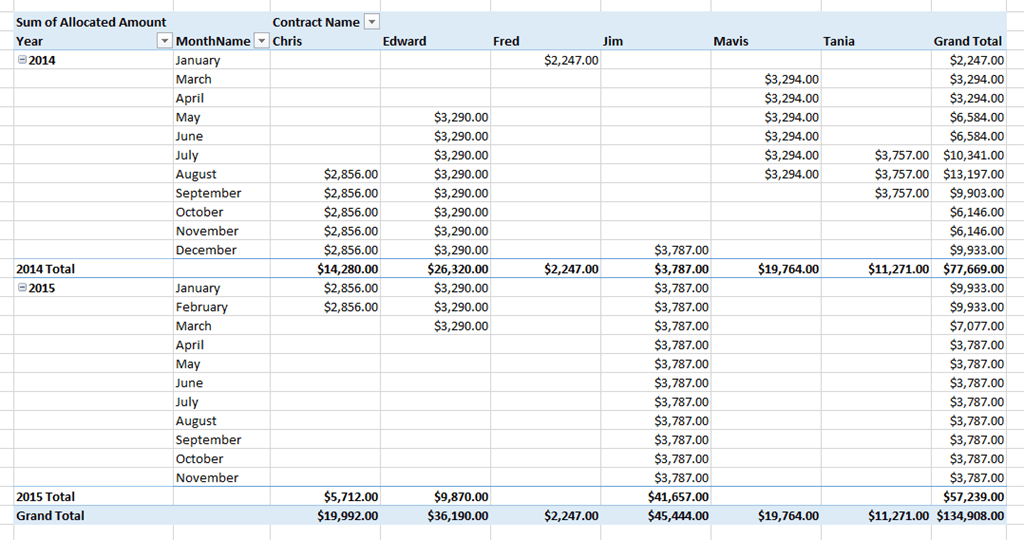
You can now build a PivotTable to show the payments allocated over the correct ranges:

image

The sample workbook can be downloaded here.