Combining Data From Multiple Excel Workbooks With Power Query–The Easy Way!

If there’s one feature of Power Query that’s guaranteed to get Excel users very, very excited indeed it’s the ability to combine data from multiple workbooks into a single table. The bad news is that this is something that Power Query can’t do through the user interface (although so many people have asked for it I wouldn’t be surprised if it gets added to the product soon) and it’s not obvious how to do it.

This is a topic that has been blogged about many times over the past year or so (see DutchDataDude, Mike Alexander, Ken Puls, Miguel Escobar – apologies to anyone I’ve missed) so why should I write about it? Well, all these other posts show you the steps you have to go through to build your own function and then use that function inside a query, which is fine, but it involves a lot of clicking and typing code each time you want to do it. It’s all very time-consuming if you don’t know Power Query that well, though, and not something a regular Excel user would want to do. I’ve got an easier way though: a generic function that can combine data from workbooks in any folder you point it at. Once you’ve created it it’s very easy for anyone to use, can be reused over and over, and of course you can share this function through the Power BI Data Catalog if you have a Power BI for Office 365 subscription.

Steps to add the Power Query function to your workbook

You can either follow the steps below to add the function to your workbook, or instead just download the sample workbook containing the function here – which is a lot quicker!

1) Copy the following code onto the clipboard

[sourcecode language=”text” padlinenumbers=”true”]
//Define function parameters
(#"Directory containing Excel files to combine" as text,
optional #"Name of each Excel object to combine" as text,
optional #"Use first rows as headers" as logical) =>
let
//If the optional Excel object name parameter is not set, then default to Sheet1
ExcelName = if #"Name of each Excel object to combine" = null
then "Sheet1"
else #"Name of each Excel object to combine",
//If the optional Use first rows as headers parameter is not set, then default to true
UseFirstRowsAsHeaders = if #"Use first rows as headers"= null
then true
else #"Use first rows as headers",
//Get a list of all the files in the folder specified
Source = Folder.Files(#"Directory containing Excel files to combine"),
//Filter these to only get Excel files
OnlyGetExcelFiles = Table.SelectRows(Source,
each ([Extension] = ".xlsx")
or ([Extension] = ".xls")),
//Find the full path of each file
FullPath = Table.CombineColumns(
OnlyGetExcelFiles ,
{"Folder Path", "Name"},
Combiner.CombineTextByDelimiter("", QuoteStyle.None),"Merged"),
//Get a list containing each file path
ExcelFiles = Table.Column(FullPath, "Merged"),
//Define a function to get the data from the specified name in each Excel workbook
GetExcelContents = (FileName as text) =>
let
//Connect to the workbook
Source = Excel.Workbook(File.Contents(FileName), UseFirstRowsAsHeaders),
//Get a table of data from the name specified
//If the name doesn’t exist catch the error and return null
ExcelData = try Source{[Item=ExcelName]}[Data]
otherwise try Source{[Name=ExcelName]}[Data]
otherwise null
in
ExcelData,
//Call the above function for each Excel file
ReadAllWorkbooks = List.Transform(ExcelFiles, each GetExcelContents(_)),
//Remove any null values resulting from errors
IgnoreNulls = List.RemoveNulls(ReadAllWorkbooks),
//Combine the data from each workbook into a single table
CombineData = Table.Combine(IgnoreNulls)
in
CombineData
[/sourcecode]


2) Open Excel and go to the Power Query tab on the ribbon. Click on the From Other Sources button and then click Blank Query.

image

3) The Power Query query editor window will open. Go to the View tab and click on the Advanced Editor button.

image

4) The Advanced Editor will open. Delete all the code in the main textbox and replace it with the code above. Click OK to close the Advanced Editor.

image

5) In the Query Settings pane on the right-hand side of the Query Editor, change the name of the query to CombineExcel, then go to the Home tab on the ribbon and click the Close & Load button. The Query Editor will close.

image

image

6) You can now see your function in the Workbook Queries pane in Excel! It should look like this:

image


Using the function to combine data from multiple workbooks

To use the function, double-click on it in the Workbook Queries pane or right-click and select Invoke. The following dialog will appear:

image

You can enter three parameters here:

  • The path of the directory containing the Excel workbooks that you want to read data from. The function can read from xlsx and xls files (though for the latter to work you need the Access 2010 engine installed, a free download if you only have Excel 2013) and will ignore any other files in the folder. The function will also read any Excel files in any subfolders.
  • Where you want to get data from in each Excel workbook. This can be the name of a worksheet (for example you could enter Sheet2 here) or a named range or a table. It’s an optional parameter so if you leave it blank it will get data from the worksheet Sheet1. If a workbook doesn’t contain the name you enter here it will be ignored. If the format of the data in each worksheet is not consistent (for example if you have different column names) then be warned: you may get some strange results.
  • Whether data on your worksheet (if you’re getting data from a worksheet) contains headers. Enter true here if your data does have a header row in every worksheet; false otherwise. This is also an optional parameter and if you leave this box empty the default value is true.

When you click OK, a new Power Query query will be created, the Query Editor window will open and you’ll see all the data from all of the Excel workbooks combined. The first step of this query is a call to the CombineExcel() function and you can carry on working with your data in Power Query as normal.

image

Disclaimer: I’ve done a reasonable amount of testing on this and I’m pretty sure it works well, but of course there will be bugs. Please leave a comment if you find a bug or can suggest any other improvements.

Returning Error Messages As Well As Results In Power Query

Back in September I wrote a post on handling situations where the data source for your Power Query query was unavailable. The great thing about that technique is that instead of seeing an error message when you refresh your query, instead you get an empty table with the same structure – which means that the Excel Data Model doesn’t get messed up, you don’t lose relationships and all your PivotTables remain intact. However it means you no longer see the error message (unless you return it in the table somehow, which isn’t ideal), which makes it hard to debug. What you really want is to get the empty table AND the error message somehow. But surely a Power Query query can only return a single value as an output?

Actually no. Every value in M can have a metadata record associated with it, and we can use this here to our advantage (I’ve been wondering whether there was a use for metadata ever since I read about it in the Language spec… and at long last I’ve found one!). Here’s a simple example of a query that shows how to associate a metadata record with a value:

[sourcecode language=”text” padlinenumbers=”true”]
let
Source = "Some Random Value" meta [message = "Hello World", somenumber = 123],
Output = Source
in
Output
[/sourcecode]


The output of this query is just the text “Some Random Value”:

image

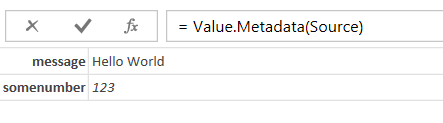
At this point we’re setting the metadata but not doing anything with it. The following query uses the Value.Metadata() function to get the metadata record:

[sourcecode language=”text”]
let
Source = "Some Random Value" meta [message = "Hello World", somenumber = 123],
Output = Value.Metadata(Source)
in
Output
[/sourcecode]


The output is now a record value:

image

Basically, this means that in scenarios where we want to handle a data source error we can always return a table and at the same time return any error messages in the metadata.

Here’s a similar scenario to the one I showed in my original blog post, but where the query does a select distinct on the EnglishDayNameOfWeek column in the DimDate table in the Adventure Works DW database:

[sourcecode language=”text”]
let
//Connect to SQL Server
Source = Sql.Database("localhost", "adventure works dw"),
//Get DimDate table
dbo_DimDate = Source{[Schema="dbo",Item="DimDate"]}[Data],
//Remove all other columns except EnglishDayNameOfWeek
#"Removed Other Columns" = Table.SelectColumns(dbo_DimDate,{"EnglishDayNameOfWeek"}),
//Get distinct values from this column
#"Removed Duplicates" = Table.Distinct(#"Removed Other Columns"),
//Output in case of error
AlternativeOutput=#table(type table [EnglishDayNameOfWeek=text], {}),
//Does the Removed Duplicates set error?
TestForError= try #"Removed Duplicates",
Output = if TestForError[HasError]
then
//In case of error return empty table
//and attach error message in metadata
(AlternativeOutput meta [message = TestForError[Error]])
else
//If there’s no error
//just return the table plus a message
(#"Removed Duplicates" meta [message = "Query executed successfully"])
in
Output
[/sourcecode]


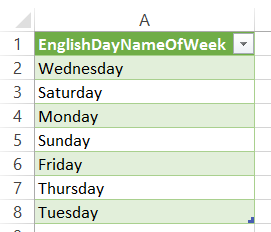
The output when the query (called DimDate) executes successfully, shown in an Excel table, is just a list of day names:

image

You can now create a second query in the same workbook with the following definition to get the metadata record associated with the output of this query:

[sourcecode language=”text”]
let
Source = Value.Metadata(DimDate),
message = Source[message]
in
message
[/sourcecode]

The output of this query, when the first query is successful, is:

image

However, if you rename the EnglishDayNameOfWeek column in SQL Server, the first query now returns an empty table:

image

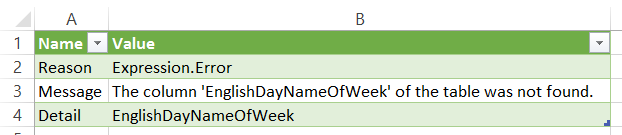
The second query now returns the error message when it’s refreshed:

image

One thing to be careful of, bearing in mind what we learned about Power Query and M in my last post, is that the output of the first query is not cached after it has been executed so executing the second query to get the error message will involve at least a partial re-execution of the first query. However in this particular case if you look in Profiler you can see Power Query checking to see whether the EnglishDayNameOfWeek column exists in the DimDate table before it tries to do the select distinct SQL query, and this is enough to know whether the query will fail or not – so whether there is an error or not, running the second query to get the message does not result in the (potentially expensive) select distinct SQL query being executed.

You can download the sample workbook for this post here.

Timing Power Query Queries

If you’re interested in performance-tuning a Power Query query, you’re going to need a reliable way of telling how long your query takes to run. It’s not as easy as it seems to adapt your query to do this though, and that’s because of the way the M formula language works. This post does show you how to find how long a query takes to run, but I have to admit that I’m not 100% satisfied with the approach and I suspect there are other, better ways of achieving the same thing that do not involve any M code. However this post does highlight a lot of interesting points about Power Query and M so I think it’s worth reading anyway…

M language background

In my last post, showing how to create a Power Query function that waits a given number of seconds, I used the following query to demonstrate the function:

[sourcecode language=”text” padlinenumbers=”true”]
let
//Find current time
One = DateTime.LocalNow(),
//Define Wait function
Wait = (seconds as number, action as function) =>
if (List.Count(
List.Generate(
() => DateTimeZone.LocalNow() + #duration(0,0,0,seconds),
(x) => DateTimeZone.LocalNow() < x,
(x) => x)
) = 0)
then null else action(),
//Call Wait function to wait 5 seconds
//then return the current time again
Two = Wait(5,DateTime.LocalNow),
//Display start time, finish time, and duration
Output = "Start Time: " & DateTime.ToText(One) &
" Finish Time: " & DateTime.ToText(Two) &
" Difference: " & Duration.ToText(Two-One)
in
Output
[/sourcecode]


The output of this seems very straightforward:

image

However, consider the output when you change the last step in the query to be:

[sourcecode language=”text”]
Output = "Finish Time: " & DateTime.ToText(Two) &
" Start Time: " & DateTime.ToText(One) &
" Difference: " & Duration.ToText(Two-One)
[/sourcecode]


The only difference is that the finish time is displayed before the start time, and yet the output is now:

image

The start time and the finish time are now the same, and the duration is 0. However the query does still take the same amount of time to run. What’s going on here?

Looking at the M code for a query, you’d be forgiven for thinking that the first step in a query is evaluated first, the second step is evaluated second, the last step is evaluated last, and so on. This is not the case though. From page 10 of the Language Reference document (which can be downloaded here):

List and record member expressions (as well as let expressions, introduced further below) are

evaluated using lazy evaluation, which means that they are evaluated only as needed.

A Power Query query is usually a single let expression, and within a let expression steps are evaluated as and when they are needed; if a step’s output is not needed anywhere else then it may not be evaluated at all. Therefore, in the second example above, even though the step called One is the first step in the query, it is evaluated after the step called Two because that is the order that the values are needed in the expression calculated for the step Output.

Another important point to understand is that (from page 30 of the Language Reference):

Once a value has been calculated, it is immutable, meaning it can no longer be changed.

This simplifies the model for evaluating an expression and makes it easier to reason about the

result since it is not possible to change a value once it has been used to evaluate a subsequent

part of the expression.

In our example, this means that once StartTime and EndTime have been evaluated for the first time, the value they return will not change on subsequent calls.

The final thing to point out is that I’m using the DateTime.LocalNow() function here to get the system date and time at the point that the expression is evaluated. If you use DateTime.FixedLocalNow() it will return the same value every time you call it in the same query – which is obviously not going to be much use for our purposes.

How to time your queries

Now we know all this we can alter a query that does something useful so we can see how long it takes to execute. Getting status updates from Facebook is sufficiently slow for us to be able to measure a duration, and here’s an example query that shows how to measure how long the request takes:

[sourcecode language=”text” padlinenumbers=”true”]
let
//Get the current time, which will be the query start time
StartTime = DateTime.LocalNow(),
//Make sure StartTime is evaluated just before we request data from Facebook
Source = if StartTime<>null
then
Facebook.Graph("https://graph.facebook.com/me/statuses&quot;)
else
null,
//Find the number of rows returned
NumberOfRows = Number.ToText(Table.RowCount(Source)),
//Get the current time, which will be the query end time
EndTime = DateTime.LocalNow(),
//Make sure PQ evvaluates all expressions in the right order:
//first, get the Number of rows, which ensure that
//the Source expression is evaluated, and in turn StartTime is evaluated
//second, the EndTime is evaluated as part of the duration calculation
Output = "Query returned " & NumberOfRows
& " rows and took "
& Duration.ToText(EndTime – StartTime)
in
Output
[/sourcecode]

Here’s an example of the output of the query:

image

How does this work?

  • The Output step has the expression that returns the query output
  • The first value evaluated in the Output step is the NumberOfRows step, which finds the number of rows returned by Facebook in turn forces the evaluation of the Source step. If we didn’t include an expression in the output that was in some way derived from data loaded from Facebook, Power Query would not bother to evaluate the Source step.
  • The Source step gets data from Facebook, but before that happens there is an if expression that checks to see whether StartTime is null or not. Of course this always returns true, but the point here is that by making this check we are forcing StartTime to be evaluated.
  • The second value evaluated in Output is the duration. The duration is the EndTime (evaluated for the first time at this point) minus the StartTime (which has already been evaluated, remember), so we get the amount of time elapsed between the start of the request to Facebook and the end of the query.

With all of the other stuff stripped out, here’s the basic template I’ve used:

[sourcecode language=”text”]
let
StartTime = DateTime.LocalNow(),
Source = if StartTime<>null
then
//do whatever we were going to do in our first step
else
null,

//insert all other steps here

NumberOfRows = Number.ToText(Table.RowCount(WhateverThePreviousStepIs)),
EndTime = DateTime.LocalNow(),
Output = "Query returned " & NumberOfRows
& " rows and took "
& Duration.ToText(EndTime – StartTime)
in
Output
[/sourcecode]

I’m making a pretty big assumption here, though, and that is that finding the number of rows in the NumberOfRows step will force the evaluation of all previous steps, which may not be the case! You might have to think carefully about how you write an expression that forces evaluation of all of your steps.

This is all very complicated (indeed, probably too complicated) so I’m also investigating what the Power Query trace file can tell you about things like query execution times. Hopefully I’ll be able to blog about that in a few weeks.

You can download an Excel workbook with some sample Power Query queries here.

Waiting Between Web Service Requests In Power Query

Often when you’re working with web services in Power Query you’ll be making a large number of requests to the web service in a small amount of time – and you’ll notice that your query seems to be a lot slower than you would expect. The reason is, of course, that many public websites and APIs implement throttling to prevent you from making too many requests all at once, I guess to prevent denial-of-service attacks.

While looking into this issue I found a very interesting post containing the solution to this problem on the Power Query forum, from Alejandro Lopez-Lago. In it he shows how to create a function that creates a delay of a specified number of seconds in a Power Query query. Here’s an example of how to use it in a query:

[sourcecode language=”text”]
let
//Find current time
One = DateTime.LocalNow(),
//Define Wait function
Wait = (seconds as number, action as function) =>
if (List.Count(
List.Generate(
() => DateTimeZone.LocalNow() + #duration(0,0,0,seconds),
(x) => DateTimeZone.LocalNow() < x,
(x) => x)
) = 0)
then null else action(),
//Call Wait function to wait 5 seconds
//then return the current time again
Two = Wait(5,DateTime.LocalNow),
//Display start time, finish time, and duration
Output = "Start Time: " & DateTime.ToText(One) &
" Finish Time:" & DateTime.ToText(Two) &
" Difference: " & Duration.ToText(Two-One)
in
Output
[/sourcecode]


Here’s an example of the output:

image

The important step in this query is Wait, which defines the function. It works by using List.Generate() to keep on generating a list until a given number of seconds (passed in though the parameter seconds) have elapsed; when that has happened, it will execute the function that is passed in through the parameter action. Very clever stuff!

UPDATE: There’s now a better way of doing all of this, using the Function.InvokeAfter() function https://blog.crossjoin.co.uk/2015/04/30/using-function-invokeafter-in-power-query/

Sentiment Analysis In Excel With Azure Machine Learning And Power Query

You may have seen Joseph Sirosh’s blog post last week about the ability to publish Azure Machine Learning models to the Azure Marketplace, and that MS have published a number of APIs there already. There’s a new Excel add-in that can be used with these APIs but I noticed that at least one of them, the Sentiment Analysis API, can be used direct from Power Query too.

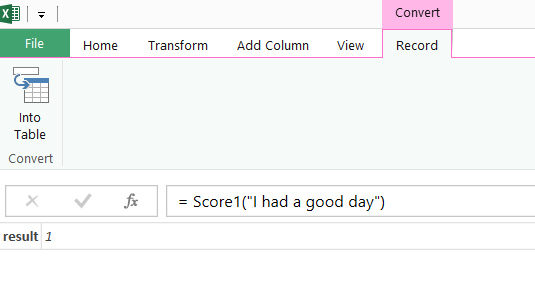
To do this, the first thing you need to do is to go to the Azure Marketplace, sign in with your Microsoft account, and subscribe to the Lexicon Based Sentiment Analysis API. The docs say you get 25000 transactions free per month although there doesn’t appear to be a way to pay for more; that said the number of transactions remaining shown on my account kept resetting, so maybe there is no limit. The API itself is straightforward: pass it a sentence to evaluate and it will return a score between –1 and 1, where 1 represents a positive sentiment and –1 is a negative sentiment. For example, the sentence “I had a good day” returns the value 1:

image

…whereas the sentence “I had a bad day” returns –1:

image

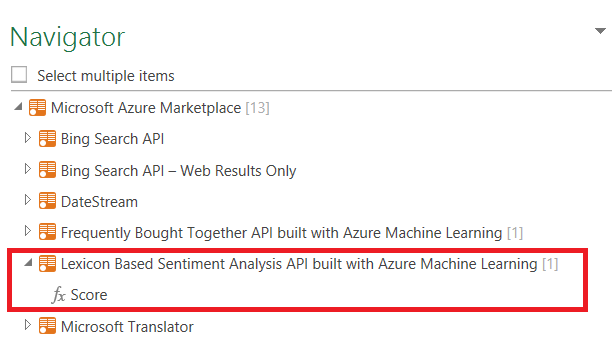
You can now go to Power Query and click From Azure Marketplace (you will need to enter your credentials at this point if this is the first time you’ve used the Azure Marketplace from Power Query):

image

…and then, when the Navigator pane appears, double-click on Score:

image

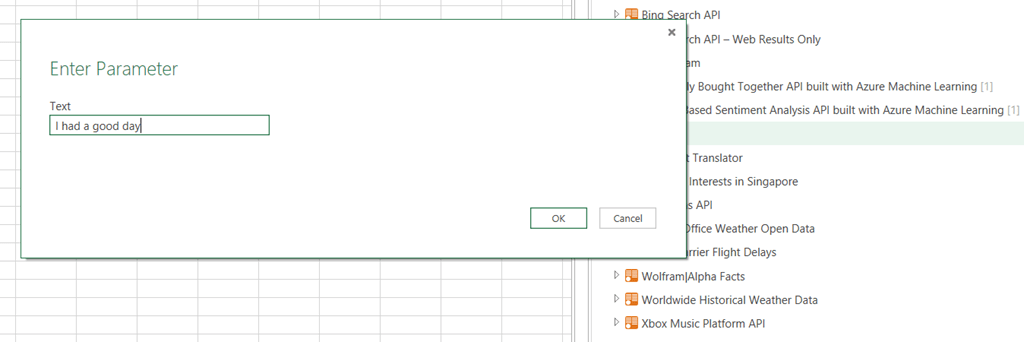
The API is exposed as a function in Power Query (I guess because it’s an OData service operation, but I’m not sure) and double-clicking on Score invokes the function. You can enter a sentence here and the Query Editor will open to show the score:

image

image

However, to do anything useful you don’t want to invoke the function just yet – you want a query that returns the function. To do this you need to edit the query. Go to the Advanced Editor and you’ll see the M code for the query will be something like this:

[sourcecode language='text' ]
let
    Source = Marketplace.Subscriptions(),
    #"https://api.datamarket.azure.com/data.ashx/aml_labs/
      lexicon_based_sentiment_analysis/v1/" = 
      Source{
       [ServiceUrl="https://api.datamarket.azure.com/data.ashx/aml_labs/
       lexicon_based_sentiment_analysis/v1/"]
       }[Feeds],
    Score1 = 
       #"https://api.datamarket.azure.com/data.ashx/aml_labs/
       lexicon_based_sentiment_analysis/v1/"
       {[Name="Score"]}[Data],
    #"Invoked FunctionScore1" = Score1("I had a good day")
in
    #"Invoked FunctionScore1"
[/sourcecode]


You need to remove the last line (called #”Invoked FunctionScore1”) which invokes the function, leaving:

[sourcecode language='text' ]
let
    Source = Marketplace.Subscriptions(),
    #"https://api.datamarket.azure.com/data.ashx/aml_labs/
      lexicon_based_sentiment_analysis/v1/" = 
      Source{[ServiceUrl="https://api.datamarket.azure.com/data.ashx/aml_labs/
      lexicon_based_sentiment_analysis/v1/"]}[Feeds],
    Score1 = #"https://api.datamarket.azure.com/data.ashx/aml_labs/
      lexicon_based_sentiment_analysis/v1/"
      {[Name="Score"]}[Data]
in
    Score1
[/sourcecode]


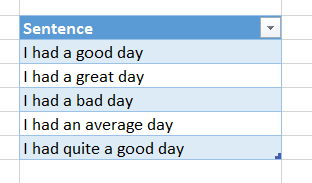
You can now click the Close and Load button to close the Query Editor window; you now have a function called Score that you can call in other queries. For example, take the following Excel table (called Sentences):

image

Click on the From Table button to load this table into Power Query, then in the Query Editor click the Add Custom Column button and add a new custom column called Sentiment Score with the expression

Score([Sentence])

image

You’ll then be prompted to set a data privacy level for the data you’re using, because calling this function involves sending data from your worksheet up to the API where someone could potentially see it.

image

Click the Continue button and set the privacy level for the workbook to Public, so that this data can be sent to the API:

image

Click Save and you’ll see the sentiment score has been added as a column containing a Record value. Click on the Expand icon in the SentimentScore column then OK:

image

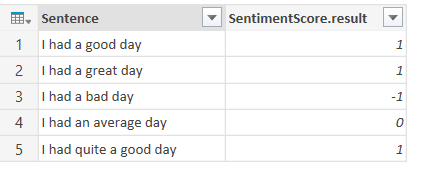
And at last you’ll see the scores themselves:

image

Here’s the code:

[sourcecode language='text' ]
let
    Source = Excel.CurrentWorkbook(){[Name="Sentences"]}[Content],
    #"Added Custom" = Table.AddColumn(Source, "SentimentScore", each Score([Sentence])),
    #"Expand SentimentScore" = 
       Table.ExpandRecordColumn(#"Added Custom", "SentimentScore", 
       {"result"}, {"SentimentScore.result"})
in
    #"Expand SentimentScore"
[/sourcecode]


You can download the sample workbook here.

Of course, I couldn’t resist repeating this exercise with all of my Facebook status updates – which, of course, can be accessed from Power Query very easily. Here’s my monthly average sentiment score from June 2009 to now:

image

As you can see, I was in a particularly good mood this August – probably because I was on holiday for almost the whole month.

Creating Histograms With Power Query

A few months ago someone at a conference asked me what the Power Query Table.Partition() function could be used for, and I had to admit I had no idea. However, when I thought about it, I realised one obvious use: for creating histograms! Now I know there are lots of other good ways to create histograms in Excel but here’s one more, and hopefully it will satisfy the curiosity of anyone else who is wondering about Table.Partition().

Let’s start with a table in Excel (called “Customers”) containing a list of names and ages:

image

Here’s the M code for the query to find the buckets:

let

    //Get data from Customers table

    Source = Excel.CurrentWorkbook(){[Name="Customers"]}[Content],

    //Get a list of all the values in the Age column

    Ages = Table.Column(Source,"Age"),

    //Find the maximum age

    MaxAge = List.Max(Ages),

    //The number of buckets is the max age divided by ten, then rounded up to the nearest integer

    NumberOfBuckets = Number.RoundUp(MaxAge/10),

    //Hash function to determine which bucket each customer goes into

    BucketHashFunction = (age) => Number.RoundDown(age/10),

    //Use Table.Partition() to split the table into multiple buckets

    CreateBuckets = Table.Partition(Source, "Age", NumberOfBuckets, BucketHashFunction),

    //Turn the resulting list into a table

    #"Table from List" = Table.FromList(CreateBuckets, Splitter.SplitByNothing()

                           , null, null, ExtraValues.Error),

    //Add a zero-based index column

    #"Added Index" = Table.AddIndexColumn(#"Table from List", "Index", 0, 1),

    //Calculate the name of each bucket

    #"Added Custom" = Table.AddColumn(#"Added Index", "Bucket", 

                        each Number.ToText([Index]*10) & " to " & Number.ToText(([Index]+1)*10)),

    //Find the number of rows in each bucket - ie the count of customers

    #"Added Custom1" = Table.AddColumn(#"Added Custom", "Count", each Table.RowCount([Column1])),

    //Remove unnecessary columns

    #"Removed Columns" = Table.RemoveColumns(#"Added Custom1",{"Column1", "Index"})

in

    #"Removed Columns"


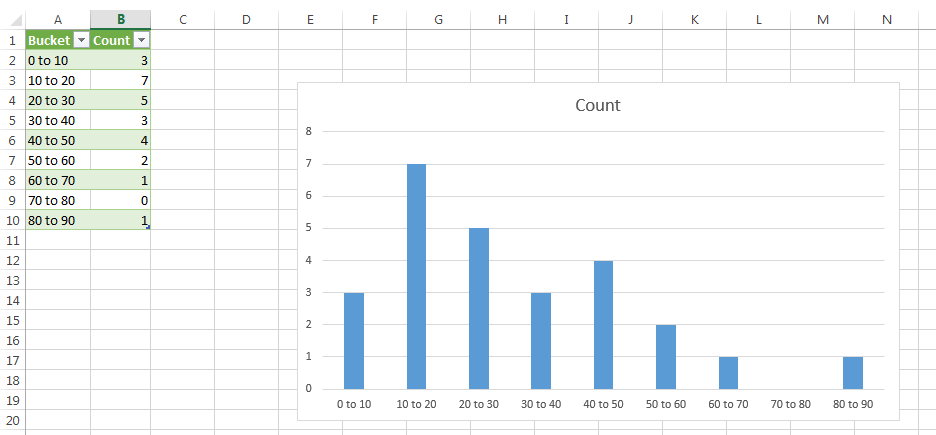
And here’s the output in Excel, with a bar chart:

image 

How does this work?

  • After loading the data from the Excel table in the Source step, the first problem is to determine how many buckets we’ll need. This is fairly straightforward: I use Table.Column() to get a list containing all of the values in the Age column, then use List.Max() to find the maximum age, then divide this number by ten and round up to the nearest integer.
  • Now for Table.Partition(). The first thing to understand about this function is what it returns: it takes a table and returns a list of tables, so you start with one table and end up with multiple tables. Each row from the original table will end up in one of the output tables. A list object is something like an array.
  • One of the parameters that the Table.Partition() function needs is a hash function that determines which bucket table each row from the original table goes into. The BucketHashFunction step serves this purpose here: it takes a value, divides it by ten and rounds the result down; for example pass in the age 88 and you get the value 8 back.
  • The CreateBuckets step calls Table.Partition() with the four parameters it needs: the name of the table to partition, the column to partition by, the number of buckets to create and the hash function. For each row in the original table the age of each customer is passed to the hash function. The number that the hash function returns is the index of the table in the list that Table.Partition() returns. In the example above nine buckets are created, so Table.Partition() returns a list containing nine tables; for the age 8, the hash function returns 0 so the row is put in the table at index 0 in the list; for the age 88 the hash function returns 8, so the row is put in the table at index 8 in the list. The output of this step, the list of tables, looks like this:

    image
  • The next thing to do is to convert the list itself to a table, then add a custom column to show the names for each bucket. This is achieved by adding a zero-based index column and then using that index value to generate the required text in the step #”Added Custom”.
  • Next, find the number of customers in each bucket. Remember that at this point the query still includes a column (called “Column1”) that contains a value of type table, so all that is needed is to create another custom column that calls Table.RowCount() for each bucket table, as seen in the step #”Added Custom1”.
  • Finally I remove the columns that aren’t needed for the output table.

I’m not convinced this is the most efficient solution for large data sets (I bet query folding stops very early on if you try this on a SQL Server data source) but it’s a good example of how Table.Partition() works. What other uses for it can you think of?

You can download the sample workbook here.

Advanced Options For Loading Data From SQL Server With Power Query

Loading data from SQL Server using Power Query is fairly straightforward, and the basics are well-documented (see here for example). However there are a few advanced options, not all of which are currently shown in the online help although they are in the latest version of the Library Specification document and are visible inside the Power Query window’s own help, and not all of which are documented in a lot of detail.

Here’s what the Power Query window shows for the Sql.Database function when you show help:

image

Here are all of the options available:

MaxDegreeOfParallelism does what you would expect, setting the MAXDOP query hint for the SQL query that Power Query generates. For example, the Power Query query:

let

    Source = Sql.Database("localhost", "adventure works dw", [MaxDegreeOfParallelism=2]),

    dbo_DimDate = Source{[Schema="dbo",Item="DimDate"]}[Data]

in

    dbo_DimDate


Generates the query:

select [$Ordered].[DateKey],

    [$Ordered].[FullDateAlternateKey],

    [$Ordered].[DayNumberOfWeek],

    [$Ordered].[EnglishDayNameOfWeek],

    [$Ordered].[SpanishDayNameOfWeek],

    [$Ordered].[FrenchDayNameOfWeek],

    [$Ordered].[DayNumberOfMonth],

    [$Ordered].[DayNumberOfYear],

    [$Ordered].[WeekNumberOfYear],

    [$Ordered].[EnglishMonthName],

    [$Ordered].[SpanishMonthName],

    [$Ordered].[FrenchMonthName],

    [$Ordered].[MonthNumberOfYear],

    [$Ordered].[CalendarQuarter],

    [$Ordered].[CalendarYear],

    [$Ordered].[CalendarSemester],

    [$Ordered].[FiscalQuarter],

    [$Ordered].[FiscalYear],

    [$Ordered].[FiscalSemester]

from [dbo].[DimDate] as [$Ordered]

order by [$Ordered].[DateKey]

option(maxdop 2)

[as an aside – yes, the SQL query has an Order By clause in it. Power Query likes all of its tables ordered. It would be nice to have an option to turn off the Order By clause though, I think]

CreateNavigationProperties controls the creation of the navigation properties that allow you to browse from table to table in the Power Query Query Editor. For example, when you connect to a table in SQL Server and Power Query can see foreign key relationships between that table and other table, you’ll see extra columns that allow you to follow these relationships:

image

The problem is that these columns will appear as useless text columns when you load the data into a table on the worksheet or the Excel Data Model, although of course you can delete them manually using the Remove Columns functionality in the Power Query Query Editor:

image

Setting CreateNavigationProperties=false will stop these extra columns being created, for example:

let

    Source = Sql.Database("localhost", "adventure works dw",[CreateNavigationProperties=false]),

    dbo_DimDate = Source{[Schema="dbo",Item="DimDate"]}[Data]

in

    dbo_DimDate


I believe it should also prevent the automatic creation of relationships between tables in the Excel Data Model, but I can’t work out how to test this.

NavigationPropertyNameGenerator controls how the names for these columns are generated. There’s no public documentation about this at all, and I’m rather pleased with myself for working out how to use it. It’s quite useful because I find the default names that get generated aren’t as clear as they could be in all cases. Here’s an example of how to build more detailed, albeit more verbose, names:

let

    //declare a function that combines a list of text using commas

    ConcatByComma = Combiner.CombineTextByDelimiter(","),

    //declare a name function

    MyNameFunction = (p, a) => 

      List.Transform(a, each 

        "Navigate from " & _[SourceTableName] & " to " & _[TargetTableName] & 

        " via " & ConcatByComma(_[SourceKeys]) & " and " & ConcatByComma(_[TargetKeys])),

    //use this name function in Sql.Database

    Source = Sql.Database("localhost", "adventure works dw",

      [NavigationPropertyNameGenerator=MyNameFunction]),

    dbo_DimDate = Source{[Schema="dbo",Item="DimDate"]}[Data]

in

    dbo_DimDate

image

The NavigationPropertyNameGenerator option takes a function with two arguments:

  • Pattern, which appears to be a list containing all of the names of the columns on the current table
  • Arguments, which is a list of records containing information about each of the navigation columns. Each record contains the following fields
    • SourceTableName – the name of the source table, ie the table you’re currently on
    • TargetTableName – the name of the table to navigate to
    • SourceKeys – a list containing the names of the columns on the source table involved in the relationship
    • TargetKeys – a list containing the names of the columns on the target table involved in the relationship
    • SingleTarget – not quite sure about this, but it appears to be a logical (ie true or false) value indicating whether there is just one target table involved in all relationships

In my example above, I’ve created two functions. The first, ConcatByComma, is a simple combiner that concatenates all of the text in a list using commas (see here for more details on how to do this). The second, MyNameFunction, is the important one – it uses List.Transform to iterate over the list passed to Arguments (called a in my function) and generate the text for each column header.

Query allows you to specify your own SQL query for Power Query to use. Very useful, but there’s not much to say about this that isn’t already covered in the official help on this feature. The only thing that’s important is that if you do use this option it will prevent query folding from taking place for the rest of your query – which could lead to performance problems.

Here’s an example query:

let

    Source = Sql.Database("localhost", "adventure works dw", 

     [Query="select distinct CalendarYear from DimDate"])

in

    Source


CommandTimeout allows you to specify a query timeout as a value of type duration. The default timeout is ten minutes. Here’s an example of how to set a new timeout of one day, two hours, three minutes and four seconds using the #duration() intrinsic function:

let

    Source = Sql.Database("localhost", "adventure works dw", 

     [CommandTimeout=#duration(1,2,3,4)]),

    dbo_DimDate = Source{[Schema="dbo",Item="DimDate"]}[Data]

in

    dbo_DimDate

Handling Data Source Errors In Power Query

Recently I was asked an interesting question by Ondra Plánička in the comments of a blog post: how can you handle errors caused by unavailable or missing data sources in Power Query?

Let’s imagine you are loading a csv file like this one into Excel using Power Query:

image

The M query generated by Power Query will be as follows:

let

    Source = Csv.Document(File.Contents("C:\Users\Chris\Documents\SampleData.csv")

                ,null,",",null,1252),

    #"First Row as Header" = Table.PromoteHeaders(Source),

    #"Changed Type" = Table.TransformColumnTypes(#"First Row as Header"

                ,{{"Month", type text}, {"Product", type text}, {"Sales", Int64.Type}})

in

    #"Changed Type"


If you load into the Excel Data Model you’ll see the following in the Power Pivot window:

image

So far so good. But what happens if you try to refresh the query and the csv file is not there any more? The query refreshes but you will see the following in the Power Pivot window:

image

The structure of the table that has been loaded has changed: instead of three columns you get just one, containing the error message. This wipes any selections in Excel PivotTables that are based on this table; they will need to be recreated when the source file is available once again. Similarly, any relationships between this table and other tables in the Excel Data Model get deleted and have to be added again manually when the source file is there again. Not good.

Here’s how to alter the query so that it handles the error more gracefully:

let

    //This is the original code generated by Power Query

    Source = 

      Csv.Document(File.Contents("C:\Users\Chris\Documents\SampleData.csv"),null,",",null,1252),

    #"First Row as Header" = Table.PromoteHeaders(Source),

    #"Changed Type" = Table.TransformColumnTypes(#"First Row as Header",

      {{"Month", type text}, {"Product", type text}, {"Sales", Int64.Type}}),

    //End of original code

    //Define the alternative table to return in case of error    

    AlternativeOutput=#table(type table [Month=text,Product=text,Sales=Int64.Type],

      {{"Error", "Error", 0}}),

    //Does the Source step return an error?

    TestForError= try Source,

    //If Source returns an error then return the alternative table output

    //else return the value of the #"Changed Type" step

    Output = if TestForError[HasError] then AlternativeOutput else #"Changed Type"

in

    Output


While the code from the original query remains intact, the following extra steps have been added:

  • The AlternativeOutput step returns a table (defined using #table) that has exactly the same columns as the csv file. This table has one row containing the text “Error” in the two text columns and 0 in the Sales column.
  • The TestForError step uses a try to see whether the Source step returns an error (for example because the file is missing)
  • The Output step checks to see whether TestForError found an error – if it does, it returns the table defined in the AlternativeOutput step, otherwise it returns the contents of the csv file as returned by the #”Changed Type” step.

Now when you run the query and the csv file is missing, then you see the following in the Power Pivot window:

image

Because this table has the same structure as the one the query returns when the csv file is present, any PivotTables connected to this table will still retain their selections and the relationships in the Excel Data Model are left intact. This means that when the csv file is back in its proper place everything works again with no extra work required.

You can download the example workbook and csv file here.

Power Pivot / Power Query Read-Only Connection Problems In Excel 2013 – And What To Do About Them

Anyone who has tried to do any serious work with Power Pivot and Power Query will know about this problem: you use Power Query to load some tables into the Data Model in Excel 2013; you make some changes in the Power Pivot window; you then go back to Power Query, make some changes there and you get the dreaded error

We couldn’t refresh the table ‘xyz’ from the connection ‘Power Query – xyz’. Here’s the error message we got:

COM Error: Microsoft.Mashup.OleDbProvider; The query ‘xyz’ or one of its inputs was modified in Power Query after this connection was added. Please disable and re-enable loading to the Data Model for this query..

image

This post has a solution for the same problem in Excel 2010, but it doesn’t work for Excel 2013 unfortunately. There is a lot of helpful information out there on the web about this issue if you look around, though, and that’s why I thought it would be useful to bring it all together into one blog post and also pass on some hints and tips about how to recover from this error if you get it. This is the single biggest source of frustration among the Power Query users I speak to; a fix for it is being worked on, and I hope it gets released soon.

Problem Description

Why does this problem occur? Let’s take a simple repro.

  1. Import the data from a table in SQL Server using Power Query. Load it into the Excel Data Model.
  2. Open the PowerPivot window in Excel, then create measures/calculated fields, calculated columns, relationships with other tables as usual.
  3. Go back to the worksheet and build a PivotTable from data in this table, using whatever measures or calculated columns you have created.
  4. Go back to the PowerPivot window and rename one of the columns there. The column name change will be reflected in the PivotTable and everything will continue to work.
  5. Re-open the Power Query query editor, and then rename any of the columns in the table (not necessarily the one you changed in the previous step). Close the query editor window and when the query refreshes, bang! you see the error above. The table in the Excel Data Model is unaffected, however, and your PivotTable continues to work – it’s just that now you can’t refresh the data any more…
  6. Do what the error message suggests and change the Load To option on the Power Query query, unchecking the option to load to the Data Model. When you do this, on the very latest build of Power Query, you’ll see a “Possible Data Loss” warning dialog telling you that you’ll lose any customisations you made. Click Continue, and the query will be disabled. The destination table will be deleted from your Excel Data Model and your PivotTable, while it will still show data, will be frozen.
  7. Change the Load To option on the query to load the data into the Excel Data Model again. When you do this, and refresh the data, the table will be recreated in the Excel Data Model. However, your measures, calculated columns and relationships will all be gone. What’s more, although your PivotTable will now work again, any measures or calculated columns you were using in it will also have gone.
  8. Swear loudly at your computer and add all the measures, calculated columns and relationships to your Data Model all over again.

So what exactly happened here? The important step is step 4. As Miguel Llopis of the Power Query team explains here and here, when you make certain changes to a table in the Power Pivot window the connection from your Power Query query to the Excel Data Model goes into ‘read-only’ mode. This then stops Power Query from making any subsequent changes to the structure of the table.

What changes put the connection to the Excel Data Model in ‘read-only’ mode?

Here’s a list of changes (taken from Miguel’s posts that I linked to above) that you can make in the PowerPivot window that put the connection from your query to the Data Model into ‘read-only’ mode:

  • Edit Table Properties
  • Column-level changes: Rename, Data type change, Delete
  • Table-level changes: Rename, Delete
  • Import more tables using Power Pivot Import Wizard
  • Upgrade existing workbook

How can you tell whether my connection is in ‘read-only’ mode?

To find out whether your connection is in ‘read-only’ mode, go to the Data tab in Excel and click on the Connections button. Then, in the Workbook Connections dialog you’ll see the connection from Power Query to the Data Model listed – it will be called something like ‘Power Query – Query1’ and the description will be ‘Connection to the Query1 query in the Data Model’. Select this connection and click on the Properties button. When the Connection Properties dialog opens, go to the Definition tab. If the connection is in read-only mode the properties will be greyed out, and you’ll see the message ‘Some properties cannot be changed because this connection was modified using the PowerPivot Add-In’. If you do see this message, you’re already in trouble!

image

How to avoid this problem

Avoiding this problem is pretty straightforward: if you’re using Power Query to load data into the Excel Data Model, don’t make any of the changes listed above in the PowerPivot window! Make them in Power Query instead.

How to recover from this problem

But what if your connection is already in ‘read-only’ mode? There is no magic solution, unfortunately, you are going to have to rebuild your model. However there are two things you can do to reduce the amount of pain you have to go through to recreate your model.

First, you can use the DISCOVER_CALC_DEPENDENCY DMV to list out all of your measure and calculated column definitions to a table in Excel. Here’s some more information about the DMV:

http://blog.crossjoin.co.uk/2011/09/17/documenting-dependencies-between-dax-calculations/

To use this, all you need to do is to create a DAX query table in the way Kasper shows at the end of this post, and use the query:

select * from $system.discover_calc_dependency

Secondly, before you disable and re-enable your Power Query query (as in step 6 above), install the OLAP PivotTable Extensions add-in (if you don’t already have it) and use its option to disable auto-refresh on all of your PivotTables, as described here:

http://olappivottableextend.codeplex.com/wikipage?title=Disable%20Auto%20Refresh&referringTitle=Home

http://www.artisconsulting.com/blogs/greggalloway/Lists/Posts/Post.aspx?ID=26

Doing this prevents the PivotTables from auto-refreshing when the table is deleted from the Data Model when you disable the Power Query query. This means that they remember all of their references to your measures and calculated columns, so when you have recreated them in your Data Model (assuming that all of the names are still the same) and you re-enable auto-refresh the PivotTables will not have changed at all and will continue to work as before.

[After writing this post, I realised that Barbara Raney covered pretty much the same material in this post: http://www.girlswithpowertools.com/2014/06/power-query-refresh-fails/ . I probably read that post when it was published and then forgot about it. I usually don’t blog about things that other people have already blogged about, but since I’d already done the hard work and the tip on using OLAP PivotTable Extensions is new, I thought I’d post anyway. Apologies…]

UPDATE: this problem is now fixed with the following Excel updates: https://blogs.office.com/2015/11/10/power-pivot-in-excel-2013-november-2015-customer-update/

Create Your Own Relationships Between Tables In The Excel Data Model With Power Query

You probably know that, when you are importing data from multiple tables in SQL Server into the Excel Data Model in Excel 2013 using Power Query, Power Query will automatically create relationships between those tables in the Data Model. But did you know that you can get Power Query to do this for other data sources too?

Now wait – don’t get excited. I’ve known about this for a while but not blogged about it because I don’t think it works all that well. You have to follow some very precise steps to make it happen and even then there are some problems. That said, I think we’re stuck with the current behaviour (at least for the time being) so I thought I might as well document it.

Consider the following Excel worksheet with two tables in it, called Dimension and Fact:

image

If you were to load these two tables into the Excel Data Model, you would probably want to create a relationship between the two tables based on the FruitID column. Here are the steps to use Power Query to create the relationship automatically:

  1. Click inside the Dimension table and then, on the Power Query tab in the Excel ribbon, click the From Table button to create a new query.
  2. When the Query Editor window opens, right click on the FruitID column and select Remove Duplicates.
    image
    Why are we doing this when there clearly aren’t any duplicate values in this column? The new step contains the expression
    Table.Distinct(Source, {"FruitID"})
    …and one of the side-effects of using Table.Distinct() is that it adds a primary key to the table. Yes, tables in Power Query can have primary keys – the Table.AddKey() function is another way of doing this. There’s a bit more information on this subject in my Power Query book, which I hope you have all bought!
  3. Click the Close & Load to.. button to close the Query Editor, and then choose the Only Create Connection option to make sure the output of the query is not loaded anywhere and the query is disabled, then click the Load button. (Am I the only person that doesn’t like this new dialog? I thought the old checkboxes were much simpler, although I do appreciate the new flexibility on where to put your Excel table output)
    image
  4. Click inside the Fact table in the worksheet, click the From Table button again and this time do load it into the Data Model.
  5. Next, in the Power Query tab in the Excel ribbon, click the Merge button. In the Merge dialog select Dimension as the first table, Fact as the second, and in both select the FruitID column to join on.
    image
  6. Click OK and the Query Editor window opens again. Click the Close & Load to.. button again, and load this new table into the Data Model.
  7. Open the Power Pivot window and you will see that not only have your two tables been loaded into the Data Model, but a relationship has been created between the two:
    image

What are the problems I talked about then? Well, for a start, if you don’t follow these instructions exactly then you won’t get the relationship created – it is much harder than I would like. There may be other ways to make sure the relationships are created but I haven’t found them yet (if you do know of an easier way, please leave a comment!). Secondly if you delete the two tables from the Data Model and delete the two Power Query queries, and then follow these steps again, you will find the relationship is not created. That can’t be right. Thirdly, I don’t like having to create a third query with the Merge, and would prefer it if I could just create two queries and define the relationship somewhere separately. With all of these issues I don’t think there’s any practical use for this functionality right now.

I guess the reason I think the ability to create relationships automatically is so important is because the one thing that the Excel Data Model/Power Pivot/SSAS Tabular sorely lacks is a simple way to script the structure of a model. Could Power Query and M one day be the modelling language that Marco asks for here? To be fair to the Power Query team this is not and should not be their core focus right now: Power Query is all about data acquisition, and this is data modelling. If this problem was solved properly it would take a lot of thought and a lot of effort. I would love to see it solved one day though.

You can download the sample workbook for this post here.