Loading Twitter Archive Data In Power Query

If you’re a Twitter user (I’m @Technitrain if you aren’t following me already) you may be aware that you can download your entire Twitter history – all of the data from all of your tweets – as a series of .js files. All the details on how to do this are here:

https://support.twitter.com/articles/20170160-downloading-your-twitter-archive

Since Power Query can work with JSON data I thought it would be easy to use it to analyse my Twitter archive… but while it’s possible, it’s not entirely straightforward. The problem seems to be that Power Query doesn’t like the first line in each .js file that Twitter gives you. Removing that first line isn’t too difficult but it requires some M code, so here’s a function (I’ve called it GetTwitterArchiveFile) that handles that problem. You give it the binary data from the file and it returns a table containing all the data from that file:

[sourcecode language=”text”]
(TwitterFile as binary)=>
let
//Read data from file and interpret as Lines
Source = Lines.FromBinary(TwitterFile),
//Remove the first line
RemoveFirstRow = List.Skip(Source,1),
//Convert back to Binary
ConvertBackToBinary = Lines.ToBinary(RemoveFirstRow),
//Now convert to JSON
ConvertToJSON = Json.Document(ConvertBackToBinary),
//Flatten to a table
ConvertToTable = Table.FromList(ConvertToJSON, Splitter.SplitByNothing(), null, null, ExtraValues.Error),
//Expand the first set of columns
ExpandColumns = Table.ExpandRecordColumn(ConvertToTable, "Column1", {"source", "entities", "geo", "id_str", "text", "id", "created_at", "user", "retweeted_status", "in_reply_to_status_id_str", "in_reply_to_user_id", "in_reply_to_status_id", "in_reply_to_screen_name", "in_reply_to_user_id_str"}, {"source", "entities", "geo", "id_str", "text", "id", "created_at", "user", "retweeted_status", "in_reply_to_status_id_str", "in_reply_to_user_id", "in_reply_to_status_id", "in_reply_to_screen_name", "in_reply_to_user_id_str"})
in
ExpandColumns
[/sourcecode]

Here’s an example of how to use the above function: it’s another function (called GetTwitterFullArchive) which, when you pass it the path of your tweets folder (this will be wherever you unzipped the download that you get from Twitter) returns the combined contents of all of the .js files in that format by calling GetTwitterArchiveFile() for each one:

[sourcecode language=”text”]
(TweetsFolderPath as text) =>
let
//Connect to Tweets folder
Source = Folder.Files(TweetsFolderPath),
//Remove everything but Content column
#"Removed Other Columns" = Table.SelectColumns(Source,{"Content"}),
//Use Custom Column to call GetTwitterArchiveFile for each .js file in the folder
#"Added Custom" = Table.AddColumn(#"Removed Other Columns", "Custom", each GetTwitterArchiveFile([Content])),
//Remove the Content columns
#"Removed Columns" = Table.RemoveColumns(#"Added Custom",{"Content"}),
//Expand all columns in the Custom column
#"Expanded Custom" = Table.ExpandTableColumn(#"Removed Columns", "Custom", {"source", "entities", "geo", "id_str", "text", "id", "created_at", "user", "retweeted_status", "in_reply_to_status_id_str", "in_reply_to_user_id", "in_reply_to_status_id", "in_reply_to_screen_name", "in_reply_to_user_id_str"}, {"source", "entities", "geo", "id_str", "text", "id", "created_at", "user", "retweeted_status", "in_reply_to_status_id_str", "in_reply_to_user_id", "in_reply_to_status_id", "in_reply_to_screen_name", "in_reply_to_user_id_str"})
in
#"Expanded Custom"
[/sourcecode]

Invoking this function in a query, for example like this:

[sourcecode language=”text”]
let
Source = GetFullTwitterArchive("C:\Users\Chris\Downloads\TwitterArchive\data\js\tweets")
in
Source
[/sourcecode]

Gives you the following output:
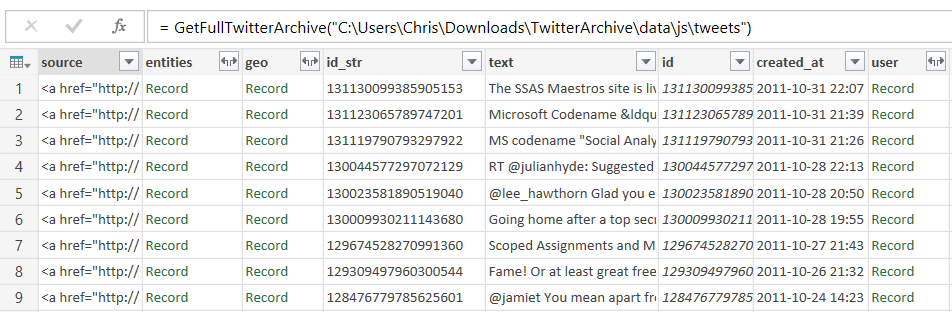
image

As you can see, there are plenty of other columns that can themselves be expanded, but this is a good starting point for any analysis.

There’s nothing really ground-breaking in what I’ve done here – it’s a fairly standard example of how you can use Power Query functions to combine data from multiple files, very similar to this example of combining data from multiple Excel files.

There’s absolutely loads of interesting data that you can play with here, but to start with here’s a query that finds the top 10 people I have replied to on Twitter:

[sourcecode language=”text”]
let
Source = GetFullTwitterArchive("C:\Users\Chris\Downloads\TwitterArchive\data\js\tweets"),
#"Removed Other Columns" = Table.SelectColumns(Source,{"in_reply_to_screen_name"}),
#"Grouped Rows" = Table.Group(#"Removed Other Columns", {"in_reply_to_screen_name"}, {{"Count", each Table.RowCount(_), type number}}),
#"Filtered Rows" = Table.SelectRows(#"Grouped Rows", each ([in_reply_to_screen_name] <> null)),
#"Sorted Rows" = Table.Sort(#"Filtered Rows",{{"Count", Order.Descending}}),
#"Kept First Rows" = Table.FirstN(#"Sorted Rows",10)
in
#"Kept First Rows"
[/sourcecode]

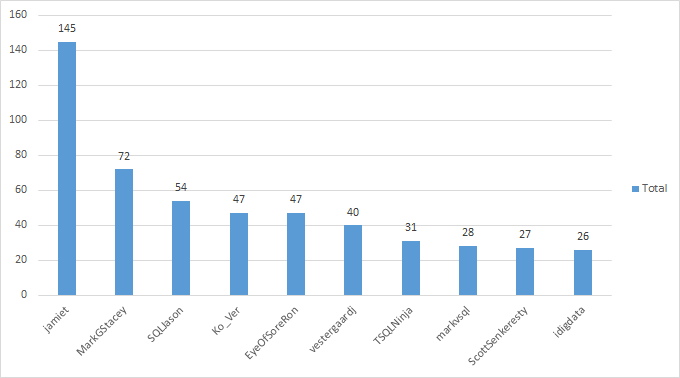
Here’s the output as a table and chart:

image

image

Looks like Jamie Thomson is the winner by a wide margin!

Here’s an example of a  NodeXL graph I built from this data, showing the relationships between users who I have mentioned together in a single tweet:

image

You can download the sample workbook for this post, containing all the functions (but not my data) here.

Exporting All M Code From Power Query In Excel 2013

UPDATE – there’s now a better way to do this using copy/paste. See

Exporting Your Queries’ M Code From Power Query And Power BI Using Copy/Paste

Here’s a tip that I found out about on the Power Query Technet forum that I thought was worth repeating. If you ever need a quick way of exporting all the M code for all of the queries in an Excel 2013 workbook, just open the Power Query window and click the Send a Frown button shown here:

image

Then, when the Send Feedback dialog appears, make sure Include Formulas is ticked then click OK:

image

When you do that, you’ll get an email created for you that contains a whole lot of debugging information, plus all of the M code for your queries:

image

Obviously, don’t send this email to Microsoft!

It’s quite easy to see the individual queries. You then need to go to your new workbook, create a new query by selecting the Blank Query option under Other Sources, and then open the Advanced Editor window and paste the code for each query in. However, when you do that you will need to modify the code a bit. There are three pieces of code you will need to delete:

  • At the beginning of the M code, where it says
    section Section1;
  • At the beginning of each query, a piece of code that contains the original name of the query:
    shared MyOriginalQueryName =
  • At the very end, a semi-colon

Of course in Excel 2016 we’ll have much better options for copying, pasting and moving queries in VBA, but until then we’ll have to live with hacks like this.

Running Your Own MDX And DAX Queries In Power BI Desktop

Every time there’s a new release of Power Query or Power BI Desktop, I always check to see if there are any interesting new M functions that have been added (I used #shared to do this, as detailed here). For the RTM version of Power BI Desktop I spotted two new functions:

image

As well as ODBC connections, we can now use OLEDB and ADO.NET data sources – although they aren’t shown in the UI yet. And you know what this means… with an OLEDB connection we can now run our own MDX and DAX queries against SSAS data sources! I assume this will be coming in Power Query in Excel soon too.

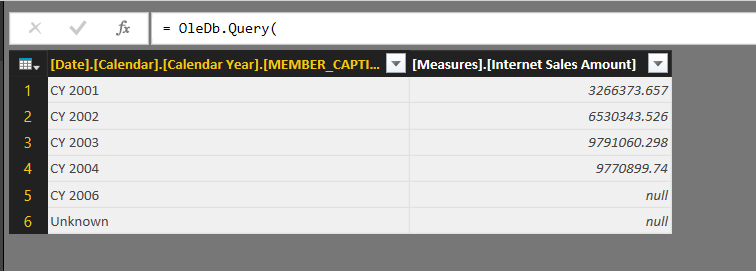
Here’s an example query showing how to use OleDB.Query() to run an MDX query against the Adventure Works DW cube in SSAS Multidimesional:

[sourcecode language=”text”]
let
Source = OleDb.Query(
"Provider=MSOLAP.5;Data Source=localhost;
Initial Catalog=Adventure Works DW 2008",
"select {measures.[internet sales amount]} on 0,
[date].[calendar].[calendar year].members on 1
from [adventure works]"
)
in
Source
[/sourcecode]

As you can see, it’s pretty straightforward: you just need to supply a connection string and a query. You will need to tell Power BI Desktop which credentials to use when running the query the first time you connect to SSAS, and that’s probably going to be Windows:

image

You will also see a prompt the first time you run the query, asking for permission to run a Native Database Query:

image

This prompt will appear each time a different MDX query is run; you can turn off this prompt in the Options dialog on the Security tab by unchecking the Require user approval for new native database queries box:

image

Here’s the output of the MDX query from the example code:

image

Checking Columns Are Present In Power Query

Something I was meaning to mention in my previous post (but forgot about…) was that in a lot of cases you don’t really care if your output contains all the required columns – it’s enough just to check that your input contains all the required columns. Luckily M has a function called Table.HasColumns() to help you do this. For example, using the csv source file from my previous post, which should have three columns called Product, Month and Sales, the following query will return true if the source file has these columns and false if it doesn’t:

[sourcecode language=”text” padlinenumbers=”true”]
let
Source = Csv.Document(File.Contents("C:\MissingColumnDemo.csv"),[Delimiter=",",Encoding=1252]),
PromotedHeaders = Table.PromoteHeaders(Source),
CheckColumns = Table.HasColumns(PromotedHeaders, {"Product", "Month", "Sales"})
in
CheckColumns
[/sourcecode]

Ensuring Columns Are Always Present In A Table Returned By Power Query

Disappearing or renamed columns in your data source can cause all kinds of problems when you’re importing data using Power Query: errors when you try to refresh the query, broken calculations in Power Pivot, PivotTables that reformat themselves and then need to be manually recreated. As a result, it can be a very good idea to build some logic into your Power Query queries that ensures that a table always contains the columns you’re expecting.

Consider the following csv file:

image

In Power Query, if you connect to it and create a query you’ll end up with something like this:

[sourcecode language=”text” padlinenumbers=”true”]
let
Source = Csv.Document(File.Contents("C:\Demo.csv"),null,",",null,1252),
#"First Row as Header" = Table.PromoteHeaders(Source),
#"Changed Type" = Table.TransformColumnTypes(#"First Row as Header",{{"Sales", Int64.Type}})
in
#"Changed Type"
[/sourcecode]

Let’s assume that this query is called GetSourceData. Let’s also assume that your output from Power Query should always be a table that has the three columns Product, Month and Sales, and that Product and Month should be text columns and Sales should be numeric. The basic steps to take to ensure that this always happens, even if the columns in the csv file change, are as follows:

  1. Create a query that connects to your data source, for example like GetSourceData above
  2. Create a query that will always return a table with the columns you want, but which contains no rows
  3. Append the second table onto the end of the first table. This will result in a table that contains all of the columns from both tables.
  4. Remove any unwanted columns.

There are a number of ways to create the empty table needed in step 2. You could use the #table() function if you’re confident writing M code, and the following single line query (no Let needed) does the job:

[sourcecode language=”text”]
#table(
type table [Product=text, Month=text, Sales=number],
{})
[/sourcecode]

image

Alternatively, if you wanted something that an end user could configure themselves, you could start with a table in Excel like this:

image

then transpose it, use the first row of the resulting table as the header row, then set the data types on each table to get the same output:

[sourcecode language=”text”]
let
Source = Excel.CurrentWorkbook(){[Name="Columns"]}[Content],
#"Transposed Table" = Table.Transpose(Source),
#"First Row as Header" = Table.PromoteHeaders(#"Transposed Table"),
#"Changed Type" = Table.TransformColumnTypes(#"First Row as Header",
{{"Product", type text}, {"Month", type text}, {"Sales", Int64.Type}})
in
#"Changed Type"
[/sourcecode]

Assuming that this query is called ExpectedColumns, it’s then a trivial task to create a third query that appends the ExpectedColumns query onto the end of the GetSourceData query. If GetSourceData includes all the columns it should then this append will have no effect at all; if some of the columns have changed names or disappeared, you’ll see all of the columns present from both GetSourceData and ExpectedColumns in the output of the append. For example if the Month column in GetSourceData is renamed Months then the output of the append will look like this:

image

Finally, in this third query you need to select all the columns you want (ie all those in the ExpectedColumns query) and right click/Remove Other Columns, so you remove all the columns you don’t want. In the previous example that gives you:

image

The point here is that even though the Month column only contains nulls, and the actual month names have been lost, the fact that the columns are all correct means that you won’t get any errors downstream and your PivotTables won’t be reformatted etc. Once you’ve fixed the problem in the source data and refreshed your queries, everything will go back to normal.

Here’s the code for this third query:

[sourcecode language=”text” padlinenumbers=”true”]
let
Source = GetSourceData,
Append = Table.Combine({Source,ExpectedColumns}),
#"Removed Other Columns" = Table.SelectColumns(Append,{"Product", "Month", "Sales"})
in
#"Removed Other Columns"
[/sourcecode]

For bonus points, here’s another query that compares the columns in GetSourceData and ExpectedColumns and lists any columns that have been added to or are missing from GetSourceData:

[sourcecode language=”text”]
let
//Connect to Excel table containing expected column names
ExcelSource = Excel.CurrentWorkbook(){[Name="Columns"]}[Content],
//Get list of expected columns
ExpectedColumns = Table.Column(ExcelSource, "ColumnName"),
//Get a list of column names in csv
CSVColumns = Table.ColumnNames(GetSourceData),
//Find missing columns
MissingColumns = List.Difference(ExpectedColumns, CSVColumns),
//Find added columns
AddedColumns = List.Difference(CSVColumns, ExpectedColumns),
//Report what has changed
OutputMissing = if List.Count(MissingColumns)=0 then
"No columns missing" else
"Missing columns: " & Text.Combine(MissingColumns, ","),
OutputAdded = if List.Count(AddedColumns)=0 then
"No columns added" else
"Added columns: " & Text.Combine(AddedColumns, ","),
Output = OutputMissing & " " & OutputAdded
in
Output
[/sourcecode]

image

You can download the sample workbook for this post here.

Power Query/Excel 2016 VBA Examples

In Excel 2016, Power Query is no longer an Excel add-in but a native feature of Excel, and what’s more, you can now use VBA to create and manage Power Query queries.

I’ve found two sources of information about how to use VBA with Power Query in Excel 2016. First, there are some code samples on the Technet Gallery here:
https://gallery.technet.microsoft.com/VBA-to-automate-Power-956a52d1#content
…and Gil Raviv, a Program Manager at Microsoft, has also asked for feedback on this functionality on this thread:
https://social.technet.microsoft.com/Forums/en-US/1eac9c36-b6e4-48f0-a51a-fa92b24cf1d9/vba-and-power-query-in-excel-2016-preview-lets-get-started?forum=powerquery

Secondly, I was contacted recently by Kiara Grouwstra who shared with me some of the interesting work they have done using VBA and Power Query in the Excel 2016 Preview, and who has very kindly allowed me to blog about it here. Their work is much more representative of how I think most people will want to use this feature.

Kiara sent me a .xlsm file containing all of the VBA code, which you can download here. Obviously the code only works in the Excel 2016 Preview, but you can still open the file and look at the code in Excel 2013. However if you’re worried about downloading a workbook with macros in, I extracted the code to a text document which you can see here. If you want to copy the code to use in your own workbook, you’ll need to go to the VBA Editor, select Tools/References and add a reference to “Microsoft ActiveX Data Objects 6.1 Library”.

image

The VBA code includes examples of how to:

  • Delete all the Power Query queries in a workbook
  • Export/import the M code for all queries to/from another Excel workbook
  • Export/import the M code for all queries to text files
  • Refresh all the Power Query queries in the workbook
  • Load a query to an Excel table

A few bugs/features in the Preview are also pointed out, namely:

  • Imported queries don’t always show up in the Workbook Queries pane; the workaround is to close and reopen the workbook
  • Functions aren’t recognised as functions (ie they don’t have the fx icon) until you open the Query Editor and the Close & Load
  • Query groups aren’t supported yet – which is a bit of an oversight, in my opinion, but the forums thread linked to above indicates it won’t be addressed before RTM unfortunately
  • Loading the output of a query into an Excel table using the code given here doesn’t seem to have the same result as loading a query to a table in the worksheet using the Power Query UI: it creates a blue, rather than green, table that doesn’t always retain row order.

I can imagine a lot of serious Power Query users will create workbooks containing a library of their most useful queries and functions, and use VBA code to copy these queries and functions into new workbooks as and when necessary. We’ll have to wait and see what Microsoft’s plans for sharing Power Query queries are, whether they’ll go beyond what’s already been seen in Office 365 Power BI, whether they will be part of a bigger bundle of services and what the cost will be.

Incidentally, the sample workbook contains a lot of interesting, generally useful Power Query queries and functions written by Kiara and others which is also available in the following GitHub repository: https://github.com/KiaraGrouwstra/pquery

Drawing Lines On Maps With Power Map And Power Query

Recently, I was working with a customer that wanted to be able to draw lines between two points in Power Map. At the time I thought the only way that it might be possible was by using Power Query to generate a table of data containing a series of points that were so close together that they looked like a single line, and then plot these points in Power Map (similar to what I show in the screenshot here). Soon after, the new custom regions functionality was released in Power Map (there’s no documentation I can find right now, but this blog post is reasonably detailed) and I wondered whether now it might be possible to draw lines. Unfortunately not: Power Map can now import SHP and KML files, but it doesn’t support all the features of KML – only polygons (and even then not all the features of polygons, although inner and outer boundaries work fine). I guess this is ok for the primary use-case of Power Map, which is plotting BI data on a map, but it would be nice to see more KML features supported so that Power Map can show richer supporting information for the data: things like arrows showing direction of travel, and so on.

Anyway, I then thought – why not use polygons to draw these lines? Again, I hit a slight problem: I wanted to generate the polygons for the lines in code, and Power Map can only import SHP or KML data from files. It would be really useful if we could use shape data stored in the Excel Data Model… but we can’t. However, it is possible to use Power Query to generate KML and then copy and paste this code into a file, which can then be imported into Power Map. So, just for the fun of it, I put together a proof-of-concept workbook containing Power Query queries to generate all the tables and KML code needed to draw lines between two places, and a Power Map tour that shows the output. Here’s what the end result looks like:

image

You can download my example workbook that contains all the code, plus all the supporting files, here. You will need to update some file paths in the M code to get it all to work.

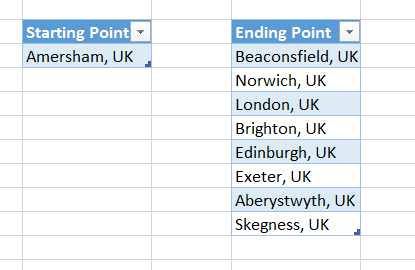
The starting point is two tables on the worksheet, one containing the single starting point for the lines, the other all of the destinations:

image

There’s a lot of M code so I’m not going to include it in this post, but here’s an overview of what each query does:

  • GetLatLong is a function that calls the Bing Maps REST API to find the latitude and longitude for each place in the tables above. You will need your own Bing Maps account key if you want to use this code yourself – you can get one at https://www.bingmapsportal.com/
  • Starting Point and Ending Points simply load the data from the Excel tables
  • StartingPointLatLong gets the latitude and longitude of the starting point by calling GetLatLong
  • StartEndPoints gets the latitude and longitude of all the ending points by calling GetLatLong, adds custom columns to show the starting point name, latitude and longitude against each ending point, and loads the result to the Excel Data Model. You have to have some data in the Excel Data Model for Power Map to display the lines, and it’s important that Power Map can match the values in one column in this table with the names of objects in the KML file.
  • BasicPolygonTemplate loads a fragment of KML, containing the definition of a polygon, from a text file. This contains two ‘parameters’, @Name and @Coordinates, which will be overwritten using Text.Replace() later on when the actual KML is being generated.
  • GetCoordinateList is a function to draw a rectangular polygon that represents the line between the starting point and an ending point. I had a lot of fun trying to get the code for this working properly (I wish I could remember any of the trigonometry that I learned after the age of 13…) and I’m still not convinced the rectangles are properly rectangular, but they’re good enough.
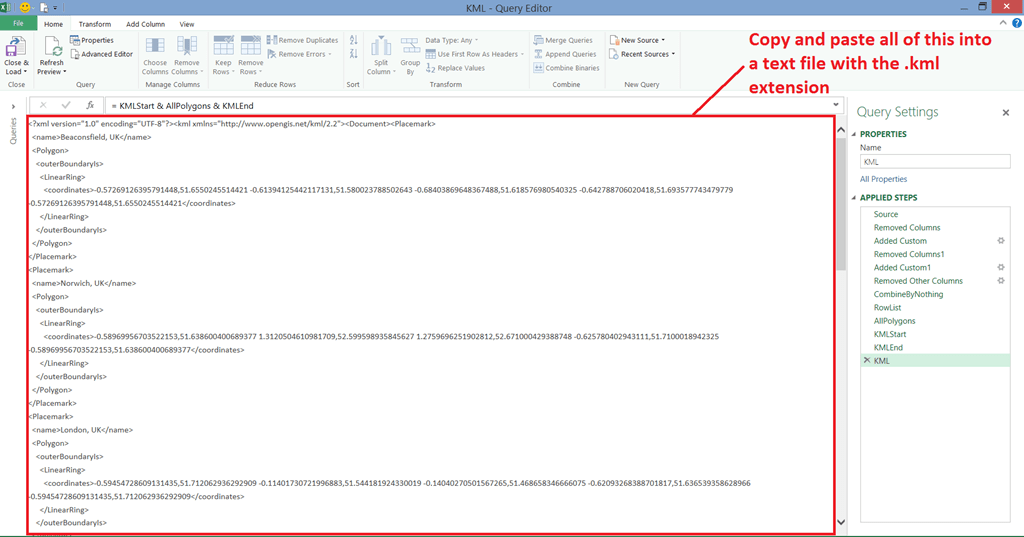
  • KML generates the KML for all of the polygons. The output of this query must be copied from the Power Query query window into a text file with the .kml extension, for example Test.kml. There’s no need to load the output of this query to anywhere.

image

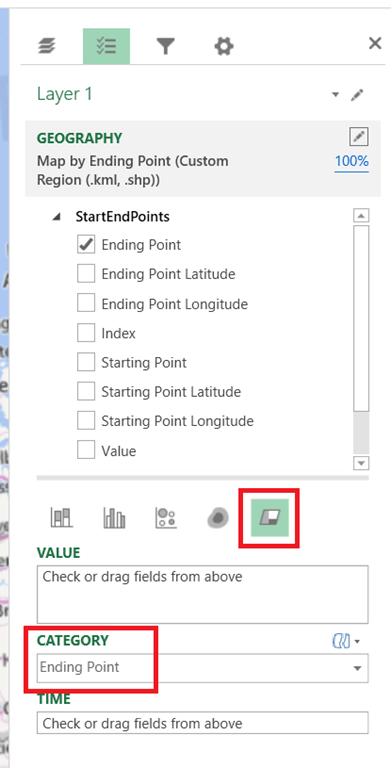
With all of that done, you now need to open Power Map and create a new tour. Choose EndingPoint as the sole Geography column, then choose Custom Region (.kml, .shp) from the dropdown list below and click Yes to import custom regions.

image

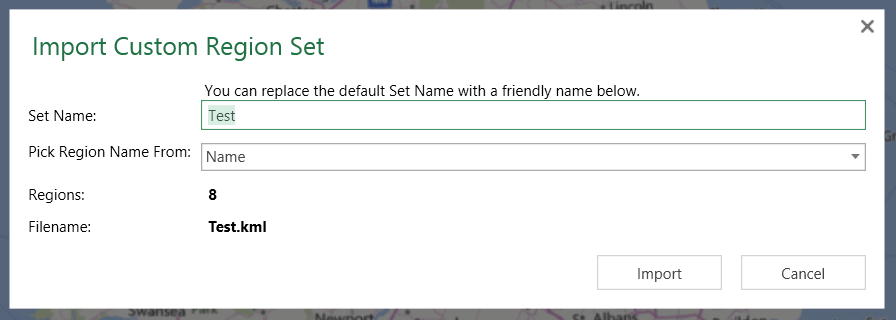
Select the .kml file you created earlier, containing the output of the KML Power Query query, and then click Import:

image

Finally, change the visualisation type to Region and optionally add Ending Point to Category to make the lines different colours:

image

And bingo, you see the lines:

image

Support for custom regions is a massive step forward for Power Map in my opinion: rather than just being a toy for creating flashy demos it’s now able to handle a lot more real-world requirements. However, having some way of programmatically creating regions and shapes (either through Power Query as I’ve done here, or using VBA or some other API), being able to load shape data from the Excel Data Model, or even just to be able to draw shapes on a map manually, would be welcome. I’m no mapping expert but I’ve come across a few frustrated Mappoint (which was discontinued at the end of 2014) users who would like to use Power Map but find that it can’t do everything that they need. The code in this post shows what’s possible but it’s still way too complex for most users and hardly an elegant solution.

Working With International Date And Number Formats In Power Query

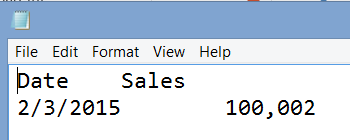
One problem that can really drive you crazy when working with data from text files is the many different formats that dates and numbers can be stored in around the world. For example, take a look at the contents of a tab-delimited file shown in the following screenshot:

image

There’s a single row of data and two columns, Date and Sales. What number and date are shown though? For me, living in the UK, the date shown is the 2nd of March 2015 (in the UK, like most of the world, we use the DD/MM/YYYY date format) and the number is one hundred thousand and two (in the UK we use the . sign as a decimal separator and the , as a thousands separator). However, if I was from the US and used the MM/DD/YYYY format I’d read the date as the 3rd of February 2015; and if I was from France and used a comma as a decimal separator, I’d read the number as a value just a tiny amount over one hundred. Of course, if you’re working in one country and getting data sent from another, which uses a different date or number format, you need to take all of these variations into account.

The good news is that Power Query has a really easy way of doing this for you, even if it’s not immediately obvious where this functionality is. You don’t need to change your Windows locale or split dates into their constituent parts and rearrange them in the correct order, or anything like that.

When you first load a csv file like the one shown above into Power Query, it will try to guess the data types of each column. Here’s the code generated by Power Query for this file:

[sourcecode language=”text” padlinenumbers=”true”]
let
Source = Csv.Document(
File.Contents(
"C:\Users\Chris\Documents\Power Query demos\PQDateNumberFormats.csv"),
null,"#(tab)",null,1252),
#"First Row as Header" = Table.PromoteHeaders(Source),
#"Changed Type" = Table.TransformColumnTypes(
#"First Row as Header",
{{"Date", type date}, {"Sales", Int64.Type}})
in
#"Changed Type"
[/sourcecode]

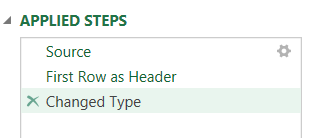
As you can see, it has created three steps in the query automatically:

  1. Source loads the data from the CSV file given and sees that it’s tab delimited
  2. First Row as Header uses the first row of data as the column headers
  3. Changed Type sets the Date column to be type date, and Sales to be an integer

image

To change how the column data types are interpreted though, you first need to delete the Changed Type step by clicking on the cross icon next to it, shown above. Then, right-click on the Date column, choose Change Type then Using Locale…

image

When you do this, the Change Type With Locale dialog appears:

image

A locale is simply a name for all of the rules for date and number formats and more associated with a particular language and region. So, for example, setting the Date column so that it is interpreted using the English (United States) locale, means that when the data is loaded into Power Query on my machine I see the date 3/2/2015.

image

What’s happened is that the csv file contains the date “2/3/2015”, I have told Power Query that the data source uses a US English format date, Power Query has then assumed this date is therefore in MM/DD/YYYY format, loaded the data for me and shown the date in my own locale (which is English (United Kingdom)) in DD/MM/YYYY format as 3/2/2015. The date itself hasn’t changed, just the way it is displayed.

Using the same technique to import the Sales column as a decimal value using the English United States locale like so:

image

…gives the following final result, where the comma is assumed to be a thousands separator:

image

Here’s the new code for the query:

[sourcecode language=”text”]
let
Source = Csv.Document(
File.Contents(
"C:\Users\Chris\Documents\Power Query demos\PQDateNumberFormats.csv"),
null,"#(tab)",null,1252),
#"First Row as Header" = Table.PromoteHeaders(Source),
#"Changed Type with Locale" = Table.TransformColumnTypes(
#"First Row as Header",
{{"Date", type date}}, "en-US"),
#"Changed Type with Locale1" = Table.TransformColumnTypes(
#"Changed Type with Locale",
{{"Sales", type number}}, "en-US")
in
#"Changed Type with Locale1"
[/sourcecode]

However, if I change the locale used to set the types of these two columns to French (France), I see the following:

image

You will see that I have told Power Query to interpret the value “100,002” as a decimal number using a French format, where a comma is used as a decimal separator, and it has therefore imported and displayed it as 100.002 in the English (United Kingdom) format with a decimal point used as the decimal separator.

Nested Calculations In Power Query

Quite often, in Power Query, you want to ‘nest’ calculations and transformations – apply them not across the whole table, but repeat the same calculation or transformation across multiple groups of rows within that table. Let me give you an example…

Take the following input table:

image

Imagine you wanted to add a column showing the rank of each row by Sales. In Power Query you would just need to:

  1. Load the data
  2. Sort the table in descending order by Sales
  3. Add an index column starting at 1, which is the rank

You would end up with the following output:

image

…and here’s the M code, all of which is generated by the UI:

let
Source = Excel.CurrentWorkbook(){[Name="Sales"]}[Content],
#"Sorted Rows" = Table.Sort(Source,{{"Sales", Order.Descending}}),
#"Added Index" = Table.AddIndexColumn(#"Sorted Rows", "Rank", 1, 1)
in
#"Added Index"

Now imagine you wanted to rank Sales within each month. That’s to say you want to apply the same steps as shown in the previous query but for each month individually to get an output like this:

image

One way to tackle this, and problems like it, is to do the following. First, do a Group By on the column you want to repeat the calculation over, in this case Month, and use the All Rows aggregation operation. This will result in a table with one row for each month and a column containing nested tables, as shown below:

image

Each one of these tables contains the rows from the original table for the month.

You can then take your original transformation and turn it into a function, either in a separate query or as a step in your current query. Here’s an example of how the query above can be turned into a function that takes a table and returns a table with a rank column added:

(tabletorank as table) as table =>
let
SortRows = Table.Sort(tabletorank,{{"Sales", Order.Descending}}),
AddIndex = Table.AddIndexColumn(SortRows, "Rank", 1, 1)
in
AddIndex

Next, you need to pass each nested table to this function. You could do that in a calculated column, but the most elegant way I think is by using the Table.TransformColumns() function which takes a function and applies it to every value in a column (see here for another example of how to use it).

Finally, you get the final output by clicking on the Expand icon in the AllRows column and then choosing to expand all the columns in the nested table except the ones you originally grouped on:

image
image

Here’s the full M code:

let
//Get data from Excel
Source = Excel.CurrentWorkbook(){[Name="Sales"]}[Content],
//Group by Month
Grouped = Table.Group(Source, {"Month"}, {{"AllRows", each _, type table}}),
//Declare a function that adds a Rank column to a table
RankFunction = (tabletorank as table) as table =>
let
SortRows = Table.Sort(tabletorank,{{"Sales", Order.Descending}}),
AddIndex = Table.AddIndexColumn(SortRows, "Rank", 1, 1)
in
AddIndex,
//Apply that function to the AllRows column
AddedRank = Table.TransformColumns(Grouped, {"AllRows", each RankFunction(_)}),
//Expand the tables in the AllRows column again
ExpandAgain = Table.ExpandTableColumn(AddedRank, "AllRows",
{"Product", "Sales", "Rank"}, {"Product", "Sales", "Rank"})
in
ExpandAgain

You can download the example workbook here.

This pattern could also be applied to other types of calculation that need to be nested, for example running totals or shares.

Improving Power Query Calculation Performance With List.Buffer()

I saw an interesting post the other day on the Power Query Technet forum which showed how the List.Buffer() function could be used to improve calculation performance. This is something I’d seen hinted at in other places so I thought it was worth a bit of investigation.

Consider the following query:

let
//Connect to SQL Server
Source = Sql.Database("localhost", "adventure works dw"),
//Get first 2000 rows from FactInternetSales
dbo_FactInternetSales = Table.FirstN(
Source{[Schema="dbo",Item="FactInternetSales"]}[Data],
2000),
//Remove unwanted columns
RemoveColumns = Table.SelectColumns(
dbo_FactInternetSales,
{"SalesOrderLineNumber", "SalesOrderNumber","SalesAmount"}),
//Get sorted list of values from SalesAmount column
RankValues = List.Sort(RemoveColumns[SalesAmount], Order.Descending),
//Calculate ranks
AddRankColumn = Table.AddColumn(RemoveColumns , "Rank",
each List.PositionOf(RankValues,[SalesAmount])+1)
in
AddRankColumn

It gets the first 2000 rows from the FactInternetSales table in the Adventure Works DW database, removes most of the columns, and adds a custom column that shows the rank of the current row based on its Sales Amount.

image

On my laptop it takes around 35 seconds to run this query – pretty slow, in my opinion, given the amount of data in this table.

However, using the List.Buffer() function in the RankValues step like so:

let
//Connect to SQL Server
Source = Sql.Database("localhost", "adventure works dw"),
//Get first 2000 rows from FactInternetSales
dbo_FactInternetSales = Table.FirstN(
Source{[Schema="dbo",Item="FactInternetSales"]}[Data],
2000),
//Remove unwanted columns
RemoveColumns = Table.SelectColumns(
dbo_FactInternetSales,
{"SalesOrderLineNumber", "SalesOrderNumber","SalesAmount"}),
//Get sorted list of values from SalesAmount column
//And buffer them!
RankValues = List.Buffer(List.Sort(RemoveColumns[SalesAmount], Order.Descending)),
//Calculate ranks
AddRankColumn = Table.AddColumn(RemoveColumns , "Rank",
each List.PositionOf(RankValues,[SalesAmount])+1)
in
AddRankColumn

Makes the query run in just 2 seconds. The List.Buffer() function stores the sorted list of values used to calculate the rank in memory which means it will only be evaluated once; in the original query it seems as though this step and those before it are being evaluated multiple times. Curt Hagenlocher’s comment (on this thread) on what List.Buffer() does for a similar calculation is telling:

The reason for this is that M is both functional and lazy, so unless we buffer the output of List.Select, we’re really just building a query that needs to be evaluated over and over. This is similar to the Enumerable functions in LINQ, if you’re familiar with those.

Table.Buffer() and Binary.Buffer() functions also exist, and do similar things.

A few other points to make:

  • This is not necessarily the optimal way to calculate ranks in Power Query – it’s just an example of how List.Buffer() can be used.
  • In the first query above, query folding is not taking place. If it had been it’s likely that performance would have been better. Since using List.Buffer() explicitly prevents query folding from taking place, it could make performance worse rather than better because of this in many cases.
  • I’m 100% certain you’ll get much better performance for a rank calculation by loading the table to the Excel Data Model/Power Pivot and writing the calculation in DAX. You should only really do calculations like this in Power Query if they are needed for other transformations in your query.