The new Relationships view (or Modeling view – it seems to have two names) in Power BI Desktop that has been in preview since November 2018 not only makes it easier to work with complex models and set properties more easily, it also exposes a brand new property on a column: the “Is nullable” property. It’s visible at the bottom of the new Properties pane when you click on a column:
I was, naturally, curious about what it did and I couldn’t find any documentation so I did a bit of investigation of my own and asked a few people at Microsoft.
It turns out that it is primarily intended for validation purposes, so that if you know a column should never contain a null value and then, at a later date, a null value does appear in that column then you’ll get the following error when you try to refresh a table in Import mode:
Column ‘MyColumn’ in Table ‘TestTable’ contains blank values and this is not allowed for columns on the one side of a many-to-one relationship or for columns that are used as the primary key of a table
The only other use I have found for it is when it is used in combination with the DAX CombineValues() function in DirectQuery mode. In his excellent article on this subject, Marco notes that the SQL generated when you use CombineValues() to concatenate values from multiple columns and create a calculated column that can be used in a relationship includes a check for null values in those columns. I can confirm that if you turn off the ‘is nullable’ property on all the columns used by CombineValues(), there are no checks for null values in the SQL queries.
There may be a few other things that it does, but I’ve been told they are likely to be there to ensure correctness rather than performance optimisations. Nonetheless if you do find other scenarios where it has an effect please let me know in a comment.
[Thanks to Akshai Mirchandani and Jeffrey Wang for providing much of the information used in this post]
I have already blogged in great detail many times about Power BI/Power Query data privacy settings (see this series for example) but there’s always something new to learn. Recently I was asked a question by Ian Eckert about how Power BI handles data privacy for cloud or web-based data sources after a dataset has been published, and it prompted yet more revelations…
Consider the following M query:
[sourcecode language=’text’ padlinenumbers=’true’]
let
Source = Xml.Tables(
Web.Contents(“https://blog.crossjoin.co.uk/feed/”)
),
channel = Source{0}[channel],
language = channel{0}[language],
out = Json.Document(
Web.Contents(
“https://data.gov.uk/api”,
[
RelativePath=”3/action/package_search”,
Query=[q=language]
]
)
),
result = out[result],
results = result[results],
#”Converted to Table” = Table.FromList(
results,
Splitter.SplitByNothing(),
null,
null,
ExtraValues.Error
),
Column1 = #”Converted to Table”{0}[Column1],
#”Converted to Table1″ = Record.ToTable(Column1)
in
#”Converted to Table1″
[/sourcecode]
It doesn’t do anything particularly interesting, but it does take data from one web-based data source (the RSS feed for this blog) and sends it to another (the UK government’s open data metadata search web service). As a result, in Power BI Desktop, if you set the data privacy settings for both data sources to Public then the query runs, but if you set the data privacy settings for both data sources to Private:
…As expected, you get the following error:
Formula.Firewall: Query ‘Test’ (step ‘Converted to Table1’) is accessing data sources that have privacy levels which cannot be used together. Please rebuild this data combination.
Now the strange thing is that, when you publish the dataset that contains this M query, refresh always works. Why? What’s more, other datasets that do something similar will always fail when refreshed.
It turns out that when you publish a dataset that uses cloud or web-based data sources like the two used here, the Power BI service does not use the data privacy settings you have set in Power BI Desktop but instead it automatically assigns data privacy levels as follows:
Data sources, like the ones used here, that use Anonymous authentication are automatically given the privacy level Public
All other data sources are given the privacy level Private.
Interestingly, Power BI dataflows also count as cloud-based data sources and because they do not use Anonymous authentication they default to Private too, so if you are combining data from a dataflow with another data source in your dataset then you need to be careful of this.
What’s more there is at the time of writing no way to change these data privacy levels in the Power BI web-based portal. Hopefully this will change soon.
There are some workarounds though!
First of all, you can force refresh to take place through a gateway. This might sound strange because in theory, if you’re only using cloud or web-based data sources, a gateway should not be necessary. However there are already similar scenarios where a gateway is needed, for example if you are scraping data from a web page you need to use a gateway, and if you are combining data from a cloud-based data source with an on-premises data source you also need to use a gateway. If you add your cloud/web-based data sources as data sources in your gateway (unfortunately it does not seem to be possible to add a dataflow as a data source in a gateway, though) you can set their data privacy levels in the Advanced Settings section in the Manage Gateways screen:
You will also need to set the “Use a data gateway” option to On in the Settings dialog for your dataset after it has been published:
The other workaround is to copy the M code for your query and paste it into a new blank M query in an entity in a dataflow, as Matthew Roche shows here. While it does not seem to be possible to set data privacy levels for individual data sources when creating an entity, it is possible to turn off data privacy checks for an entity completely. If you create a query that sends data from one data source to another (regardless, as far as I can see, of the authentication mechanism used), you will see the following message in the Power Query Online query editor:
The evaluation was cancelled because combining data from multiple sources may reveal data from one source to another. Click Continue if the possibility of revealing data is okay.
If you click Continue, data privacy checks are turned off and the query runs; you can also click the Options button on the ribbon and check the “Allow combining data from multiple sources” option:
If one of your data sources is already itself a dataflow you may need to do some editing of the M query to make things work, but as Matthew Roche shows here it is possible to have an entity in a dataflow refer to another entity without using a computed entity (which is a Premium-only feature).
[Thanks to Arthi Ramasubramanian Iyer from Microsoft for providing background information for this post]
If you’re learning Power BI and you want to deepen your understanding of its data transformation and loading functionality, the Power Query engine and the M language, I’m doing one-day pre-conference seminars on this subject at three conferences over the next few months:
SQLKonferenz in Darmstadt, Germany, 19-21 February 2019 (see here for more details)
SQLBits in Manchester, UK, 27 February-2 March 2019 (see here for more details)
You’ll learn about all the functionality in the Power Query Editor window plus concepts such as merging, appending, parameters, functions, data privacy and M. I hope to see you at one of them!
I’m pleased to announce that the updated version of my Power BI video training course is now available via my friends at Project Botticelli. You can find out more and purchase it here:
If you book using the discount code CROSSJOIN you’ll get 10% off!
I’ve recorded a lot of new content to cover all the new features that were added to Power BI in 2018, and there are also new segments on Azure Analysis Services and Power BI Premium. You can watch a few of the videos for free to get a taste of the course.
Don’t forget that my older MDX and SSAS Multidimensional courses are also still available on the same site.
A few weeks ago I received a great tip from Simon Nuss about a Power Query feature relating to ODBC data sources that I hadn’t seen before (although it’s in Power BI Desktop and Excel 365, so it can’t be that new) and which is potentially important for the performance of data refresh and of the Power Query Editor’s preview pane. It’s only visible if you click “Advanced options” when creating your ODBC data source:
It’s the “Supported row reduction clauses” option:
What does it do? Well, first of all let’s see what happens if you don’t set it. Let’s say you have an ODBC data source that uses the Microsoft ODBC Driver for SQL Server to connect to the Adventure Works DW database. If you create a new query that uses this data source to get the contents of the DimDate table it works pretty much as you’d expect; here’s the M code:
let
Source =
Odbc.DataSource(
“dsn=Test SQL”,
[HierarchicalNavigation=true]
),
#”Adventure Works DW_Database” =
Source{
[Name=”Adventure Works DW”,Kind=”Database”]
}[Data],
dbo_Schema =
#”Adventure Works DW_Database”{
[Name=”dbo”,Kind=”Schema”]
}[Data],
DimDate_Table =
dbo_Schema{[Name=”DimDate”,Kind=”Table”]}[Data]
in
DimDate_Table
However, if you look in Profiler when the contents of the Preview window is refreshed, you’ll see that the Power Query engine is running a query that gets the entire contents of the table:
Obviously, if you are connecting to a big table this could make the Power Query Editor slow. What’s more, as this blog post shows, the Power Query Editor only actually wants to display 1000 rows and the fact that the query is requesting all the rows from the table suggests that even basic query folding is not happening on this ODBC data source.
Now let’s see what happens if you do select something from the “Supported row reduction clauses” dropdown. As the screenshot above shows, there are four values in the dropdown that relate to the form of SQL supported by your ODBC source to only get the first N rows from a table. If you don’t know which one to choose you can click the Detect button and it will select one for you. In this case I selected TOP:
Having done this, when you connect to the same DimDate table, you’ll see that now the Power Query Editor is only requesting the top 1000 rows from the table:
Also, if you look at the M code for the query, the Odbc.DataSource function has the as-yet undocumented SqlCapabilities option set in its second parameter,
Actually it’s not quite undocumented because it is mentioned here as something that is only available if you’re using Odbc.DataSource in a custom connector; obviously things have changed.
Setting this option can make a big difference to the responsiveness of the Power Query Editor when you’re working with large tables and/or slow data sources – I saw this myself this week when working with one of my customers. It’s also going to be important if you use the Keep Rows/Keep Top Rows button on the ribbon or the Table.FirstN() M function; I suspect there are other, more obscure, reasons why it might speed refresh up even if you aren’t filtering the rows of the table but I’m not 100% sure.
One last thing to mention is that there is another undocumented function which is what, I think, the Detect button in the screenshots above uses to find out how to set the SqlCapabilities option. It’s called Odbc.InferOptions and it can be used like so:
Odbc.InferOptions(“dsn=Test SQL”)
This function returns a record containing a field called LimitClauseKind that tells you the type of limit clause that is supported:
Here’s a list of the possible LimitClauseKind values I found using #shared:
Every year, on the anniversary of the first-ever post on this blog, I write a post summarising my thoughts on what’s happening in the world of Microsoft BI and what I’m up to professionally.
This year, rather than go on about how Power BI is taking over the world (which we all know already), I thought it might be interesting to consider how the focus of this blog – and by implication the focus of my work – has changed over the last few years by looking at the viewing statistics of some of my most popular posts.
None of these posts are, in technical terms, out of date but the downward trend is the same for all of them. The decline in traffic is matched by the decline in demand for consultancy and training on SSAS MD and MDX. While I still spend around 20% of my time doing SSAS MD and MDX consultancy, I do very little training on them at all these days – I guess because no-one is building new solutions using SSAS MD, although there are a still a large number of SSAS MD solutions in production that need maintenance and improvement. I expect the launch SSAS MD in the cloud as part of Power BI Premium will lead to a spike in the amount of work I do on it as I help my customers migrate but that will only be short-lived.
Perhaps I should blog about this more? The reason I don’t is twofold: first, there are a lot of people out there such as Marco and Alberto who specialise in DAX, have covered all the obvious angles and do a much better job than I ever could; second, my philosophy has always to blog about what I’m interested in and excited about, and frankly I have always enjoyed Power Query and M more than DAX.
One last graph is needed for context, showing the most popular posts from the three graphs above next to each other. The following graph shows how Aggregating the result of an MDX calculation using scoped assignments, Working with web services in Power Query and Dynamic chart titles in Power BI compare against each other:
It goes to show how the “Dynamic chart titles” post is now much more popular that the “Aggregating the result of an MDX calculation” post was, even at the peak of its popularity. I guess Power BI is a safe bet for my future.
I have known for a long time that data privacy checks can have an impact on the performance of data refresh in Power BI and Excel, but on a recent performance tuning engagement I had the chance to observe just how much of a difference changing these settings can make. Unfortunately I can’t share the M code for the queries I was working with but the scenario is very common:
The only data source was a single Excel workbook with multiple worksheets
There were multiple Power Query/M queries reading data from these worksheets; the output of these queries was not being loaded into the Power BI dataset
There were further Power Query/M queries that referenced these source queries, none of which were being loaded into the Power BI dataset, and they all fed into a single query whose output was being loaded into a dataset
Overall data volumes were very small, less than 1MB, and the final query only returned approximately 5000 rows
Data refresh times were exceedingly slow, even with the “allow data preview to download in the background” setting turned off, and there was a long period where the Power Query engine was stuck in the “Evaluating” phase of the query during refresh in Power BI Desktop before the dialog showed the amount of data being loaded:
Data refresh times also varied by +/-25% (I have a theory why this is happening – if I can confirm it I will blog about this) from one refresh to another
As a benchmark, here are some typical refresh timings for the same table in Power BI Desktop (December 2018 version) and Excel for Office 365 (build 11126.20118 click-to-run) with the default setting of data privacy checks turned on and the data privacy level set for the source Excel file set to Public:
Power BI Desktop
Excel
Evaluating Phase (Seconds)
122
173
Data Load Phase (Seconds)
140
113
Total Refresh Time (Seconds)
262
286
Here are the same timings with the Power Query engine set to combine data according to each file’s data privacy settings, and the data privacy checks for the current file turned off:
Power BI Desktop
Excel
Evaluating Phase (Seconds)
69
91
Data Load Phase (Seconds)
108
112
Total Refresh Time (Seconds)
177
203
Clearly there are some substantial query performance gains to be had by turning off data privacy checks and these gains are made in the Evaluating phase. In this case the queries in both Power BI Desktop and Excel were around 30% faster with data privacy checks turned off.
BUT is it safe to turn off data privacy checks? I strongly advise you to read my series on data privacy settings starting here, in particular this post on disabling checks, to understand the issues involved. You should not turn off data privacy checks without understanding what they do because you may end up sending sensitive data to somewhere it shouldn’t go and maybe even break the law. What’s more, if you have published a Power BI dataset you cannot disable data privacy checks for scheduled refresh unless you are using the gateway in Personal mode and have configured it with the “Fast Combine” option turned on, as shown here. Therefore turning off privacy checks is only really useful for Power Query users in Excel or to speed up development in Power BI Desktop.
In this particular case there is only one data source, an Excel workbook, a source which does not support query folding, so as far as I can see there is no risk in turning off data privacy checks because there is no way data from this Excel workbook can be sent anywhere else. Now why couldn’t the Power Query engine work this out?
When an end user sees a strange value in a Power BI report, their first reaction is usually to want to see the detail-level data from the underlying table. Power BI’s drillthrough feature is a great way of letting them do this, but it only returns meaningful results if you use it on measures that do simple aggregations such as sums or counts; if you have more complex calculations then usually what the drillthrough returns won’t be the rows that go to make up the value the user has clicked on.
Here’s an example. Say you have a simple Power BI model with a Sales table that contains the following data:
There is also a Date table with date and month columns, and the entire model looks like this:
Let’s say you create a measure called Sales Value that sums up the contents of the Sales column:
Sales Value = SUM('Sales'[Sales])
You could use this in a column chart to show sales by month, like so:
If the user wants to see the underlying data for one of the bars in this chart, drillthrough will work well – you just need to create another page (called, in this case, Month Drillthrough), put a table on it that displays the full contents of the Sales table:
[It’s important to note that it’s the Date column from the Sales table that’s shown here, not the Date column from the Date table]
Then drag the Month column from the Date table into the Drillthrough filter area:
…and you will be able to drillthrough from one of the columns in the chart, in this case the bar for May 2018:
…and that filter will be passed over to the Date Drillthrough page, so you only see the row in the table showing sales for May 5th 2018:
But what happens if you want to display year-to-date values in your column chart? If you create the following measure:
…and use it in the bar chart, you will see the following:
The problem comes when the user does the same drillthrough on May 2018 – which now shows the value 16 – and gets exactly the same table that they did before, showing only the sales transactions for May:
In this case, because the user clicked on the year-to-date value for May 2018 they would expect to see all the rows from the Sales table that went to make up that YTD value for May, that’s to say all the rows from the Sales table where the date was in the range January 2018 to May 2018.
The solution is to use some DAX that takes the month filter passed by the drillthrough and ensures that it filters the table shown not by the selected month, but all months in the year-to-date (similar to, but not exactly the same as, what I describe here).
Uses the DAX Crossfilter() function to disable the relationship between the Date and Sales table, and then use the SelectedValue() function to find the date from the Sales table shown on the current row of the table on the drillthrough report page, and store it in the CurrentDateFromSales variable.
Constructs a table using the DatesYTD() function and the Date column of the Date table, which contains all of the dates from the beginning of the current year up to and including the last date in the filter context – which will be the last date in the month selected in the drillthrough.
Uses the Contains() function to see if the date saved in the CurrentDateFromSales appears in the table returned in the previous step.
If it does appear, return the value of the Sales Value measure. Once again, this needs to have the relationship between the Sales and Date table disabled using the CrossFilter() function.
This measure can be used in the table on the drillthrough page instead of the Sales Value measure. Last of all, since your users will not want to see a measure called SalesIgnoringDate in their report, you can rename the SalesIgnoringDate column on the table to Sales Value.
Here’s the end result (in this case I created a new drillthrough page called YTD Drillthrough with the new measure on):
This is just one example, and different types of calculation on your source page will require vastly different DAX measures on your drillthrough page to ensure that a meaningful set of rows is returned. The basic concepts will remain the same whatever the calculation, though: you need to create a measure that ignores the filter applied by the drillthrough and instead returns a value when you want a row to appear in your drillthrough table and returns a blank value when you don’t want a row to appear.
It’s a shame that drillthrough in the SSAS Tabular sense is not available in Power BI, because being able to set a the Detail Rows Expression property on a measure in Power BI would make this problem a lot easier to solve.
The order of the columns in a table in a Power BI dataset doesn’t matter all that much, especially because the Fields pane in Power BI Desktop ignores the original column order and lists the columns in a table in alphabetical order. However there are a few situations where it is important, for example when you are using the DAX Union() function in a calculated table: as the documentation states, when you use Union() “Columns are combined by position in their respective tables”. You might also find it irritating if the columns you see in the Data or Relationships panes in the main Power BI Desktop window make it hard to browse the data or create relationships. You can control the order of columns in a table in the Power Query Editor but it’s not completely straightforward to get any changes to column order you make in your queries to be applied to the order of the columns in a table after it has already been loaded into a dataset.
Let’s say you have an M query that returns a table with three columns, Column1, Column2 and Column3, that looks like this:
…you will find that it does not affect the order of the columns shown in the Data pane in Power BI Desktop, which are fixed in the order they were when they were first created.
To get the column order change to be applied to the table in the dataset, you need to go back into the Query Editor, right-click on the Query and deselect the Enable Load option:
When you do this, you get the following warning:
If you subsequently click Continue and then Close & Apply, the dire warnings will come true: you will not only break any visuals that use this table but any measures or calculated columns associated with this table will be lost. If you instead click Continue and then click the Enable Load property on the query so loading is enabled again, you will find that when you then click Close & Apply the visuals will still work, the columns have been reordered, but the measures and calculated columns will still be lost. You’ll also see something that I think is a bug: there will be no data in the table in the dataset
You will have to manually refresh the query in the main Power BI Desktop screen to see the data in the table:
Recently I’ve been doing some more investigations into how data privacy settings work in Power BI. This is a subject I’ve blogged about in great detail already in a series of posts last year, but this functionality is so complex that there is always more to learn. I don’t have any profound new insights to offer; instead this blog post is a write up of a series of experiments whose results shed light onto how the process of setting data privacy levels works end-to-end.
Consider the following M query:
let
Source =
Json.Document(
Web.Contents(
"https://data.gov.uk/api/3/action/package_search?q=cows"
)
),
result = Source[result],
results = result[results],
results1 = results{0},
id = results1[id],
output =
Json.Document(
Web.Contents(
"https://data.gov.uk/api/3/action/package_show?id=" & id
)
)
in
output
The query does the following:
Runs a query against the UK government’s open data search API (the same API I use in this post on the RelativePath and Query options for the Web.Contents() function) to get a list of datasets related to the search term “cows” via the Package Search endpoint
Gets the first dataset returned by the search and finds its ID
Sends this ID to the Package Show endpoint in the same API to get the full JSON representation of this data set. Note that the entire URL is dynamically generated and that the Query option of Web.Contents() is not used here.
It’s a typical scenario where data privacy settings can cause problems: data from one data source, the package_search endpoint, is sent to another data source, the package_show endpoint. My series from last year on data privacy settings provides some useful background information on why this is such an important thing for the Power Query engine.
Assuming that you have never used this API before, when you try to run this query in the Power Query Editor in Power BI Desktop, you’ll see the following prompt to edit the credentials used:
Before you click the Edit Credentials button, there are two interesting things to point out. First, in the Query Dependencies view, you see this:
Notice that the Package Search endpoint is shown but not the Package Show endpoint.
Second, if you click the Data Source Settings button, you’ll see the following in the dialog that appears:
Not only does it only show the Package Search endpoint, there is a warning that says:
“Some data sources may not be listed because of hand-authored queries”
This refers to the output step in the query that calls the Package Show endpoint with the dynamically-generated url.
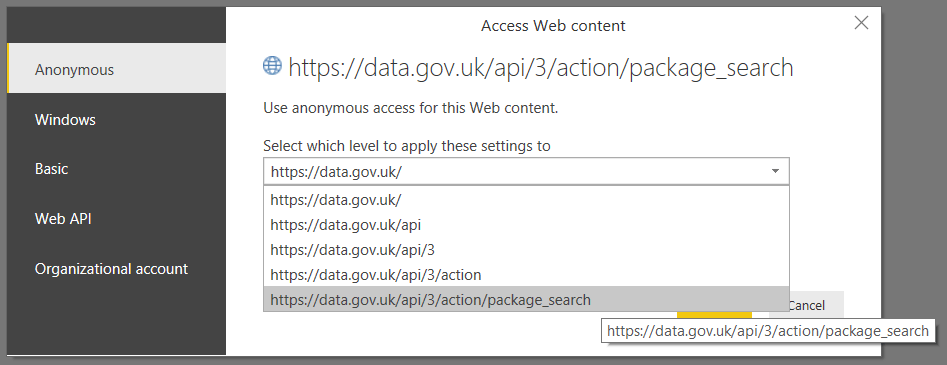
Closing this dialog and going back to the Query Editor, if you click the Edit Credentials button, you can set credentials for the data source (anonymous access is fine in this case). These credentials can be set at all levels in the path down to https://data.gov.uk/api/3/action/package_search.
Setting credentials at the level of https://data.gov.uk means you only get prompted once; however if you select https://data.gov.uk/api/3/action/package_search from the dropdown list and click Connect you will get prompted again to set credentials, this time with a dropdown that shows all paths down to package show:
Next, in the Query Editor, you see the data privacy settings prompt:
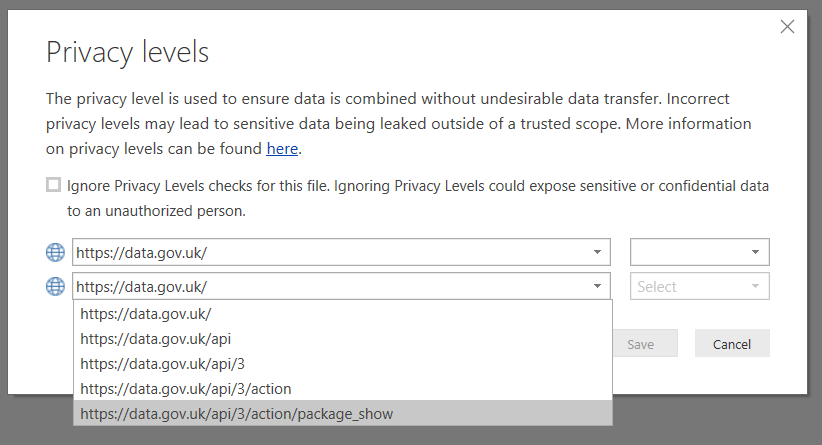
Clicking Continue brings up the data privacy levels dialog:
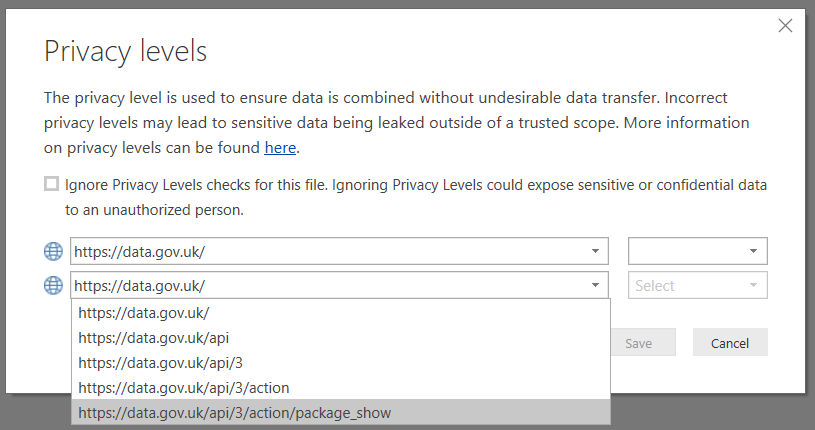
You have the choice to ignore privacy levels for this file, but of course you should always try to avoid doing that. You also have two dropdown boxes that both show https://data.gov.uk on the left-hand side and another two dropdown boxes next to them, although only the top one of these is enabled.
If you select https://data.gov.uk in the top-left dropdown only the top-right dropdown is enabled, and in the top-right dropdown you can set the data privacy levels Public, Organizational and Private.
The meanings of these three levels are described in my earlier series and here, and I won’t go into detail about what they mean in this post. The bottom-right dropdown is disabled because if you set privacy levels for https://data.gov.uk then all urls that start with this path inherit this setting. This is similar to what happens with the None data privacy setting that I describe here, I think.
Setting the data privacy level to Public on https://data.gov.uk in the top-right dropdown means the query runs successfully:
The expected activity is shown in Fiddler:
And at last the Package Show endpoint is shown in the Query Dependencies view:
The Data Source Settings dialog shows the same as it does above in the “Data sources in current file” tab, including the warning about hand-authored queries, but on the “Global permissions” tab there is now an entry for https://data.gov.uk :
Stepping back a few steps to the Privacy Levels dialog, if you set a privacy level of Private for https://data.gov.uk like so:
…then the query fails with the error “Formula.Firewall: Query ‘Query1’ (step ‘output’) is accessing data sources that have privacy levels which cannot be used together. Please rebuild this data combination.”:
From my point of view, this is the first really interesting finding: the two endpoints, https://data.gov.uk/api/3/action/package_search and https://data.gov.uk/api/3/action/package_show, are considered as separate data sources (which tallies with what is shown in the Query Dependencies view) even though they have both inherited their data privacy level setting from https://data.gov.uk. Since they are both Private then data cannot be sent from one source to the other, hence the error.
The second interesting finding becomes apparent if you follow the steps above with a slightly different version of the original query that uses the Query option in the call to the Package Show endpoint:
let
Source =
Json.Document(
Web.Contents(
"https://data.gov.uk/api/3/action/package_search?q=cows"
)
),
result = Source[result],
results = result[results],
results1 = results{0},
id = results1[id],
output =
Json.Document(
Web.Contents(
"https://data.gov.uk/api/3/action/package_show",
[Query=[#"id"=id]]
)
)
in
output
In this case when you look in the Data Source Settings dialog you now see both endpoints listed and you no longer see the “hand-authored queries” warning:
It looks like whatever method it is that the Power Query engine searches for data sources inside a query is confused by dynamically generated urls – which might also explain why data sources that use dynamic urls can’t be refreshed after publishing.