Accumulating Data In An Excel Table Using Data Explorer (Power Query) and PowerPivot

NOTE: This post was written before Data Explorer was renamed as Power Query. All of the content is still relevant to Power Query.

One of the first questions I get asked after showing someone PowerPivot for the first time is “Can I add new data to a PowerPivot table that already has data in it?”. Out of the box, of course, the answer is no: when you process a table in PowerPivot you have to reload all the data from your data source, you can’t just append new data (unless you’re using copy/paste to load data, which isn’t a good idea). However, there are a lot of self-service BI scenarios where the ability to do this would be extremely useful: for example, you might want to scrape stock quotes from a web page every day and then, in an Excel workbook, accumulate that data in a table so you can analyse historical stock prices with PowerPivot. I ran into a scenario very much like this last week and I thought that Data Explorer should be able to help here. It can, but it’s not obvious how to do it – hence this blog post!

Here’s a super-simple example of how to accumulate data in a table then. Let’s start with a csv file that contains the following data:

Product,Sales
Apples,1
Oranges,2

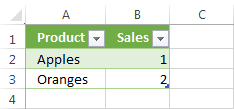
It’s straightforward to import this data into Excel using Data Explorer and the ‘From csv’ data source:
image


Here’s the code that Data Explorer generates:

let

    Source = Csv.Document(File.Contents("C:\InputData.csv")),

    FirstRowAsHeader = Table.PromoteHeaders(Source),

    ChangedType = Table.TransformColumnTypes(FirstRowAsHeader,

                              {{"Product", type text}, {"Sales", type number}})

in

    ChangedType


Now, let’s imagine that you want to keep the data from this file in Excel and every time you click Refresh in Data Explorer you add the data from the file onto the end of the existing data you’ve already captured. The first thing you’ll probably want to do in this scenario is add a new column to the data that gives the date and time that the data was loaded, and you can do that quite easily in Data Explorer using the DateTimeZone.UtcNow() function as follows:

Table.AddColumn(ChangedType, “Load Date”, each DateTimeZone.UtcNow())

Data Explorer has functionality to append the data from one query onto the end of another query, but the problem you have to solve now is that when you click Refresh you want the new data to be appended onto the end of the data that has already been collected. It’s a recursive scenario not unlike the one I grappled with here. The solution to this problem is to first of all load the data into the PowerPivot (ie what we should be calling the Excel Data Model now) by clicking on the Load To Data Model link in the Data Explorer query pane:

image

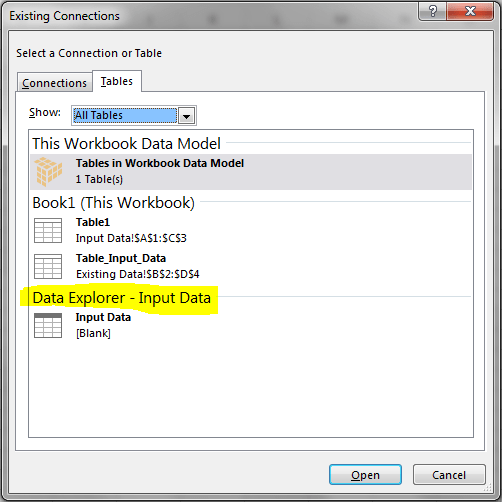
Then, on a new sheet, create an Excel query table that returns all the data from the PowerPivot table that you’ve just loaded data into. Kasper shows how to do this here; there’s no need for any special DAX, you just need to connect to the PowerPivot table in the Existing Connections dialog:
image

image

At this point you should have two tables on two sheets that contain the same data. The next step is to modify the original Data Explorer query so that it contains a new step that appends data from the table you’ve just created (ie the table getting the data from PowerPivot) onto the data from the csv file. This can be done with three new steps, first to get the data from the new Excel table:

Excel.CurrentWorkbook(){[Name=”ExistingData”]}[Content]

Then to make sure the Load Date is treated as a DateTimeZone type:

Table.TransformColumnTypes(GetExistingData,{{“Load Date”, type datetimezone}})

Then finally to combine the two tables:

Table.Combine({ChangedType1,InsertedCustom})

Now, whenever you Refresh your Data Explorer query, you will see the data from the csv file appended to the data that has already been loaded:

image

image

Here’s the complete code:

let

    Source = Csv.Document(File.Contents("C:\InputData.csv")),

    FirstRowAsHeader = Table.PromoteHeaders(Source),

    ChangedType = Table.TransformColumnTypes(FirstRowAsHeader,

                  {{"Product", type text}, {"Sales", type number}}),

    InsertedCustom = Table.AddColumn(ChangedType, "Load Date", each DateTimeZone.UtcNow()),

    Custom1 = Excel.CurrentWorkbook(){[Name="Table_Input_Data"]}[Content],

    ChangedType1 = Table.TransformColumnTypes(Custom1,{{"Load Date", type datetimezone}}),

    Custom2 = Table.Combine({ChangedType1,InsertedCustom})

in

    Custom2

Now as I said, this is just a super-simple example and in the real world you’d need extra functionality to do things like delete rows you’ve already loaded and so on; but that’s all doable I think. It’s also worth mentioning that I encountered some strange errors and behaviour when implementing this, partly due to Data Explorer still being in preview I guess, so if you want to recreate this query you’ll need to follow my instructions exactly.

You can download the sample workbook here, and the csv file here.

A Partly Successful Attempt To Create Life With Data Explorer (Power Query)

NOTE: This post was written before Data Explorer was renamed as Power Query. All of the content is still relevant to Power Query.

I’ll apologise for the title right away: this post isn’t about a Frankenstein-like attempt at creating a living being in Excel, I’m afraid. Instead, it’s about my attempt to implement Jon Conway’s famous game ‘Life’ using Data Explorer, how it didn’t fully succeed and some of the interesting things I learned along the way…

When I’m learning a new technology I like to set myself mini-projects that are more fun than practically useful, and for some reason a few weeks ago I remembered ‘Life’ (which I’m sure almost anyone who has learned programming has had to write a version of at some stage), so I began to wonder if I could write a version of it in Data Explorer. This wasn’t because I thought Data Explorer was an appropriate tool to do this – there are certainly better ways to implement Life in Excel – but I thought doing this would help me in my attempts to learn Data Explorer’s formula language and might also result in an interesting blog post.

Here’s the code I came up with eventually:

let

    Source = Excel.CurrentWorkbook(){[Name="Input"]}[Content],

    GetAction = Excel.CurrentWorkbook(){[Name="Source"]}[Content]{0}[Source],

    GetLastOutput = try Excel.CurrentWorkbook(){[Name="Output"]}[Content],

    ChooseInput = if GetAction="Input" or GetLastOutput[HasError]

        then Source else GetLastOutput[Value],

    Unpivot = Table.Unpivot(ChooseInput,{"1", "2", "3", "4", "5", "6"

        , "7", "8", "9", "10"},"Column","Value"),

    InsertedIndex = Table.AddIndexColumn(Unpivot,"Index"),

    PivotedRows = Table.RowCount(InsertedIndex),

    OriginalColumnCount = Table.ColumnCount(ChooseInput),

    GetValue = (i) =>; if i<0 or i>=PivotedRows then 0 

        else InsertedIndex[Value]{i},

    GetNeighbours = (i) =>; GetValue(i-1) + GetValue(i+1) 

        + GetValue(i-OriginalColumnCount) + GetValue(i+OriginalColumnCount)

        + GetValue(i-OriginalColumnCount-1) + GetValue(i-OriginalColumnCount+1)

        + GetValue(i+OriginalColumnCount-1) + GetValue(i+OriginalColumnCount+1),

    NeighbourCount = Table.AddColumn(InsertedIndex, "Neighbours",

        each GetNeighbours([Index])),

    Custom1 = Table.AddColumn(NeighbourCount , "NewValue",

        each if [Value]=1 and ([Neighbours]=2 or [Neighbours]=3)

        then 1 else if [Value]=0 and [Neighbours]=3 then 1 else 0),

    HiddenColumns = Table.RemoveColumns(Custom1,{"Value", "Index", "Neighbours"}),

    Custom2 = Table.Group(HiddenColumns, {"Column"},

        {{"Count", each Table.Transpose(Table.RemoveColumns(_,"Column")), type table}}),

    #"Expand Count" = Table.ExpandTableColumn(Custom2, "Count", {"Column1", "Column2"

        , "Column3", "Column4", "Column5", "Column6", "Column7", "Column8", "Column9"

        , "Column10"}, {"1", "2", "3", "4", "5", "6", "7", "8", "9","10"}),

    HiddenColumns1 = Table.RemoveColumns(#"Expand Count",{"Column"})

in

    HiddenColumns1

You can download the associated Excel 2013 workbook here.

Some explanation of the code:

  • The first problem that I faced was that in Life you need to start with a grid of cells, apply the rules of the game, and then output the results to the same grid. This is a problem for Data Explorer because, unless you have already run a query, the output table doesn’t exist, and even if you have you can’t update the values in that table without them being overwritten. So I decided to create a table where you can enter the initial state of your grid as a series of 1s and 0s. It’s on the Input sheet and its called Input:

    image

  • Whether the Input table is used as the starting point for the query depends on the contents of yet another table, called Source, on the sheet called Output in the workbook. It can hold one of two text values: “Input” or “Output” (I used Excel’s Data Validation functionality to lock this down), and the ChooseInput step then determines whether the Input table or the table called Output is used as the input for the Data Explorer query. Here’s what the Output worksheet looks like:image

    The workflow is therefore as follows: enter the starting point on the Input table, make sure the Source table shows “Input”, refresh the query, change the Source table to “Output” and then refresh the query to show each subsequent iteration.

  • The Output table simply displays the same values as the table that shows the results of the Data Explorer query. I created a separate table for two reasons: one, I wanted to use custom formatting to show the results; and two, to try to work around the big problem that I eventually found I couldn’t work around completely, which is that Data Explorer doesn’t actually support this type of recursive query (ie scenarios where the output of a query is also used as the input). This thread on the Data Explorer MSDN Forum has some details on the problem. I found I got errors after just about every other step when using the Data Explorer-created table as the input, whereas the errors were much less frequent if I duplicated the values in a separate table. It now works most of the time, but it still errors far too much for my liking. Hohum.
  • I did also use Data Explorer’s error-handling functionality, using the try statement in the GetLastOutput step, to solve this problem but it made no difference. It was good to find out how a try statement works: basically when you use it, the return value is a record containing two values, one which indicates whether an error occurred in the try, and the other the value that was returned if there was no error. You can see me checking these values in the ChooseInput step, with the calls to GetLastOutput[HasError] (which returns true if there was an error in the try) and GetLastValue[Value] (which returns the value tested in the try if there was no error).
  • Once the query worked out which input to use, the next step is to calculate the values in the grid for the next iteration. I decided that the easiest way to do this was to unpivot the resultset using the the new UnPivot() function; with all the data in a single column it was then relatively easy to declare the functions GetValue() and GetNeighbours() to apply the rules of Life, output the results in a new column in the Custom1 step.
  • The final problem to solve was that I needed to re-pivot the data to get it back into original table format. Although Data Explorer has an UnPivot() function it doesn’t have a Pivot() function; luckily, Peter Qian showed me how to do this on the forum in this thread using Table.Group() and my code is in the Custom2 step.

So despite the errors (and Data Explorer is still in beta, so some errors are only to be expected), many lessons learned. I hope you find this useful too.

Applying a Function to Every Cell in a Table in Data Explorer (Power Query)

NOTE: This post was written before Data Explorer was renamed as Power Query. All of the content is still relevant to Power Query.

Now that the PASS Business Analytics Conference is over, I can get back to playing around with Data Explorer and blogging about it. I’ve been working on a fun demo that I’ll try to blog about later this week, but in the course of creating this demo I came across a technique that I didn’t end up using but which I thought deserved a post on its own: how to apply a function to every cell in a table, rather than just every cell in a column.

For example, let’s imagine that you have a table that looks like this:

image

…and you want to add one to every single cell in the table, so you get:

image

It’s possible in the UI by creating lots of custom columns and then deleting the original columns, for sure, but I found a more elegant solution. Here’s the full DE code:

let

    Source = Excel.CurrentWorkbook(){[Name="Input"]}[Content],

    FunctionToApply = (x) =>; x + 1,

    GetColumnNames = Table.ColumnNames(Source),

    TransformList = List.Transform(GetColumnNames, each {_ , FunctionToApply}),

    Output = Table.TransformColumns(Source, TransformList)

in

    Output

Here’s what each step does:

  • Source: gets the data from the Excel table named Inputimage
  • FunctionToApply: defines a new function that takes a single parameter, x, and returns the value x+1. See this post for more details on using function in Data Explorer.image
  • GetColumnNames: returns a list object which contains the names of all of the columns in the table returned in the Source step.image
  • TransformList: this is the interesting step! It creates a new list based on GetColumnNames, but whereas GetColumnNames contains just one record per item in the list (the column name), this returns a list of lists, each with two items: the column name and a reference to the function FunctionToApply. It looks like this in the UI:imageIf you click on the first of the list links shown (and this isn’t part of the process, I’m only doing this to show what’s there) you see the following:

    image

  • Output: the list of lists created in the previous step can now be passed to the Table.TransformColumns() function to apply the function FunctionToApply() to every cell in every column in the table.image

I’m sure this is going to be useful to me at some point in the future… You can download the sample workbook here.

Creating And Using Functions in Data Explorer (Power Query)

NOTE: This post was written before Data Explorer was renamed as Power Query. All of the content is still relevant to Power Query.

I’ve been reading through the Data Explorer Formula Language and Library specifications (which can be downloaded here) over the last few weeks, learning about what’s possible with it when you go beyond the UI. This will translate into a lot of Data Explorer blog posts in the coming weeks…! Here’s the first of those posts.

Today I’m going to look at how to create and use functions. Page 86 onwards in the Formula Language specification has a lot of detail about how to define a function in the M language that Data Explorer uses, but it doesn’t include any practical examples of how functions can be created and used in Data Explorer and Excel unfortunately. I’ve done some experimentation, though, and this post aims to fill that gap.

First of all, take a look at this Excel worksheet with two tables in it, called InputNumbers1 and InputNumbers2:

image

Let’s say that you want to create two Data Explorer queries that each use one of these tables as a source, and in both cases you want to add a third column that displays the product of the two existing columns. So, for example, for the first table you want a new column with the values 2, 12, 30 and 56 in.

Now this is a very simple calculation and certainly one that Data Explorer can handle easily, but let’s say that you want to perform this operation many times in many different queries and for obvious reasons you don’t want to have to duplicate the same logic in each query. You want to create a function!

To do this, you need to use the Write Query option from the From Other Sources button on the Data Explorer tab in the ribbon:

image

Then change the name of the new query to MultiplicationFunction by double-clicking on the query name in large letters at the top of the Edit Query dialog:

image

Then enter the following code as the only step:

= (x,y) => x * y

This defines a query with two parameters, x and y, and returns the product of x and y. Click Done to save the query. The query will show the following result in the worksheet:

image

You can ignore this new table, and you can disable the data load onto the worksheet, but it seems like you always need to have the table there and you certainly can’t delete it.

To use this new function create a new query from the table InputNumbers1 (shown above) using the From Table button. Then in the Edit Query dialog create a new step by selecting Insert Column/Custom:

image

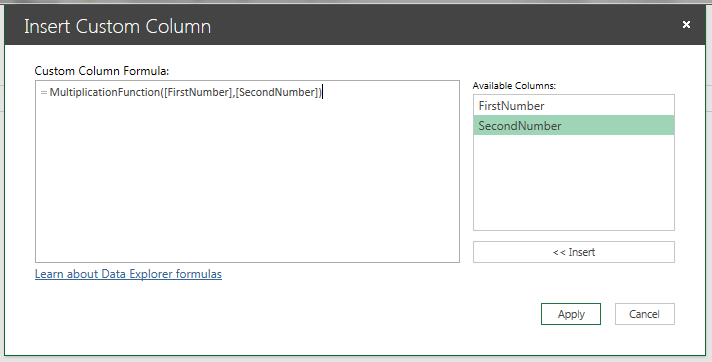
And then use the new function to calculate each row in the new column, passing the two existing columns as parameters:

image

This results in the following step:

= Table.AddColumn(Source, “Custom”, each MultiplicationFunction([FirstNumber],[SecondNumber]))

image

And so you have your new column showing the product of the [FirstNumber] and [SecondNumber] columns. Then do the same thing for the InputNumbers2 table and you’ll have two Data Explorer queries now with custom columns in:

image

image

Finally, to make sure that the function is indeed being used, go and alter the definition of the function to be

= (x,y) => x / y

Refresh both of the other queries, and you’ll see the contents of the custom column have changed for both of them:

image

image

I can imagine that the ability to break functionality out into functions will reduce the complexity, and improvement the maintainability, of many ETL solutions that get built with Data Explorer in the future.

You can download my sample Excel workbook with this demo in here.

Finding Shakespeare’s Favourite Words With Data Explorer (Power Query)

NOTE: This post was written before Data Explorer was renamed as Power Query. All of the content is still relevant to Power Query.

The more I play with Data Explorer, the more I think my initial assessment of it as a self-service ETL tool was wrong. As Jamie pointed out recently, it’s really the M language with a GUI on top of it and the GUI itself, while good, doesn’t begin to expose the power of the underlying language: I’d urge you to take a look at the Formula Language Specification and Library Specification documents which can be downloaded from here to see for yourself. So while it can certainly be used for self-service ETL it can do much, much more than that…

In this post I’ll show you an example of what Data Explorer can do once you go beyond the UI. Starting off with a text file containing the complete works of William Shakespeare (which can be downloaded from here – it’s strange to think that it’s just a 5.3 MB text file) I’m going to find the top 100 most frequently used words and display them in a table in Excel.

Before I do that, though, some things to point out. First, there’s a new update of Data Explorer that appeared a few days ago – the Data Explorer team blog has the details. One of the new bits of functionality is a button that allows you to edit all of the expressions in your query at once:

image

Second, when you’re building a query, when you want to add a new step manually that refers to the previous step but doesn’t apply any calculations or transforms, you need to click on the fx button next to the expression on an existing step:

image

I’ve used this quite extensively to write custom steps that aren’t possible with the UI.

Here is the full code for my query to find the top 100 words:

Source = Lines.FromBinary(File.Contents("C:\Users\Chris\Documents\CompleteShakespeare.txt")),

RemoveLineBreaks = Lines.ToText(Source, " "),

RemovePunctuation =

Text.Remove(RemoveLineBreaks,{"," ,"." ,"?" ,";" ,":" ,";" ,"'"

                            ,"@" ,"#" ,"~" ,"{" ,"[" ,"}" ,"]" ,"(" ,")", "*"}),

Lowercase = Text.Lower(RemovePunctuation),

TurnIntoTable = Table.FromValue(Lowercase),

SplitIntoWords = Table.TransformColumns(TurnIntoTable, {"Value", Splitter.SplitTextByWhitespace()}),

ListOfWords = SplitIntoWords{0}[Value],

TableFromList = Table.FromList(ListOfWords, Splitter.SplitByNothing(), null, null, ExtraValues.Error),

RenameColumnToWord = Table.RenameColumns(TableFromList,{{"Column1", "Word"}}),

RemoveBlanks = Table.SelectRows(RenameColumnToWord, each ([Word] <;> "")),

FindWordCounts = Table.Group(RemoveBlanks, {"Word"}, {{"Count", each Table.RowCount(_), type number}}),

SortedRows = Table.Sort(FindWordCounts,{{"Count", Order.Descending}}),

KeptFirstRows = Table.FirstN(SortedRows,100)

Broken down step-by-step:

Source = Lines.FromBinary(File.Contents(“C:\Users\Chris\Documents\CompleteShakespeare.txt”))

This loads the contents of CompleteShakespeare.txt into Data Explorer and breaks it up into lines of text:

image

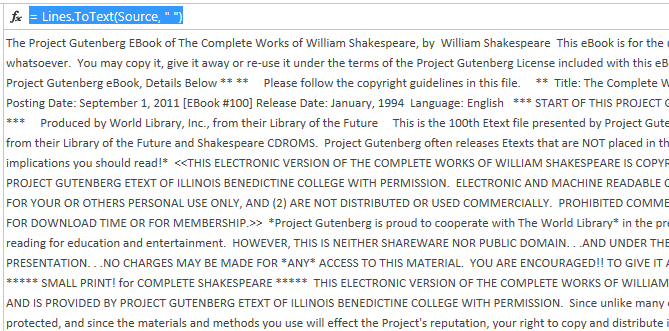
RemoveLineBreaks = Lines.ToText(Source, ” “)

This removes all the line breaks and creates a single chunk of text:

image

RemovePunctuation = Text.Remove(RemoveLineBreaks,{“,” ,”.” ,”?” ,”;” ,”:” ,”;” ,”‘” ,”@” ,”#” ,”~” ,”{” ,”[” ,”}” ,”]” ,”(” ,”)”, “*”})

Removes any punctuation, and

Lowercase = Text.Lower(RemovePunctuation)

Turns all the words to lowercase:

image

TurnIntoTable = Table.FromValue(Lowercase)

Takes the text and creates a table with one column and one row containing the text:

image

SplitIntoWords = Table.TransformColumns(TurnIntoTable, {“Value”, Splitter.SplitTextByWhitespace()})

Takes the text and creates a List object with one entry for every word in the text.

ListOfWords = SplitIntoWords{0}[Value]

TableFromList = Table.FromList(ListOfWords, Splitter.SplitByNothing(), null, null, ExtraValues.Error)

RenameColumnToWord = Table.RenameColumns(TableFromList,{{“Column1”, “Word”}})

Takes the list and turns it into a table with one column and one row for each word:

image

RemoveBlanks = Table.SelectRows(RenameColumnToWord, each ([Word] <> “”))

Removes any rows containing blanks.

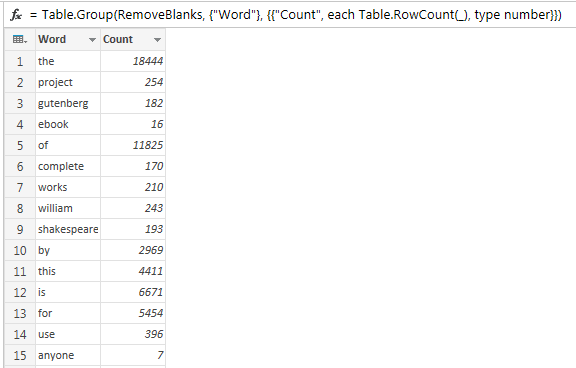
FindWordCounts = Table.Group(RemoveBlanks, {“Word”}, {{“Count”, each Table.RowCount(_), type number}})

Does a ‘group by’ to return a table with one row for each distinct word, and a column containing the number of occurrences of that word:

image

SortedRows = Table.Sort(FindWordCounts,{{“Count”, Order.Descending}})

Sorts this table in descending order by word count.

KeptFirstRows = Table.FirstN(SortedRows,100)

Only returns the first 100 rows from this table.

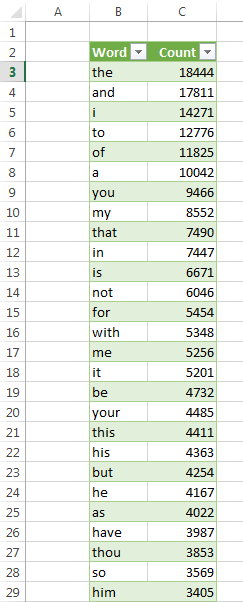
And at this point, we have the top 100 words used by Shakespeare (admittedly including the text at the beginning and end of the file inserted by Project Gutenberg that I couldn’t be bothered to remove):

image

No surprises here really – ‘the’ comes in at #1 with 18444 occurrences, “lord” comes in at #45, “king” at #69 and so on.

While you probably aren’t interested in Shakespeare for your own business purposes, it shows what would be possible if you wanted to analyse what was being said in Facebook updates, Tweets, product reviews and so on. It wasn’t all that hard to write either, especially considering that I’m fairly new to Data Explorer, so more sophisticated variations on this would certainly be possible without much extra effort. And it’s worth pointing out that it’s fast too: it takes a couple of seconds to refresh, and I’m not even sure I’ve done everything in the most efficient way possible.

You can download the sample workbook (but not the Complete Works of Shakespeare) here. If you want to point it at a different text file, just modify the first line of the code.

UPDATE: it turns out there is either a bug in PQ or I’m hitting one of its limits, and the counts here aren’t all correct. See the comments from Frank below for a version that works.

Data Explorer (Power Query) –Where Does The Real Work Get Done?

NOTE: This post was written before Data Explorer was renamed as Power Query. All of the content is still relevant to Power Query.

Yes, I know, I’ve been blogging a lot over the last week or so – I can’t help it, there’s been so much interesting stuff to blog about! Anyway, here’s yet another post about Data Explorer; not about functionality this time, but the result of some investigations about how it works and some ideas that resulted from that.

After having played around with Data Explorer so much, I started to wonder just how scalable it is. In the course of doing this I found out that while Data Explorer can (and must) do a lot of the data processing logic itself, it pushes as much of that logic back to the data source whenever it can. For example, if you connect to the Adventure Works DW database in SQL Server and then implement some simple steps in a Data Explorer query that:

  1. Import everything from the DimDate table, hiding everything except the DayNumberOfWeek column
  2. Filter it so that DayNumberOfWeek is greater than 5:
    = Table.SelectRows(DimDate, each [DayNumberOfWeek] > 5)
  3. Return the count of the number of rows that are returned:
    = Table.RowCount(FilteredRows)

…you can see if you run a Profiler trace that all of this logic is translated to SQL and not evaluated in Data Explorer itself. Here’s the final SQL statement generated by the third step above:

select count(1) as [$Item]
from
(
select [_].[DayNumberOfWeek]
from
(
select [DayNumberOfWeek]
from [dbo].[DimDate] as [$Table]
) as [_]
where [_].[DayNumberOfWeek] > 5
) as [$Table]

I’m not sure which other data sources this is possible for, but it’s a good thing to see – you’re more likely to get good performance by doing the work back in the database than on your desktop. I wonder if it does this for Hive queries? If so, that would make it very useful for working with Hadoop/HDInsight.

And what about data sources where this isn’t possible though, like csv? I decided to test it out by loading a very large (1.4 GB) csv file I have with two columns containing integer values and 86 million rows, filtering it so that one of the column values was not null and less than 500000, and finding the resulting count of rows. Unfortunately I had to kill the query refresh after 15 minutes… In contrast, loading the same file into the Excel Data Model took almost exactly 6 minutes, and a DAX measure to do the same count/filter operation returned instantly. Not really a surprise I suppose, but it would be nice to have the option when working with csv files to load data into the Excel Data Model before you did anything else and then, when you did your transforms in Data Explorer, have those translated back to DAX queries and calculations. Alas, Data Explorer doesn’t support the Excel Data Model, PowerPivot or SSAS as data sources at the moment – I hope this changes soon.

This leads me on to the observation that in a lot of self-service BI scenarios the distinction between ETL and reporting can be blurred. If you just want to see a simple table showing your sales broken down by product in an Excel spreadsheet, you could build this quite easily with Data Explorer and not go near PowerPivot or the Excel Data Model. It would probably be easier to build too, since Data Explorer allows you to break complex operations into multiple steps, whereas putting all your logic in a single DAX expression can be mind-bendingly difficult (I’m reminded of this post I wrote two years ago). On the other hand you can do a lot of ETL-type things inside PowerPivot with calculated columns and measures; people have also been asking for the ability to use tables in the Excel Data Model as a data source for other tables (see here for example), for ETL purposes – it can be much faster and more elegant to use DAX to do some types of ETL work than SQL or SSIS. In the future I’d love to see tighter integration between Data Explorer and the Excel Data Model/PowerPivot so that we can get the best of both worlds.

Calling A Web Service From Data Explorer (Power Query), Part 2

NOTE: This post was written before Data Explorer was renamed as Power Query. All of the content is still relevant to Power Query.

Don’t you hate it when you get ready to blog about something cool, and then someone comes along and beats you to it? That’s what’s just happened to me – Matt Masson just wrote an excellent blog post on how to do address lookup against a web service here:
http://www.mattmasson.com/2013/03/dynamic-lookups-with-data-explorer/
That’s what I was going to write about in part 2 of this series. I have to say he did a better job than I would have done though, and shows off several cool tricks I hadn’t seen before…

Ah well, so it goes – and anyway there are a few things I was going to say that are still worth saying. If you remember, in Part 1 I showed how to call the Google Distance Matrix API from Data Explorer, but I hard-coded the start and end points in the expression I used. How can you get the start and end points directly from Excel? Well it turns out that Data Explorer can read values direct from Excel tables.

To start with, you need to create some Excel tables to hold the values you want to use. I created two Excel tables called Origin and Destination to hold the two values I needed:

image

I can then take the value from the first row in the sole column of each table (which are again called Origin and Destination, as you can see) by using

Excel.CurrentWorkbook(){[Name=”Origin”]}[Content]{0}[Origin]

and

Excel.CurrentWorkbook(){[Name=”Destination”]}[Content]{0}[Destination]

Here’s the full source expression with the hard-coded values replaced:

=
Xml.Document(
Web.Contents(
http://maps.googleapis.com/maps/api/distancematrix/xml&#8221;
, [Query = [
origins= Excel.CurrentWorkbook(){[Name=”Origin”]}[Content]{0}[Origin]
, destinations = Excel.CurrentWorkbook(){[Name=”Destination”]}[Content]{0}[Destination]
, mode = “driving”, sensor = “false” ] ]))

Now, you can enter any address in the Origin and Destination tables, click Refresh on the Query as shown in the screenshot below:

image

And the query will be rerun with the new parameters. Note that it might also be a good idea to URL encode any text that you enter in these tables, using the EncodeURL() Excel function; I haven’t done so here because I’m using UK postcodes, which don’t need URL encoding, as my origins and destinations to make things simple.

It’s also possible to use the results of one query inside another query. Data Explorer allows you to use an Excel table as the source for a query:

image

And selecting the Destination Excel table as a source gives the following expression:

= Excel.CurrentWorkbook(){[Name=”Destination”]}[Content]

The easy way to use any value from an existing query as the starting point for a new query is to right-click on a cell and select Add As New Query:

image

Doing this creates a new query with the value you clicked on a source:

image

Here’s the expression for the only step in the newly-created query:

= Destination{0}[Destination]

image

Even if this new query isn’t any use on its own, the expression shown here can be used in other queries. Here’s the original web service call adapted to use two other queries as its source:

= Xml.Document(
Web.Contents(
http://maps.googleapis.com/maps/api/distancematrix/xml&#8221;
, [Query = [
origins= Origin{0}[Origin]
, destinations = Destination{0}[Destination]
, mode = “driving”, sensor = “false” ] ]))

However, as Matt shows in his post, this only works if Fast Combine is enabled, otherwise you’ll see an error message.

You can download the sample workbook for this post here.

Calling A Web Service From Data Explorer (Power Query), Part 1

NOTE: This post was written before Data Explorer was renamed as Power Query. All of the content is still relevant to Power Query.

Last week I showed how you could use the WebService() function in Excel 2013 to bring location data into Excel 2013. Since this is a topic I have a particular interest in, this week I’ll show you how to do the same thing all over again but in Data Explorer.

First of all, a simple example. In that previous post I used the Google Distance Matrix API to calculate the distance between two points; for example the following call shows how long it would take me to drive from my home to Buckingham Palace to see the Queen (52 minutes in case you’re wondering):
http://maps.googleapis.com/maps/api/distancematrix/xml?origins=HP66HF&destinations=SW1A1AA&mode=driving&sensor=false

The following post on the Data Explorer forum from James Terwilliger gives some helpful tips on how to consume web services from within Data Explorer:
http://social.msdn.microsoft.com/Forums/en-US/dataexplorer/thread/069b50e3-ab9e-4ee4-99a9-23440fcfc768

…but it’s not altogether straightforward. For example if you paste the link above into the From Web data source, you do get something returned but it’s extremely hard to find any useful data. Instead, I found the following steps worked:

  • First, hit From Web and enter something in the URL box:
    image
  • This gives you a new web query, but you want to discard any auto-generated code in the first step. Instead, paste the following expression:= Xml.Document(
    Web.Contents(“http://maps.googleapis.com/maps/api/distancematrix/xml”
    , [Query = [ origins= “HP66HF”, destinations = “SW1A1AA”, mode = “driving”, sensor = “false” ] ]))

    image

    This uses Web.Contents() to call the web service (as described in that forums reply) with the appropriate parameters. Xml.Document() is then used to interpret the response as an XML document.

  • With this done, it’s quite easy to navigate through the XML by clicking on the Table links in each step to find the useful data:
    image
  • And finally hit Done to surface it the worksheet:
    image

Some thoughts at this point: I don’t like the way the DE formula language is case-sensitive, and I suspect in the long run it will have to be either hidden or replaced with VBA or Excel formula language/DAX if it’s going to be used even by Excel power users. It is very, very powerful though, and luckily the UI is good enough to mean that 99% of users will never need to write DE formula language anyway.

The next question: I’ve hard-coded my origins and destinations in this example, but how can I read these values from the worksheet without my users having to open Data Explorer and edit the query? Tune in for Part 2 to find out!

Importing Data From Multiple Log Files Using Data Explorer (Power Query)

NOTE: This post was written before Data Explorer was renamed as Power Query. All of the content is still relevant to Power Query.

It’s only been two days since the official Preview release of Data Explorer and already the blog posts about it are coming thick and fast. Here are some of the more interesting ones that I’ve seen that show what’s possible with it:
http://sqlblog.com/blogs/jamie_thomson/archive/2013/02/28/traversing-the-facebook-graph-using-data-explorer.aspx
http://www.mattmasson.com/index.php/2013/03/access-the-windows-azure-marketplace-from-data-explorer/
http://community.altiusconsulting.com/best-oscar-winning-film-my-first-data-explorer-adventure/
http://www.spsdemo.com/blog/Lists/Posts/Post.aspx?List=c67861cd-a0d9-4ed8-9d9d-9b29652a516f&ID=371&Web=f74569c2-ae3f-42c6-a3fa-9f099dfaeb7f

Obviously I can’t let everyone else have all the fun, so I thought I’d show how you can use Data Explorer to import data from multiple files, clean it, load it into a single table and then report on it.

First of all, the data. Like all bloggers I have an unhealthy interest in my blog stats, and one of the ways I monitor the hits on this site is using Statcounter. I’m also a bit of a miser, though, so I only use their freebie service and that means that I only get to see stats on the last 500 site visits. How can I analyse this data then? Well, Statcounter allow you to download log data as a csv file, so at about 2:30pm I downloaded one file and at 8:30pm I downloaded another.

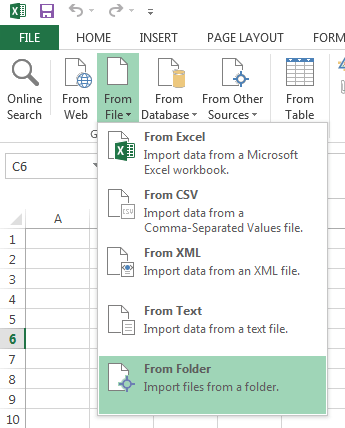
Now, the first cool thing to show about Data Explorer is that you can import and merge data from multiple files with the same structure if they’re in the same folder. With both of my files in a folder called Blog Logs, and Excel open, the first thing you need to do is to the Data Explorer tab and hit From File/From Folder:

image

The next step is to enter the name of the folder with the files in in the dialog:

image

With that done, a new Query screen appears with a list of the files in the folder:

image

You then need to hit the icon with the two down arrows and a horizontal line that I’ve highlighted in the screenshot above, next to the Content heading. This then shows the data in the files (obviously I’ve had to scrub out the sensitive data here):

image

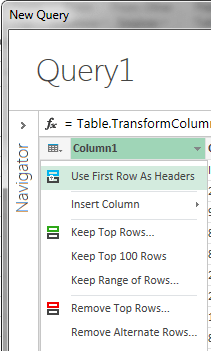
You can then use the first row as the column headers:

image

Filter the data so that the row with the second set of column headers is removed (I wonder if there’s a way to do this automatically when importing multiple csv files?) by clicking on the Date and Time column and deselecting the value “Date and Time” as shown:

image

Right-click on each column you don’t want to import (such as IP Address) and selecting Hide:

image

Right-click on the Date and Time column and select Remove Duplicates to remove any records that appear in both log files (I’m assuming that there were no cases where two people hit a page at exactly the same date and time, which of course may not be completely correct):

image

And force the Date and Time column to be treated as a Date/Time type:

image

And bingo, you’re done. Here are all the steps in the import, all of which can be edited, deleted, reordered etc:

image

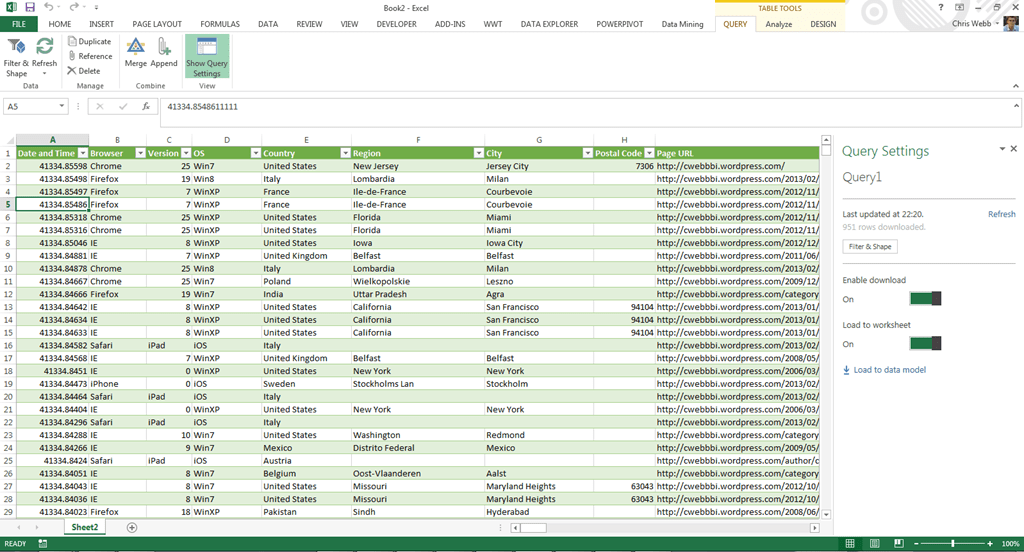
The data is then loaded into a table in a worksheet (though you can turn that off), and by clicking “Load to data model” in the Query Settings pane you can load the data into the Excel data model:

image

(NB I found some issues with loading date data into the data model and US/European date formats that I’ve reported here, but don’t forget this is beta software so there are bound to be problems like this)

You can build cool Power View reports using this data:

image

Or even explore it on a 3D map with GeoFlow:

image

Fun, isn’t it?