Rendering Images In An Excel Worksheet With Power Query Using Cells As Pixels

It’s a general rule of the internet that, whenever you have a cool idea, a few minutes spent on your favourite search engine reveals that someone else has had the idea before you. In my case, when I first saw the functionality in Power Query for working with binary files I wondered whether it was possible to read the contents of a file containing an image and render each pixel as a cell in a worksheet – and of course, it has already been done and done better than I could ever manage. However, it hasn’t been done in Power Query… until now.

First of all, I have to acknowledge the help of Matt Masson whose blog post on working with binary data in Power Query provided a number of useful examples. I also found this article on the bmp file format invaluable.

Second, what I’ve done only works with monochrome bmp files. I could have spent a few more hours coming up with the code to work with other file types but, frankly, I’m too lazy. I have to do real work too, you know.

So let’s see how this works. Here’s a picture of Fountains Abbey that I took on my phone while on holiday last summer:

FountainsAbbey

I opened it in Paint and saved it as a monochrome bmp file:

FountainsAbbey

Here’s the code for the Power Query query that opens the bmp file and renders the contents in Excel:

let
//The picture to load
SourceFilePath="C:\Users\Chris\Pictures\FountainsAbbey.bmp",
//Or get the path from the output of a query called FileName
//SourceFilePath=FileName,
//Load the picture
SourceFile=File.Contents(SourceFilePath),

//First divide the file contents into two chunks:
//the header of the file, always 62 bytes
//and the rest, which contains the pixels

//Define the format as a record
OverallFormat=BinaryFormat.Record([
Header = BinaryFormat.Binary(62),
Pixels = BinaryFormat.Binary()
]),
//Load the data into that format
Overall = OverallFormat(SourceFile),
//Get the header data
HeaderData = Overall[Header],

//Extract the total file size and
//width and height of the image
HeaderFormat = BinaryFormat.Record([
Junk1 = BinaryFormat.Binary(2),
FileSize = BinaryFormat.ByteOrder(
BinaryFormat.SignedInteger32,
ByteOrder.LittleEndian),
Junk2 = BinaryFormat.Binary(12),
Width = BinaryFormat.ByteOrder(
BinaryFormat.SignedInteger32,
ByteOrder.LittleEndian),
Height = BinaryFormat.ByteOrder(
BinaryFormat.SignedInteger32,
ByteOrder.LittleEndian),
Junk3 = BinaryFormat.Binary()
]),
HeaderValues = HeaderFormat(HeaderData),
FileSize = HeaderValues[FileSize],
ImageWidth = HeaderValues[Width],
ImageHeight = HeaderValues[Height],

//Each pixel is represented as a bit
//And each line is made up of groups of four bytes
BytesPerLine = Number.RoundUp(ImageWidth/32)*4,
//Read the pixel data into a list
PixelListFormat = BinaryFormat.List(
BinaryFormat.ByteOrder(
BinaryFormat.Binary(BytesPerLine),
ByteOrder.LittleEndian)),
PixelList = PixelListFormat(Overall[Pixels]),
//Convert each byte to a number
PixelListNumbers = List.Transform(PixelList, each Binary.ToList(_)),

//A function to convert a number into binary
//and return a list containing the bits
GetBinaryNumber = (ValueToConvert as number) as list =>
let
BitList = List.Generate(
()=>[Counter=1, Value=ValueToConvert],
each [Counter]<9,
each [Counter=[Counter]+1,
Value=Number.IntegerDivide([Value],2)],
each Number.Mod([Value],2)),
BitListReversed = List.Reverse(BitList)
in
BitListReversed,

//A function to get all the bits for a single line
//in the image
GetAllBitsOnLine = (NumberList as list) =>
List.FirstN(
List.Combine(
List.Transform(NumberList, each GetBinaryNumber(_)
)
), ImageWidth),

//Reverse the list - the file contains the pixels
//from the bottom up
PixelBits = List.Reverse(
List.Transform(PixelListNumbers,
each GetAllBitsOnLine(_))),

//Output all the pixels in a table
OutputTable = #table(null, PixelBits)
in
OutputTable

The output of this query is a table containing ones and zeroes and this must be loaded to the worksheet. The final thing to do is to make the table look like a photo by:

  • Hiding the column headers on the table
  • Using the ‘None’ table style so that there is no formatting on the table itself
  • Hiding the values in the table by using the ;;; format (see here for more details)
  • Zooming out as far as you can on the worksheet
  • Resizing the row heights and column widths so the image doesn’t look too squashed
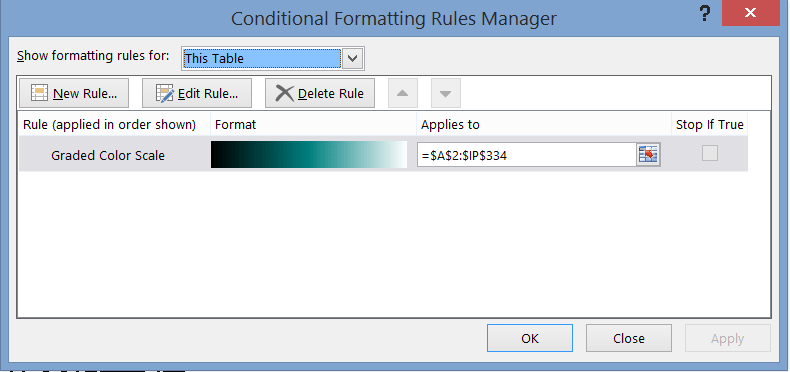
  • Using Excel conditional formatting to make the cells containing 0 black and the cells containing 1 white:

    image

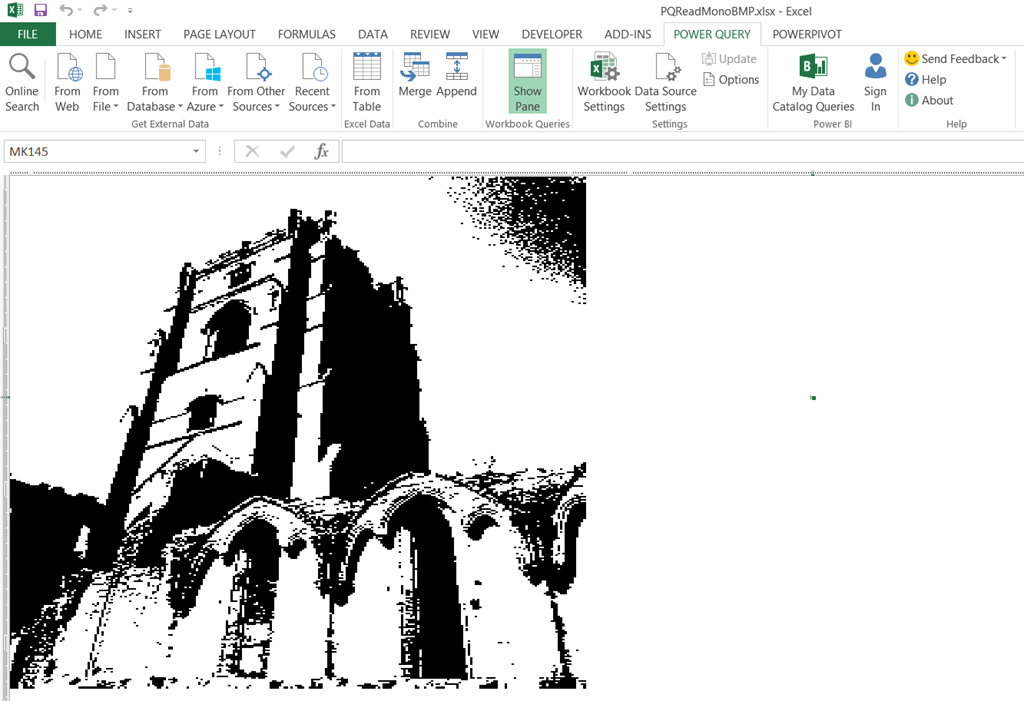
Here’s the photo rendered as cells in the workbook:
image

And here it is again, zoomed in a bit so you can see the individual cells a bit better:

image

You can download the workbook (which I’ve modified so you can enter the filename of your bmp file in a cell in the worksheet, so you don’t have to edit the query – but you will have to turn Fast Combine on as a result) from here. Have fun!
A Closer Look At Power Query/SSAS Integration

In the November release of Power Query the most exciting new feature was the ability to connect to SSAS. I blogged about it at the time, but having used it for a month or so now I thought it was worth writing a more technical post showing how it works in more detail (since some things are not immediately obvious) as well as to see what the MDX it generates looks like.

This post was written using Power Query version 2.18.3874.242, released January 2015; some of the bugs and issues mentioned here will probably be fixed in later versions.

Connecting to SSAS

Power Query officially supports connecting to all versions of SSAS from 2008 onwards, although I’ve heard from a lot of people they have had problems getting the connection working. Certainly when I installed the version of Power Query with SSAS support in on my laptop, which has a full install of SQL Server 2014, it insisted I install the 2012 version of ADOMD.Net before it would work (I also needed to reboot). My guess is that if you’re having problems connecting you should try doing that too; ADOMD.Net 2012 is available to download in the SQL Server 2012 Feature Pack.

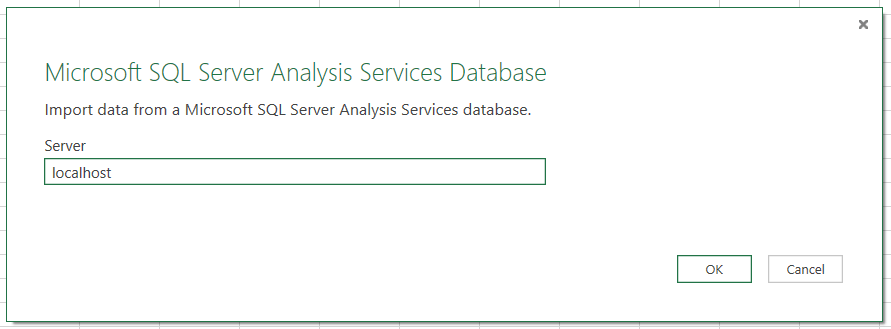
After clicking From Database/From SQL Server Analysis Services the following dialog appears, asking you to enter the name of the server you want to connect to.

image

If this is the first time you’re connecting to SSAS the following dialog will appear, asking you to confirm that you want to use Windows credentials to connect.

image

Unfortunately, if you’re connecting via http and need to enter a username and password you won’t be able to proceed any further. I expect this problem will be fixed soon.

Initial Selection

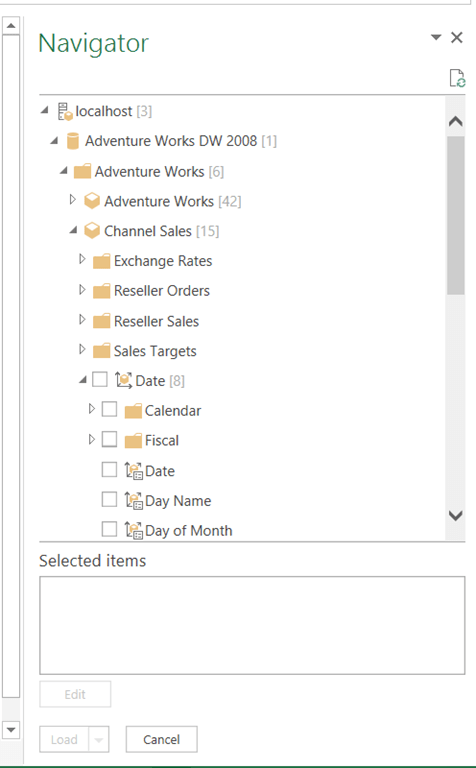
Once you’ve connected the Navigator pane appears on the right-hand side of the screen. Here you see all of the databases on the server you’ve connected to; expand a database and you see the cubes, and within each cube you see all of the measure groups, measures, dimensions and hierarchies.

image

The previous build of Power Query does not display any calculated measures that aren’t associated with measure groups (using the associated_measure_group property); this has been fixed in version 2.18.3874.242.

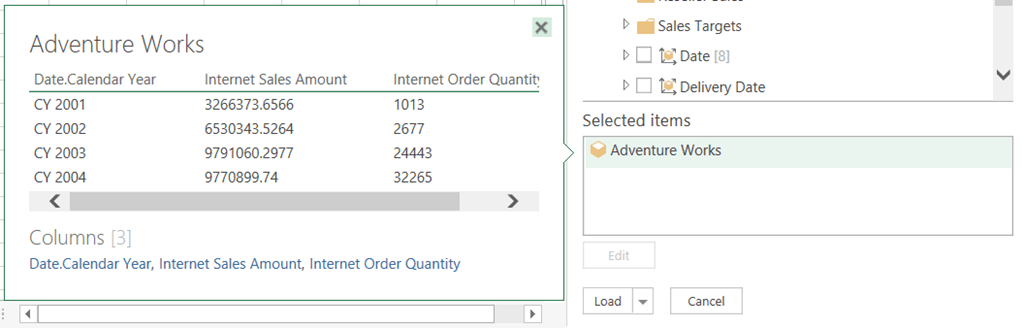
When you start to select measures and hierarchies the name of the cubes you have chosen items from will appear in the Selected items box. If you hover over the name of the cube the peek pane will appear and you’ll see a preview of the results of the query.

image

At this point you can either click the Load button to load the data either to the worksheet or the Excel Data Model, or click the Edit button to edit the query further.

You cannot specify your own MDX query to use for the query as yet.

The Query Editor

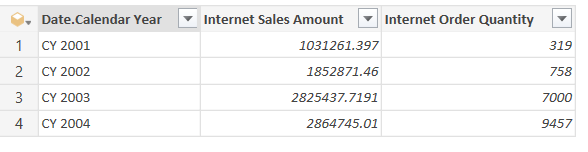
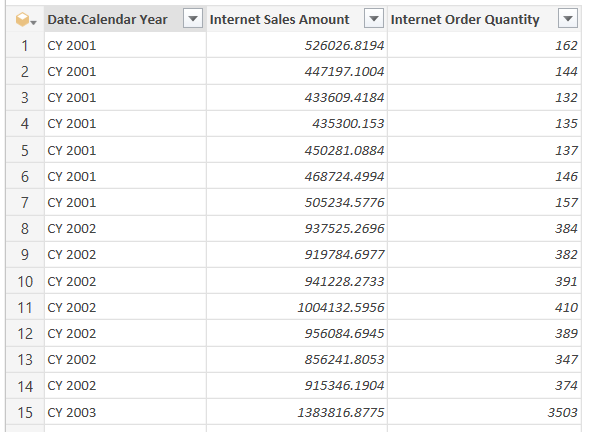
Once the Power Query Query Editor opens you’ll see the output of the query as it stands, and also on the Cube tab in the ribbon two new buttons: Add Items and Collapse Columns.

image

Here’s the MDX (captured from Profiler) showing the MDX generated for the query in the screenshot above:

[sourcecode language=”text” padlinenumbers=”true”]
select
{[Measures].[Internet Sales Amount],[Measures].[Internet Order Quantity]}
on 0,
subset(
nonempty(
[Date].[Calendar Year].[Calendar Year].allmembers
,{[Measures].[Internet Sales Amount],[Measures].[Internet Order Quantity]})
,0,50)
properties member_caption,member_unique_name
on 1
from [Adventure Works]
[/sourcecode]


The MDX Subset() function is used here to ensure that the query doesn’t return more than 50 rows.

Adding Items

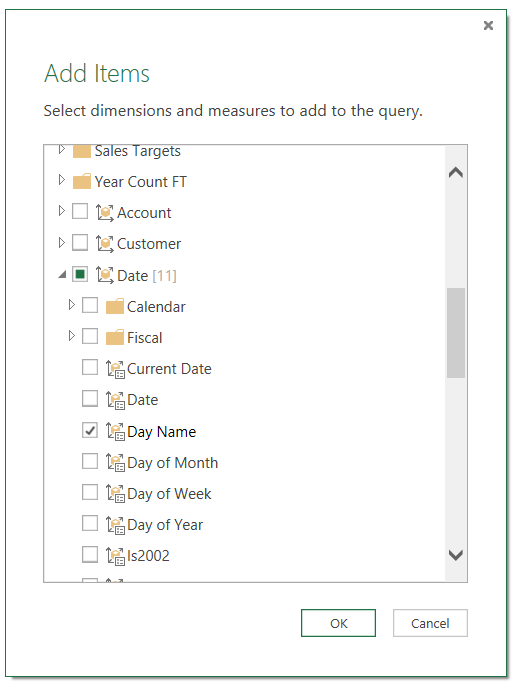
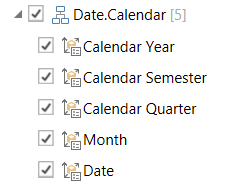
Clicking on the Add Items button allows you to add extra hierarchies and measures to the query. When you click the button the following dialog appears where you can choose what you want to add:

image

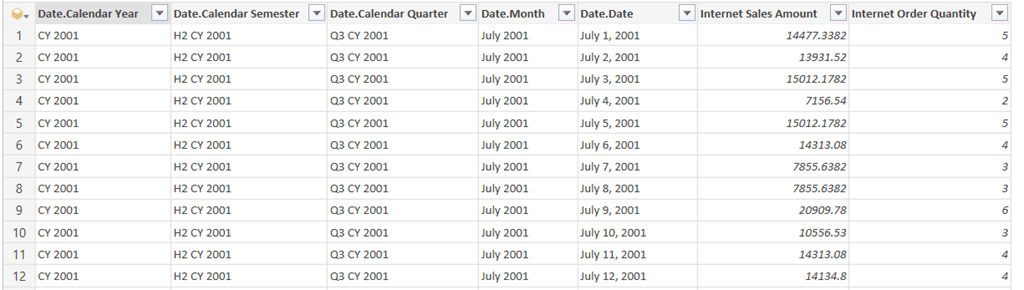
In this case I’ve added the Day Name hierarchy to the query, and this hierarchy appears as a new column on the right-hand edge of the query after the measures:

image

You can easily drag the column to wherever you want it though.

Here’s the MDX again:

[sourcecode language=”text”]
select
{[Measures].[Internet Sales Amount],[Measures].[Internet Order Quantity]}
on 0,
subset(
nonempty(
crossjoin(
[Date].[Calendar Year].[Calendar Year].allmembers,
[Date].[Day Name].[Day Name].allmembers)
,{[Measures].[Internet Sales Amount],[Measures].[Internet Order Quantity]})
,0,50)
properties member_caption,member_unique_name
on 1
from [Adventure Works]
[/sourcecode]


Collapsing Columns

Selecting the Day Name column and then clicking the Collapse Columns button simply rolls back to the previous state of the query. However, there’s more to this button than meets the eye. If you filter the Day Name column (for example, by selecting Saturday and Sunday as in the screenshot below) and then click Collapse and Remove, the filter will still be applied to the query even though the Day Name column is no longer visible.

image

Here’s what the Query Editor shows after the filter and after the Day Name column has been collapsed:

image

Compare the measure values with those shown in the original query – it’s now showing values only for Saturdays and Sundays, although that’s not really clear from the UI. Here’s the MDX generated to prove it – note the use of the subselect to do the filtering:

[sourcecode language=”text”]
select
{[Measures].[Internet Sales Amount],[Measures].[Internet Order Quantity]}
on 0,
subset(
nonempty(
[Date].[Calendar Year].[Calendar Year].allmembers
,{[Measures].[Internet Sales Amount],[Measures].[Internet Order Quantity]})
,0,1000)
properties member_caption,member_unique_name
on 1
from(
select
({[Date].[Day Name].&amp;[7],[Date].[Day Name].&[1]})
on 0
from
[Adventure Works])
[/sourcecode]


From studying the MDX generated I can tell that certain other operations such as sorting and filtering the top n rows are folded back to SSAS.

It’s also important to realise that using the Remove option to remove a column from the query does not have the same effect as collapsing the column:

image

Using Remove just hides the column; the number of rows returned by the query remains the same.

image

User Hierarchies

In the examples above I’ve only used attribute hierarchies. User hierarchies aren’t much different – you can select either an individual level or the entire hierarchy (which is the same as selecting all of the levels of the hierarchy).

image

image

Parent-Child Hierarchies

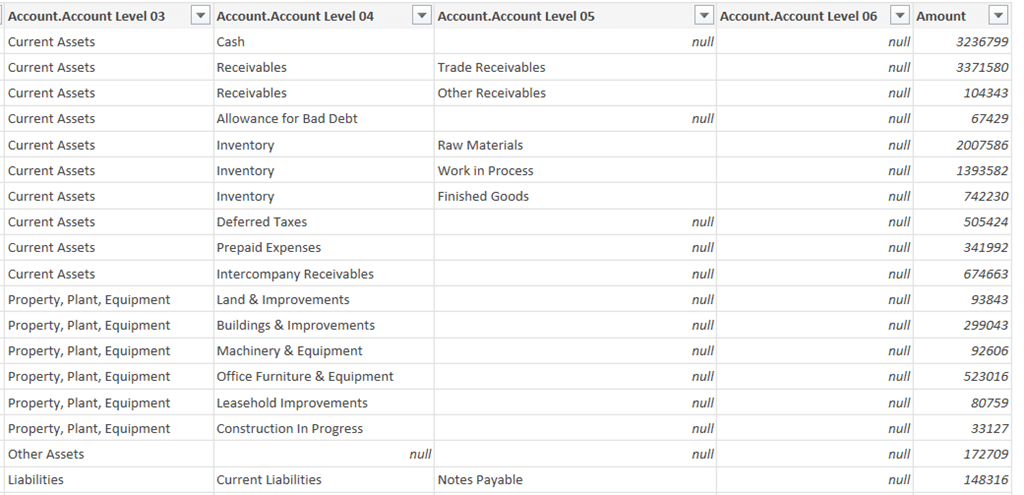
Parent-child hierarchies work very much like user hierarchies, except that you will see some null values in columns to accommodate leaf members at different levels:

image

M Functions

There are a lot of M functions relating to cube functionality, although the documentation in the Library Specification document is fairly basic and all mention of them disappeared from the online help a month or so ago for some reason. Here’s the code for the query in the Collapsing Columns section above:

[sourcecode language=”text”]
let
Source = AnalysisServices.Databases("localhost"),
#"Adventure Works DW 2008" = Source{[Name="Adventure Works DW 2008"]}[Data],
#"Adventure Works1" = #"Adventure Works DW 2008"{[Id="Adventure Works"]}[Data],
#"Adventure Works2" = #"Adventure Works1"{[Id="Adventure Works"]}[Data],
#"Added Items" = Cube.Transform(#"Adventure Works2", {
{Cube.AddAndExpandDimensionColumn,
"[Date]", {"[Date].[Calendar Year].[Calendar Year]"}, {"Date.Calendar Year"}},
{Cube.AddMeasureColumn, "Internet Sales Amount",
"[Measures].[Internet Sales Amount]"},
{Cube.AddMeasureColumn, "Internet Order Quantity",
"[Measures].[Internet Order Quantity]"}}),
#"Added Items1" = Cube.Transform(#"Added Items", {
{Cube.AddAndExpandDimensionColumn, "[Date]",
{"[Date].[Day Name].[Day Name]"}, {"Date.Day Name"}}}),
#"Filtered Rows" = Table.SelectRows(#"Added Items1", each (
Cube.AttributeMemberId([Date.Day Name]) = "[Date].[Day Name].&[7]"
meta [DisplayName = "Saturday"]
or
Cube.AttributeMemberId([Date.Day Name]) = "[Date].[Day Name].&[1]"
meta [DisplayName = "Sunday"])),
#"Collapsed and Removed Columns" = Cube.CollapseAndRemoveColumns(
#"Filtered Rows",
{"Date.Day Name"})
in
#"Collapsed and Removed Columns"
[/sourcecode]


It’s comprehensible but not exactly simple – yet another example of how difficult it is to shoe-horn multidimensional concepts into a tool that expects to work with relational data (see also SSRS). I doubt I’ll be writing any M code that uses these functions manually.

Multiselect, Filtering And Functions In Power Query

If you’re a Power Query enthusiast you’re probably already comfortable with creating functions and passing values to them. However in some scenarios you don’t want to pass just a single value to a parameter, you want to pass multiple values – for example if you are filtering a table by multiple criteria. What’s the best way of handling this in Power Query?

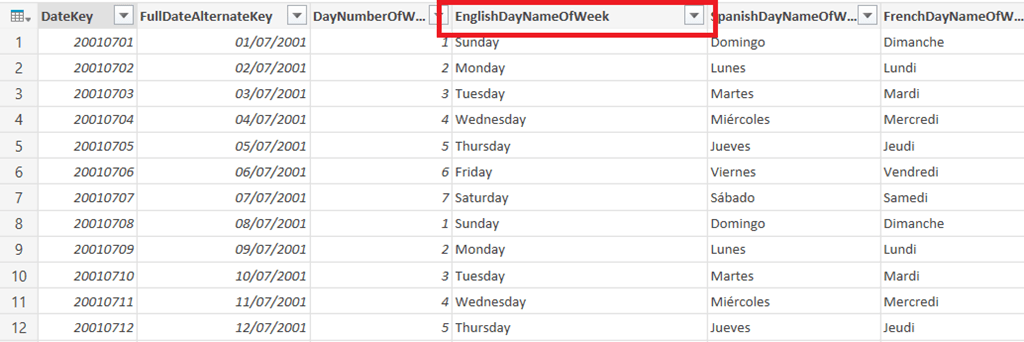
Imagine that you wanted to import data from the DimDate table in the SQL Server Adventure Works DW database. It’s a pretty straightforward date dimension table as you can see:

image

Imagine also that you didn’t want to import all the rows from the table but just those for certain days of the week that the user selects (filtering on the EnglishDayNameOfWeek column).

The first problem is, then, how do you allow the user to make this selection in a friendly way? I’ve already blogged about how the function parameter dialog can be made to show ‘allowed’ selections (here and here) but this only allows selection of single values. One solution I’ve used is to create an Excel table – sourced from a Power Query query of course – and then let users select from there.

In this case, the following query can be used to get all the distinct day names:

[sourcecode language=”text” padlinenumbers=”true”]
let
Source = Sql.Database("localhost", "adventure works dw"),
dbo_DimDate = Source{[Schema="dbo",Item="DimDate"]}[Data],
#"Removed Other Columns" = Table.SelectColumns(dbo_DimDate,
{"DayNumberOfWeek", "EnglishDayNameOfWeek"}),
#"Sorted Rows" = Table.Sort(#"Removed Other Columns",
{{"DayNumberOfWeek", Order.Ascending}}),
#"Removed Duplicates" = Table.Distinct(#"Sorted Rows"),
#"Removed Columns" = Table.RemoveColumns(#"Removed Duplicates",
{"DayNumberOfWeek"}),
#"Added Custom" = Table.AddColumn(#"Removed Columns", "Selected", each "No")
in
#"Added Custom"
[/sourcecode]

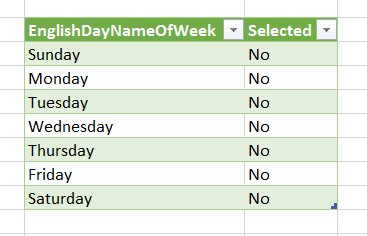
Nothing much interesting to say about this apart from that it was all created in the UI, it shows the day names in the correct order, and it has an extra column called Selected that always contains the value “No”. The output table in Excel looks like this:

image

The Selected column is going to allow the end user to choose which days of the week they want to filter the main table by. Since “Yes” and “No” are going to be the only valid values in this column you can use Excel’s Data Validation functionality to show a dropdown box in all of the cells in this column that allows the user from selecting one of those two values and nothing else.

image

image

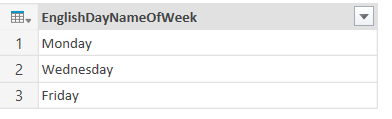
Once the user has selected “Yes” against all of the day names they want to filter by in the Excel table, the next step is to use this table as the source for another Power Query query. To be clear, we’ve used Power Query to load a table containing day names into an Excel table, where the user can select which days they want to filter by, and we then load this data back into Power Query. This second query (called SelectedDays in this example) then just needs to filter the table so it only returns the rows where Selected is “Yes” and then removes the Selected column once it has done that:

[sourcecode language=”text”]
let
Source = Excel.CurrentWorkbook(){[Name="DistinctDates"]}[Content],
#"Filtered Rows" = Table.SelectRows(Source, each ([Selected] = "Yes")),
#"Removed Columns" = Table.RemoveColumns(#"Filtered Rows",{"Selected"})
in
#"Removed Columns"
[/sourcecode]

image

This query doesn’t need to be loaded anywhere – but it will be referenced later.

With that done, you need to create a function to filter the DimDate table. Here’s the M code:

[sourcecode language=”text”]
(SelectedDays as list) =>
let
Source = Sql.Database("localhost", "adventure works dw"),
dbo_DimDate = Source{[Schema="dbo",Item="DimDate"]}[Data],
#"Filtered Rows" = Table.SelectRows(dbo_DimDate,
each List.Contains(SelectedDays,[EnglishDayNameOfWeek]) )
in
#"Filtered Rows"
[/sourcecode]

The thing to notice here is the condition used in the Table.SelectRows() function, where List.Contains() is used to check whether the day name of the current row is present in the list passed in through the SelectedDays parameter.

The final step is to invoke this function and pass the column from the query containing the selected days to it. There is a bit of UI sugar when you invoke a function with a parameter of type list that I blogged about recently. In this case when you invoke the function you just have to pass the pass it the EnglishDayNameOfWeek column from the SelectedDays query.

image

Here’s what the code for the query that invokes the function looks like:

[sourcecode language=”text”]
let
Source = DimDate(SelectedDays[EnglishDayNameOfWeek])
in
Source
[/sourcecode]

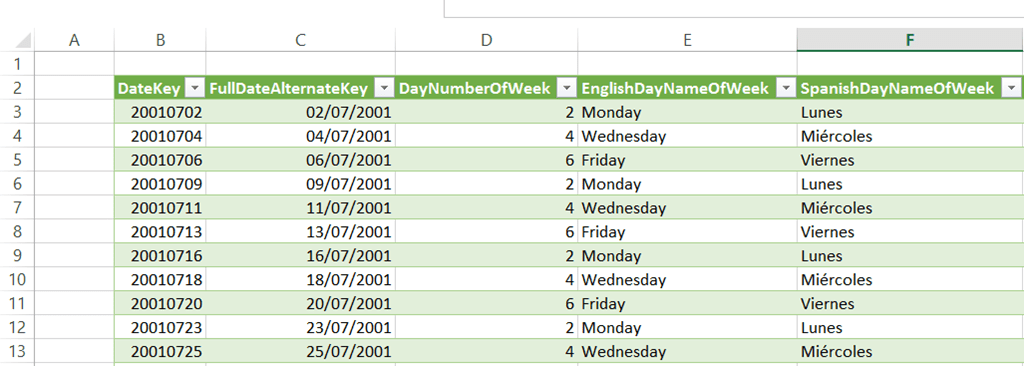
And of course, when you run the query and output the results to a table, you get the DimDate table filtered by all of the days of the week you have selected:

image

To change the output the user just needs to change the selected days and then refresh this last query.

In case you’re wondering, this query does get folded back to SQL Server too. Here’s the SQL generated by Power Query:

[sourcecode language=”text”]
select [$Ordered].[DateKey],
[$Ordered].[FullDateAlternateKey],
[$Ordered].[DayNumberOfWeek],
[$Ordered].[EnglishDayNameOfWeek],
[$Ordered].[SpanishDayNameOfWeek],
[$Ordered].[FrenchDayNameOfWeek],
[$Ordered].[DayNumberOfMonth],
[$Ordered].[DayNumberOfYear],
[$Ordered].[WeekNumberOfYear],
[$Ordered].[EnglishMonthName],
[$Ordered].[SpanishMonthName],
[$Ordered].[FrenchMonthName],
[$Ordered].[MonthNumberOfYear],
[$Ordered].[CalendarQuarter],
[$Ordered].[CalendarYear],
[$Ordered].[CalendarSemester],
[$Ordered].[FiscalQuarter],
[$Ordered].[FiscalYear],
[$Ordered].[FiscalSemester]
from
(
select [_].[DateKey],
[_].[FullDateAlternateKey],
[_].[DayNumberOfWeek],
[_].[EnglishDayNameOfWeek],
[_].[SpanishDayNameOfWeek],
[_].[FrenchDayNameOfWeek],
[_].[DayNumberOfMonth],
[_].[DayNumberOfYear],
[_].[WeekNumberOfYear],
[_].[EnglishMonthName],
[_].[SpanishMonthName],
[_].[FrenchMonthName],
[_].[MonthNumberOfYear],
[_].[CalendarQuarter],
[_].[CalendarYear],
[_].[CalendarSemester],
[_].[FiscalQuarter],
[_].[FiscalYear],
[_].[FiscalSemester]
from [dbo].[DimDate] as [_]
where [_].[EnglishDayNameOfWeek] in (‘Monday’, ‘Wednesday’, ‘Friday’)
) as [$Ordered]
order by [$Ordered].[DateKey]
[/sourcecode]

Notice that the Where clause contains an IN condition with all of the selected days.

You can download the example workbook for this post here.

Viewing Error Messages For All Rows In Power Query

One of the great features of Power Query is the way you can view any rows that contain error values when you load data. However, even if you can see the rows that have errors you can’t see the error messages easily – without writing a little bit of M code, which I’ll show you in this post.

Imagine you have the following table of data:

image

…and you load it into Power Query using the following query, which sets the data type for the Sales column to be Whole Number:

[sourcecode language=”text” padlinenumbers=”true”]
let
Source = Excel.CurrentWorkbook(){[Name="Sales"]}[Content],
#"Changed Type" = Table.TransformColumnTypes(
Source,
{{"Sales", Int64.Type},
{"Product", type text}})
in
#"Changed Type"
[/sourcecode]


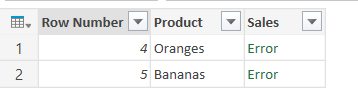
As you’d expect, the last two rows contain error values as a result of this type conversion:

image

You can also see the number of rows that contain errors when you load the query:

image

Clicking on the “2 errors” link in the screenshot above creates a new query that only contains the rows with errors:

image

You can click on the Error link in any cell that contains one to see the error message:

image

But what you really want is to see the error message for each row. To do this add a new custom column with the following definition:

try [Sales]

image

You will then see a new column called Custom containing a value of type Record. You can then click the Expand icon in the column header (highlighted) and then OK:

image

You’ll then see another column called Custom.Error with an Expand icon; click on it and then click OK again.

image

image

And at last you’ll have two columns that show the error messages for each row:

image

Reading The Power Query Trace File–With Power Query

In the September 2014 update of Power Query a new piece of functionality was added: the ability to turn on tracing. There’s no documentation about what the trace files actually contain anywhere (it’s clearly intended to be used only by Microsoft to help them diagnose problems) but I couldn’t help but be curious about what’s in there. And of course, when faced with a strange text file to make sense of, I turned to Power Query!

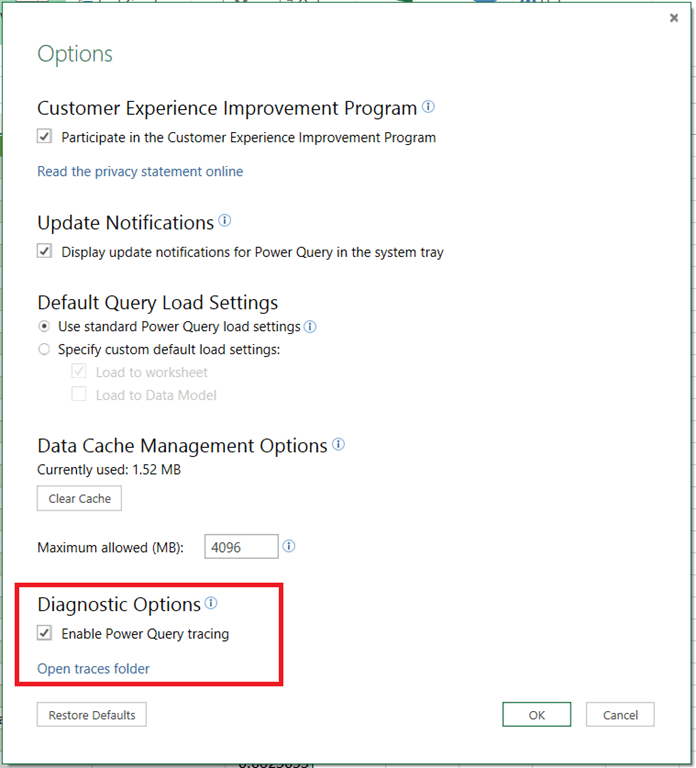
First of all, to turn on tracing, click on the Options button on the Power Query tab in the Excel ribbon, then check the ‘Enable Power Query tracing’ box:

image

Clicking on the ‘Open traces folder’ link will take you to the directory where the trace files are stored, which in my case is:

C:\Users\Chris\AppData\Local\Microsoft\Power Query\Traces

You can then run some queries and you’ll see trace log files appear in that folder:

image

[This is where the speculation starts]

As far as I can see, every time you run a Power Query query two files are created: one with a filename beginning “excel”, the other with a filename beginning “Microsoft.Mashup.Container”. All of the interesting things I found were in the “Microsoft.Mashup.Container” files so I’ll ignore the second type of file from now on.

The format of these files is pretty clear from this screenshot:

image

Each line in the file starts with “DataMashup.Trace.Information”, then there’s a number (which seems to be the same in all cases) and then there’s a JSON fragment. There are two things to point out before you attack this file in Power Query thought:

  • The obvious way to get rid of everything before the JSON is to split the column twice using a colon as the delimiter. However if you do this using the default UI settings you’ll find that the JSON is mysteriously broken – all the double quotes have disappeared. This is in fact a side-effect of the way the UI uses the Splitter.SplitTextByEachDelimiter() function: it uses a null in the second parameter, which translates to the default value of QuoteStyle.Csv, but to stop the JSON breaking you need to change this to QuoteStyle.None.
  • When you have got rid of everything but the JSON,  you just need to click Parse/JSON and you can explore the data in there:

image

Here’s an example of a query I generated to read a log file. I don’t want you to think this is a query that will read every log file though: the format may vary depending on the query you run or the version of Power Query you have. I also encountered a few bugs and strange error messages in Power Query while experimenting (I think some were caused by trying to read from files while tracing was turned on, or while the files were open in Notepad) so I can’t guarantee you’ll be able to read the files you’re interested in.

[sourcecode language=”text” padlinenumbers=”true”]
let
Source = Table.FromColumns({
Lines.FromBinary(
File.Contents(
"Insert full path and file name of log file here!")
,null,null,1252)}),
#"Split Column by Delimiter" = Table.SplitColumn(
Source,
"Column1",
Splitter.SplitTextByEachDelimiter(
{":"},
QuoteStyle.None,
false),
{"Column1.1", "Column1.2"}),
#"Changed Type" = Table.TransformColumnTypes(#"Split Column by Delimiter",
{{"Column1.1", type text}, {"Column1.2", type text}}),
#"Split Column by Delimiter1" = Table.SplitColumn(
#"Changed Type",
"Column1.2",
Splitter.SplitTextByEachDelimiter(
{":"},
QuoteStyle.None,
false),
{"Column1.2.1", "Column1.2.2"}),
#"Changed Type1" = Table.TransformColumnTypes(#"Split Column by Delimiter1",
{{"Column1.2.1", Int64.Type}, {"Column1.2.2", type text}}),
#"Parsed JSON" = Table.TransformColumns(#"Changed Type1",
{{"Column1.2.2", Json.Document}}),
#"Removed Columns" = Table.RemoveColumns(#"Parsed JSON",
{"Column1.1", "Column1.2.1"}),
#"Expand Column1.2.2" = Table.ExpandRecordColumn(
#"Removed Columns",
"Column1.2.2",
{"Start", "Action", "Duration", "Exception",
"CommandText", "ResponseFieldCount"},
{"Start", "Action", "Duration", "Exception",
"CommandText", "ResponseFieldCount"}),
#"Changed Type2" = Table.TransformColumnTypes(#"Expand Column1.2.2",
{{"Start", type datetime}, {"Duration", type duration}})
in
#"Changed Type2"
[/sourcecode]


At this point there’s plenty of useful information available: a list of events, a start time for each event, a duration for each event, and other columns where error messages, durations, SQL queries and the number of fields returned by each SQL query. All very useful information when you’re trying to work out why your Power Query query is slow or why it’s not working properly. It’s a shame there isn’t any documentation on what’s in the trace file but as I said, it’s not really for our benefit so I can understand why.

image

At this point you’re on your own, I’m afraid. Happy exploring!

Power Query And Function Parameters Of Type List

Here’s something interesting that I just discovered about how Power Query deals with function parameters of type list…

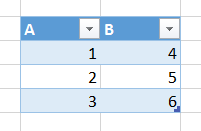
Imagine you have the following table in an Excel worksheet, and a Power Query query called MyTable that loads all of the data from it:

image

Now, create the following function in a new query:

[sourcecode language=”text” padlinenumbers=”true”]
(Mylist as list) => List.Sum(Mylist)
[/sourcecode]


This is just declares a function that takes a single parameter, Mylist, that is a list and it returns the sum of all of the values in that list.

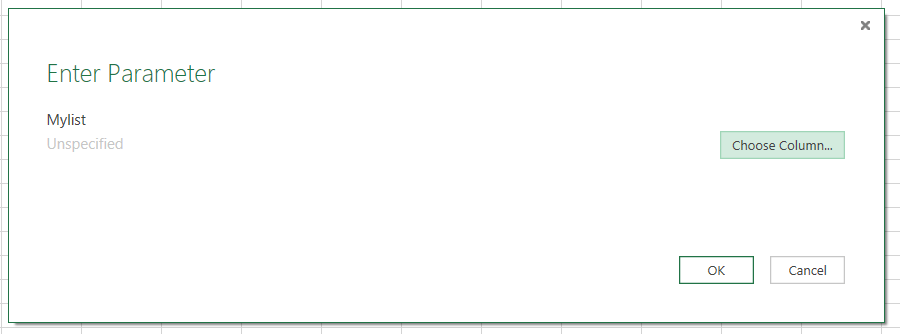
Now invoke the function from the Workbook Queries pane and instead of seeing the normal Enter Parameters dialog box you’ll see the following:

image

Clicking on the Choose Column button displays this:

image

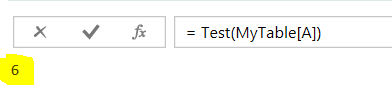
Here you can select another query from your workbook and then select a single column from that query. In this case I’ve chosen column A from the MyTable query. Click OK and all of the values from that column will be passed as a list (using the expression MyTable[A]) through to the new function. Here’s what the resulting query to invoke the function looks like:

[sourcecode language=”text”]
let
Source = Test(MyTable[A])
in
Source
[/sourcecode]


The output in this case is, of course, the value 6 – the sum of all of the values in column A:

image

I’ll use this in a more practical scenario in a future blog post!

Specifying Allowed Values, Sample Values and Descriptions For Function Parameters In Power Query–Part 2

In part 1 of this series I showed how you can set properties for Power Query function parameters so that saw a description, an example value and a dropdown list containing allowed values when they invoked the function. In this post I’ll show a slightly more complex use of this functionality: querying a relational database.

Consider the following function. It connects to the DimDate table in the Adventure Works DW sample database for SQL Server, removes all but the Date, Day, Month and Year columns, and allows you to filter the rows in the table by day, month and/or year.

[sourcecode language=”text” padlinenumbers=”true”]
//Declare function parameters
(optional DayFilter as text,
optional MonthFilter as text,
optional YearFilter as number) =>
let
//Connect to SQL Server
Source = Sql.Database("localhost", "adventure works dw"),
//Connect to DimDate table
dbo_DimDate = Source{[Schema="dbo",Item="DimDate"]}[Data],
//Only keep four columns
RemoveOtherColumns = Table.SelectColumns(dbo_DimDate,
{"FullDateAlternateKey",
"EnglishDayNameOfWeek",
"EnglishMonthName",
"CalendarYear"}),
//Rename columns
RenameColumns = Table.RenameColumns(RemoveOtherColumns,{
{"FullDateAlternateKey", "Date"},
{"EnglishDayNameOfWeek", "Day"},
{"EnglishMonthName", "Month"},
{"CalendarYear", "Year"}}),
//Filter table by Day, Month and Year if specified
FilterDay = if DayFilter=null
then
RenameColumns
else
Table.SelectRows(RenameColumns, each ([Day] = DayFilter)),
FilterMonth = if MonthFilter=null
then
FilterDay
else
Table.SelectRows(FilterDay, each ([Month] = MonthFilter)),
FilterYear = if YearFilter=null
then
FilterMonth
else
Table.SelectRows(FilterMonth, each ([Year] = YearFilter))
in
FilterYear
[/sourcecode]


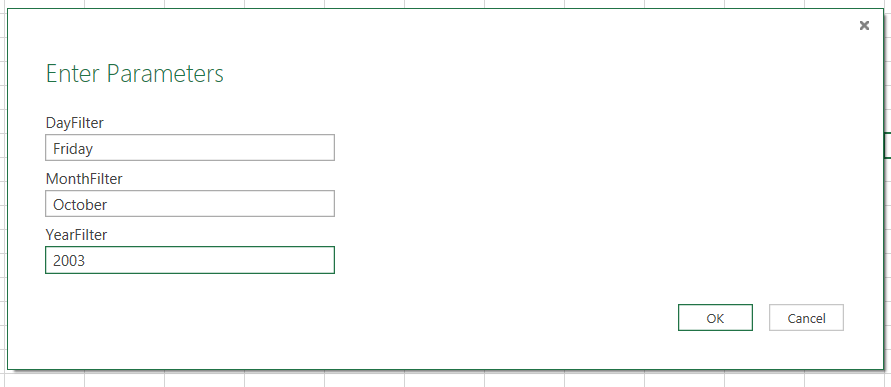
When you invoke the function you can enter the parameter values:

image

…and you get a filtered table as the output:

image

The obvious thing to do here is to make these parameters data-driven, so that the user can pick a day, month or year rather than type the text. Using the technique shown in my previous post, here’s how:

[sourcecode language=”text”]

let

//Get the whole DimDate table
GetDimDateTable =
let
Source = Sql.Database("localhost", "adventure works dw"),
dbo_DimDate = Source{[Schema="dbo",Item="DimDate"]}[Data],
RemoveOtherColumns = Table.SelectColumns(dbo_DimDate,
{"FullDateAlternateKey",
"EnglishDayNameOfWeek",
"EnglishMonthName",
"CalendarYear"}),
RenameColumns = Table.RenameColumns(RemoveOtherColumns,{
{"FullDateAlternateKey", "Date"},
{"EnglishDayNameOfWeek", "Day"},
{"EnglishMonthName", "Month"},
{"CalendarYear", "Year"}})
in
RenameColumns,

//Create a function to filter DimDate
BaseFunction = (
optional DayFilter as text,
optional MonthFilter as text,
optional YearFilter as number) =>
let
FilterDay = if DayFilter=null
then
GetDimDateTable
else
Table.SelectRows(GetDimDateTable, each ([Day] = DayFilter)),
FilterMonth = if MonthFilter=null
then FilterDay
else
Table.SelectRows(FilterDay, each ([Month] = MonthFilter)),
FilterYear = if YearFilter=null
then
FilterMonth
else
Table.SelectRows(FilterMonth, each ([Year] = YearFilter))
in
FilterYear,

//Set AllowedValues on each parameter
AddAllowedValues =
let
AvailableDays = Table.Column(GetDimDateTable, "Day"),
AvailableMonths = Table.Column(GetDimDateTable, "Month"),
AvailableYears = Table.Column(GetDimDateTable, "Year"),
DayParamType = type nullable text
meta [Documentation.AllowedValues = AvailableDays],
MonthParamType = type nullable text
meta [Documentation.AllowedValues = AvailableMonths],
YearParamType = type nullable number
meta [Documentation.AllowedValues = AvailableYears],
NewFunctionType = type function (
optional DayFilter as DayParamType,
optional MonthFilter as MonthParamType,
optional YearFilter as YearParamType)
as table,
CastToType = Value.ReplaceType(BaseFunction, NewFunctionType)
in
CastToType

in
AddAllowedValues
[/sourcecode]


It’s a big chunk of code, but not too difficult to follow I hope. The outer let statement has three steps inside it, each of which itself consists of a let statement. The first two steps, GetDimDateTable and BaseFunction, contain more or less the same code as the original function when put together. GetDimDateTable returns the whole DimDate table with the three columns I need; BaseFunction defines the function to filter it. The reason I split the code across two steps is so that, in the third step (AddAllowedValues) I can call the Table.Column() function on the Day, Month and Year columns returned by GetDimDateTable and get lists containing all the distinct values in these three columns. I’m then using these lists when setting AllowedValues in my custom types. The only other thing to point out here, that wasn’t mentioned in my previous post, is that for optional parameters the custom type used needs to be marked as nullable; this means you get the option to not pick anything in the dropdown box that is displayed.

Now, when you invoke this query, you see the dropdown lists populated with all the available values from the appropriate column in the DimDate table in SQL Server:

image

I also checked to see whether Query Folding takes place for this query, and I was relieved to see it does. Here’s the SQL generated by Power Query for a typical call to the function:

[sourcecode language=”text”]
select [_].[FullDateAlternateKey] as [Date],
[_].[EnglishDayNameOfWeek] as [Day],
[_].[EnglishMonthName] as [Month],
[_].[CalendarYear] as [Year]
from
(
select [_].[FullDateAlternateKey],
[_].[EnglishDayNameOfWeek],
[_].[EnglishMonthName],
[_].[CalendarYear]
from
(
select [_].[FullDateAlternateKey],
[_].[EnglishDayNameOfWeek],
[_].[EnglishMonthName],
[_].[CalendarYear]
from
(
select [FullDateAlternateKey],
[EnglishDayNameOfWeek],
[EnglishMonthName],
[CalendarYear]
from [dbo].[DimDate] as [$Table]
) as [_]
where [_].[EnglishDayNameOfWeek] = ‘Sunday’
) as [_]
where [_].[EnglishMonthName] = ‘August’
) as [_]
where [_].[CalendarYear] = 2003
[/sourcecode]


You can download the sample workbook containing the code shown in this post here.

New Power Query Videos Live

I have recorded two new videos for Project Botticelli about Power Query that are now available to view. They are:

What Is Power Query?

This is short introduction to Power Query is free to view (registration required) and covers just the basics.

https://projectbotticelli.com/knowledge/what-is-power-query-video-tutorial?pk_campaign=tt2014cwb

clip_image001


Power Query Fundamentals

This 45 minute video goes into more detail about all of the cool things you can do in the Power Query Query Editor. You’re going to need a subscription to see this, but if you subscribe you will of course get access to loads of other videos too (including my MDX course, Marco and Alberto’s DAX videos, and lots of other cool MS BI content).

https://projectbotticelli.com/knowledge/power-query-fundamentals-video-tutorial?pk_campaign=tt2014cwb

clip_image001[6]


Don’t forget that my Power Query book is still available (even if it’s now a little out of date because the Power Query UI has changed over the last few months, you’ll probably want it for the more advanced content which is still good) and that I have several classroom-based training courses on Power BI and SSAS in London next year.

Specifying Allowed Values, Sample Values and Descriptions For Function Parameters In Power Query–Part 1

The other day when I was thinking about Power Query functions (as you do) it occurred to me that they would be a lot more usable if, when you invoked them, you could show your users a dropdown box for each parameter where they could choose all of the allowed parameter values rather than expect them to type a value which may or may not be correct. I thought this was such a good idea that I sent an email to the Power Query team, and within a few hours I got a reply from Matt Masson… saying that they had already implemented this some time ago but hadn’t documented it yet. He also, very kindly sent me a code example, and allowed me to blog about it (thanks Matt!). In this post I’m going to look at a very simple example of how to do this; in part 2 I’ll show some a complex scenario involving SQL Server.

Consider the following Power Query function that multiplies two numbers:

[sourcecode language=”text” padlinenumbers=”true”]
(FirstNumber as number, SecondNumber as number) as number =>
FirstNumber * SecondNumber
[/sourcecode]


Enter this into a new blank query and you’ll see the following in the Query Editor:

image

Clicking either the Invoke Function or Invoke button will make the Enter Parameters dialog appear:

image

You can then enter two numbers, click OK, and the query will invoke the function with those two numbers and show the result:

image

Now it turns out that there are three properties you can set on a function parameter to control how it is displayed in the Enter Parameters dialog:

  • A text description of the parameter
  • A sample value
  • A list of allowed values that can be passed to the parameter, that can be selected from a dropdown box

Unfortunately the way to set these properties isn’t exactly straightforward, but the basic process is this:

  • For each parameter create a custom type, and then use a metadata record to assign the property values for that type
  • Then create a custom function type, where each parameter uses the custom types created in the previous bullet
  • Finally take your existing function and cast it to your new function type using the Value.ReplaceType() function.

OK, I know, this sounds scary – and it is, a bit. Here’s how the original function can be rewritten:

[sourcecode language=”text”]
let
//declare a function
MultiplyTwoNumbersBasic =
(FirstNumber as number, SecondNumber as number)
as number =>
FirstNumber * SecondNumber,
//declare custom number types with metadata for parameters
MyFirstNumberParamType = type number
meta
[Documentation.Description = "Please enter any number",
Documentation.SampleValues = {8}],

MySecondNumberParamType = type number
meta
[Documentation.Description = "Please choose a number",
Documentation.AllowedValues = {1..5}],
//declare custom function type using custom number types
MyFunctionType = type function(
FirstNumber as MyFirstNumberParamType,
SecondNumber as MySecondNumberParamType)
as number,
//cast original function to be of new custom function type
MultiplyTwoNumbersV2 = Value.ReplaceType(
MultiplyTwoNumbersBasic,
MyFunctionType)
in
MultiplyTwoNumbersV2
[/sourcecode]


Now, when you invoke the function, the Enter Parameters dialog looks like this:

image

Note how for the FirstNumber parameter the description and the sample value is displayed; and how for the SecondNumber parameter the dropdown list shows all of the allowed values in the list we declared (remember that {1..5} returns the list {1,2,3,4,5} in M) and how it is no longer possible to type a value here.

Three things to mention last of all:

  • Although Documentation.SampleValues is a list, only the first value in the list seems to be displayed
  • Documentation.AllowedValues doesn’t actually prevent you from calling the function with a value not in this list, it just controls what values are seen in the dropdown list
  • The Workbook Queries pane no longer recognises your function as a function when you do all this – it doesn’t have the special function icon, and there is no Invoke option on the right-click menu. This is a real shame because, while it doesn’t affect how the function works, it does make it much less intuitive to use and the whole point of this exercise is usability. Hopefully this gets fixed in a future build.

You can download the a sample workbook containing all the code in this post here.

Power Query Now Works With SSAS

I normally don’t bother blogging when one of the Power Query monthly updates gets released – the posts on the Power BI blog have all the details and there’s nothing more to add. This month’s update, though, sees Power Query able to use SSAS Multidimensional and Tabular models as a data source (you can read the announcement here and watch the video here) and I thought that since these are my two favourite Microsoft products I should comment.

In no particular order, some observations/thoughts:

  • Power Query is generating MDX queries in the background here. And yes, query folding is taking place here so where possible the filtering and sorting is being translated back to MDX so the work is taking place on the server. I’ve had a look at the MDX being generated and while it’s a bit strange in places it’s basically good and should perform well.
  • In order to get Power Query to work I had to install the 2012 version of ADOMD, even though I already had the 2014 version installed. Hmmm.
  • It also doesn’t display calculated measures that aren’t associated with a measure group, although this is going to be fixed in a later release. In fact I experienced several errors associated with calculated measures when I first installed the new release, but these went away after I cleared the Power Query cache and rebooted.
  • This update does not support custom MDX queries, unlike the equivalent SQL Server data source; again this is on the roadmap though. This will be useful for two reasons:
    • For complex queries, or queries that have to be written in a certain way to perform well, sometimes you have to have complete control of the query
    • It would allow you to run DAX, DMX and SQL queries on SSAS, and also let you query SSAS DMVs. Custom DAX queries can perform a lot better than the equivalent MDX in some cases, and querying DMVs would allow you to build SSAS monitoring dashboards in Excel.
  • The Excel Data Model (which lots of people call Power Pivot, but I’m going to stick to my guns on this one because the Excel Data Model is not the same thing as Power Pivot) is not supported as a data source yet either, even though it can be queried in MDX just like SSAS. This would also be useful to have although I can also see it’s harder to implement, given that the Excel Data Model is both a data source and a data destination.
  • There are a whole bunch of new (well, not really new because they have been around since the support for SAP Business Objects came out this summer) M functions to generate those MDX queries. They probably deserve their own blog post at some point in the future.
  • Apart from the obvious reason that it allows you to combine data from SSAS with other data sources and/or load it into the Excel Data Model, why is it useful to have Power Query to connect to SSAS? What does it give you over and above the existing PivotTable, Excel Cube Function and Query Table connectivity? Why do we even need to extract data from a cube in the first place? 
    • This may only be a minor reason, but a lot of people still do get caught by the problem of having multiple cubes where they should have one, and need to build reports that incorporate data from multiple cubes. Power Query gives them an easy way of doing this.
    • I believe the step-based approach of Power Query makes it much easier for users to build complex queries than other SSAS front-ends, such as PivotTables. Being able to see the effect of filters and other transformations as they are applied, and being able to delete them and rearrange the order that they are applied in, is a huge benefit. Think of Power Query as being a custom MDX query builder where the output is a regular table in Excel rather than a PivotTable.
    • This last point leads me on to a topic that I’ve been thinking about a lot recently, and which will be the subject of a whole series of blog posts soon, namely that it is wrong to think of Power Query as simply a self-service ETL tool. It is that, but I also think that has a lot of potential as a self-service reporting tool too. For both relational database and SSAS I think Power Query could be very useful as a means of creating SSRS-like detail-level reporting solutions inside Excel. Problems with the MDX generated by PivotTables mean that queries with large numbers of hierarchies crossjoined together perform badly; the MDX that Power Query generates does not suffer from this problem. Functions can be used to parameterise Power Query queries (in fact earlier this evening I learned something immensely cool about function parameters that I’ll blog about later this week and which will make functions even more useful!) and can therefore be used in almost exactly the same way as datasets in SSRS.