Using The RelativePath And Query Options With Web.Contents() In Power Query And Power BI M Code

The Web.Contents() function in M is the key to getting data from web pages and web services, and has a number of useful – but badly documented – options that make it easier to construct urls for your web service calls.

Consider the following url:

https://data.gov.uk/api/3/action/package_search?q=cows

It is a call to the metadata api (documentation here) for https://data.gov.uk/, the UK government’s open data portal, and returns a JSON document listing all the datasets found for a search on the keyword “cows”. You can make this call using Web.Contents() quite easily like so:

Web.Contents(
 "https://data.gov.uk/api/3/action/package_search?q=cows"
)

However, instead of having one long string for your url (which will probably need to be constructed in a separate step) you can use the RelativePath and Query options with Web.Contents(). They are given in the second parameter of the function and passed through as fields in a record. RelativePath adds some extra text to the base url given in the first parameter for the function, while Query allows you to add query parameters to the url, and is itself a record.

So, taking the example above, if the base url for the api is https://data.gov.uk/api we can use these options like so:

Web.Contents(
 "https://data.gov.uk/api",
 [
  RelativePath="3/action/package_search",
  Query=[q="cows"]
 ]
)

RelativePath is just the string “3/action/package_search” and is added to the base url. There is just one query parameter “q”, the search query, and the search term is “cows”, so Query takes a record with one field: [q=”cows”]. If you want to specify multiple query parameters you just need to add more fields to the Query record; for example:

Web.Contents(
	"https://data.gov.uk/api",
	[
		RelativePath="3/action/package_search",
		Query=
		[
			q="cows",
			rows="20"
		]
	]
)

Generates a call that returns 20 results, rather than the default 10:

https://data.gov.uk/api/3/action/package_search?q=cows&rows=20

Obviously these options make it easier to construct urls and the code is much clearer, but there are also other benefits to using these options which I’ll cover in another blog post soon.

Note: at the time of writing there is a bug that causes the value given in RelativePath to be appended twice when the Web.Page() function is also used. Hopefully this will be fixed soon.

UPDATE January 2021: This blog post has more details on using the Query option: 
https://blog.crossjoin.co.uk/2021/01/10/handling-multiple-url-query-parameters-with-the-same-name-using-web-contents-in-power-query-power-bi/

Handling 404–Not Found Errors With Web.Contents() In Power Query And Power BI

One strange feature of the Web.Contents() function in Power Query and Power BI is that it doesn’t respond in a consistent way to the standard error handling techniques used in M. I don’t know if this is a bug or a feature, but it’s certainly something I’ve run into a few times so I thought I would share a description of the problem and a way of working around it.

First of all, what’s the problem? Imagine that you wanted to import a list of training courses from that fine UK Microsoft BI and SQL Server training company Technitrain into Power Query or Power BI. You could do so using an M query that uses the Web.Contents() function to get the course RSS feed, like so:

let
Source = Web.Contents("http://technitrain.com/feed/")
in
Source

But what happens if you get the URL wrong, or there’s some other problem with the site? For example, the following URL will give a 404 – Not Found error because the page doesn’t exist:

http://technitrain.com/blahblah

If you use it in an M query, like so:

let
Source = Web.Contents("http://technitrain.com/blahblah")
in
Source

Unsurprisingly you get an error:

DataSource.Error: Web.Contents failed to get contents from ‘http://technitrain.com/blahblah’ (404): Not Found

image

The real issue is, though, when you attempt to handle this error with a try/otherwise statement like so:

let
Source = try
Web.Contents("http://technitrain.com/blahblah")
otherwise
"Error!"
in
Source

…it doesn’t work and you get the same error! What’s strange is that in some cases a try/otherwise block in more complex code will work, so for example in:

let
Source = try
Xml.Tables(
Web.Contents("http://technitrain.com/blahblah")
)
otherwise
"Error!"
in
Source

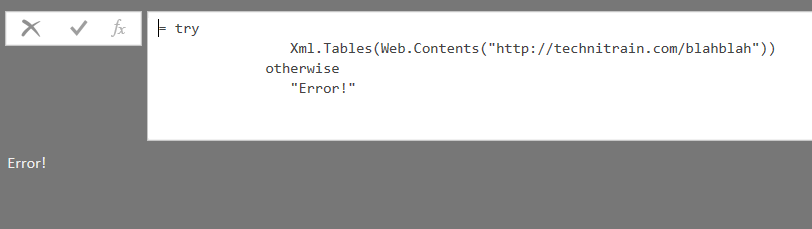
… the error does get caught:

image

This thread on the Power Query forum suggests it’s something to do with lazy evaluation, but I haven’t been able to determine the situations when it does work and when it doesn’t.

Instead, it is possible to handle specific HTTP error codes using the ManualStatusHandling option in Web.Contents():

let
Source = Web.Contents(
"http://technitrain.com/blahblah",
[ManualStatusHandling={404}])
in
Source

The ManualStatusHandling option takes a list of numeric HTTP error codes, and if you run the above example you’ll see that the query no longer returns an error.

The next problem is, then, how do you know whether the request worked or not? It turns out that you can find out by looking at the metadata associated with the Source variable (for some background on getting metadata values see this post). So, for example, using Value.Metadata() on the Source variable like so:

let
Source = Web.Contents(
"http://technitrain.com/blahblah",
[ManualStatusHandling={404}]),
GetMetadata = Value.Metadata(Source)
in
GetMetadata

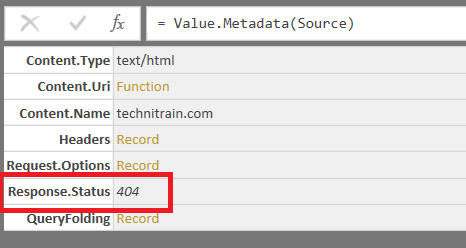
Returns a record which, among other things, contains the HTTP response code:

image

Therefore you can use something like the following pattern to trap 404 errors:

let
Source = Web.Contents(
"http://technitrain.com/blahblah",
[ManualStatusHandling={404}]),
GetMetadata = Value.Metadata(Source),
GetResponseStatus = GetMetadata[Response.Status],
Output = if GetResponseStatus=404 then "Error!" else Source
in
Output

Another Way To Check Query Folding In Power BI/Power Query M Code

Following on from my last post on checking whether query folding is taking place in a Power BI/Power Query query, I’ve just stumbled on another way of doing this – by looking at metadata. I blogged about M metadata and Power Query some time ago (you might want to read the post to get some background), but it seems like metadata is used more widely than I thought in M…

Take the following query, as used in my previous blog post:

[sourcecode language=”text”]
let
Source = Sql.Database("localhost", "adventure works dw"),
dbo_DimDate = Source{[Schema="dbo",Item="DimDate"]}[Data],
#"Removed Other Columns" =
Table.SelectColumns(
dbo_DimDate,
{"DateKey", "FullDateAlternateKey",
"DayNumberOfWeek"}),
#"Filtered Rows" =
Table.SelectRows(
#"Removed Other Columns",
each ([DayNumberOfWeek] = 1))
in
#"Filtered Rows"
[/sourcecode]

As shown in that post this query connects to the Adventure Works DW database in SQL Server and gets a few columns plus some filtered rows from the DimDate table, and most importantly query folding takes place for all of these transformations.

It turns out that each of the variables used as steps in the query can have metadata automatically assigned to them, some of which is relevant to query folding, and we can use the Value.Metadata() function to get this metadata. So, taking the previous query, we can add two extra steps:

[sourcecode language=”text” highlight=”13,14″ padlinenumbers=”true”]
let
Source = Sql.Database("localhost", "adventure works dw"),
dbo_DimDate = Source{[Schema="dbo",Item="DimDate"]}[Data],
#"Removed Other Columns" =
Table.SelectColumns(
dbo_DimDate,
{"DateKey", "FullDateAlternateKey",
"DayNumberOfWeek"}),
#"Filtered Rows" =
Table.SelectRows(
#"Removed Other Columns",
each ([DayNumberOfWeek] = 1)),
GetMetadata = Value.Metadata(#"Filtered Rows"),
QueryFolding = GetMetadata[QueryFolding]
in
QueryFolding
[/sourcecode]

The GetMetadata step gets the metadata associated with the #”Filtered Rows” step, and that metadata comes back in the form of a record with a single field called QueryFolding. The next step gets the data from that field, which is again in the form of a record:

image

So we can see quite clearly that this step is being folded and that SQL is being generated in the background. It doesn’t seem to be possible to get the SQL query generated here though.

One last thing to note: while all of this works for SQL Server, when I tested it on an SSAS data source where query folding is also definitely taking place the metadata told me – incorrectly – that there was no query folding happening (I couldn’t see the MDX query generated using the View Native Query menu option either). Maybe this is all still a work in progress?

Value.ResourceExpression() And Query Folding In Power BI

When the June update for Power BI Desktop was released, I was extremely excited to discover an undocumented new feature that allows you to see when query folding is taking place while loading data in the Query Editor. Devin Knight beat me to blogging about it with an excellent post that I strongly recommend you to read:

https://devinknightsql.com/2016/07/03/power-bi-checking-query-folding-with-view-native-query/

As Devin says, this is very important because it’s the first time that we as developers can check to see whether query folding is taking place within the Power BI Query Editor (I guess this feature will come to Power Query soon, maybe sometime in autumn 2016), and getting query folding working is the key to getting good performance when loading data.

Looking at this more closely, I’ve found that it’s also possible to get the query generated in code as well as just seeing it in a dialog box. For example, consider the following M code that returns a few columns and some filtered rows from the DimDate table in the Adventure Works DW SQL Server database:

[sourcecode language=”text” padlinenumbers=”true”]
let
Source = Sql.Database("localhost", "adventure works dw"),
dbo_DimDate = Source{[Schema="dbo",Item="DimDate"]}[Data],
#"Removed Other Columns" =
Table.SelectColumns(
dbo_DimDate,
{"DateKey", "FullDateAlternateKey",
"DayNumberOfWeek"}),
#"Filtered Rows" =
Table.SelectRows(
#"Removed Other Columns",
each ([DayNumberOfWeek] = 1))
in
#"Filtered Rows"
[/sourcecode]

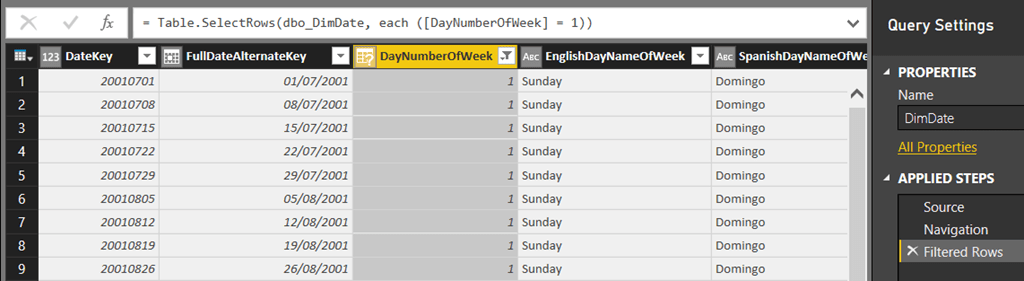
image

You can confirm that query folding is taking place and see the SQL that is being generated for the Filtered Rows step by right-clicking on it in the Applied Steps pane and choosing View Native Query:

image

image

If you now add two lines of code to the query you can get the SQL query for the #”Filtered Rows” step as a text value using the Value.ResourceExpression() function, like so:

[sourcecode language=”text” highlight=”13,14,15,16″]
let
Source = Sql.Database("localhost", "adventure works dw"),
dbo_DimDate = Source{[Schema="dbo",Item="DimDate"]}[Data],
#"Removed Other Columns" =
Table.SelectColumns(
dbo_DimDate,
{"DateKey", "FullDateAlternateKey",
"DayNumberOfWeek"}),
#"Filtered Rows" =
Table.SelectRows(
#"Removed Other Columns",
each ([DayNumberOfWeek] = 1)),
FindQueryRecord =
Value.ResourceExpression(#"Filtered Rows"),
Output =
FindQueryRecord[Arguments]{1}[Value]
in
Output
[/sourcecode]

image

As far as I can see, the Value.ResourceExpression() function can be used with any expression where query folding is taking place and returns a record which, if you dig deep enough into it contains the SQL query. The record itself seems to contain all the information needed to invoke the new Value.NativeQuery() function which I’ve also been looking at recently – but I won’t be blogging about just yet because I’m told it’s not quite finished.

Why is it useful to get the SQL query as text, rather than just seeing it? Well… I have some ideas, and hopefully some other upcoming blog posts will make things clearer!

The Ellipsis/Not Implemented Error In M

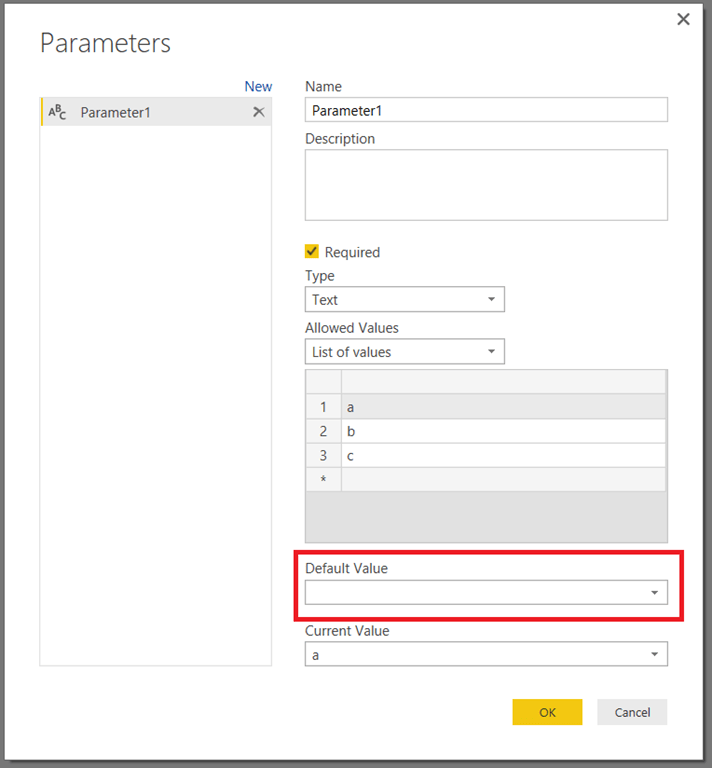
Recently I was creating a parameter in Power BI Desktop and had it configured something like this:

image

I didn’t bother to choose anything in the Default Value dropdown box, and when I looked at the code for the parameter in the Advanced Editor I saw this:

[sourcecode language=”text” padlinenumbers=”true” highlight=”5″]
"a"
meta
[IsParameterQuery=true,
List={"a", "b", "c"},
DefaultValue=…,
Type="Text",
IsParameterQueryRequired=true]
[/sourcecode]

I was interested to know what the ellipsis symbol (three dots …) in the DefaultValue field in the record meant, and looking in the Language Reference I found that in M it can be used for two purposes: as an open record marker (maybe something for a future blog post) and, as in this case, as a quick way of returning an error. The language reference says that it is directly equivalent to the following expression, which returns a “Not Implemented” error:

[sourcecode language=”text”]
error Error.Record("Expression.Error", "Not Implemented")
[/sourcecode]

But from what I can see, it actually returns a “Value was not specified” error instead. Here’s another example of how it can be used in a function definition, and what it returns:

[sourcecode language=”text”]
let
MyFunction = (x,y) => if x>y then true else …,
Output = MyFunction(0,1)
in
Output
[/sourcecode]

image

It’s not something I think I’ll be using in my own code, but it’s good to know what it means!

Creating Sequences Of Integers And Characters In Power BI/Power Query Lists

When you’re writing your own M code you often find yourself needing to create a list containing a sequence of numbers or characters. Luckily the M language allows you to do this very easily when you are defining lists by using expressions in the format

{lowest_integer..highest_integer}

For example, imagine you want to create a list with all of the integers between 1 and 5. Instead of writing

{1, 2, 3, 4, 5}

You can write the following:

{1..5}

and it will return the same list:

image

You can also use this format in more complex list definitions, for example

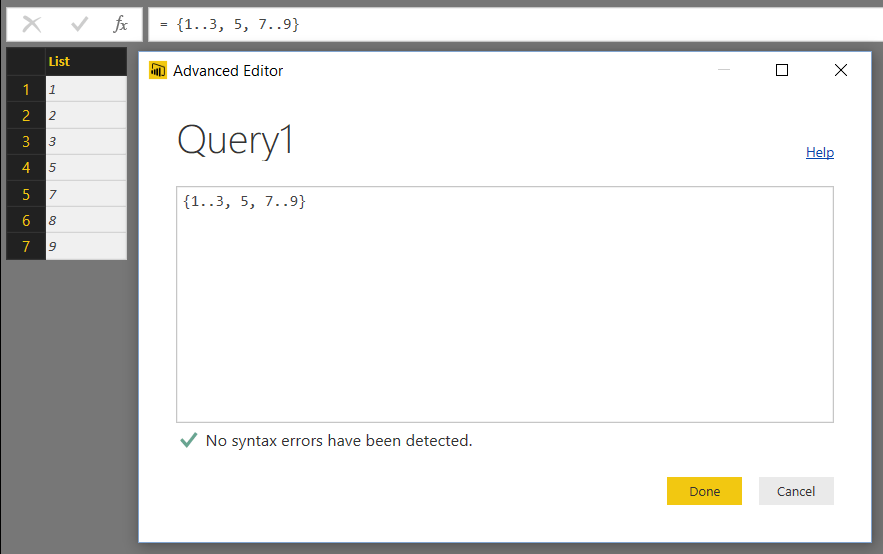
{1..3, 5, 7..9}

Returns the list

{1, 2, 3, 5, 7, 8, 9}

image

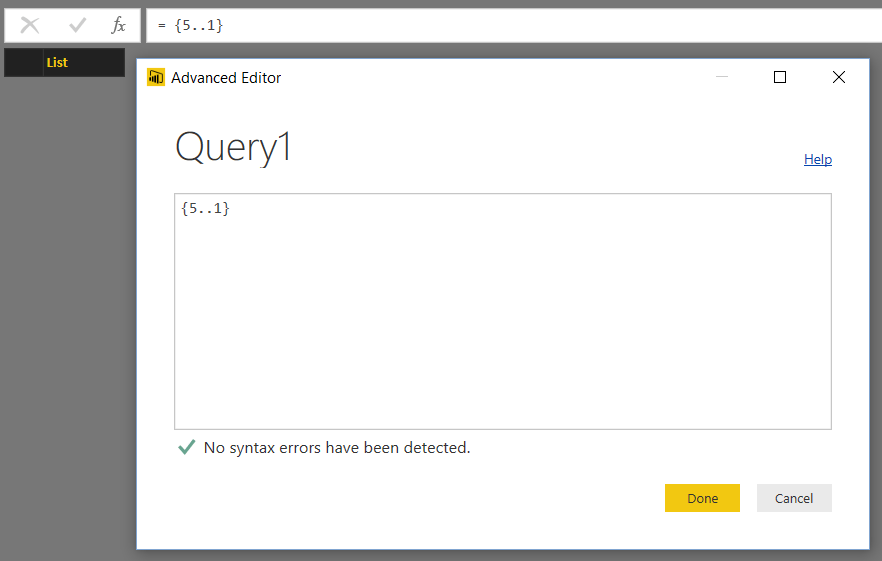
When you’re using this technique you must always put the lowest integer first and the highest integer last; if you don’t do this you get an empty list. So, for example, the expression

{5..1}

Returns an empty list:

image

It’s also possible to use this technique to create lists of characters. For example, the expression:

{"a".."z"}

Returns a list containing all of the lowercase letters of the alphabet:

image

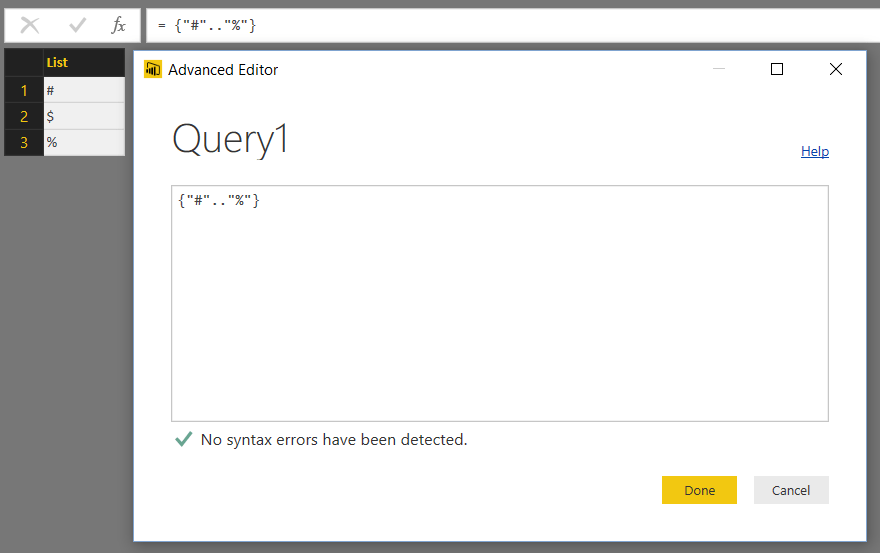
The first character in the expression has to have the lowest Unicode value and the second character has to have the highest Unicode value, and the sequence of characters returned is the list of all characters with Unicode values in that range. As a result, the expression

{"#".."%"}

Returns the list

{"#", "$", "%"}

image

And the expression

{"a".."Z"}

Returns an empty list because the Unicode value of “a” is greater than the Unicode value of “Z”.

This technique doesn’t work for decimal numbers, dates or other data types. If you want a sequence of values of these types you need to use functions list List.Dates() and List.Numbers().

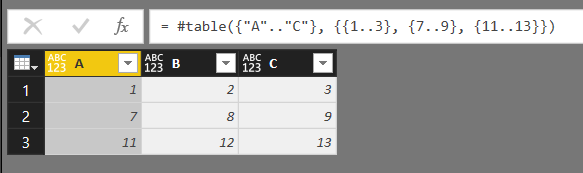
Lists are, of course, used all over the place in M. Building on my recent post on using #table() to create tables with no data source, here’s one last example of using lists containing sequences to create a simple table with three columns and three rows:

#table({"A".."C"}, {{1..3}, {7..9}, {11..13}})

image

Creating Tables In Power BI/Power Query M Code Using #table()

After my post earlier this week on creating current day/week/month/year reports in Power BI a few people asked me for a more detailed explanation of the way I was creating tables without using a data source in my M code. This is something I find myself doing quite a lot when I’m loading data with Power BI and Power Query, and while there are several ways of doing this I find that using the #table() intrinsic function is the most elegant option.

Let’s look at some examples. The following query returns a table with two columns (called “First Column” and “Second Column”) and two rows containing the values from 1 to 4:

#table({"First Column", "Second Column"}, {{1,2},{3,4}})
image

No data source is needed – this is a way of defining a table value in pure M code. The first parameter of the function takes a list of column names as text values; the second parameter is a list of lists, where each list in the list contains the values on each row in the table.

In the last example the columns in the table were of the data type Any (the ABC123 icon in each column header tells you this), which means that they can contain values of any data type including numbers, text, dates or even other tables. Here’s an example of this:

#table(
{"First Column", "Second Column"},
{
{1,"Hello"},
{#date(2016,1,1),3}
}
)
image

While this is flexible it’s not exactly practical: in almost all cases the Any data type is a bad choice for loading data, and you need to explicitly set the data type for each column. You can set data types for columns quite easily as a separate step, but it is also possible to set column data types using #table():

#table(
type table
[
#"Number Column"=number,
#"Text Column"=text,
#"Date Column"=date
],
{
{1,"Hello",#date(2016,1,1)},
{2,"World",#date(2017,12,12)}
}
)
image

In this example the first parameter is no longer a list of column names but a declaration of a table type that not only has column names in but also column types. You can see from the icons in the column headers in the screenshot above that the column called “Number Column” has a data type of number, “Text Column” has a data type of text, and “Date Column” has a data type of date.

Of course if you need a fixed table value in Power BI you could use the “Enter Data” button or, if you’re using Excel and Power Query you could create an Excel table and then use the Excel.CurrentWorkbook() function to load the contents of it; if you or your end users need to edit the values in your table easily then you should use one of these two options. On the other hand if you don’t want users to be able to edit the values in the table or, more likely, you are generating the contents of your table using functions that return lists (as in my previous post) then #table() is the way to go.

Understanding Let Expressions In M For Power BI And Power Query

When you start writing M code for loading data in Power Query or Power BI, one of the first things you’ll do is open up the Advanced Editor for a query you’ve already built using the UI. When you do that you’ll see a very scary chunk of code (and at the time of writing there’s no intellisense or colour coding in the Advanced Editor, making it even more scary) and you’ll wonder how to make sense of it. The first step to doing so is to understand how let expressions work in M.

Each query that you create in Power BI Desktop or Power Query is a single expression that, when evaluated, returns a single value – and that single value is usually, but not always, a table that then gets loaded into the data model. To illustrate this, open up Power BI Desktop (the workflow is almost the same in Power Query), click the Edit Queries button to open the Query Editor window and then click New Source/Blank Query to create a new query.

image

Next, go to the View tab and click on the Advanced Editor button to open the Advanced Editor dialog:

image

You’ll notice that this doesn’t actually create a blank query at all, because there is some code visible in the Advanced Editor when you open it. Delete everything there and replace it with the following M expression:

[sourcecode language=”text” padlinenumbers=”true”]
"Hello " & "World"
[/sourcecode]

image

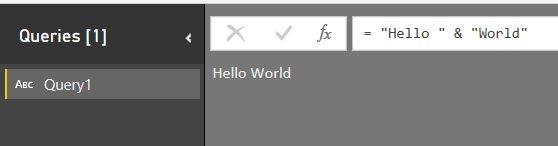
Hit the Done button and the expression will be evaluated, and you’ll see that the query returns the text value “Hello World”:

image

Notice how the ABC icon next to the name of the Query – Query1 – indicates that the query returns a text value. Congratulations, you have written the infamous “Hello World” program in M!

You might now be wondering how the scary chunk of code you see in the Advanced Editor window for your real-world query could possibly be a single expression – but in fact it is. This is where let expressions come in: they allow you to break a single expression down into multiple parts. Open up the Advanced Editor again and enter the following expression:

[sourcecode language=”text”]
let
step1 = 3,
step2 = 7,
step3 = step1 * step2
in
step3
[/sourcecode]

image

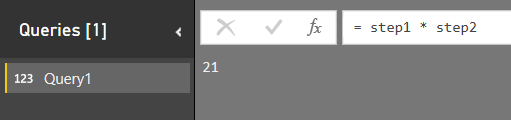
Without knowing anything about M it’s not hard to guess that this bit of code returns the numeric value 21 (notice again that the 123 icon next to the name of the query indicates the data type of the value the query returns):

image

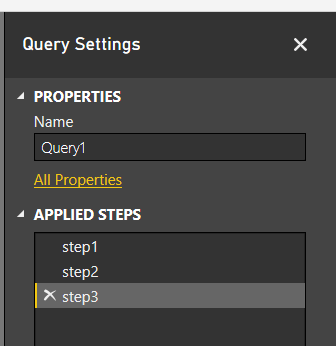
In the M language a let expression consists of two sections. After the let comes a list of variables, each of which has a name and an expression associated with it. In the previous example there are three variables: step1, step2 and step3. Variables can refer to other variables; here, step3 refers to both step1 and step2. Variables can be used to store values of any type: numbers, text, dates, or even more complex types like records, lists or tables; here, all three variables return numbers. The Query Editor is usually clever enough to display these variables as steps in your query and so displays then in the Applied Steps pane on the right-hand side of the screen:

image

The value that the let expression returns is given in the in clause. In this example the in clause returns the value of the variable step3, which is 21.

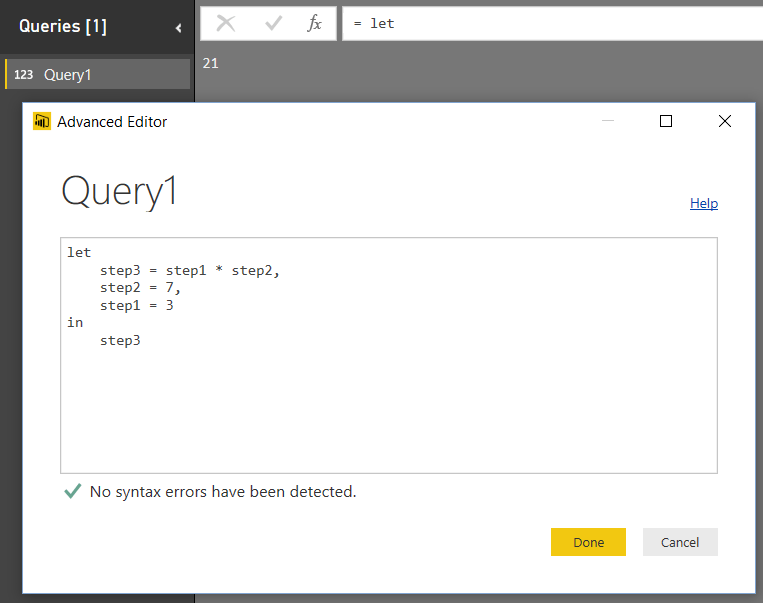
It’s important to understand that the in clause can reference any or none of the variables in the variable list. It’s also important to understand that, while the variable list might look like procedural code it isn’t, it’s just a list of variables that can be in any order. The UI will always generate code where each variable/step builds on the value returned by the previous variable/step but when you’re writing your own code the variables can be in whatever order that suits you. For example, the following query also returns the value 21:

[sourcecode language=”text”]
let
step3 = step1 * step2,
step2 = 7,
step1 = 3
in
step3
[/sourcecode]

image

The in clause returns the value of the variable step3, which in order to be evaluated needs the variables step2 and step1 to be evaluated; the order of the variables in the list is irrelevant (although it does mean the Applied Steps no longer displays each variable name). What is important is the chain of dependencies that can be followed back from the in clause.

To give another example, the following query returns the numeric value 7:

[sourcecode language=”text”]
let
step3 = step1 * step2,
step2 = 7,
step1 = 3
in
step2
[/sourcecode]

image

In this case, step2 is the only variable that needs to be evaluated for the entire let expression to return its value. Similarly, the query

[sourcecode language=”text”]
let
step3 = step1 * step2,
step2 = 7,
step1 = 3
in
"Hello" & " World"
[/sourcecode]

image

…returns the text value “Hello World” and doesn’t need to evaluate any of the variables step1, step2 or step3 to do this.

The last thing to point out is that if the names of the variables contain spaces, then those names need to be enclosed in double quotes and have a hash # symbol in front. For example here’s a query that returns the value 21 where all the variables have names that contain spaces:

[sourcecode language=”text”]
let
#"this is step 1" = 3,
#"this is step 2" = 7,
#"this is step 3" = #"this is step 1" * #"this is step 2"
in
#"this is step 3"
[/sourcecode]

image

How does all this translate to queries generated by the UI? Here’s the M code for a query generated by the UI that connects to SQL Server and gets filtered data from the DimDate table in the Adventure Works DW database:

[sourcecode language=”text”]
let
Source = Sql.Database("localhost", "adventure works dw"),
dbo_DimDate = Source{[Schema="dbo",Item="DimDate"]}[Data],
#"Filtered Rows" = Table.SelectRows(dbo_DimDate,
each ([DayNumberOfWeek] = 1))
in
#"Filtered Rows"
[/sourcecode]

Regardless of what the query actually does, you can now see that there are three variables declared here, #”Filtered Rows”, dbo_DimDate and Source, and the query returns the value of the #”Filtered Rows” variable. You can also see that in order to evaluate the #”Filtered Rows” variable the dbo_DimDate variable must be evaluated, and in order to evaluate the dbo_DimDate variable the Source variable must be evaluated. The Source variable connects to the Adventure Works DW database in SQL Server; dbo_DimDate gets the data from the DimDate table in that database, and #”Filtered Rows” takes the table returned by dbo_DimDate and filters it so that you only get the rows here the DayNumberOfWeek column contains the value 1.

image

That’s really all there is to know about let expressions. It explains why you can do the kind of conditional branching that Avi Singh describes here; and also why, when I first tried to come up with a way to time how long a query takes to execute, I had to bend over backwards to ensure that all the variables in my let expression were executed in the correct order (though it turns out there’s an easier way of doing this). I hope you find this useful when writing your own M code.

The M Code Behind Power BI Parameters

For me the most exciting new feature in Power BI in a long while is the appearance of Query Parameters for data loading. We have been promised an official blog post explaining how they work (although they are very easy to use) and in fact Soheil Bakhshi has already two very good, detailed posts on them here and here. What I want to do in this post, however, is look at the M code that is generated for them and see how it works.

Consider the following parameter built in Power BI Desktop that has, as its possible values, the names of all of the days of the week:

image

The first thing to notice is that parameters are shown as a special type of query in the Queries Pane, but they are still a query:

image

This means that you can open up the Advanced Editor and look at the M code for the query. Here’s the code for the query shown above:

[sourcecode language=”text” padlinenumbers=”true”]
"Monday"
meta
[
IsParameterQuery=true,
List={"Monday", "Tuesday", "Wednesday",
"Thursday", "Friday", "Saturday", "Sunday"},
DefaultValue="Monday",
Type="Text",
IsParameterQueryRequired=true
]
[/sourcecode]

From this you can see that the value returned by the parameter query is just a single piece of text – it’s the value “Monday” that is set as the Current Value, that’s to say the value returned by the parameter itself. The interesting stuff is all in the metadata record associated with the value. I blogged about metadata here, so you may want to read that post before going any further; it’s pretty clear that the fields in the metadata record correspond to the values set in the UI. All of the fields in the metadata record can be edited in the Advanced Editor if you want.

When the parameter is used in another query it is referenced like any other query value. For example, if you load the DimDate table from the Adventure Works DW sample database and use the parameter above to filter the EnglishDayNameOfWeek column then the code generated in the UI looks like this:

[sourcecode language=”text” highlight=”10″]
let
Source =
Sql.Databases("localhost"),
#"Adventure Works DW" =
Source{[Name="Adventure Works DW"]}[Data],
dbo_DimDate =
#"Adventure Works DW"{[Schema="dbo",Item="DimDate"]}[Data],
#"Filtered Rows" =
Table.SelectRows(dbo_DimDate,
each [EnglishDayNameOfWeek] = Day)
in
#"Filtered Rows"
[/sourcecode]

The filtering takes place in the #”Filtered Rows” step and you can see where the name of the parameter – Day – is used in the Table.SelectRows() function to filter the EnglishDayNameOfWeek column. This is nothing new in terms of the language itself because you have always been able to return values of any data type from a query, not just tables, and you have always been able to reference queries in other queries like this – in fact you can see me write the same kind of code manually in this video. What is new is that there is now a UI to do this and there’s no need to write any code.

Personally, I think the Power BI team have done a great job here in terms of usability and clearly a lot of thought has gone into this feature. It doesn’t do everything I would want yet though: the ability to bind the list of available values to the output of another query and the ability to select multiple parameter values at the same time are obvious missing features (and ones that would be needed to match the parameter functionality in SSRS). However I would not be surprised to see them appear in a future version of Power BI.

After seeing the code, I wondered whether I could edit the code in the parameter query to make it do more interesting things. For example, even if the UI doesn’t support data-driven lists of available values for a parameter, it looks as though it should be possible to replace the hard-coded list with a list of values returned by another query. Unfortunately this does not work: any changes I tried to the parameter query code were either ignored or removed completely. A bit of a disappointment but again, hopefully this will be possible in a future version.

Timing M Query Execution In Power Query And Power BI (Revisited)

Some time ago I wrote the following post on how to work out how long your M query takes to execute in Power Query:

http://blog.crossjoin.co.uk/2014/11/17/timing-power-query-queries/

While it’s still relevant for Power Query and now of course Power BI (and it also illustrates some interesting facts about query execution), recently I had an interesting discussion with Colin Banfield in the comments section of that post that led to us finding an easier way of measuring query execution times.

In M, the DateTime.LocalNow() function returns the current system date and time at the time the function is called – which means that you could call it multiple times in the same query and get different results. There’s also the DateTime.FixedLocalNow() function which also returns the system date and time; the difference between the two is, as the documentation says:

This value is fixed and will not change with successive calls, unlike DateTime.LocalNow, which may return different values over the course of execution of an expression.

The question here is, though, what time does DateTimeFixedLocalNow() actually return? I asked on the Power Query forum here and Ehren from the Power Query dev team revealed that it returns the system date and time at the point when the query begins.

This means that it can be used to simply the original method I used to find query execution. Here’s a query that uses Function.InvokeAfter() to create a delay of 5 seconds during query execution and returns the difference between the values returned by DateTime.LocalNow() and DateTime.FixedLocalNow():

[sourcecode language=”text” padlinenumbers=”true”]
let
SomeFunction = ()=> DateTime.LocalNow(),
InvokeAfter5Secs =
Function.InvokeAfter(SomeFunction, #duration(0,0,0,5)),
Output =
Duration.ToText(InvokeAfter5Secs – DateTime.FixedLocalNow())
in
Output
[/sourcecode]

image

If you’re using this on a real query I strongly recommend you read my original post carefully and make sure that all of the steps in your query are executed, but does make things a little bit easier.