Power Query/M Optimisation: Getting The Maximum Value From A Column, Part 2

In part 1 of this series – which I strongly recommend you read before reading this post – I showed how removing columns from a table can make a dramatic improvement to the performance of certain transformations in Power Query. In this post I’ll show some tricks taught to me by Curt Hagenlocher of the dev team that can improve performance even more.

First of all, let me remind you of my original, totally unoptimised query which takes over a minute to run:

[sourcecode language='html'  padlinenumbers='true']
let
    Source = 
    Csv.Document(
        File.Contents(
            "C:\Users\chwebb\Downloads\pp-2018.csv"
            ),
            [Delimiter=",", Columns=16, 
            Encoding=1252, QuoteStyle=QuoteStyle.None]),
    #"Changed Type" = 
    Table.TransformColumnTypes(
        Source,
        {{"Column2", Int64.Type}}
        ),
    #"Sorted Rows" = 
    Table.Sort(
        #"Changed Type",
        {{"Column2", Order.Descending}}
        ),
    Column2 = 
    #"Sorted Rows"{0}[Column2]
in
    Column2
[/sourcecode]

In particular, I’d like to draw your attention to the last step where the position and lookup operators (I blogged about them here) are used to return the value in the Column2 column of the first line of the sorted table:

#”Sorted Rows”{0}[Column2]

Breaking this expression down:

  • #”Sorted Rows” returns the sorted table from the previous step in the query
  • {0} returns the first line of that table as a record
  • [Column2] gives the value in the Column2 field from that record

It turns out that changing the order of {0} and [Column2] in this expression makes a big impact on performance. So using the following expression in the last step instead:

#”Sorted Rows”[Column2]{0}

…reduces query execution time to 5-7 seconds! I’m told this is because asking for the column first does the same thing internally as manually removing all other columns in the table which, as I showed in my last post, has a dramatic impact on performance.

It’s important to understand that this is not a general recommendation to request the column before the row in expressions like this, because in other scenarios requesting the row before the column might perform better. What you need to do is test writing expressions like this both ways to see what gives you the best performance.

One piece of general advice that Curt did give me, though, was that most of the optimisations that the Power Query engine can use only happen on tables – not records or lists – so you should always try to work with tables whenever you can. For this particular query, using the Table.FirstN function to get the first row of the table like so:

Table.FirstN(#”Sorted Rows”,1)[Column2]{0}

…allows for another internal optimisation to kick in, taking the query execution time down to around 2 seconds – the same performance as the original query in my previous post.

Power Query/M Optimisation: Getting The Maximum Value From A Column, Part 1

I’ve just learned some really interesting new Power Query/M optimisation tricks! I’m going to write them up here as a series of worked examples rather than generalised patterns because I’m still trying to understand them properly myself and I’m not really sure what lessons to draw from them exactly; instead, I hope they give you some new ideas to try when optimising your own queries. I do think they will be useful to a lot of people though.

In this first part I’m going to set up the scenario and show you what I found out from my own experimentation. The really mind-blowing tricks shown to me by the ever-helpful Curt Hagenlocher of the Power Query dev team will be covered in part 2.

Let’s say you have a large csv file which contains a numeric column and you want to get the maximum value from that column. In this case I’m going to use the 2018 Price Paid data from the UK Land Registry available here. This csv file contains 1021215 rows, one for each property transaction in England and Wales in 2018; the second column in this file contains the the price paid for the property, so the aim here is to get the maximum price paid for all property transactions in 2018.

You can build this query quickly and easily, and get excellent performance, with a few clicks in the UI. After connecting to the csv file and setting the data type on Column2 to Whole Number, all you need to do is select Column2, go to the Transform tab in the Power Query Editor window and click the Statistics then select Maximum from the dropdown menu:

image

This returns the number we’re looking for:

image

The query takes around 1.5 seconds to run (I used the technique I blogged about here to measure the duration). Here’s the M code for the query:

let
Source =
Csv.Document(
File.Contents(
"C:\Users\chwebb\Downloads\pp-2018.csv"
),
[Delimiter=",", Columns=16,
Encoding=1252, QuoteStyle=QuoteStyle.None]),
#"Changed Type" =
Table.TransformColumnTypes(
Source,
{{"Column2", Int64.Type}}
),
#"Calculated Maximum" =
List.Max(#"Changed Type"[Column2])
in
#"Calculated Maximum"

I, of course, did not use this very efficient method when I first built my query. Instead did the following: after loading the data I sorted the table by Column2 in descending order and then right-clicked in the top cell in Column2 and selected Drill Down:

image

Here’s the resulting M code:

let
Source =
Csv.Document(
File.Contents(
"C:\Users\chwebb\Downloads\pp-2018.csv"
),
[Delimiter=",", Columns=16,
Encoding=1252, QuoteStyle=QuoteStyle.None]),
#"Changed Type" =
Table.TransformColumnTypes(
Source,
{{"Column2", Int64.Type}}
),
#"Sorted Rows" =
Table.Sort(
#"Changed Type",
{{"Column2", Order.Descending}}
),
Column2 =
#"Sorted Rows"{0}[Column2]
in
Column2

The performance of this query is much worse: 75 seconds, although this varies a lot. So I tried to work out what’s going on here and see if I could improve performance… and that’s when I started learning.

The variation in the amount of time taken to run the query made me think about memory usage and the 256MB container size limit (see this blog post for important background information) and sure enough, Resource Monitor showed that this query was hitting the 256MB limit – unsurprising because sorting is one of those transformations that requires a table to be loaded into memory completely (at least in the worst case – and this seemed like the worst case). Why not reduce the size of the table then? Since only Column2 is needed by the query output I removed all other columns in the table before doing the sort, resulting in the following M:

let
Source =
Csv.Document(
File.Contents(
"C:\Users\chwebb\Downloads\pp-2018.csv"
),
[Delimiter=",", Columns=16,
Encoding=1252, QuoteStyle=QuoteStyle.None]),
#"Changed Type" =
Table.TransformColumnTypes(
Source,
{{"Column2", Int64.Type}}
),
#"Removed Other Columns" =
Table.SelectColumns(
#"Changed Type",
{"Column2"}
),
#"Sorted Rows" =
Table.Sort(
#"Removed Other Columns",
{{"Column2", Order.Descending}}
),
Column2 =
#"Sorted Rows"{0}[Column2]
in
Column2

This reduced query execution time a lot – it still varied, but now it was in the range of 5 to 8 seconds.

This leads to the first important performance tuning tip: remove all unnecessary columns from your tables to reduce memory overhead, especially if you’re doing memory-intensive transformations such as sorts, merges, groupings, pivots or unpivots. Of course you should be removing all columns you don’t need for your reports anyway, but the point here is that:

  • You should remove columns you don’t need in your dataset as early as possible in your queries
  • In situations where you need to do more complex transformations in intermediate queries (ie queries that don’t load direct into the dataset but whose output is used by queries that do), remove all but the columns needed by the transformation

Tune in next week for part 2, where I’ll show even more examples of how this particular query can be tuned – and I promise that all you Power Query fans will learn something new!

Adding More Aggregate Columns To The Output Of Table.Profile

A few years ago I blogged about the Table.Profile M function and how you could use it to create a table of descriptive statistics for your data:

https://blog.crossjoin.co.uk/2016/01/12/descriptive-statistics-in-power-bim-with-table-profile/

Since that post was written a new, optional second parameter has been added to the function called additionalAggregates which allows you to add your own custom columns containing aggregate values to the output of Table.Profile, so I thought I’d write a follow-up on how to use it.

Consider the following query:

[sourcecode language='text'  padlinenumbers='true']
let
    Source = 
    #table(
        type table[Month = text, Sales = number],
        {
            {"Jan",1},
            {"Feb",5},
            {"Mar",17},
            {"Apr",1}
        }
    ),
    Profile = 
    Table.Profile(
        Source
    )
in
    Profile
[/sourcecode]


There are two steps here. Source returns the following table using the #table function:

image

The second step uses Table.Profile to return a table of summary statistics:

image

[Several columns returned aren’t shown in the screenshot above]

If you want some extra columns on this table you can now add them with the second additionalAggregates parameter of Table.Profile like so:

[sourcecode language='text'  htmlscript='false' highlight='15,16,17,18']
let
    Source = 
    #table(
        type table[Month = text, Sales = number],
        {
            {"Jan",1},
            {"Feb",5},
            {"Mar",17},
            {"Apr",1}
        }
    ),
    Profile = 
    Table.Profile(
        Source,
        {
        {"Median", each Type.Is(_, type number), List.Median},
        {"Mode", each Type.Is(_, type number), List.Mode}
        }
    )
in
    Profile
[/sourcecode]

In this example I’ve added two extra columns called Median and Mode, which return the median and mode values of every numeric column:

image

The additionalAggregates parameter takes a list, where each item is itself a list of three items:

  • The name of the new column to add.
  • A function to call to determine where the aggregate column will be applied to a given column in the source table. In this case I’m checking to see if a column is type number and only returning a median or mode if it is.
  • A function to call to calculate the aggregate value across the column: in this case List.Median and List.Mode. It’s a good idea to use an aggregate function that does not require storing every value in the column in memory (ideally one that can be folded, if you’re using a data source where query folding is supported) here to ensure fast performance.

[Thanks to Curt Hagenlocher for the information here]

Sharing Data Between Organisations With Azure Data Share

If you’ve ever built a BI solution it’s likely you will have had to integrate third party data, and if that’s the case you will know how painful it often is to get your hands on that data. Badly designed portals you have to log into every week to download the data, CSV files emailed to you, APIs with complex authentication – it’s usually an unreliable, slow and manual process. This is why I was interested to read about a new Azure service that previewed this week called Azure Data Share that aims to provide a simple and secure way to share data between organisations.

You can read the announcement blog post here:

https://azure.microsoft.com/en-us/blog/announcing-preview-of-azure-data-share/

…read the documentation here:

https://docs.microsoft.com/en-us/azure/data-share/

…and watch an introductory video here:

https://channel9.msdn.com/Shows/Azure-Friday/Share-data-simply-and-securely-using-Azure-Data-Share

What could this be used for in Power BI? Well, just for fun I uploaded the contents of a Common Data Model folder to a storage account in one Azure account and used Azure Data Share to copy that folder into a storage account in another Azure account. In the destination the data was stored in Azure Data Lake Gen2 storage, so I was able to attach the CDM folder as a dataflow in Power BI. It took a lot of trial-and-error on my part to get the permissions on the various storage accounts working properly (I’m not an expert on this…) but it worked. This proves that third-party data can be exposed directly inside Power BI as a dataflow using Azure Data Share, which I think is pretty darned cool. If you’re a company that sells data and you want your customers to be able to consume that data easily in Power BI, I think this might be a good way to do it.

Why Power BI Slicers Sometimes Show Values That Do Not Exist

The problem of blank values being shown in a Power BI slicer is fairly well known, but did you know that in some circumstances slicers can show other values that you would not expect to see? While there’s a good reason for this it can nevertheless be mildly confusing for developers and end users alike when it happens.

Let’s take a look at one way this can happen. Here’s an M query that returns a table with up to five random numbers in:

[sourcecode language='text'  padlinenumbers='true']
let
    Source = 
        {1..5},
    RandomNumbers = 
        List.Transform(
            Source, 
            each 
                Number.Round(
                    Number.RandomBetween(
                        _, 
                        _+100
                        )
                , 0)
                ),
    RemoveDuplicates = 
        List.Distinct(RandomNumbers),
    ToTable = 
        Table.FromList(
            RemoveDuplicates, 
            Splitter.SplitByNothing(), 
            null, 
            null, 
            ExtraValues.Error
            ),
    ChangedType = 
        Table.TransformColumnTypes(
            ToTable,
            {{"Column1", Int64.Type}}
            )
in
    ChangedType
[/sourcecode]

Here’s an example of the output:

image

The key point to notice is that every time this query refreshes, a potentially different set of numbers will be returned.

Now consider a report page built from this table with three visuals on it:

image

There is a slicer on the left with five items in it, a table showing the actual contents of the table (I’ve disabled visual interactions so the slicer doesn’t slice the table) with five rows and a card showing the output of the following measure:

[sourcecode language='text' ]
Selected Number = 
SELECTEDVALUE(MyNumbers[Column1], "Nothing Selected")
[/sourcecode]

In the screenshot above you can see I have selected the value 78 in the slicer and the measure – as you would expect – displays that value.

Now what happens when you refresh the dataset and the table contains a different set of numbers? Here’s what:

SlicerNewValues


Summarising what is shown here:

  • After the refresh has taken place the number 78 no longer appears in the underlying table, which contains five rows still
  • However, because 78 was selected before refresh took place, it still appears – and is still selected in – the slicer as an extra value meaning there are now six items visible in the slicer
  • Even though 78 appears and is selected, the measure returns “Nothing Selected” because the DAX SelectedValue() function has detected that no single value has been selected
  • As soon as another value in the slicer is selected (in this case 83), the value 78 disappears from the slicer

Something similar may occur when using the Sync Slicers functionality to synchronise two slicers with different source columns that contain different values (as described here). For example, say you have a second table created as a DAX calculated table with the following expression:

[sourcecode language='text' ]
MySecondTable = ROW("Column2",-1)
[/sourcecode]

image

If you create a slicer from this table, use Sync Slicers to synchronise it with the existing slicer on the report shown above:

image

…and then select the value –1 in the new slicer, you’ll see it results in the value –1 appearing as selected in the original slicer even though that value does not appear in the underlying column:

image

Once again, if you select something else in the slicer, the –1 value will disappear.

In my opinion this behaviour makes sense and shouldn’t be changed. In any case, in the real world I always try to avoid situations where the values in a slicer might disappear: if you have a dimensional model and are building slicers from dimension tables rather than fact tables, you should find that values are rarely removed from dimension tables, if ever. That said I can’t help wondering if there are situations where this behaviour could be useful, for example in scenarios where you want to show an initial selection that displays no data but which can’t subsequently be reselected by an end user. As always, I’m interested in your thoughts and comments.

Creating Basic Greater Than Or Less Than Rules With Power BI Conditional Formatting

Although the conditional formatting by rules feature in Power BI was released a long time ago, one very common cause of confusion is with how to implement basic “greater than” or “less than” rules. For example, say you have a table with the following data in it:

image

…and you want to highlight the rows where Sales are greater than or equal to 150. So you click on the table, go to the Conditional Formatting options for the Sales field, turn on Background Color formatting and click Advanced Controls:

image

…then choose to format by rules. You see this dialog:

image

In particular, the part of this dialog where you set up the rule:

image

…seems to suggest that you need to enter a “is greater than or equal to” condition and a “is less than” condition for the rule to be valid. This is not true, and you don’t need to enter some arbitrarily large number for the “is less than” condition to make it work. The following screenshot shows how you can set up a rule to highlight all rows where Sales are greater than or equal to 150:

image

The two things to notice are:

  • I’ve entered 150 in the first condition, as you would expect
  • I have deleted the 0 from the second “is less than” condition, leaving the textbox empty (meaning that the text “Maximum” is visible but greyed out)

Here’s the result:

image

Job done. What about a slightly more complex but nonetheless common scenario where values greater than 0 are shown as green, values equal to 0 as yellow and values less than 0 as red (with maybe some special handling for blanks too)? Here’s a sample table:

image

(The Dummy column is only there to make sure the Oranges row, which contains a blank value, is visible in the table)

Here’s a set of rules that does what we need:

image

And here’s the output:

image

Q&A Buttons And Power BI Service Live Connections

A quick Q&A-related tip. If you create a report in Power BI Desktop and use a Power BI service live connection:

image

…and then you put a Q&A button on the report, clicking on the button gives the following error message:

image

Q&A isn’t supported for reports that use DirectQuery data sources, live connections to older Analysis Services data sources, or non-English language models

However, this message only means that Q&A buttons do not work in Power BI Desktop with Power BI service live connections. If you publish the report to the Power BI Service you will find that the Q&A button does work correctly.

image

[Thanks to Seth Bauer and Aaron Meyers for the information]

Detailed Article On The Power Query Formula Firewall And Data Privacy Settings

While writing my Microsoft Business Applications Summit session on Power Query-related reasons for Power BI dataset refresh failures (which you can watch online here for free, along with all the other sessions), I remembered something important that I have been meaning to blog about for a while. It’s an excellent article by Ehren von Lehe of the Power Query dev team that contains the first fully detailed explanation of how the Power Query Formula Firewall and data privacy settings actually work. Called “Behind the scenes of the Data Privacy Firewall” you can read it on the Power Query MSDN forum here:

https://social.technet.microsoft.com/Forums/en-US/ca434e2d-88fe-4962-b46a-a1db51e8bd89/feedback-wanted-behind-the-scenes-of-the-data-privacy-firewall?forum=powerquery

It’s a must-read for any Power Query fan, and it answers a number of the questions I raised in my series of blog posts on the data privacy settings here.

Removing HTML Tags From Text In Power Query/Power BI

Recently I found I needed to remove all the HTML tags from some text in Power Query. I searched and found a great – if complex – function from Marcel Beug here, but I realised that since that post was written the Html.Table M function has been added to the language and that it makes the task very easy. In fact it’s basically the same as the solution I blogged about here for extracting URLs from a web page.

Here’s an example of how to do it:

[sourcecode language=”text” padlinenumbers=”true”]
let
Source =
"<!DOCTYPE html>
<html>
<body>
<h1>A Heading</h1>
<p>A paragraph</p>
</body>
</html>",
RemoveTags = Html.Table(Source, {{"text",":root"}}),
GetText = RemoveTags[text]{0}
in
GetText
[/sourcecode]

Here’s the output of this query:

image

The important part is the call to Html.Table using the “:root” CSS selector:

[sourcecode language=”text”]
Html.Table(Source, {{"text",":root"}})
[/sourcecode]

This returns a table with one column and one row, containing the text; the GetText step in the query above just gets the contents of the only cell in that table.

Storing Large Images In Power BI Datasets

Jason Thomas and Gerhard Brueckl have both blogged on the subject of storing images as text inside a Power BI dataset:

http://sqljason.com/2018/01/embedding-images-in-power-bi-using-base64.html

https://blog.gbrueckl.at/2018/01/storing-images-powerbi-analysis-services-data-models/

Since they wrote those posts, however, Power BI has added the ability to set the Data Category property on measures as well as columns in tables. This means it is now possible to have the output of a DAX measure displayed as an image in a Power BI report and this in turn opens up a lot of new possibilities – including the ability to work around the maximum size of a text value that can be loaded into Power BI (see my previous blog post for more details) and therefore work with larger images.

Here’s a rather lovely picture of a rose:

2014-08-18 17.02.10_20Pct

The original is about 2.1MB; I have a folder on my PC where different versions of this picture, saved at different percentages of the original size, are stored:

image

Using the technique that Gerhard wrote about, where the pictures can be stored as text in a single cell in a Power BI dataset and then displayed (in this case I’m using the Image by CloudScope custom visual) some truncation of the image occurs even with the smallest files because of the 32766 character limit on the length of a text value that can be loaded into Power BI. Here’s what you see when you display the version of the picture that is 20% of the original size, a file of only 113KB:

image

To work around this, what you need to do is to split the text representation of the image up into multiple smaller text values stored across multiple rows, each of which is less than the 32766 character limit, and then reassemble them in a DAX measure after the data has been loaded.

Splitting the text up in M is actually not that hard, but it is hard to do efficiently. Here’s an example of an M query that reads all the data from all of the files in the folder above and returns a table:

let
  //Get list of files in folder 
  Source = Folder.Files("C:\Users\Chris\Documents\PQ Pics"),
  //Remove unnecessary columns 
  RemoveOtherColumns = Table.SelectColumns(Source, {"Content", "Name"}),
  //Creates Splitter function 
  SplitTextFunction = Splitter.SplitTextByRepeatedLengths(30000),
  //Converts table of files to list 
  ListInput = Table.ToRows(RemoveOtherColumns),
  //Function to convert binary of photo to multiple 
  //text values 
  ConvertOneFile = (InputRow as list) =>
    let
      BinaryIn    = InputRow{0},
      FileName    = InputRow{1},
      BinaryText  = Binary.ToText(BinaryIn, BinaryEncoding.Base64),
      SplitUpText = SplitTextFunction(BinaryText),
      AddFileName = List.Transform(SplitUpText, each {FileName, _})
    in
      AddFileName,
  //Loops over all photos and calls the above function 
  ConvertAllFiles = List.Transform(ListInput, each ConvertOneFile(_)),
  //Combines lists together 
  CombineLists = List.Combine(ConvertAllFiles),
  //Converts results to table 
  ToTable = #table(type table [Name = text, Pic = text], CombineLists),
  //Adds index column to output table 
  AddIndexColumn = Table.AddIndexColumn(ToTable, "Index", 0, 1)
in
  AddIndexColumn

In my next post I’ll show you my original version of this query, explain why it was slow, and try to explain how the version above works and why it is much faster.

Here’s what the query above returns:

image

The Pic column contains the split text values, each of which are less than the 32766 character limit, so when this table is loaded into Power BI no truncation occurs. The index column is necessary because without it we won’t be able to recombine all the split values in the correct order.

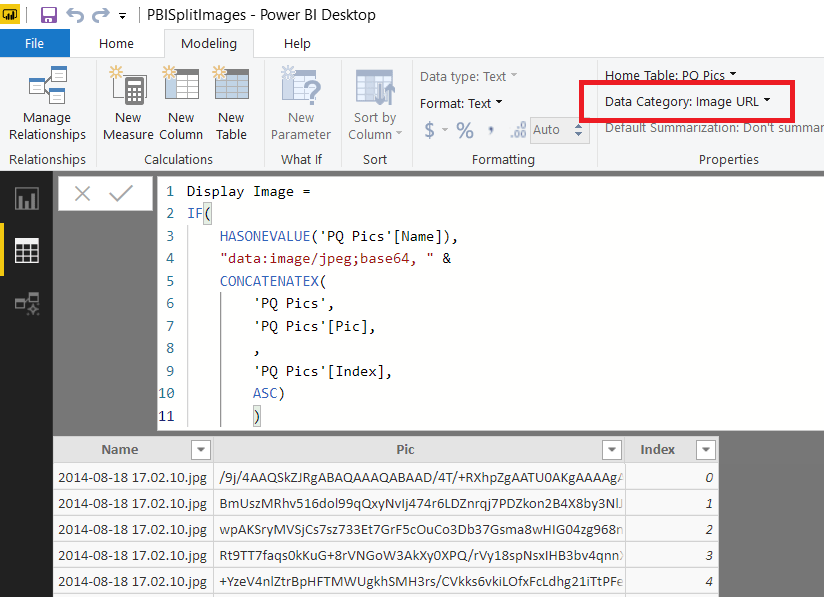
The only thing left to do is to create a measure that uses the DAX ConcatenateX() function to concatenate all of the pieces of text back into a single value, like so:

Display Image = 
IF( HASONEVALUE('PQ Pics'[Name]), 
"data:image/jpeg;base64, " & 
CONCATENATEX( 'PQ Pics', 'PQ Pics'[Pic], , 'PQ Pics'[Index], ASC) )

…set the data category of this measure to be “Image URL”:

image

…and then display the value of the image in a report:

image
image

Unfortunately, as I also mentioned in my previous post, most DAX functions (and that includes ConcatenateX()) have a limit of around 2.1 million characters so the original 2.1MB file still can’t be displayed, alas:

image

However, I do think this technique will be useful because it allows you to work with much larger pictures than before.

It can also be useful in other situations too. I recently came across a great new custom visual called PDF Viewer that can display PDF files stored in text form in a Power BI report:

image

The example file for this visual shows how a large PDF file can be split across two columns in a table; the technique I describe here is a more practical solution to this problem.

[Update 14th June 2023: the new card visual in Power BI, announced here https://powerbi.microsoft.com/en-us/blog/new-card-visual-public-preview/, supports ImageURLs too as Armand van Amersfoort shows in this video: https://www.youtube.com/watch?v=XkFJFO6p-eE%5D