Dynamic What-If With User-Entered Data In Power BI

My recent post on passing any value to a Power BI dynamic M parameter from a report generated quite a lot of interest but only among people who use DirectQuery mode and who want more flexibility when filtering. In this post, however, I’ll show you an application for this technique that is useful for anyone, regardless of whether they are using DirectQuery mode or Import mode, and which is nothing to do with filtering.

You’re probably familiar with Power BI’s what-if parameter feature which allows end users to pass values into calculations. It’s great but it has one big limitation: all the values that can be used need to be hard-coded in a calculated table at design time. What if (haha) you could let your users enter the values they wanted to use in the report instead? Let’s see a simple example of how to do this.

Here’s an Import mode fact table containing sales values for various products:

The aim is to allow end users to enter one or more percentage values in a report and have these used to calculate growth forecasts on the Sales Amount value.

To do this you need to use the technique from the blog post referenced above to let the users enter the percentage values. First, create an M parameter of type Decimal Number (called EnteredValueParam) in the Power Query Editor:

Then create a dummy query (in this case called EnteredValues) with no rows and a single numeric column to bind the parameter to. Here’s the M code for this:

#table(
  type table [EnteredValues = number],
  {}
)

Now comes the fun part. Rather than use these entered values to filter a SQL query, they will be used to generate a SQL statement that returns the same values in the form of a disconnected, DirectQuery table connected to a relational database (SQL Server in this case). Here’s the M code for a query, in this example called ReturnedValues, that does this:

let
  //Check if the M parameter returns a list                                         
  //If it doesn't, turn it into a list                                    
  FilterList =
    if Type.Is(
      Value.Type(EnteredValueParam),
      List.Type
    )
    then
      EnteredValueParam
    else
      {EnteredValueParam},
  //Generate all the individual SELECT statements                                               
  GenerateSQLQueries = List.Transform(
    FilterList,
    each "SELECT '"
      & Text.From(_)
      & "%' AS Forecast, "
      & Text.From(_)
      & " AS Pct"
  ),
  //Concatenate all the SELECT statements with UNION ALL into a single statement                                                                              
  UnionAll = Text.Combine(
    GenerateSQLQueries,
    " UNION ALL "
  ),
  //Connect to the SQL Server database and run the query                                                      
  Source = Sql.Database(
    "localhost",
    "AdventureWorksDW2017"
  ),
  RunQuery = Value.NativeQuery(
    Source,
    UnionAll
  )
in
  RunQuery

If the parameter EnteredValueParam is passed the single value 1, the ReturnedValue query generates the following SQL query and runs it:

SELECT '1%' AS Forecast, 1 AS Pct

Here’s what the ReturnedValue query returns:

If the parameter EnteredValueParam returns the list {1,25,50,75}, the ReturnedValue query generates the following SQL query and runs it:

SELECT '1%' AS Forecast, 1 AS Pct 
UNION ALL 
SELECT '25%' AS Forecast, 25 AS Pct 
UNION ALL 
SELECT '50%' AS Forecast, 50 AS Pct 
UNION ALL 
SELECT '75%' AS Forecast, 75 AS Pct

Here’s what the ReturnedValue query returns in this case:

At this point, with all the queries loaded, the dataset looks like this:

The ReturnedValues table is in DirectQuery mode; the Sales table is in Import mode; the Entered Values table is in Import mode and the EnteredValues column on that table is bound to the EnteredValueParam M parameter, which has the Multi-select property turned on.

With all this in place you can create a measure on the Sales table which takes the sum of Sales Amount and applies a percentage growth based on the selected value in the Pct column of the ReturnedValues table:

Sales Amount Forecasts =
SUM ( Sales[SalesAmount] )
    * (
        ( SELECTEDVALUE ( ReturnedValues[Pct] ) / 100 ) + 1
    )

Finally, here’s a report page that uses the Filter By List custom visual to allow end users to enter the percentage forecast values and has a matrix to display the measure above with the Product field from the Sales table on rows and the Forecast field from the ReturnedValues table on columns:

Here it is in action:

It’s a bit of a pain that you need a DirectQuery data source in order to be able to do this but it’s not too difficult to set one up and it won’t need much in the way of resources. I think this technique (which I hereby name “Dynamic DirectQuery Disconnected Dimension Tables”) could be useful in other scenarios too, such as ABC analysis. If you can think of other ways to use this let me know by leaving a comment below!

Passing Any Arbitrary Value From A Power BI Report To A Dynamic M Parameter

Dynamic M parameters are incredibly useful in Power BI when using DirectQuery mode because they allow you to pass values from your report direct to your data source query, bypassing Power BI’s own SQL (or whatever query language your source uses) generation layer. However it isn’t obvious how to pass any value you want: dynamic M parameters must be bound to slicers or filters, and they must be bound to tables in your dataset, which means that at first glance it seems like you can only pass values that are already present somewhere in your dataset (for example in a dimension table) to a dynamic M parameter. This isn’t true though: there is a way to allow passing of any value your users enter to a dynamic M parameter and in this post I’ll show you how.

First of all, why is this useful? There are two reasons why you might want to allow passing of any value to a dynamic M parameter rather than binding to a slicer or filter in the normal way:

  1. Displaying the list of possible values in a slicer or filter can be expensive, especially if the column you’re slicing on contains thousands or millions of values. It can slow down your report and lead to extra queries being run on your DirectQuery source, which can lead to performance problems.
  2. Sometimes the values you want to pass in don’t exist in your DirectQuery source. The scenarios where this is useful are very similar to the scenarios where you’d want to use what-if parameters, but the big limitation of what-if parameters is that you have to pre-calculate all the values that a user might ever want to select and store them in a table. What happens if you don’t want to, or can’t, pre-calculate all the input values?

Let’s see an example of how you can pass any value you want to a dynamic M parameter.

The AdventureWorksDW2017 sample SQL Server database has a table called FactInternetSales with a column called SalesOrderNumber, and let’s say you want to build a Power BI report where an end user can enter whatever SalesOrderNumbers they want and filter the table by them. Let’s also assume that we have to use dynamic M parameters to do this efficiently (which isn’t the case with AdventureWorksDW2017 but could well be in the real world). Here’s what the data looks like:

To set things up in the Power Query Editor you need an M parameter to hold the values entered by the end user. In this example the parameter is called SalesOrderNumber:

Note that the Current Value property is set to a value that is not a valid sales order number, so when no input has been received from the users then no rows will be returned by the report.

Next you need a query that filters the FactInternetSales table by this parameter. Here’s the M code:

let
  Source = Sql.Database(
    "localhost",
    "AdventureWorksDW2017"
  ),
  dbo_FactInternetSales = Source
    {
      [
        Schema = "dbo",
        Item   = "FactInternetSales"
      ]
    }
    [Data],
  #"Removed Other Columns"
    = Table.SelectColumns(
    dbo_FactInternetSales,
    {
      "OrderDateKey",
      "SalesOrderNumber",
      "SalesOrderLineNumber",
      "SalesAmount"
    }
  ),
  FilterList =
    if Type.Is(
      Value.Type(SalesOrderNumber),
      List.Type
    )
    then
      SalesOrderNumber
    else
      {SalesOrderNumber},
  #"Filtered Rows" = Table.SelectRows(
    #"Removed Other Columns",
    each List.Contains(
      FilterList,
      [SalesOrderNumber]
    )
  )
in
  #"Filtered Rows"

There are two interesting things to notice here:

  • This code handles the cases where a user enters a single value, in which case the SalesOrderNumber M parameter will be of type text, or when the user enters multiple values in which case the SalesOrderNumber M parameter will be of type list. For more details on handling multi-select in dynamic M parameters see this post.
  • The actual filtering is done using the List.Contains M function, which does fold on SQL Server-related data sources. If you’re using other sources you should check if query folding happens for List.Contains for your source.

Thirdly, you need a dummy dimension table with a single column for the dynamic M parameter to be bound to in the report. The dimension table shouldn’t contain any data; here’s the M code to use (the query is called DimSalesOrderNumber):

let
  Source = #table(
    type table [SalesOrderNumber = text],
    {}
  )
in
  Source

This query returns a table with a single text column called SalesOrderNumber and no rows:

Once you’ve left the Power Query Editor the next thing to do is to bind the SalesOrderNumber M parameter to the SalesOrderNumber column of the DimSalesOrderNumber table:

Note that the Multi-select property has been enabled. Binding the dynamic M parameter to a table with no rows in means there’s no way a regular slicer could be used with it, because there are no values in the table for the slicer to display.

The last problem to solve is the important one: how do you allow end users to enter any value they want? There are two ways I know of. One is to use the filter pane and the “is” filter type under “Advanced filter”:

The filter pane is great because it’s built-in but it only allows the user to enter one or two (if they use the “Or” option) values to filter on. Remember also that not all filter types are available when you’re using dynamic M parameters.

A better approach, if you’re ok with using custom visuals, is to use the Filter By List custom visual which allows the end user to enter – or even copy/paste in – a list of values:

TSQL Table-Valued Functions And Dynamic M Parameters In Power BI DirectQuery

My favourite – and it seems many other people’s favourite – new feature in the February 2022 Power BI Desktop release is support for more datasources (including SQL Server, Azure SQL DB and Synapse) with dynamic M parameters. In my opinion dynamic M parameters are extremely important for anyone planning to use DirectQuery: they give you a lot more control over the SQL that is generated by Power BI and therefore give you a lot more control over query performance.

Teo Lachev has already stolen my thunder and blogged about how the new functionality allows you to use a TSQL stored procedure as the source of a table in DirectQuery mode. In this post I’m going to show you something very similar – but instead of using a stored procedure, I’m going to show a simple example of how to use a TSQL table-valued function, which I think has a slight advantage in terms of ease-of-use.

To start off I created a table-valued function in the Adventure Works 2017 sample database on my local SQL Server which returns some filtered data from the DimDate table:

CREATE FUNCTION [dbo].[udfDates] (
    @day_name varchar(50),
	@month_name varchar(50)
)
RETURNS TABLE
AS
RETURN
    SELECT 
        FullDateAlternateKey, EnglishDayNameOfWeek, EnglishMonthName, CalendarYear
    FROM
        DimDate
    WHERE
        EnglishDayNameOfWeek=@day_name
		and
		EnglishMonthName=@month_name;

Here’s how it can be called in a SQL SELECT statement:

select 
	FullDateAlternateKey,
    EnglishDayNameOfWeek,
    EnglishMonthName,
    CalendarYear
from 
	udfDates('Thursday', 'February')
where
	CalendarYear=2005

Next, I created a Power Query query in my dataset that called this function and returned a table in DirectQuery mode. The great thing about table-valued functions is that they appear in the Navigator pane when you connect to a SQL Server database from the Power Query Editor:

You can only hard-code the values you pass to the function’s parameters at this point but even if you do nothing here you can just return an empty table. After having done this I selected DirectQuery mode:

After this I created two Power Query text parameters, called DayName and MonthName, to hold the month and day names to be passed to the function:

I also created two Import mode queries called DayNames and MonthNames to hold all the valid values for the DayName and MonthName parameters:

The last thing to do in the Power Query Editor was to edit the query calling the function to pass the M parameters to it. Here’s the M code for the query after the modification made to the “Invoked Functiondbo_udfDates1” step:

let
  Source = Sql.Database(
    "localhost", 
    "AdventureWorksDW2017"
  ), 
  dbo_udfDates = Source
    {
      [
        Schema = "dbo", 
        Item   = "udfDates"
      ]
    }
    [Data], 
  #"Invoked Functiondbo_udfDates1"
    = dbo_udfDates(DayName, MonthName)
in
  #"Invoked Functiondbo_udfDates1"

At this point I closed the Power Query Editor and loaded the three tables to my dataset:

Next I bound the EnglishDayNameOfWeek column on the DayNames table to the DayName M parameter and the EnglishMonthName column on the MonthNames table to the MonthName M parameter:

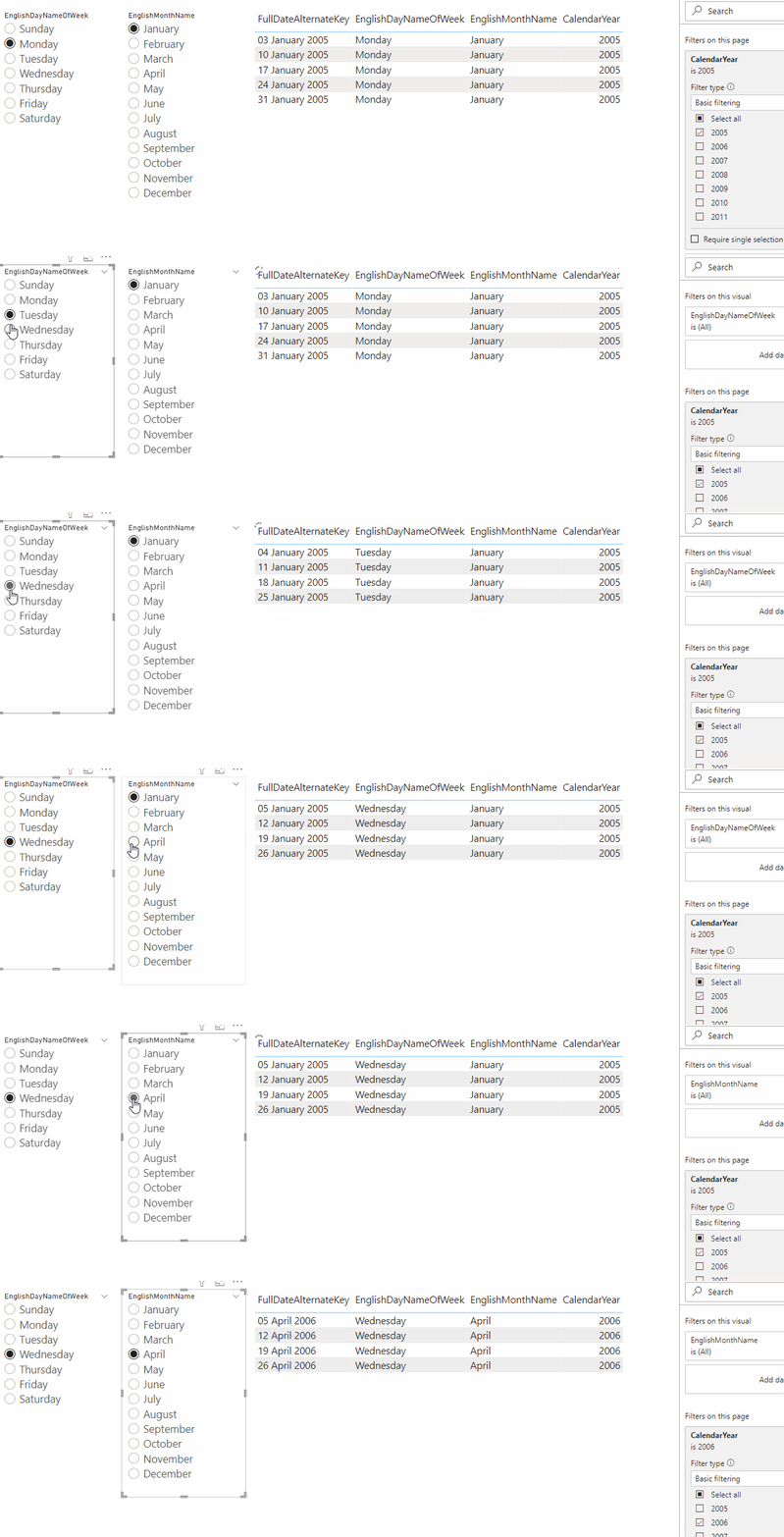
Finally, I built a report with two slicers bound to the two dynamic M parameter columns and a table showing the output of the table-valued function:

Here’s an example of the TSQL generated by Power BI to populate the table in this report:

SELECT 
TOP (501) 
[t0].[FullDateAlternateKey],
[t0].[EnglishDayNameOfWeek],
[t0].[EnglishMonthName]
FROM 
(
(
select [$Table].[FullDateAlternateKey],
    [$Table].[EnglishDayNameOfWeek],
    [$Table].[EnglishMonthName],
    [$Table].[CalendarYear]
from [dbo].[udfDates]('Thursday', 'February') as [$Table]
)
)
 AS [t0]
WHERE 
(
[t0].[CalendarYear] = 2010
)

GROUP BY 
[t0].[FullDateAlternateKey],[t0].[EnglishDayNameOfWeek],
[t0].[EnglishMonthName],[t0].[CalendarYear]
ORDER BY [t0].[FullDateAlternateKey]
ASC
,[t0].[EnglishMonthName]
ASC
,[t0].[CalendarYear]
ASC
,[t0].[EnglishDayNameOfWeek]
ASC
 

I am by no means an expert in writing efficient TSQL so I can’t comment on the pros and cons of table-valued functions, stored procedures or using native SQL queries in Power BI (although the last of these has obvious maintainability issues). Hopefully, though, you can see the possibilities – and if you do get round to using this approach on a project, please let me know how you get on!

Handling “Select All” For Slicers Bound To Dynamic M Parameters In Power BI

Last year I blogged about handling multi-select scenarios for dynamic M parameters. Since then support for “Select All” has been added (see here) but since a regular slicer with no items selected behaves the same as one with all items selected, some extra logic is needed to make a slicer bound to a dynamic M parameter behave like a regular slicer.

To illustrate this, I created a simple dataset with two tables in it:

  1. A DirectQuery table linked to the AdventureWorksDW DimDate table (a simple date dimension table), stored in Snowflake
  2. An Import mode table called Day Name that contains one column and seven rows containing the names of the days of the week

I then created an M parameter called DayParam and bound it to the DayName column of the Day Name table and enabled the Multi-select and Select all options:

Here’s the M code that shows how to use the DayParam parameter to filter the DimDate table on the EnglishDayNameOfWeek column, and handle the scenario where “Select All” has been selected as well as the scenario where no item has been selected:

let
  Source = Snowflake.Databases(
    "xyz.snowflakecomputing.com",
    "DEMO_WH"
  ),
  AWORKS_Database = Source
    {
      [
        Name = "AWORKS",
        Kind = "Database"
      ]
    }
    [Data],
  PUBLIC_Schema = AWORKS_Database
    {[Name = "PUBLIC", Kind = "Schema"]}
    [Data],
  DIMDATE_Table = PUBLIC_Schema
    {[Name = "DIMDATE", Kind = "Table"]}
    [Data],
  #"Filtered Rows" =
    if DayParam = null then
      DIMDATE_Table
    else if Type.Is(
      Value.Type(DayParam),
      List.Type
    )
    then
      if DayParam = {"__SelectAll__"} then
        DIMDATE_Table
      else
        Table.SelectRows(
          DIMDATE_Table,
          each List.Contains(
            DayParam,
            [ENGLISHDAYNAMEOFWEEK]
          )
        )
    else
      Table.SelectRows(
        DIMDATE_Table,
        each [ENGLISHDAYNAMEOFWEEK]
          = DayParam
      )
in
  #"Filtered Rows"

The #”Filtered Rows” step does the following:

  • If nothing is selected in the slicer then the DayParam parameter will contain a null value, and in this case no filter will be applied to the DimDate table
  • If the DayParam parameter is of type list (when there is a multi-select in the slicer) then
    • If it’s a list containing a single text value of “__SelectAll__”, the default value returned when the slicer has “Select all” selected, then no filter will be applied to the DimDate table
    • Otherwise List.Contains will be used to filter the DimDate table by all the selected values
  • Otherwise the DayParam parameter will contain a single scalar value (because a single value has been selected in the slicer) and the DimDate table will be filtered by that value

Here’s how it works: