Aggregating By Local Groups In Power Query

When looking through the Power Query library reference I noticed that the Table.Group() function has a very useful option to aggregate data using what it calls local groups. Rather than explain what this does, let me show you…

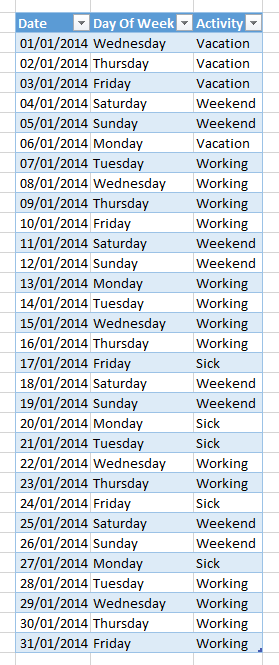
Consider the following table showing all of the days in January and whether an employee was on holiday, at work or off sick on any given day in January 2014:
image

Importing this into Power Query and finding the number of days spent on each activity is trivial using the Group By functionality in the Power Query window. Here’s the script that the UI generates:

let

    Source = Excel.CurrentWorkbook(){[Name="Calendar"]}[Content],

    GroupedRows = Table.Group(Source, {"Activity"}, 

        {{"Count of Days", each Table.RowCount(_), type number}})

in

    GroupedRows


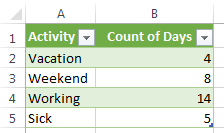
And here’s the output it generates:
image

So far so good. But wouldn’t it be useful to know about distinct time ranges spent on each activity? For example, you can see from the first screenshot that this particular employee was off sick from Friday January 17th to Tuesday January 21st, and then again from Friday January 24th to Monday January 27th; you might want to see these aggregated into two separate time ranges. Table.Group() also allows you to do this.

First, here’s a script with an example:

let

    Source = Excel.CurrentWorkbook(){[Name="Calendar"]}[Content],

    FilteredRows = Table.SelectRows(

                    Source

                    , each ([Day Of Week] <> "Saturday" and [Day Of Week] <> "Sunday")),

    TimeRanges = Table.Group(

                    FilteredRows

                    , "Activity"

                    , {

                        {"Start Date", each List.Min([Date]), type date}

                        , {"End Date", each List.Max([Date]), type date}

                        , {"Number of Days", each List.Count([Date]), type number}

                      }

                    , GroupKind.Local)

in

    TimeRanges

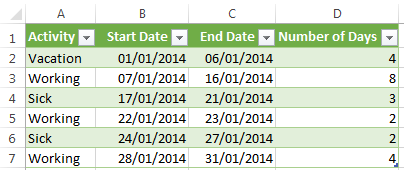
Here’s the output:
image

You can see from this screenshot that I now have one row for each consecutive range of days (ignoring weekends) spent either on vacation, working or off sick.

Step-by-step, here’s an explanation of what’s happening in the script:

  • Source imports the data from the table in the worksheet
  • FilteredRows filters out the days that fall on a weekend
  • TimeRanges uses the Table.Group function to do all the interesting stuff:
    • It takes the table returned by the FilteredRows step
    • Does a Group By on the Activity column
    • It calculates the min, max and count of the Date column and adds them as new columns
    • The GroupKind.Local optional parameter is the key to getting the behaviour you can see here. The default type of grouping, GroupKind.Global, does a standard group by across the whole table as seen in the first example above. GroupKind.Local on the other hand aggregates only over consecutive sequences of rows, and this means we see three separate time ranges for the activity “Working” and two separate groups for “Sick”.

Pretty cool, isn’t it?

You can download the sample workbook here.
Updating Data In SQL Server With Power Query

As of the November update of Power Query, it’s now possible to write your own SQL query when you’re moving data out of SQL Server into Excel using Power Query. So I got thinking… if you can write your own SQL query, can you execute any other SQL statement? Can you use Power Query to move data out of Excel and into SQL Server? Well, it turns out you can… with some limitations. This blog post details what I found out while researching this problem.

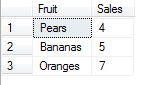
I started with a simple table in a SQL Server database with two columns, Fruit and Sales, and some data:

image

I then created a new function in Power Query with the following definition:

let

    UpdateFunction = (Fruit, Sales) => 

                        Sql.Database(

                            "MySQLServerInstance", 

                            "PowerQueryTest", 

                            [Query="UPDATE [FruitSales] SET [Sales]=" & Number.ToText(Sales) 

                            & " WHERE Fruit='" & Fruit & "'"])

in

    UpdateFunction


As you can see, it takes the name of a fruit and a sales value and updates the appropriate row in the SQL Server table. I then created a new table in Excel with some new fruit sales values:

image

Used this table as the source for another Power Query query, and for each row in this table called the function above:

let

    Source = Excel.CurrentWorkbook(){[Name="Table1"]}[Content],

    InsertedCustom = Table.AddColumn(Source, "Custom", each UpdateFunction([Fruit],[Sales])),

    #"Expand Custom" = Table.ExpandTableColumn(InsertedCustom, "Custom"

                        , {"Records Affected"}, {"Custom.Records Affected"})

in

    #"Expand Custom"


I ran this query, and lo! My table in SQL Server was updated:

image

There are some interesting things to note here though. First, for each row in my Excel table, and each time an UPDATE statement was run, Power Query showed a prompt warning me that it was about to make a change to my database:

image 

Probably the safe thing to do here, I think.

Furthermore, running a Profiler trace showed that each UPDATE statement was run at least twice. In fact, I originally started my tests with an INSERT INTO rather than an UPDATE, and found that since the INSERT INTO was run multiple times I ended up with duplicate rows in my table.

None of the code I’ve showed here should be used in a real application of course, but with some thought (and maybe a few changes to the way Power Query behaves), in the future it might be possible to use Power Query to move data out of Excel as well as in.

Pivoting Data In Power Query

One of the features I’ve loved right from the start in Power Query is the ability to UnPivot data right from the UI (I’m not alone – Ken Puls has written a good blog post summing up this functionality and is equally impressed). However earlier this year when I was trying to implement Life in Power Query, I found that I needed to do the opposite: I needed to pivot data. I was able to do this with some pretty complex M, but since then the nice people on the Power query team have added a new Table.Pivot() function to allow this to be done easily. Unfortunately pivoting is not something that can be done using the UI alone (at least not at the time of writing), but it’s pretty straightforward to write your own M expression to use this new function.

Let’s take the following table as a starting point:

image

You can see, in the Measure column, we have values Sales Units and Sales Value that tell us what the numbers in each row in the Value column represent. For most purposes, it’s better to pivot this data so that we have two columns, one for Sales Units and one for Sales Value. You can do this pivot operation in a single step using Table.Pivot(). Here’s an example script that loads the data from the table above and pivots it:

let

    Source = Excel.CurrentWorkbook(){[Name="Table1"]}[Content],

    Pivot = Table.Pivot(Source, {"Sales Units", "Sales Value"}, "Measure", "Value")

in

    Pivot

Here’s the output:

image

It’s worth pointing out that if you don’t include each distinct value from your chosen column in the second parameter, those rows will be lost after the pivot takes place. So

= Table.Pivot(Source, {"Sales Units"}, "Measure", "Value")

Returns just:

image


Listing out all the column names in that second parameter is a bit of a pain, so we can get a list with all the distinct values in that column and improve our expression as follows:

= Table.Pivot(Source, List.Distinct(Table.Column(Source, "Measure")), "Measure", "Value")

This returns the same result as our first query – it uses Table.Column() to get a list of all the values in the Measure column, then List.Distinct() to return only the distinct values from that list.

Finally, there is an optional fifth parameter that can be used to aggregate data. The following source table has two rows for Sales Value for March:

image

If I use my original expression the pivot will work but I’ll get an error value in the cell for Sales Value for March:

image

Specifying a function to aggregate the data in these scenarios, where two cells need to be pivoted to one, solves the problem:

= Table.Pivot(Source, {"Sales Units", "Sales Value"}, "Measure", "Value", List.Sum)

image

In this case I’m passing the function List.Sum() to get the value 10+15=25 in the cell for Sales Value for March.

UPDATE: this feature is now available through the UI. Still, it’s nice to know how to do it in code 🙂

Generating A Date Dimension Table In Power Query

There are hundreds of different methods for generating a Date dimension table for use in Power Pivot: you can use TSQL, Excel formulas, import from the DateStream table in the Windows Azure Marketplace, and there’s even an app for it. Nevertheless I thought it would be a good idea to solve this problem in Power Query because:

  • It seems like the natural tool to use, and a date table is one of the first tables a data steward will want to share with his/her users.
  • It’s a very good way to learn about and demonstrate all the date functionality in M and Power Query. The more M code examples that there are out there, the better, right?
  • Having just signed the contract to write a whole book on Power Query I need to master M very quickly!

Here’s how I did it. First of all, I decided to implement a function to create the table rather than a regular query; this function takes two parameters: the start date and the end date of the range of dates to appear in the table. Here’s the function I came up with:

let

    CreateDateTable = (StartDate, EndDate) =>

let

    /*StartDate=#date(2012,1,1),

    EndDate=#date(2013,12,31),*/

    //Create lists of month and day names for use later on

    MonthList = {"January", "February", "March", "April", "May", "June"

                 , "July", "August", "September", "October", "November", "December"},

    DayList = {"Sunday", "Monday", "Tuesday", "Wednesday", "Thursday", "Friday", "Saturday"},

    //Find the number of days between the end date and the start date

    NumberOfDates = Duration.Days(EndDate-StartDate)+1,

    //Generate a continuous list of dates from the start date to the end date

    DateList = List.Dates(StartDate, NumberOfDates, #duration(1, 0, 0, 0)),

    //Turn this list into a table

    TableFromList = Table.FromList(DateList, Splitter.SplitByNothing(), {"Date"}

                     , null, ExtraValues.Error),

    //Caste the single column in the table to type date

    ChangedType = Table.TransformColumnTypes(TableFromList,{{"Date", type date}}),

    //Add custom columns for day of month, month number, year

    DayOfMonth = Table.AddColumn(ChangedType, "DayOfMonth", each Date.Day([Date])),

    MonthNumber = Table.AddColumn(DayOfMonth, "MonthNumberOfYear", each Date.Month([Date])),

    Year = Table.AddColumn(MonthNumber, "Year", each Date.Year([Date])),

    DayOfWeekNumber = Table.AddColumn(Year, "DayOfWeekNumber", each Date.DayOfWeek([Date])+1),

    //Since Power Query doesn't have functions to return day or month names, 

    //use the lists created earlier for this

    MonthName = Table.AddColumn(DayOfWeekNumber, "MonthName", each MonthList{[MonthNumberOfYear]-1}),

    DayName = Table.AddColumn(MonthName, "DayName", each DayList{[DayOfWeekNumber]-1}),

    //Add a column that returns true if the date on rows is the current date

    IsToday = Table.AddColumn(DayName, "IsToday", each Date.IsInCurrentDay([Date]))

in

    IsToday

in

    CreateDateTable


Some things to point out:

  • Look – comments! Both multi-line /* */ and single line //. Adding comments to complex Power Query queries and functions is of course a Good Thing and something we should all be doing.
  • The way I created the table from the start and end date is quite interesting: the List.Dates() function allows you to generate a list of dates from one date to another; I was then able to take this list and turn it into a table with Table.FromList().
  • Adding extra columns to the table for the year and month number and so on is fairly straightforward. However, as far as I can see, Power Query does not have the ability to return month or day names (as opposed to numbers) from a date, so to get round this I created two lists called MonthList and DayList containing the months of the year and the days of the week, in order, took the day and month numbers and used these to find the name at the nth position in the list (see the MonthName and DayName steps).
  • Date.IsInCurrentDay() compares a date with the current system date and allows you to see if a date is today’s date. There are a whole bunch of other interesting functions like this such as Date.IsInPreviousWeek(), Date.IsInCurrentYear() and so on, useful for creating relative date dimension tables like the one I describe here.
With the function created it’s very easy to generate a table using it. For example, I created a parameter table with start date and end date columns like so:

image

I then used this table as the starting point for a new query that called my function:

let

    Source = Excel.CurrentWorkbook(){[Name="Table3"]}[Content],

    ChangedType = Table.TransformColumnTypes(Source,{{"Start Date", type date}

                  , {"End Date", type date}}),

    CallCreateDateTable = CreateDateTable(ChangedType[Start Date]{0}

                          ,ChangedType[End Date]{0})

in

    CallCreateDateTable

Here’s the output:

image

You can download my demo workbook with all the code in from here.
PS If you haven’t downloaded the November update for Power Query already, I recommend you do so – the UI has been improved a lot.

Reusing A Power Query Connection

One of the things I like least about Power Query at the moment is the lack of control over where the results of your queries end up in Excel. For example, if you create a new query and load it onto a worksheet, your table always ends up in the top left hand corner of a worksheet. Furthermore, it seems like every time you refresh your query, then the table it’s bound to gets deleted and recreated so any extra calculated columns or formatting you have added to the table disappear.

There is, however, a way around this. If you go to the Data tab in Excel and click the Existing Connections button you can see the OLEDB connection that Power Query creates in the “Connections in this Workbook” section:

image

You can then double-click on the connection and create a new table from that connection, call it whatever you want, add formatting, calculated columns and so on and all of these things will remain intact when you refresh. Even better, when you refresh the table it will re-execute the underlying Power Query query. This is a much better experience for consuming the results of your Power Query query, in my opinion.

Incidentally, Miguel Llopis of the Power Query team told me on the forum that this is an area of functionality that they hope to address in early 2014, so hopefully this blog post will be redundant in a few months.

Implementing Common Calculations In Power Query

When I first saw Data Explorer (as Power Query used to be called), I immediately started thinking of it as a self-service ETL tool; indeed, it’s how Microsoft itself is positioning it. However I suspect that a lot of Power Query users might also want to use it for building reports too: it could be that they find DAX too difficult, and if all they need is a simple table-based report they might not want to bother with using Power Pivot at all.

If that happens then it’s going to be important to be able implement common business calculations in Power Query… hence this blog post. I’ll also admit that I wanted to know how easy it is to write these calculations – because if it isn’t easy, or if it isn’t easier than DAX or the equivalent Excel formulas, then no-one will bother doing it. So let’s look at some examples.

Simple Percentage Share

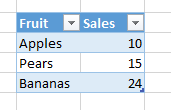
Take the following table in Excel as a starting point:

image

Now let’s imagine that we want to find the percentage that each fruit makes up of the grand total (ie 10+15+24=49). The way to calculate the percentage is quite easy: you need to find the grand total, then divide the sales for each fruit by the grand total. Finding the grand total requires some code though – you might think you could do it easily in the UI using the Group By functionality, but that does not allow you to sum up all the values in a column and not group by anything! (I hope this gets fixed soon). Luckily the code is quite easy: you use Table.Column() to convert the Sales column into a List, then use List.Sum() to sum up all the values in that List. Finally, you insert a new custom column to the original table and calculate the percentage. Here’s the code:

let

    Source = Excel.CurrentWorkbook(){[Name="Table1"]}[Content],

    Sales = Table.Column(Source, "Sales"),

    GrandTotal = List.Sum(Sales),

    TableWithShare = Table.AddColumn(Source, "Share", each [Sales]/GrandTotal)

in

    TableWithShare

image

It would also be nice if I could get the table that Power Query outputs to remember the number formatting I apply to it after it refreshes… again, I hope this gets fixed.

Nested Share

A more complex example of a Share calculation might be where we need a share of a subtotal. Consider the following table:

image

In this case, let’s say we need to show each Fruit’s sales as a percentage of the total sales of its Category. This time we can use the Group By functionality to get a table containing the subtotals very easily. Next, we can join our subtotal table with the original table using Table.Join() so we have the subtotals on each row. Finally, we can do the share calculation and remove the subtotal column again. Here’s the code:

let

    Source = Excel.CurrentWorkbook(){[Name="Table4"]}[Content],

    Subtotals = Table.Group(Source, {"Category"}, {{"Category Sales", 

        each List.Sum([Sales]), type number}}),

    JoinTables = Table.Join(Source, "Category", Subtotals, "Category"),

    InsertedCustom = Table.AddColumn(JoinTables, "Share", each [Sales]/[Category Sales]),

    RemovedColumns = Table.RemoveColumns(InsertedCustom,{"Category Sales"})

in

    RemovedColumns

image

Previous Period Growth

Now consider a table with a date column (Americans: the dates are in dd/mm/yyyy format) and a sales column:

image

Let’s say we want to find the absolute change in Sales from the previous date to the current date on each row. Here we need to copy the table, shift the dates forward one day (by adding a value of type Duration onto the date) and then join the original table onto this new table using Table.Join() so we can see the current day sales and the previous day sales in two columns next to each other; this will then mean we can subtract one from the other to find the growth. Here’s the code:

let

    Source = Excel.CurrentWorkbook(){[Name="Table7"]}[Content],

    ChangedType = Table.TransformColumnTypes(Source,{{"Date", type date}}),

    InsertedCustom = Table.AddColumn(ChangedType, "Next Date", each [Date]+#duration(1,0,0,0)),

    RemovedColumns = Table.RemoveColumns(InsertedCustom,{"Date"}),

    RenamedColumns = Table.RenameColumns(RemovedColumns,{{"Sales", "Previous Sales"}}),

    JoinTables = Table.Join(ChangedType, "Date", RenamedColumns, "Next Date",JoinKind.LeftOuter),

    RemovedColumns1 = Table.RemoveColumns(JoinTables,{"Next Date"}),

    SortedRows = Table.Sort(RemovedColumns1,{{"Date", Order.Ascending}}),

    Growth = Table.AddColumn(SortedRows, "Growth", each [Sales]-[Previous Sales])

in

    Growth

image

Year-to-Date Sales

For the final example, take the same starting table and before and now let’s calculate a year-to-date running sum. In this case, I decided to use a function (see here for some background on this, and here for a more complex example of a function) to do the calculation. Here’s the code of the function, called YTD(), that I created:

let

    YTD = (SalesTable, EndDate) =>

    let

        FilteredTable=Table.SelectRows(SalesTable, 

            each [Date]<=EndDate and Date.Year([Date])=Date.Year(EndDate) ),

        SalesColumn = Table.Column(FilteredTable, "Sales"),

        YTDSales = List.Sum(SalesColumn)

    in

        YTDSales

in

    YTD

It takes a table structured in the same way as the source table (ie it has to have a [Date] column and a [Sales] column), filters the data using Table.SelectRows() so only rows with a date less than or equal to the EndDate parameter, but in the same year as it, are returned, and then sums up the values in the [Sales] column of the filtered table.

It’s then very easy to use this function in a new calculated column in a query:

let

    Source = Excel.CurrentWorkbook(){[Name="Table7"]}[Content],

    ChangedType = Table.TransformColumnTypes(Source,{{"Date", type date}}),

    InsertedCustom = Table.AddColumn(ChangedType, "YTD Sales", each YTD(ChangedType, [Date]))

in

    InsertedCustom

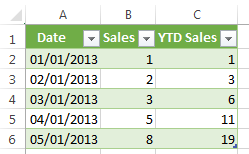
And voila, we have a column containing the year-to-date sum:

image

Conclusion

All of these examples here required me to write M code, and to be honest this is not something an ordinary user will ever be able to do. Furthermore, I suspect that end users will always prefer to write their calculations as Excel formulas, although more complex calculations such as nested shares might prove beyond them. However, I believe that a good data steward will certainly be able to write M code, and the last example above makes me think that if a data steward can write a function that performs a calculation and shares it with the end users, the end users should be able to use it in their own queries quite easily. I don’t think the code I’ve written here is any worse or better than the DAX equivalent but the ability to share functions could tip the balance in favour of Power Query for some simple reporting scenarios.

You can download a workbook with all the examples above here.
Sharing Functions In Power Query

The Power BI Preview includes the ability to share Power Query queries with other people in your organisation; I was thinking about writing a blog post on this topic, but to be honest the documentation covers it so well there’s little point repeating what it says. My assumption is that it will be data stewards who do the majority of query creation and sharing, and that it will be less able users who consume these prebuilt queries.

Sharing a query is all very well, but in Power Query it’s also possible to share functions (which are, after all, just a different type of query) too – which is the subject of this post. What’s the point of doing this, I hear you ask? Well, if a data steward shares a query, they are sharing a fixed table of data that the end user can then manipulate however they want. If however a data steward shares a function, this means that they are giving end users something slightly different – an interface that returns a different table of data depending on the parameters that are passed into it, and which may be much easier to use. Sharing a query is a bit like creating a view in SQL Server; sharing a function is more like creating a stored procedure.
Here’s an example. Let’s imagine that a user who only has the most basic Power Query skills wants to get some data from the DimDate table in the Adventure Works database. A data steward could share a query that returns the entire table, but if the user only wants a few rows from that table they are going to have to use the query as a starting point and apply a filter themselves in their own query. On the other hand, a data steward could share a function that applied a filter to the DimDate table, and then when the user came to use that function they would just have to fill in some basic parameter values and they could get the data they needed much more easily.
The M script for the function could be something like this (note: I created this function by first creating a regular query in Power Query then altering it manually to make it into a function – it wasn’t very difficult):

let

    GetDates=(StartYear, StartMonth, StartDate, EndYear, EndMonth, EndDate)=>

let

    Source = Sql.Databases("localhost"),

    #"Adventure Works DW" = Source{[Name="Adventure Works DW"]}[Data],

    DimDate = #"Adventure Works DW"{[Name="DimDate"]}[Data],

    FilteredRows = Table.SelectRows(DimDate, each [FullDateAlternateKey] >=

          #date(StartYear, StartMonth, StartDate)

          and [FullDateAlternateKey] <= #date(EndYear, EndMonth, EndDate))

in

    FilteredRows

in

    GetDates

This function takes six parameters: the year, month and date for a start date and an end date. It then returns the rows from DimDate that fall between the start date and the end date. The data steward would just need to share this like any other query.

The end user, in Excel, would use the Online Search dialog in Power Query to find the function they wanted:

image

Clicking on Filter and Shape would bring up the Query Editor dialog:

image

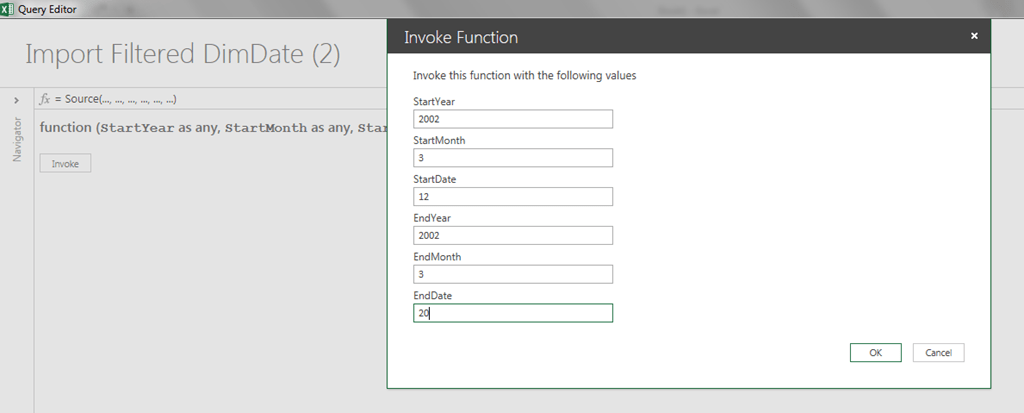
They would then need to click the Invoke button to enter the parameter values:

image

And once they had clicked OK, they’d have the rows they wanted (though they would need to enable Fast Combine first):

image

The whole process isn’t as slick as I think it could be, but I still think it’s easy enough for anyone who has mastered Power Pivot. Of course this is a very simple example; the real advantage of this would come with more complex functions that contain expressions that an end user would never be able to write on their own.

One thing I’m still not sure of, though, is what happens exactly when a data steward updates the definition of a shared query or function. It seems as though once you have imported a shared query its definition is fixed, and even if the data steward updates the definition of the query any existing users of it are stuck with the old version (I’ve asked a question on the forum about this and will update this post when I get an answer). This might be the safe thing to do – after all, you don’t want a data steward changing what a shared query returns and breaking any code you have built on top of it – but it also means that if you did need to use the updated version you would need to import it a second time. It would be nice to have the option to refresh the definition of a query after you have imported it.

UPDATE: I got a reply to my question on shared queries from Miguel Llopis of the Power Query dev team:
“That’s correct: when sharing a query into the Data Catalog, you are sharing a copy of such query; when a user searches and uses a query from the results, they are making a local copy of the query into their workbook; when a shared query owner makes updates to the query, these updates overwrite the definition of the shared query in the catalog, but doesn’t propagate (or notify) changes to existing copies of the query.”

Returning The Contents Of Any Table In Any Excel Workbook In Sharepoint With Power Pivot And Power Query

Yet another Power Query post this week (with more to come) – today I’m going to show you how you can use Power Pivot and Power Query to build a dynamic solution that allows a user to browse through all the Excel workbooks stored in a Sharepoint document library and see the contents of any table in any workbook they choose. Why would you want to do this? Well, I’m not really sure, but I visited a customer a few months ago where an analyst (a data steward?!) had created a repository of Excel workbooks containing various datasets used for BI in Sharepoint. Maybe it could be useful to use Power Query to browse these datasets… and even if it isn’t, it’s still a learning experience for me 🙂

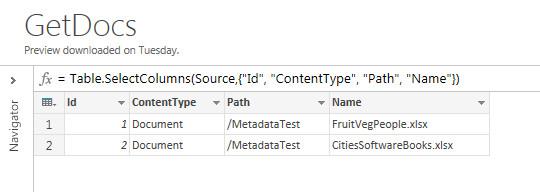
The first step is to build a Power Query query that returns a list of all of the Excel workbooks in a Sharepoint document library. There are a couple of ways of doing this; you could use the SharePoint.Contents() function, but I opted to use the OData REST api that Sharepoint exposes because it was faster and easier to work with. The following Power Query query is all that’s needed to get a list of files in a library called MetadataTest:

let

    Source = OData.Feed("https://zzzz.sharepoint.com/_vti_bin/listdata.svc/MetadataTest"),

    RemovedOtherColumns = Table.SelectColumns(Source,{"Id", "ContentType", "Path", "Name"})

in

    RemovedOtherColumns


image

These all happen to be Excel workbooks, which makes things easier for me.

The next thing to do is to get a list of all the tables in any of these Excel workbooks. Again, you can use OData for this. Here’s an example query that requests the $metadata of the OData endpoint that an Excel workbook called FruitVegPeople.xlsx exposes, interprets the response as an XML document, and finds the list of tables in the workbook from that XML document (this last step accounts for 90% of the code below):

let

    Source = Xml.Document(

    OData.Feed(

    "https://zzzz.sharepoint.com/

    _vti_bin/ExcelRest.aspx/MetadataTest/FruitVegPeople.xlsx/OData/$metadata"

    )),

    Value = Source{0}[Value],

    Value1 = Value{0}[Value],

    Value2 = Value1{0}[Value],

    Value3 = Value2{3}[Value],

    #"Expand Value" = Table.ExpandTableColumn(Value3, "Value"

        , {"Name", "Namespace", "Value", "Attributes"}

        , {"Value.Name", "Value.Namespace", "Value.Value", "Value.Attributes"}),

    #"Expand Attributes" = Table.ExpandTableColumn(#"Expand Value", "Attributes"

        , {"Name", "Namespace", "Value"}

        , {"Attributes.Name", "Attributes.Namespace", "Attributes.Value"}),

    FilteredRows = Table.SelectRows(#"Expand Attributes", each ([Attributes.Name] = "Name")),

    RemovedOtherColumns = Table.SelectColumns(FilteredRows,{"Attributes.Value"}),

    RenamedColumns = Table.RenameColumns(RemovedOtherColumns,{{"Attributes.Value", "TableName"}})

in

    RenamedColumns


In this case, there are three tables called Fruit, Vegetable and Person returned:

image

At this point you can find a list of files in a library and find a list of tables in an Excel workbook; what you really need is a single list of all the tables in all of the files. This can be accomplished by turning the second query above into a function, and calling that function for each file returned by the first query. Here’s the function:

let

    Source = (SharepointRootURL, ExcelSourceDoc) => 


let

    Source = 

    Xml.Document(

    OData.Feed(SharepointRootURL & "/_vti_bin/ExcelRest.aspx" & ExcelSourceDoc & "/OData/$metadata"

    )

    ),

    Value = Source{0}[Value],

    Value1 = Value{0}[Value],

    Value2 = Value1{0}[Value],

    Value3 = Value2{3}[Value],

    #"Expand Value" = Table.ExpandTableColumn(Value3, "Value", {"Name", "Namespace"

    , "Value", "Attributes"}, {"Value.Name", "Value.Namespace", "Value.Value", "Value.Attributes"}),

    #"Expand Attributes" = Table.ExpandTableColumn(#"Expand Value", "Attributes"

    , {"Name", "Namespace", "Value"}, {"Attributes.Name", "Attributes.Namespace", "Attributes.Value"}),

    FilteredRows = Table.SelectRows(#"Expand Attributes", each ([Attributes.Name] = "Name")),

    RemovedOtherColumns = Table.SelectColumns(FilteredRows,{"Attributes.Value"}),

    RenamedColumns = Table.RenameColumns(RemovedOtherColumns,{{"Attributes.Value", "TableName"}})

in

    RenamedColumns


in

    Source


And here it is used:

let

    SharepointRootURL = "https://zzzz.sharepoint.com",

    Source = OData.Feed(SharepointRootURL & "/_vti_bin/listdata.svc/MetadataTest"),

    RemovedOtherColumns = Table.SelectColumns(Source,{"Id", "ContentType", "Path", "Name"}),

    InsertedCustom = Table.AddColumn(RemovedOtherColumns, "Custom"

    , each GetTablesFunction(SharepointRootURL, [Path] & "/" & [Name] )),

    #"Expand Custom" = Table.ExpandTableColumn(InsertedCustom, "Custom", {"TableName"}, {"TableName"}),

    InsertedCustom1 = Table.AddColumn(#"Expand Custom", "TableODataURL", each SharepointRootURL 

    & "/_vti_bin/ExcelRest.aspx" & [Path] & "/"  & [Name] & "/OData/" & [TableName]),

    RemovedColumns = Table.RemoveColumns(InsertedCustom1,{"ContentType", "Id"})

in

    RemovedColumns


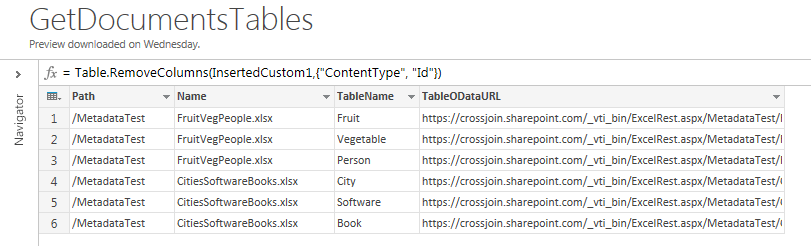
image

This gives you the list of workbooks and tables you need, and this table itself can now be loaded into the Excel Data Model. You can now build a report using this data something like this:

image

The slicers allow the user to select a folder, a workbook and a table in a workbook. In the top right hand corner is a PivotTable displaying a measure with the following definition:

TableODataURLMeasure:=

IF(HASONEVALUE(GetDocumentsTables[TableODataURL]), VALUES(GetDocumentsTables[TableODataURL]))

This returns the URL containing the OData feed for the contents of the selected table. The PivotTable is a bit of a red herring, in fact – I only created it so the slicer highlighting would work properly, a trick I use quite frequently when I’m working with Excel cube functions (the PivotTable itself can be hidden from the end user). In the bottom right hand corner, in the cell selected in the screenshot above, is a CubeValue() function that returns the same measure value and I’ve put that cell into an Excel table – which means that we can now use this measure value as an input to yet another Power Query query.

Two last bits of code: first, a Power Query function that will return the contents of any OData feed passed to it.

let

    Source = (ODataTableURL) => 


let

    Source = OData.Feed(ODataTableURL),

    RemovedColumns = Table.RemoveColumns(Source,{"excelUpdated", "excelRowID"})

in

    RemovedColumns


in

    Source


Finally, a query that takes this function and calls it for the URL selected by the user above:

let

    Source = GetTableContentsFunction(Excel.CurrentWorkbook(){[Name="TableODataURL"]}[Content]{0}[URL])

in

    Source


And there you have it – a way of selecting any table in any Excel workbook in a Sharepoint library and seeing its contents. You can download the sample workbook here, although of course you’ll have to modify all the URLs to make it work on. 

PS Is it just me, or does “Power Query query” seem like a bit of a mouthful? Would it be ok just to talk about queries in future? That seems a bit misleading… maybe I should talk about “a Power Query”? That doesn’t sound right either. Hmmm.

Some Power Query/M Examples

The more I use Power Query and the M language that underpins it, the more I see how useful it is – quite apart from its abilities to import data from other data sources – as a third option (after regular Excel formulas and Power Pivot/DAX) to solve problems in Excel itself. For example, last week I read this blog post by David Hager about finding the number of unique values in a delimited string:

http://dailydoseofexcel.com/archives/2013/08/07/calculating-the-number-of-unique-items-in-a-delimited-string/

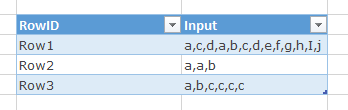
It’s an interesting question and the Excel formulas in this post are way beyond what I’m capable of writing. The point is, though, that Power Query can do this very easily indeed just through the UI. Starting with the following table in a worksheet:

image

You just need to import it into a Power Query query:

image

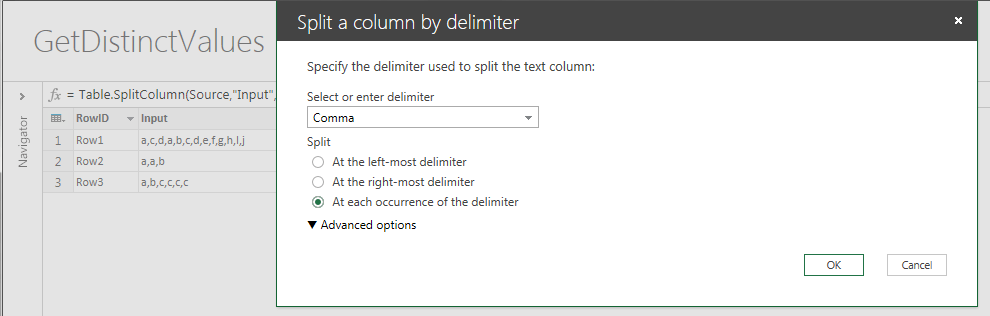
Use the Split Column/By Delimiter/By Comma option on the Input column:

image

This creates as many columns as you’ve got values in the delimited list with the largest number of values:

image

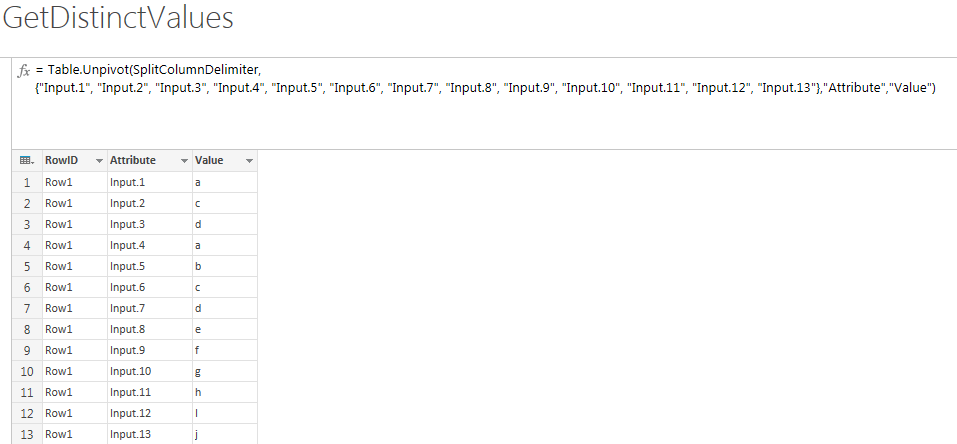
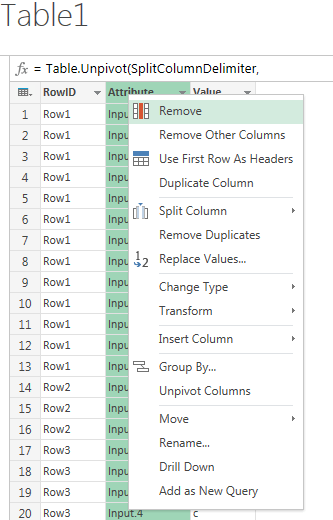
You can then use the Unpivot option on these new columns:

image

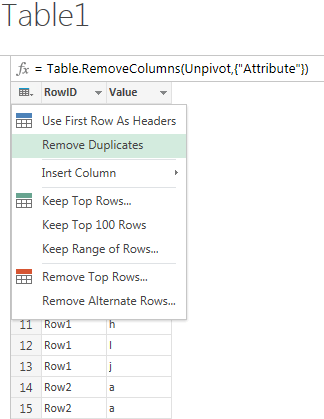
Then remove the Attribute column:

image

Next, select Remove Duplicates on the entire table:

image

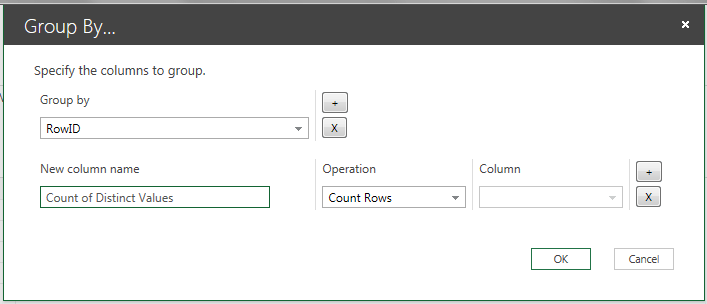
Finally, do a Group By on the RowID column and Count the number of rows:

image

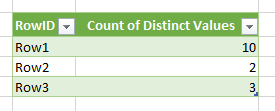
And bingo, you have the number of distinct values in each delimited list:

image

Here’s the complete code:

let

    Source = Excel.CurrentWorkbook(){[Name="Table1"]}[Content],

    SplitColumnDelimiter = Table.SplitColumn(Source,"Input",Splitter.SplitTextByDelimiter(","),13),

    Unpivot = Table.Unpivot(SplitColumnDelimiter,{"Input.1", "Input.2", "Input.3", "Input.4",

    "Input.5", "Input.6",    "Input.7", "Input.8", "Input.9", "Input.10", "Input.11", "Input.12"

    ,  "Input.13"},"Attribute","Value"),

    RemovedColumns = Table.RemoveColumns(Unpivot,{"Attribute"}),

    DuplicatesRemoved = Table.Distinct(RemovedColumns),

    GroupedRows = Table.Group(DuplicatesRemoved, {"RowID"}, {{"Count of Distinct Values"

    , each Table.RowCount(_), type number}})

in

    GroupedRows


Emboldened by this, I turned to another Excel challenge – this time from Chandoo’s blog:

http://chandoo.org/wp/2013/07/16/formula-challenge-001-1/

This time the objective is to split a string containing blocks of text and numbers so that you get everything after the first block of numbers. The whole point of the challenge that Chandoo lays down is to do this in a single Excel formula with no VBA; I was just curious to see how easy it would be to solve the problem in Power Query however many steps it took. Unfortunately this is not a something that you can do just in the UI and you need to write some M, but the code isn’t too bad:

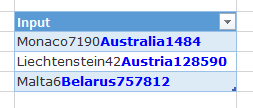
Starting with the following table:

image

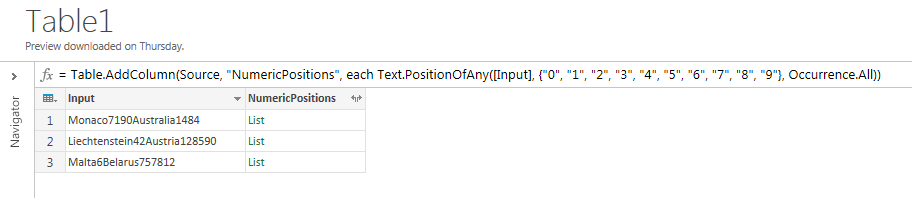
You then need to create a new column containing a list of the positions of every occurrence of a numeric character in each string:

image

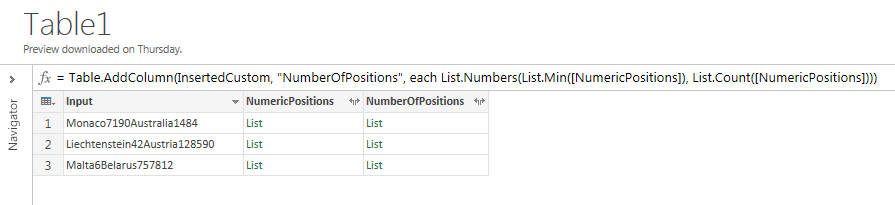
Then create another new column containing a list of continuous numbers starting from the first number in the previous list and incrementing by 1:

image

Then create another new column containing the minimum value from a list all of the values that are in the previous list and not in the first list you created :

image

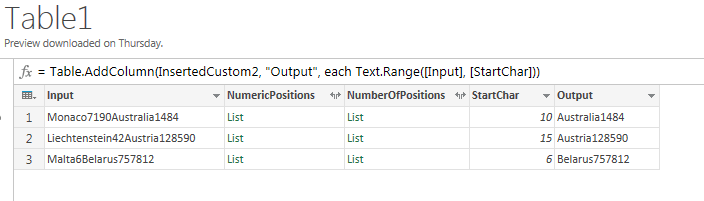
This gives the position of the first character in the second block of text, which can then be used to find a substring of the original text:

image

Here’s the complete code:

let

    Source = Excel.CurrentWorkbook(){[Name="Table1"]}[Content],

    InsertedCustom = Table.AddColumn(Source, "NumericPositions", 

    each Text.PositionOfAny([Input], {"0", "1", "2", "3", "4", "5", "6", "7", "8", "9"}, Occurrence.All)),

    InsertedCustom1 = Table.AddColumn(InsertedCustom, "NumberOfPositions", 

    each List.Numbers(List.Min([NumericPositions]), List.Count([NumericPositions]))),

    InsertedCustom2 = Table.AddColumn(InsertedCustom1, "StartChar", 

    each List.Min(List.Difference([NumberOfPositions], [NumericPositions]))),

    InsertedCustom3 = Table.AddColumn(InsertedCustom2, "Output", each Text.Range([Input], [StartChar]))

in

    InsertedCustom3


My first reaction when I saw M was that I liked it, but I didn’t think Excel users were prepared to learn yet another language. I still think this (it would have been much better if Power Query, like Power Pivot/DAX, used a language that was consistent with Excel formula language) but as you can see from these examples, sometimes having a choice of tools means it’s more likely that you can find an easy solution to a problem.

Flattening A Parent/Child Relationship In Data Explorer (Power Query)

NOTE: This post was written before Data Explorer was renamed as Power Query. All of the content is still relevant to Power Query.

I was teaching my SSAS cube design and performance tuning course this week (which I’ll be teaching in Sydney and Melbourne next month, along with some MDX – places still available!) and demonstrating BIDS Helper’s excellent functionality for flattening parent/child relationships, and it got me thinking – can I do the same thing in Data Explorer? Not that I need to do this in Data Explorer, you know, but it’s the kind of challenge I like to set myself. Of course you can do it, and quite elegantly, and since I learned yet more interesting stuff about Data Explorer and M while I was cracking this problem I thought I’d blog about it.

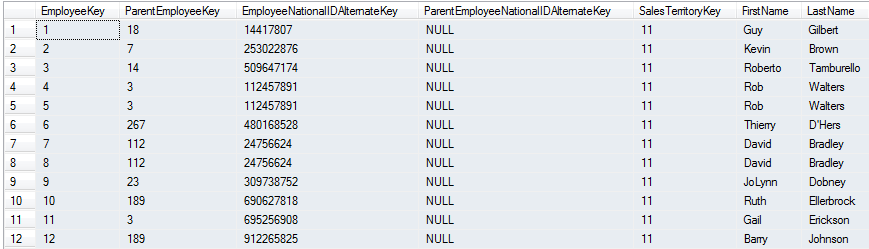
Here’s what I want to do. Consider the parent/child hierarchy in the DimEmployees table in the Adventure Works DW database:

image

Each row represents an employee, EmployeeKey is the primary key and ParentEmployeeKey is the key of the employee’s boss. Therefore, by joining the table to itself, we can recreate the org chart of the Adventure Works company (ie who reports to who). The problem though is that we need to join the table to itself multiple times to do this, and the number of times we need to do the join depends on the data itself. If you flatten a parent/child hierarchy by doing this, the end result should have a series of columns representing each level in the hierarchy, and look something like this:

image

This problem can be solved in SQL reasonably easily, even if the SQL you end up writing might look a little scary (see the views that BIDS Helper generates for an example of this). What about Data Explorer?

At the heart of my approach was a recursive function. I’ve blogged about creating functions in Data Explorer already, so you might want to read that post for some background. Here’s my function declaration:

let

    Source = (FromTable, KeyColumn, ParentKeyColumn, ToTable, optional Depth) =>

let

    GetDepth = if (Depth=null) then 1 else Depth,

    GetKeyColumn = if (Depth=null) then KeyColumn

        else Number.ToText(GetDepth-1) & "." & KeyColumn,

    GetParentKeyColumn = Number.ToText(GetDepth) & "." & ParentKeyColumn,

    JoinTables = Table.Join(FromTable,{GetKeyColumn},

        Table.PrefixColumns(ToTable , Number.ToText(GetDepth)),

            {GetParentKeyColumn}, JoinKind.LeftOuter),

    FinalResult = if

        List.MatchesAll(Table.Column(JoinTables, GetParentKeyColumn), each _=null)

        then FromTable

        else RecursiveJoin(JoinTables, KeyColumn, ParentKeyColumn, ToTable, GetDepth+1)

in

    FinalResult

in

    Source

A few interesting things to point out:

  • I’ve used a LET statement inside my function declaration, so I can have multiple statements inside it
  • I’ve used Table.Join to do the left outer join between the two tables I’m expecting
  • The parameters I’m using are:
    • FromTable – the table on the left hand side of the join. When the function is first called, this should be a table that contains the Employees who have no parents (ie where ParentEmployeeKey is null); when the function calls itself, this will be the result of the join.
    • ToTable – the table on the right hand side of the join. This is always a table that contains the Employees who do have parents.
    • KeyColumn – the name of the Employee’s key column
    • ParentKeyColumn – the name of the Employee’s parent key column
  • I’ve used Table.PrefixColumn to rename all the columns in the table on the right hand side of the join, prefixing them with the depth of the call stack, so I get distinct column names.
  • The function calls itself until it finds it has done a join where the last ParentKeyColumn contains only null values. I’ve used List.MatchesAll to check this.

Here’s the call to this function – you only need to include one step in the Data Explorer query to do this – to return the flattened structure:

= RecursiveJoin(

    Table.SelectRows(Employees, each [ParentEmployeeKey]=null),

    "EmployeeKey",

    "ParentEmployeeKey",

    Table.SelectRows(Employees, each [ParentEmployeeKey]<>null)

    )

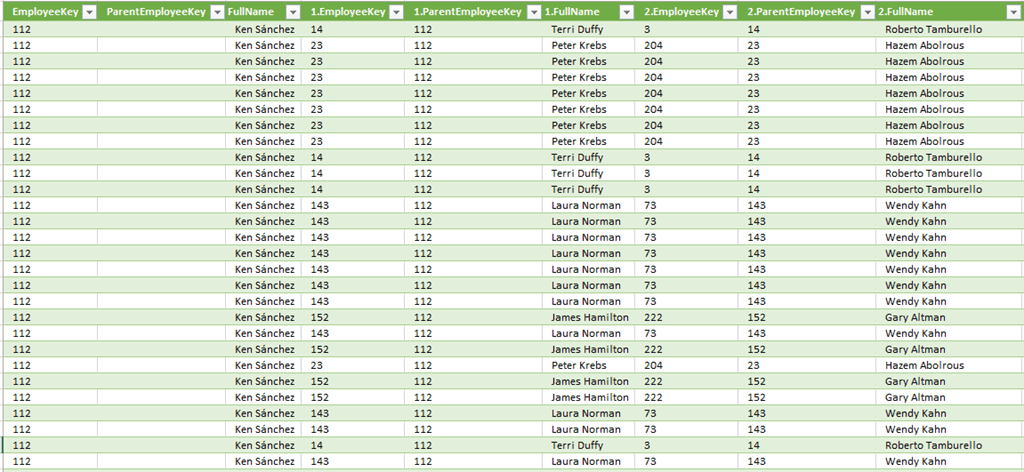
And here’s the output:

image

In this case the output isn’t exactly the same as what BIDS Helper might produce, because BIDS Helper has some special requirements for SSAS user hierarchies. Also, since I’m still learning Data Explorer and M, I’m not sure my code in the most efficient, elegant way. But I still think it’s an interesting example and I hope it’s useful to other Data Explorer enthusiasts out there – we’re a small but growing band!

You can download my demo workbook here.